> ## Documentation Index
> Fetch the complete documentation index at: https://docs.tenderly.co/llms.txt
> Use this file to discover all available pages before exploring further.
# Verify Contracts via Dashboard
> Learn how to verify smart contracts publicly and privately in the browser through the Tenderly Dashboard.
**Works on:** public networks (mainnets and testnets). To verify a contract on a Virtual Environment, see [Deploy and verify contracts](/virtual-environments/develop/deploy-contracts).
Verify smart contracts from your browser in the Tenderly Dashboard. This is the fastest path when you're not using Hardhat or Foundry; if you are, the [Hardhat](/contract-verification/hardhat) or [Foundry](/contract-verification/foundry) workflows automate this.
## Prerequisites
To verify a contract, you need to provide:
* **The source code**
* **The exact compiler settings** used to compile the deployed version
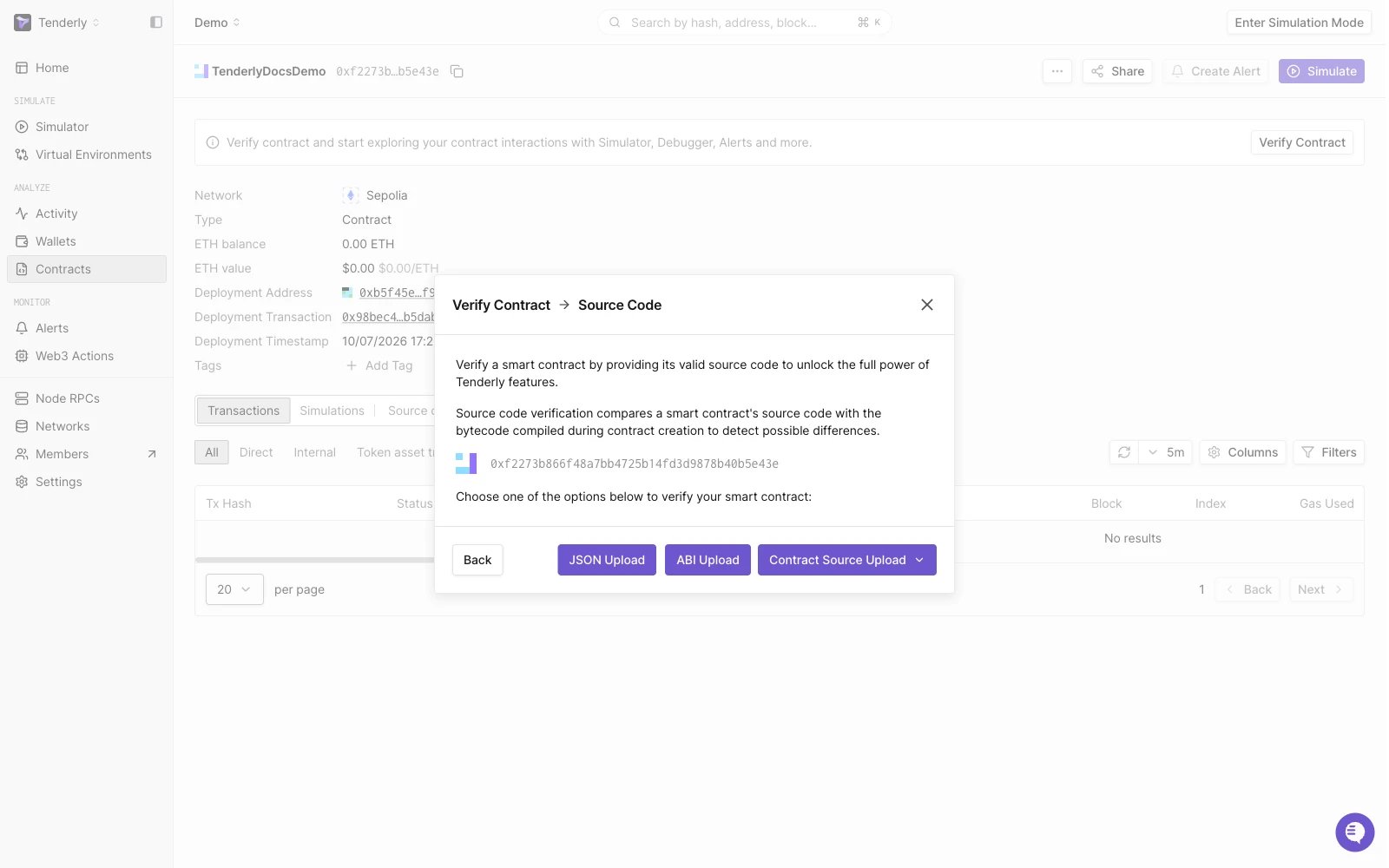
You can upload the source code in several ways through the Dashboard:
* **JSON Upload**: paste the JSON metadata generated by the Solidity compiler.
* **ABI Upload**: paste the contract ABI.
* **Contract Source Upload**: paste source code directly, upload a single source file, or upload an entire project directory. The directory option works best for contracts that import other contracts.
## Public and private verification
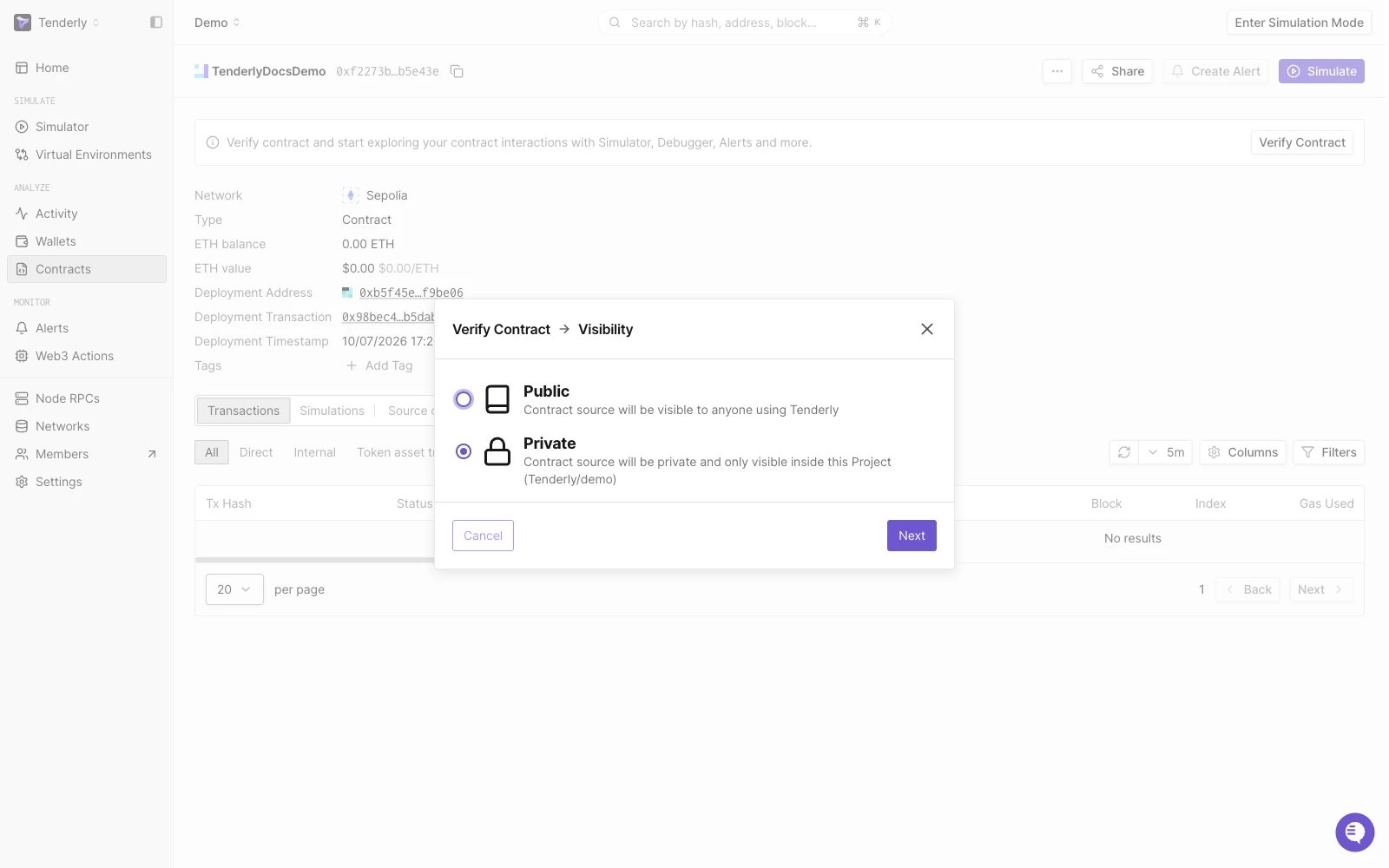
When verifying a contract, you choose between two visibility modes:
* **Public**: the contract source is visible to anyone using Tenderly.
* **Private**: the contract source is only visible inside the project you verified it in.
The **Verification** column on the Contracts list shows a contract's current status: `Unverified`, `Public`, or `Private`.
## Dashboard contract verification guide
After you've [added an unverified contract](/developer-explorer/contracts) to a Tenderly project, here are the steps to verify it using the Dashboard.
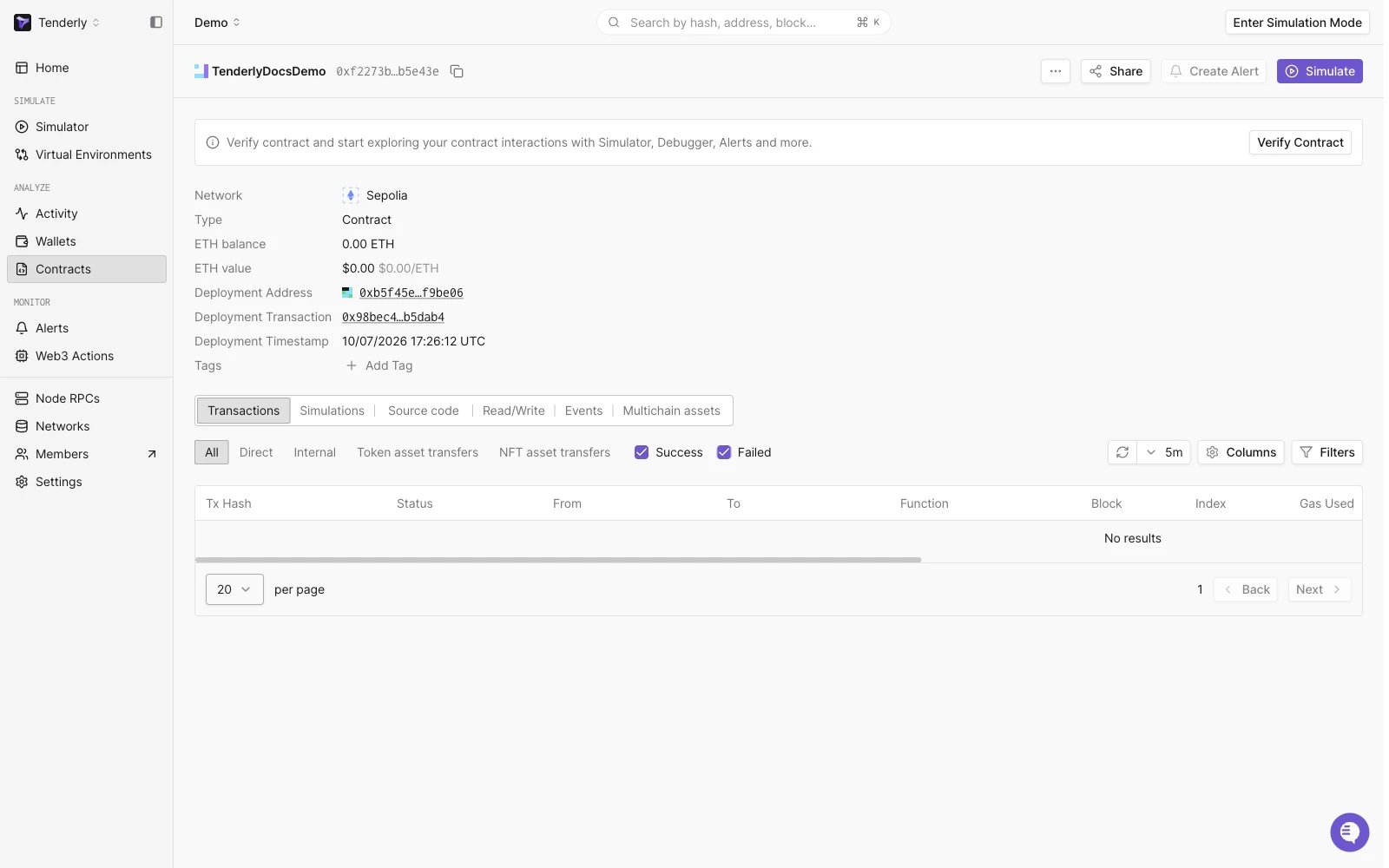
Open the contract's page. An unverified contract shows a banner with a **Verify Contract** button.
 Select **Public** or **Private**. Private is selected by default, and scopes the verified source to the current project.
 Pick one of:
* **JSON Upload**
* **ABI Upload**
* **Contract Source Upload**, which opens a submenu: **Paste Source Code**, **Upload Source File**, or **Upload Project Directory**.
Pick one of:
* **JSON Upload**
* **ABI Upload**
* **Contract Source Upload**, which opens a submenu: **Paste Source Code**, **Upload Source File**, or **Upload Project Directory**.
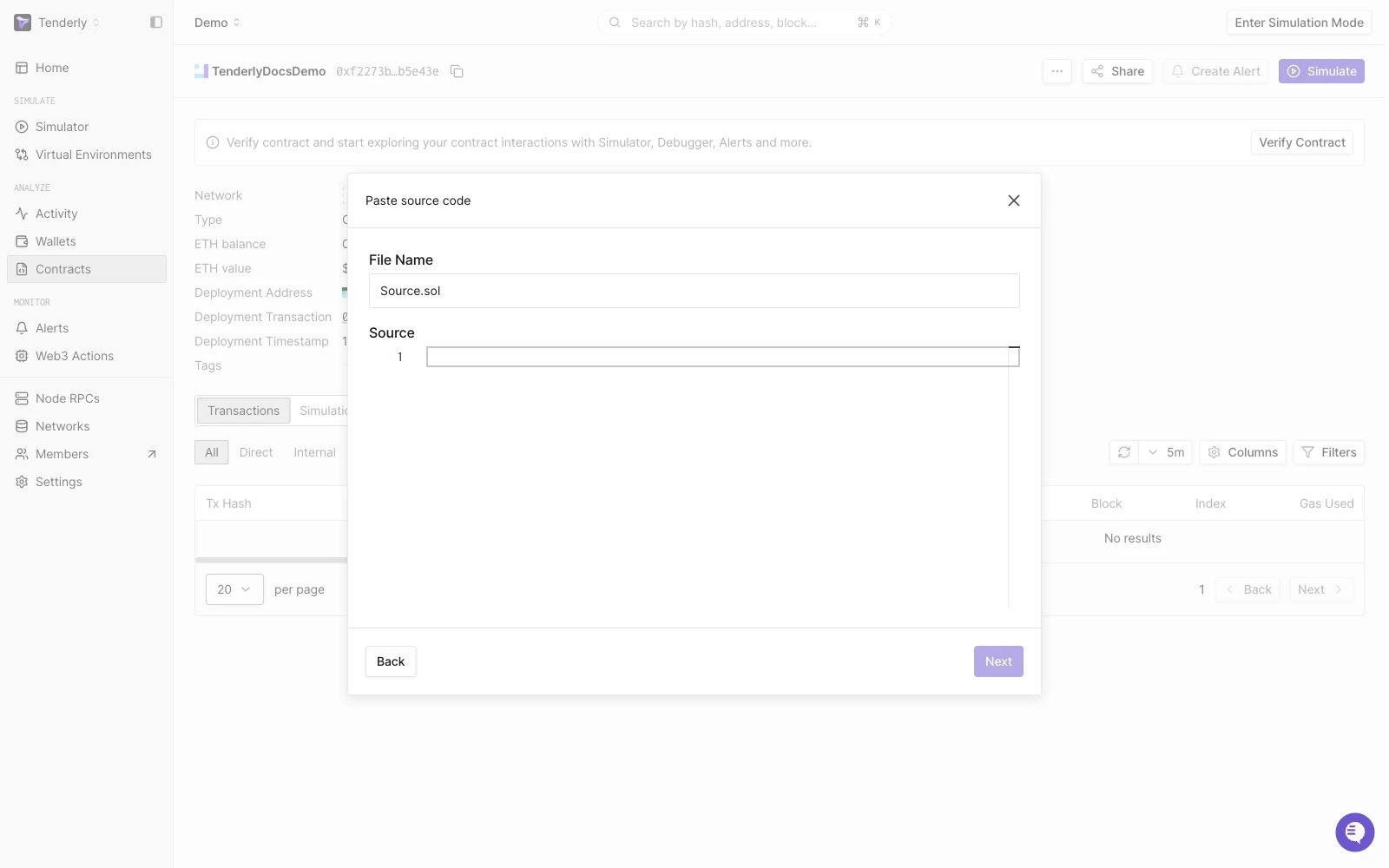
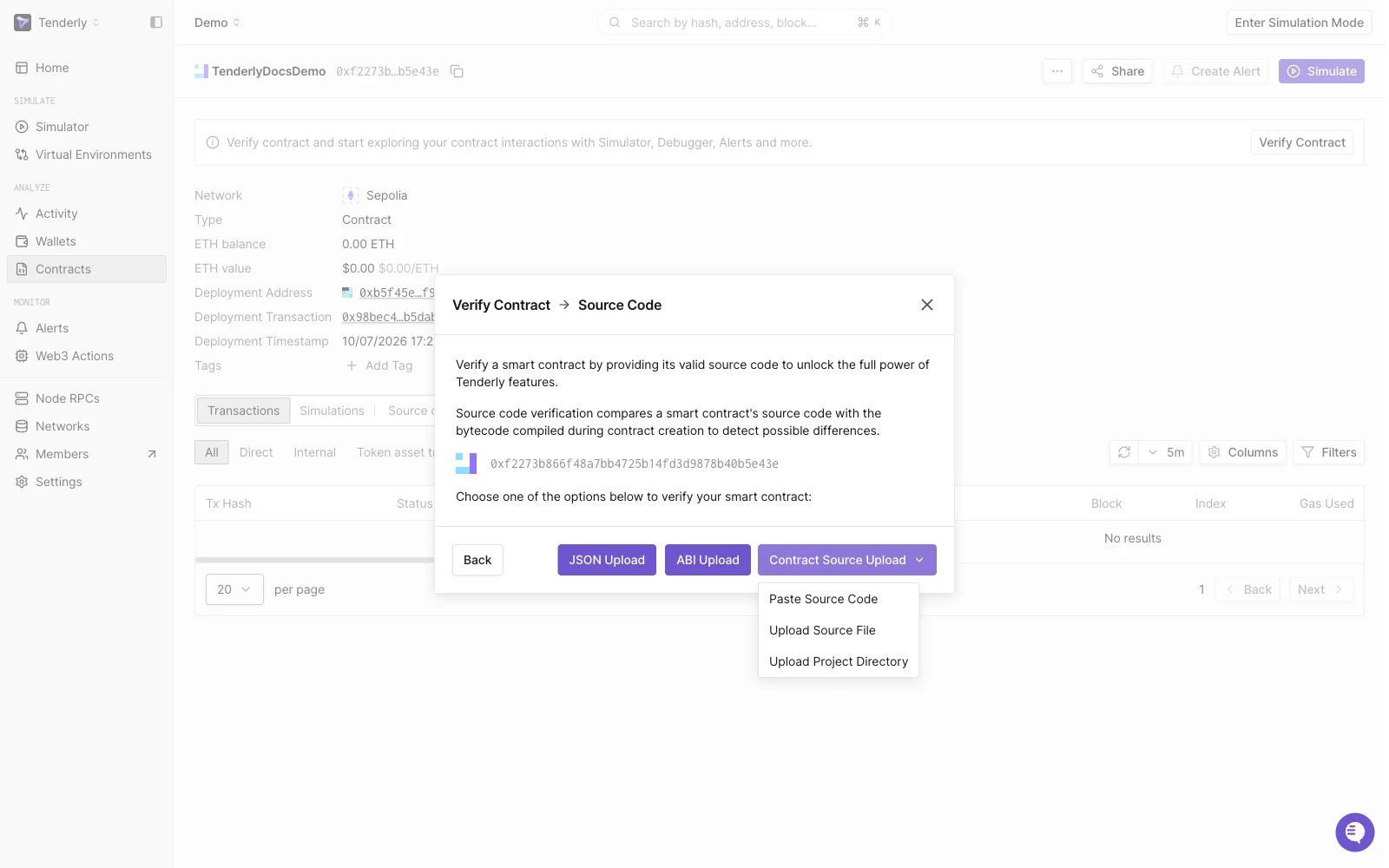 If you paste source directly, give the file a name and paste the contract source into the editor.
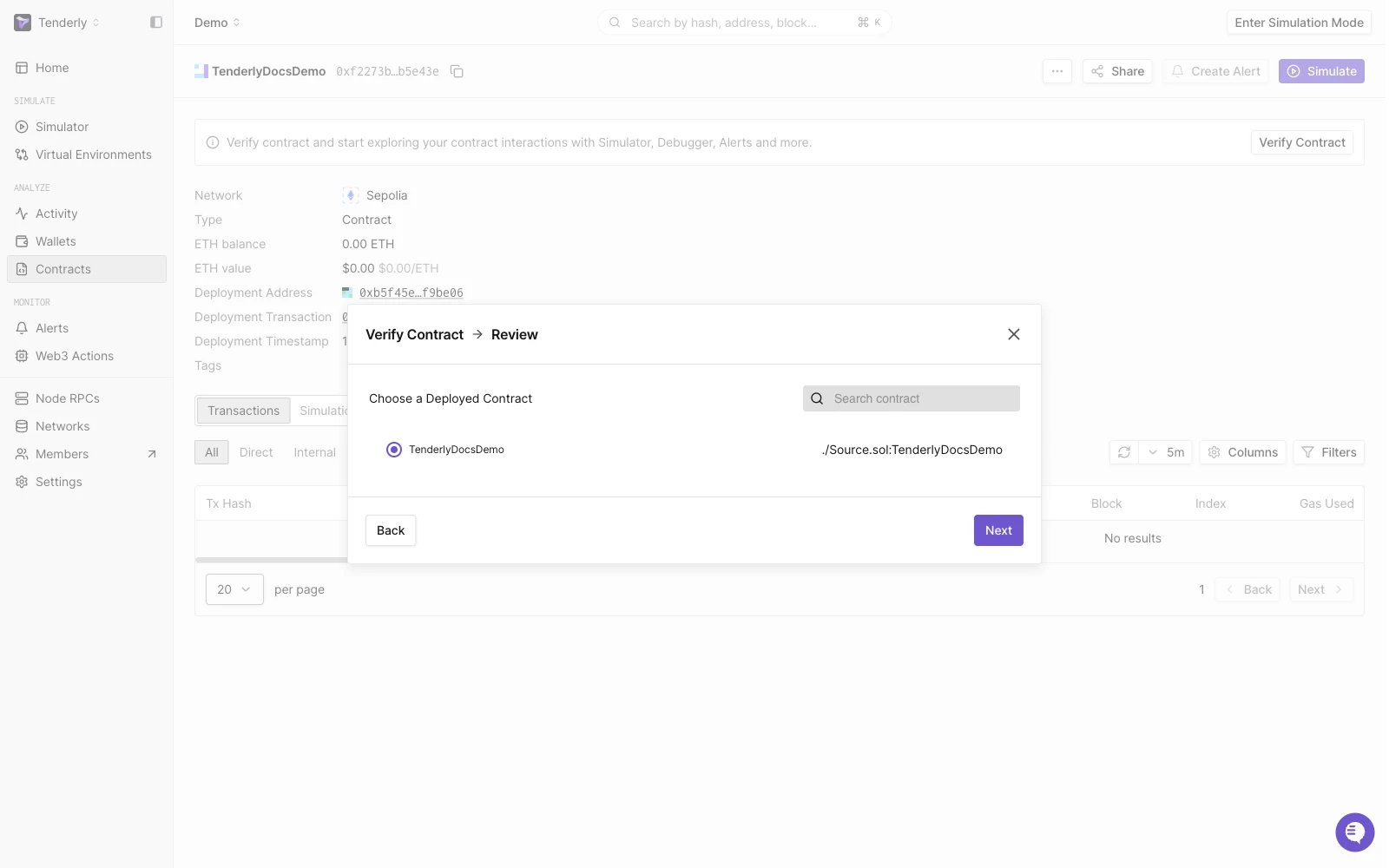
 If the upload contains several contracts, pick the one matching the address shown in the previous step. If any imports are missing, the Dashboard prompts you to add them before continuing.
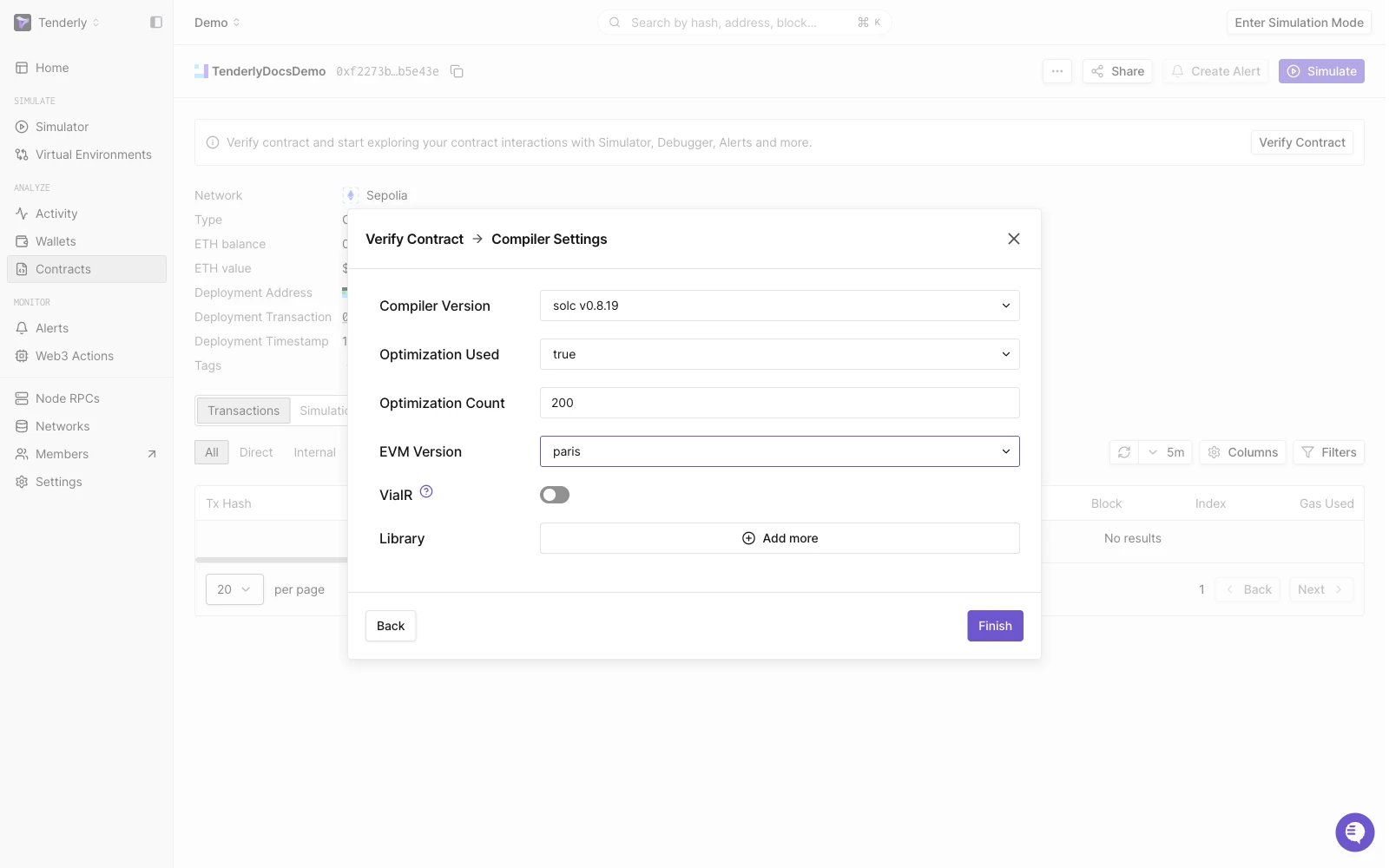
 Fill in the compiler version, optimizer settings (enabled / runs), EVM version, ViaIR, and library address pairs if your contract uses linked libraries. Any mismatch with the deployed bytecode will fail verification.
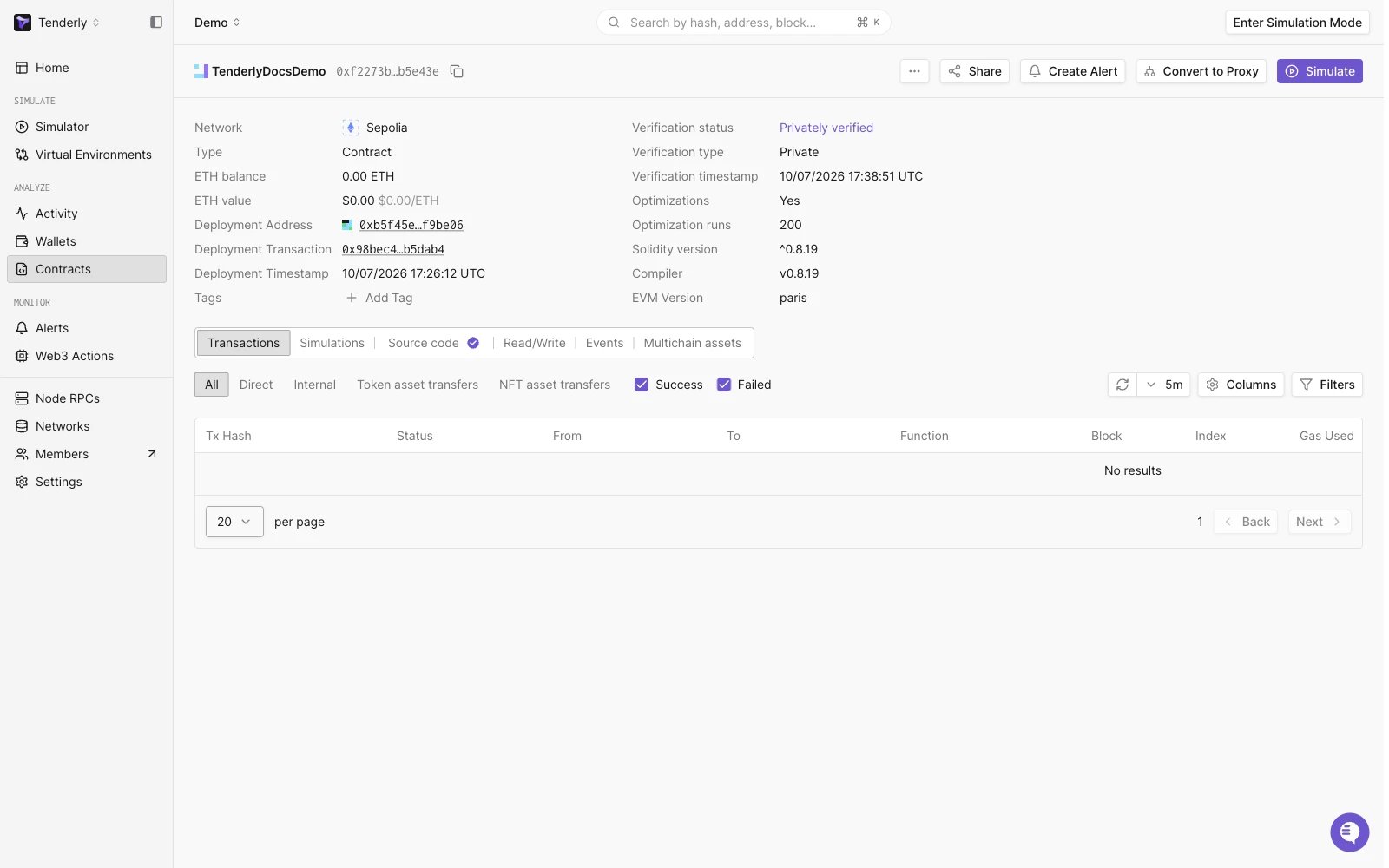
 Click **Finish** to submit. The contract's verification status and info panel update immediately.
 ## How to verify smart contracts in bulk
If you have several unverified contracts in your project, click **Verify All Contracts** on the Contracts list. This opens the **Verify multiple contracts** dialog, listing every unverified contract with a **Make Private** toggle and an **Add source** button per row.
## How to verify smart contracts in bulk
If you have several unverified contracts in your project, click **Verify All Contracts** on the Contracts list. This opens the **Verify multiple contracts** dialog, listing every unverified contract with a **Make Private** toggle and an **Add source** button per row.
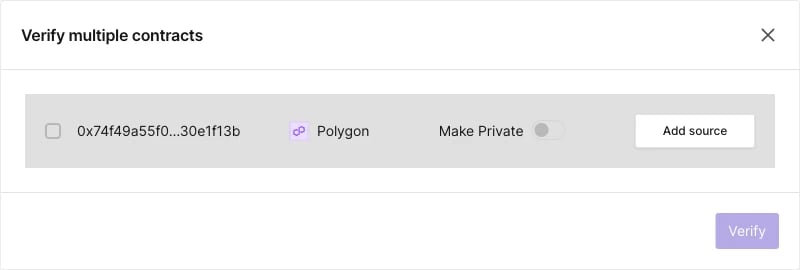 Click **Add source** next to each contract and supply the upload, compiler settings, and visibility as in the [single-contract flow](#dashboard-contract-verification-guide) above. The bottom **Verify** button stays disabled until every row has a source, then submits all of them at once.