> ## Documentation Index
> Fetch the complete documentation index at: https://docs.tenderly.co/llms.txt
> Use this file to discover all available pages before exploring further.
# Gas Profiler
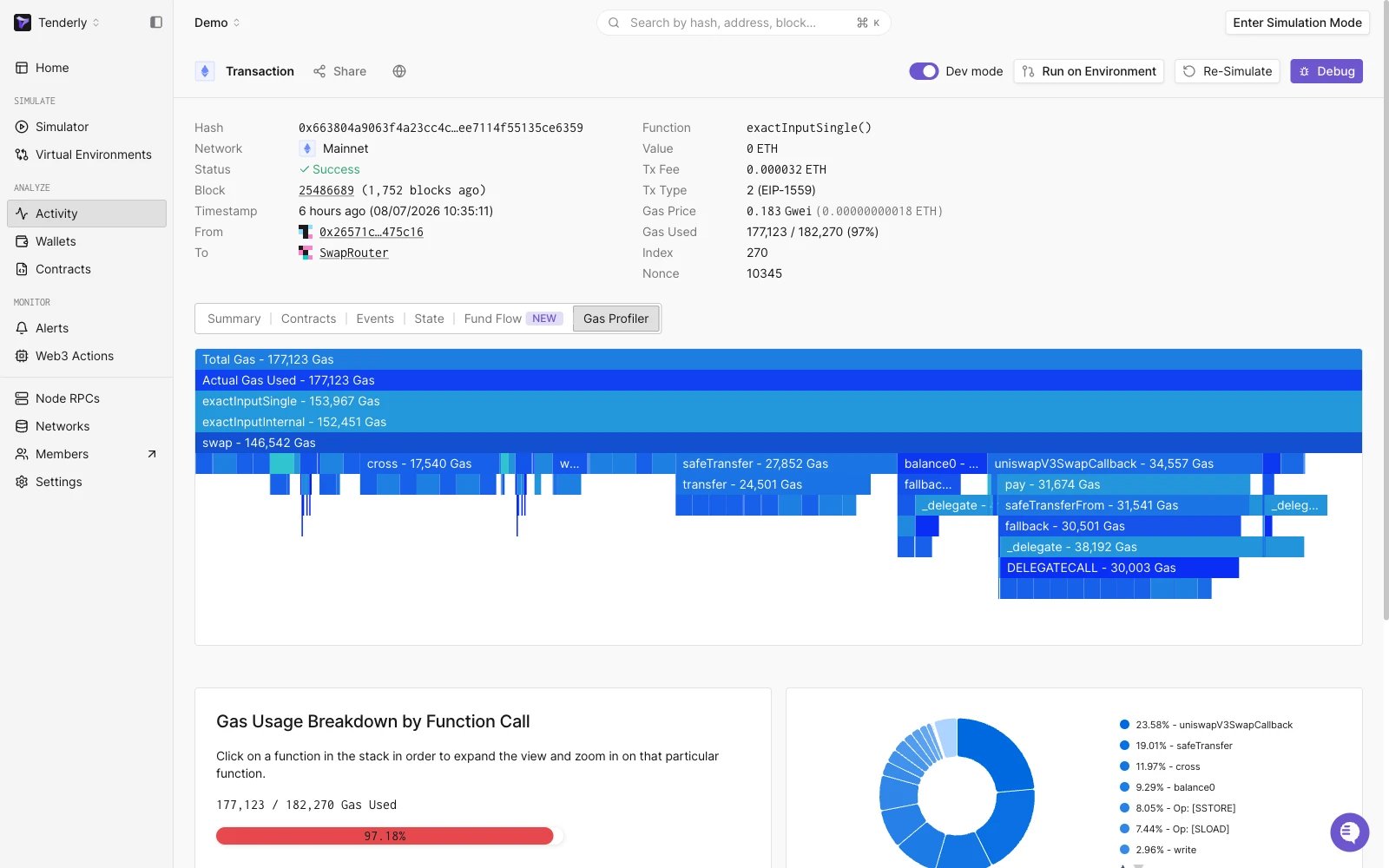
> Break down gas consumption per function with an interactive flame chart, spot the most expensive calls, and optimize gas usage in Debugger.
Gas Profiler gives you a breakdown of gas consumption, revealing how each function within a contract uses gas during execution. When combined with Debugger and Simulator, Gas Profiler makes up the core of the Developer Explorer.
 ## Getting started with Gas Profiler
1. Open any transaction from the transaction listing page. Try this [example transaction](https://dashboard.tenderly.co/tx/1/0x1696cfc031695003b8a58f0379c7f111b34c7612a67681354dc57cb5853c5c63/gas-usage).
2. Navigate to **Gas Profiler** in the top menu to access an interactive flame chart with detailed gas usage breakdowns for each called function, including internal transactions.
3. Click on any function to reveal a detailed view of its gas usage.
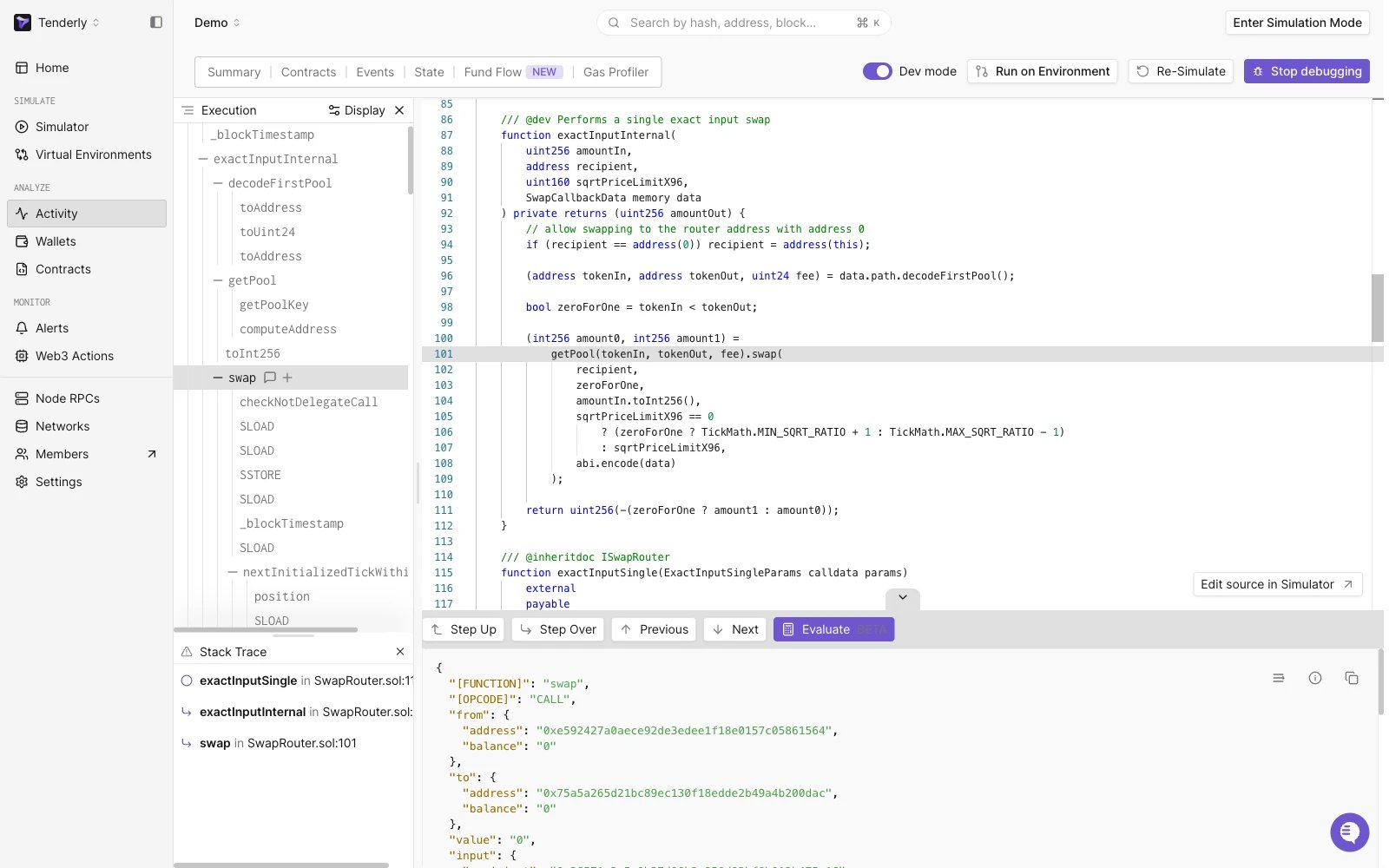
4. For deeper insights, [open the transaction in Debugger](/debugger/overview) to pinpoint the exact line of code in the Solidity file responsible for execution.
## Getting started with Gas Profiler
1. Open any transaction from the transaction listing page. Try this [example transaction](https://dashboard.tenderly.co/tx/1/0x1696cfc031695003b8a58f0379c7f111b34c7612a67681354dc57cb5853c5c63/gas-usage).
2. Navigate to **Gas Profiler** in the top menu to access an interactive flame chart with detailed gas usage breakdowns for each called function, including internal transactions.
3. Click on any function to reveal a detailed view of its gas usage.
4. For deeper insights, [open the transaction in Debugger](/debugger/overview) to pinpoint the exact line of code in the Solidity file responsible for execution.
 ### Optimizing gas usage
1. Clicking on a function call in the flame chart displays detailed gas usage information in the lower pane.
2. If you suspect a function requires gas optimization, click the **View in Debugger** button to dive into the code and optimize it to reduce gas usage.
3. To verify that the changes help reduce gas usage, you can simulate the same transaction with the changed code and compare the gas profiling result.
#### Total gas vs actual gas
**Total Gas** represents the overall gas cost of execution, encompassing the sum of gas costs associated with all invoked opcodes.
**Actual Gas** denotes the net gas cost of the execution. When multiplied by the `gas_price`, it provides the exact amount you would pay for this execution in wei.
The formula for calculating Actual Gas: `actual_gas_used = total_gas - gas_refund`.
Blockchain users receive rewards for clearing up storage, manifested in the form of [gas refunds](https://github.com/wolflo/evm-opcodes/blob/main/gas.md#a0-3-gas-refunds) for `SSTORE` invocations that effectively "delete" existing stored data. These gas refunds are subtracted from the Total Gas, resulting in the Actual Gas used.
### Optimizing gas usage
1. Clicking on a function call in the flame chart displays detailed gas usage information in the lower pane.
2. If you suspect a function requires gas optimization, click the **View in Debugger** button to dive into the code and optimize it to reduce gas usage.
3. To verify that the changes help reduce gas usage, you can simulate the same transaction with the changed code and compare the gas profiling result.
#### Total gas vs actual gas
**Total Gas** represents the overall gas cost of execution, encompassing the sum of gas costs associated with all invoked opcodes.
**Actual Gas** denotes the net gas cost of the execution. When multiplied by the `gas_price`, it provides the exact amount you would pay for this execution in wei.
The formula for calculating Actual Gas: `actual_gas_used = total_gas - gas_refund`.
Blockchain users receive rewards for clearing up storage, manifested in the form of [gas refunds](https://github.com/wolflo/evm-opcodes/blob/main/gas.md#a0-3-gas-refunds) for `SSTORE` invocations that effectively "delete" existing stored data. These gas refunds are subtracted from the Total Gas, resulting in the Actual Gas used.