> ## Documentation Index
> Fetch the complete documentation index at: https://docs.tenderly.co/llms.txt
> Use this file to discover all available pages before exploring further.
# Smart Contracts
> Add smart contracts to a Tenderly project to track all direct and internal transactions, run simulations, and set up alerts.
Learn how to add a smart contract to a project and keep track of its transactions in the Dashboard. When you add a contract, you'll see a list of all historical transactions (direct and internal) linked to that contract.
 ## How to add a contract to a project
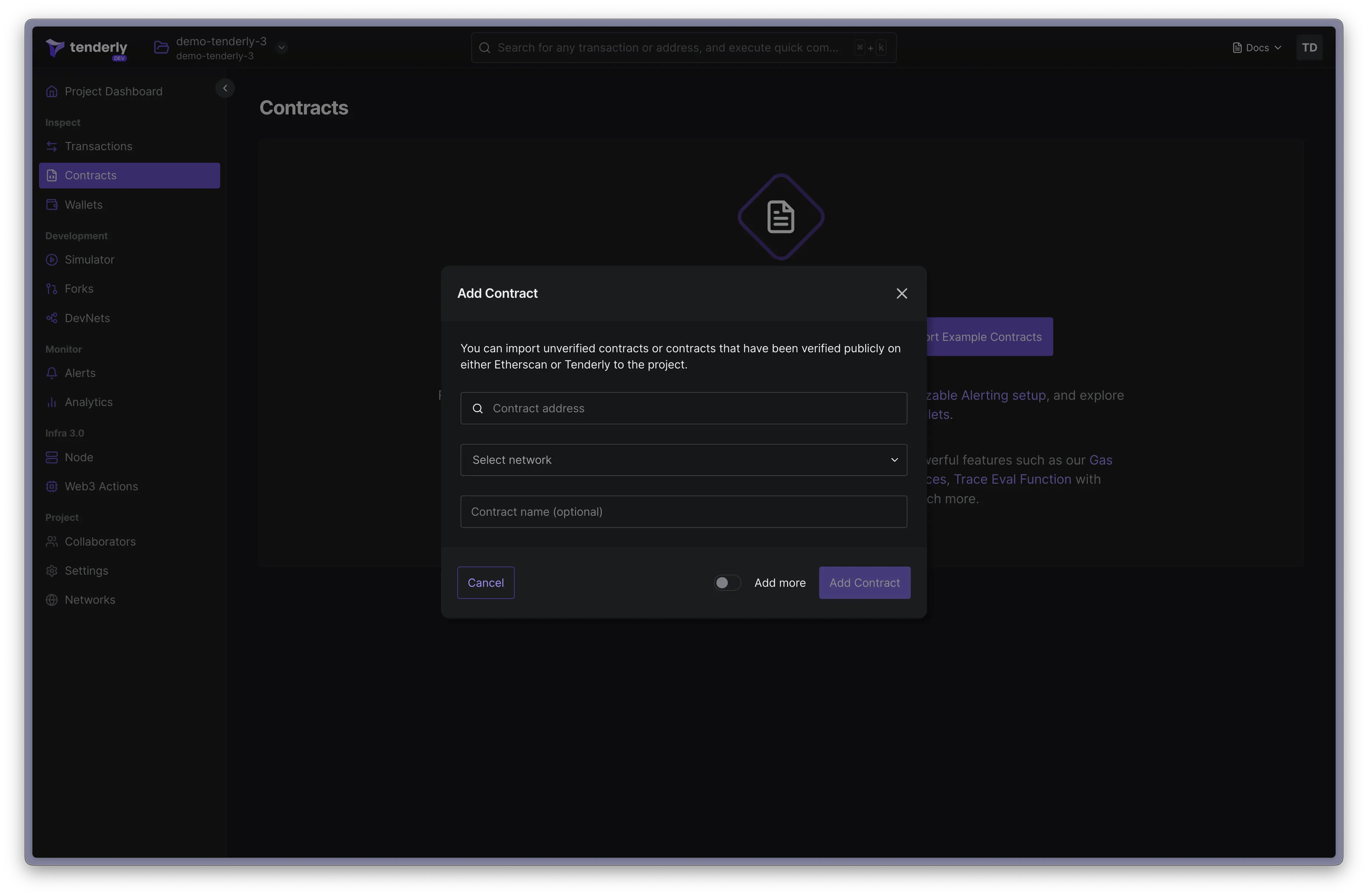
1. Navigate to **Contracts** in the side menu.
2. Click **Add Contract**.
3. Enter the contract address, select its deployment network, assign a name, and click **Add Contract**.
## How to add a contract to a project
1. Navigate to **Contracts** in the side menu.
2. Click **Add Contract**.
3. Enter the contract address, select its deployment network, assign a name, and click **Add Contract**.
 Try adding one of these contracts to your project to get started. Open the contract in Tenderly, click the **Add to Project** button and add it to an existing project. Learn [how to create projects in Tenderly here](/platform/account/projects/overview).
* [Uniswap Router](https://www.tdly.co/contract/1/0x1cf9cbe70a84137c696f98587a9b06f7fa2b71b4): `0x1cf9cbe70a84137c696f98587a9b06f7fa2b71b4`
* [veCurveVault proxy](https://www.tdly.co/contract/1/0xc5bddf9843308380375a611c18b50fb9341f502a): `0xc5bddf9843308380375a611c18b50fb9341f502a`
## Adding verified contracts from any network
The Dashboard's search functionality allows you to locate any verified contract deployed on any of the [102 supported networks](/platform/supported-networks).
Try adding one of these contracts to your project to get started. Open the contract in Tenderly, click the **Add to Project** button and add it to an existing project. Learn [how to create projects in Tenderly here](/platform/account/projects/overview).
* [Uniswap Router](https://www.tdly.co/contract/1/0x1cf9cbe70a84137c696f98587a9b06f7fa2b71b4): `0x1cf9cbe70a84137c696f98587a9b06f7fa2b71b4`
* [veCurveVault proxy](https://www.tdly.co/contract/1/0xc5bddf9843308380375a611c18b50fb9341f502a): `0xc5bddf9843308380375a611c18b50fb9341f502a`
## Adding verified contracts from any network
The Dashboard's search functionality allows you to locate any verified contract deployed on any of the [102 supported networks](/platform/supported-networks).
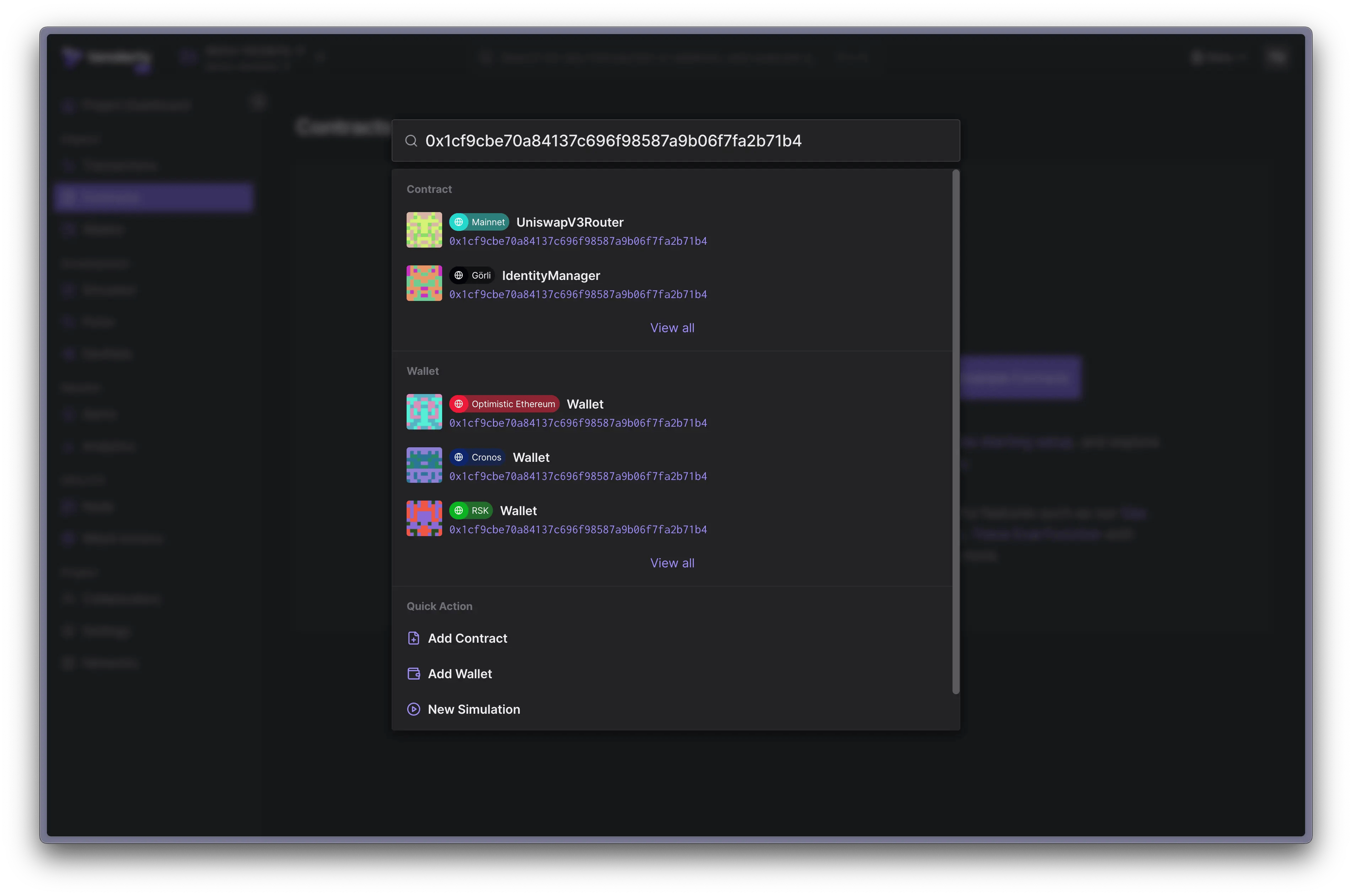 1. Paste the contract's address or name in the top menu search bar.
2. Select the contract from the search results.
To add the contract to a project, click **Add to Project** and choose your target project.
## Inspecting contract details
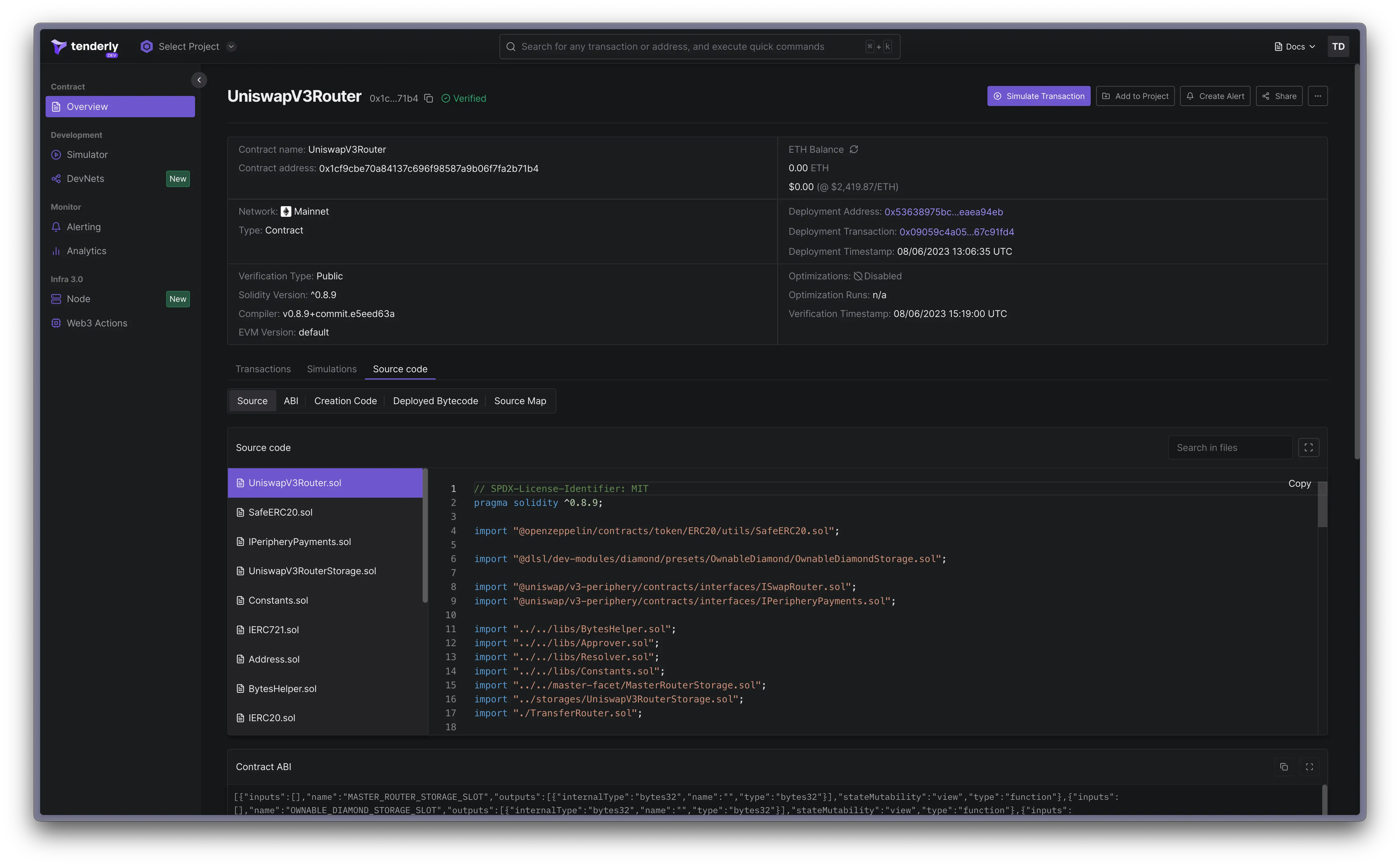
From the **Contracts** page, click on a contract to view its details such as:
* Source code, ABI, bytecode, creation code, and source map
* Transaction history and filtering options
* Simulated transaction history
1. Paste the contract's address or name in the top menu search bar.
2. Select the contract from the search results.
To add the contract to a project, click **Add to Project** and choose your target project.
## Inspecting contract details
From the **Contracts** page, click on a contract to view its details such as:
* Source code, ABI, bytecode, creation code, and source map
* Transaction history and filtering options
* Simulated transaction history
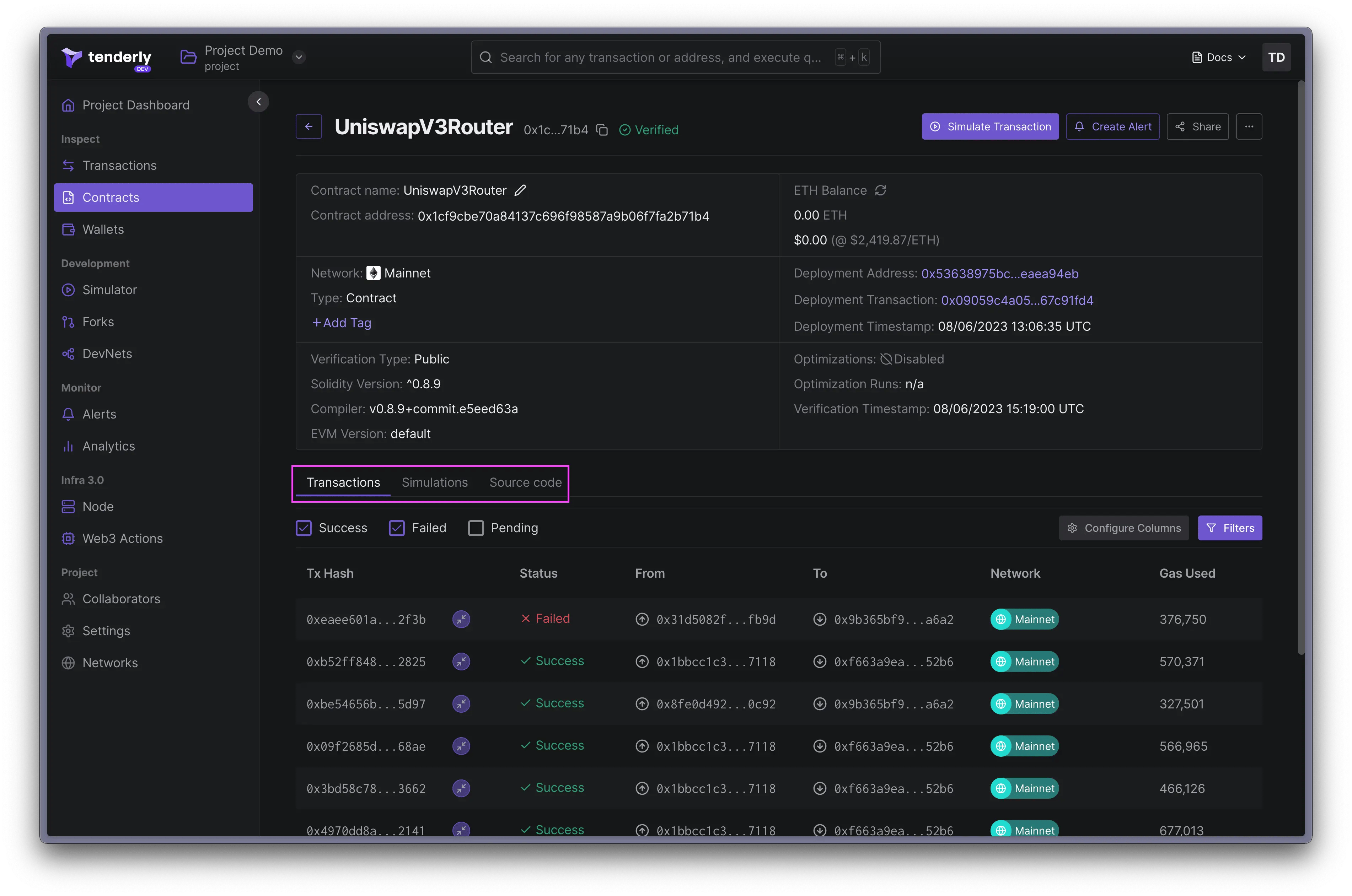 You can also simulate any of the contract's transactions with modified parameters. Click on the **Simulate Transaction** button to simulate a transaction. Check out this guide to learn how to simulate transactions:
## Adding tags to contracts
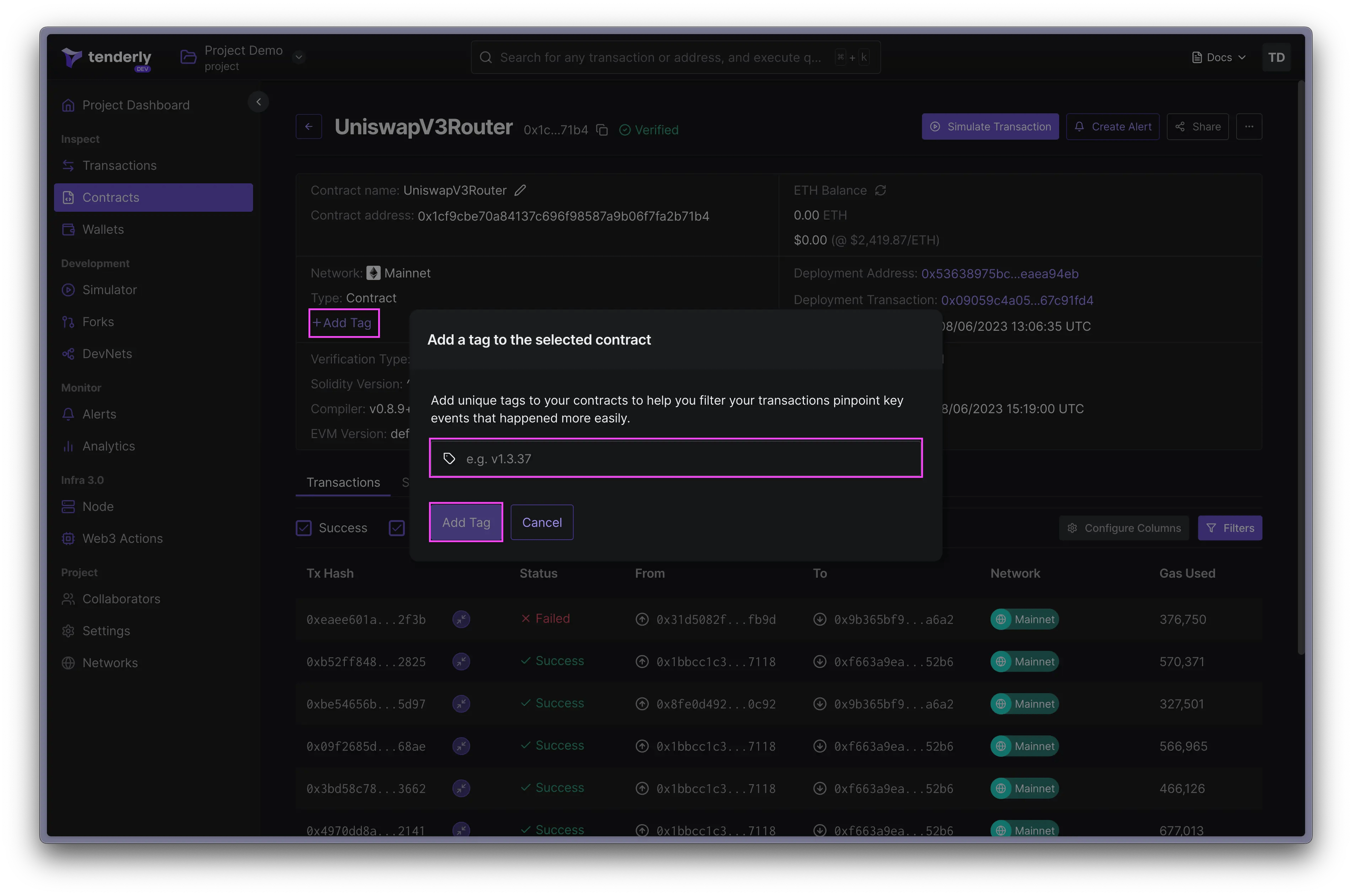
When working with multiple contracts, you need a way to keep them organized. This is where tags come in handy. You can add a tag to a contract by clicking the **Add Tag** link.
Tags also enable you to monitor multiple contracts or wallets grouped under a single tag using Alerts.
You can also simulate any of the contract's transactions with modified parameters. Click on the **Simulate Transaction** button to simulate a transaction. Check out this guide to learn how to simulate transactions:
## Adding tags to contracts
When working with multiple contracts, you need a way to keep them organized. This is where tags come in handy. You can add a tag to a contract by clicking the **Add Tag** link.
Tags also enable you to monitor multiple contracts or wallets grouped under a single tag using Alerts.
 ## Monitoring contracts with Alerts
You can set up Alerts to monitor activity on your contracts in real time. To create an Alert, click the **Create Alert** button from the contract overview page.
## Monitoring contracts with Alerts
You can set up Alerts to monitor activity on your contracts in real time. To create an Alert, click the **Create Alert** button from the contract overview page.
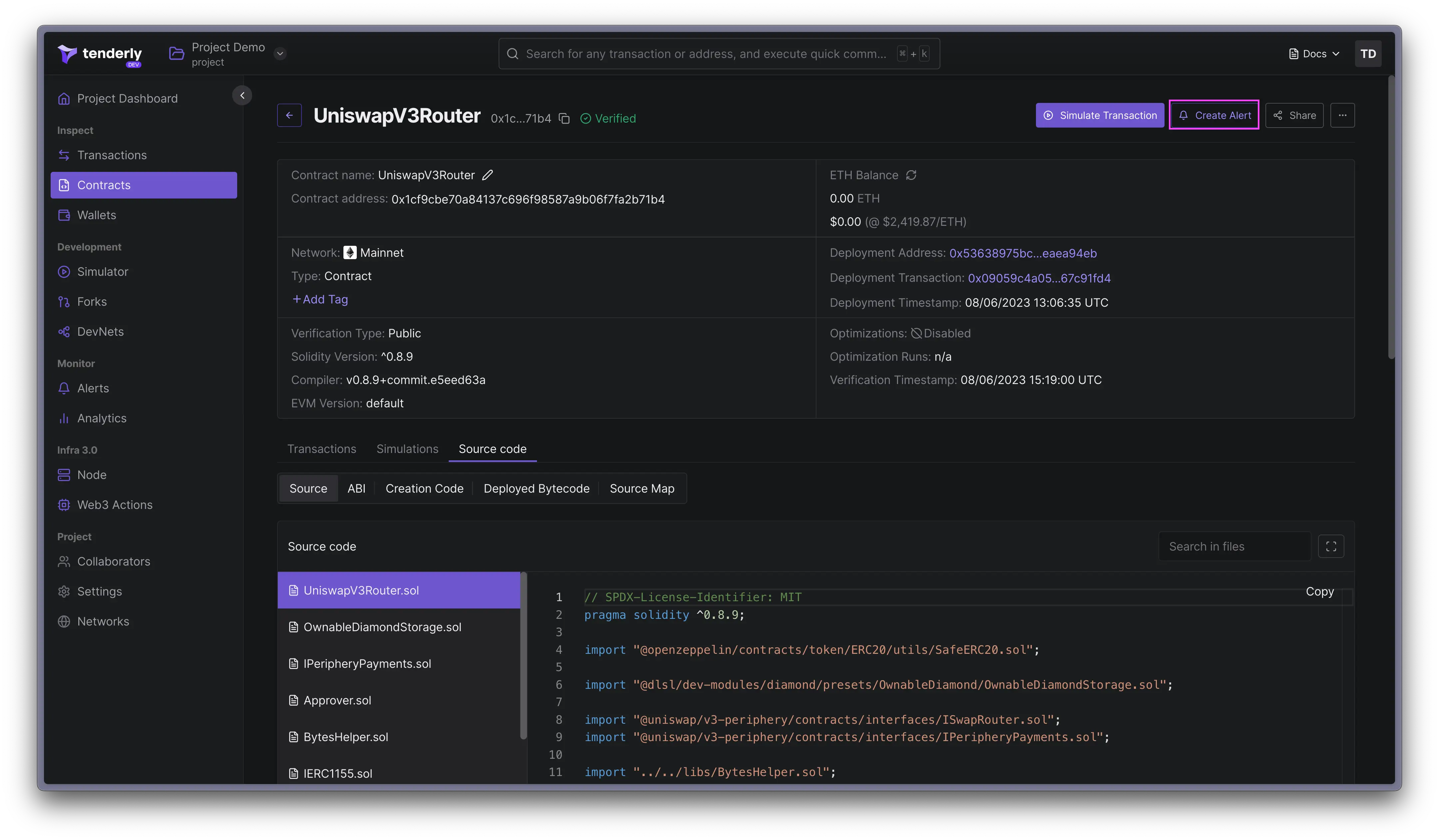 With Alerts, you can monitor various events such as failed or successful transactions, function calls, emitted events, blocked callers, and more.
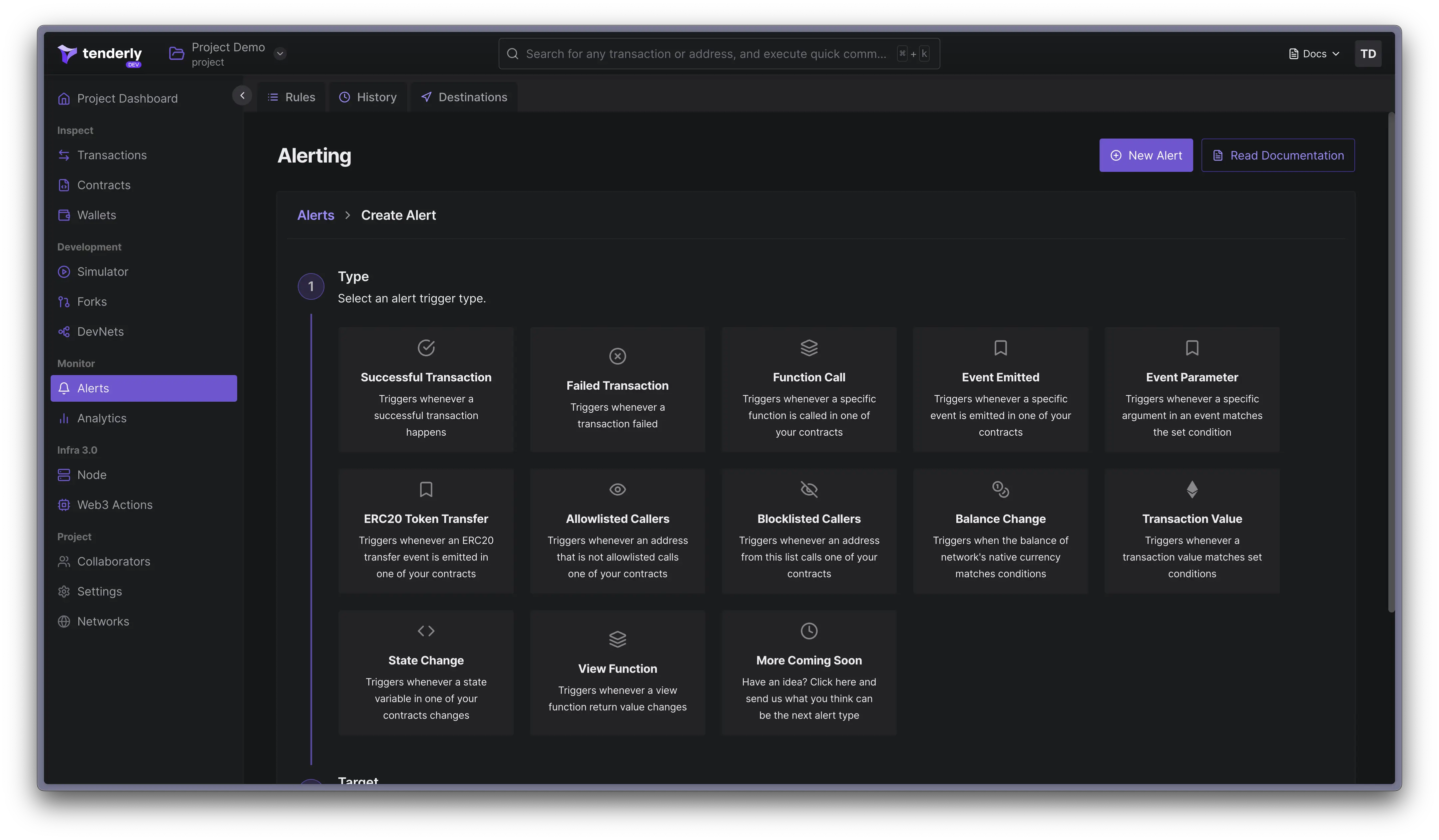 You can choose between 12+ trigger types, and receive notifications in places like Slack, and Telegram, or send the data to [Sentry](/monitoring/alerts/destinations/account-scoped#sentry-destination) and [PagerDuty](/monitoring/alerts/destinations/account-scoped#pagerduty-destination).
## Proxy contracts
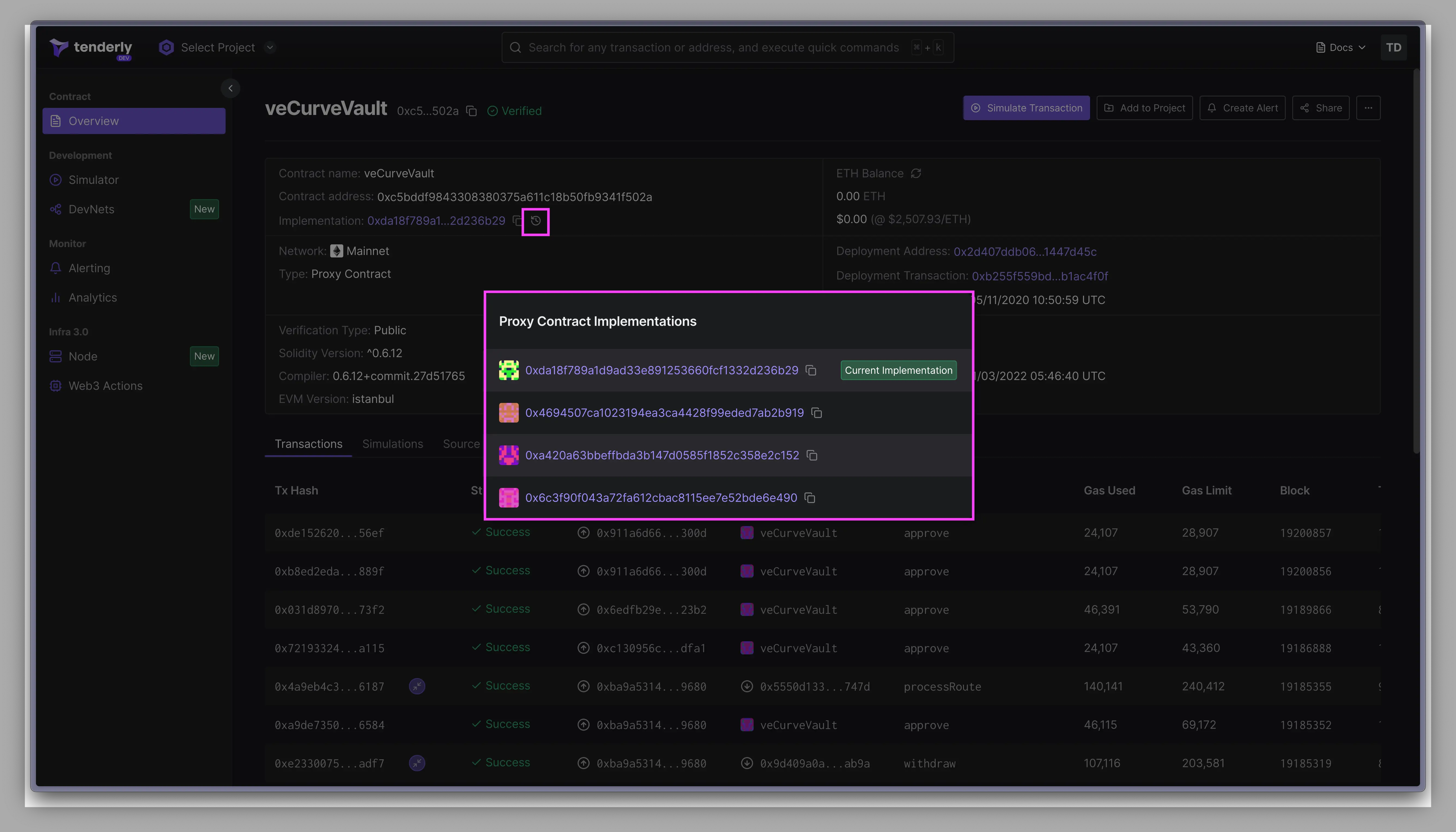
Tenderly detects [EIP-1967](https://eips.ethereum.org/EIPS/eip-1967) and [EIP-1167](https://eips.ethereum.org/EIPS/eip-1167) proxies automatically. When the contract's implementation changes, Tenderly picks this up automatically and displays the version history in the Dashboard.
To access the implementation history, click on the **clock icon**.
You can choose between 12+ trigger types, and receive notifications in places like Slack, and Telegram, or send the data to [Sentry](/monitoring/alerts/destinations/account-scoped#sentry-destination) and [PagerDuty](/monitoring/alerts/destinations/account-scoped#pagerduty-destination).
## Proxy contracts
Tenderly detects [EIP-1967](https://eips.ethereum.org/EIPS/eip-1967) and [EIP-1167](https://eips.ethereum.org/EIPS/eip-1167) proxies automatically. When the contract's implementation changes, Tenderly picks this up automatically and displays the version history in the Dashboard.
To access the implementation history, click on the **clock icon**.
 ### Non-standard proxy implementations
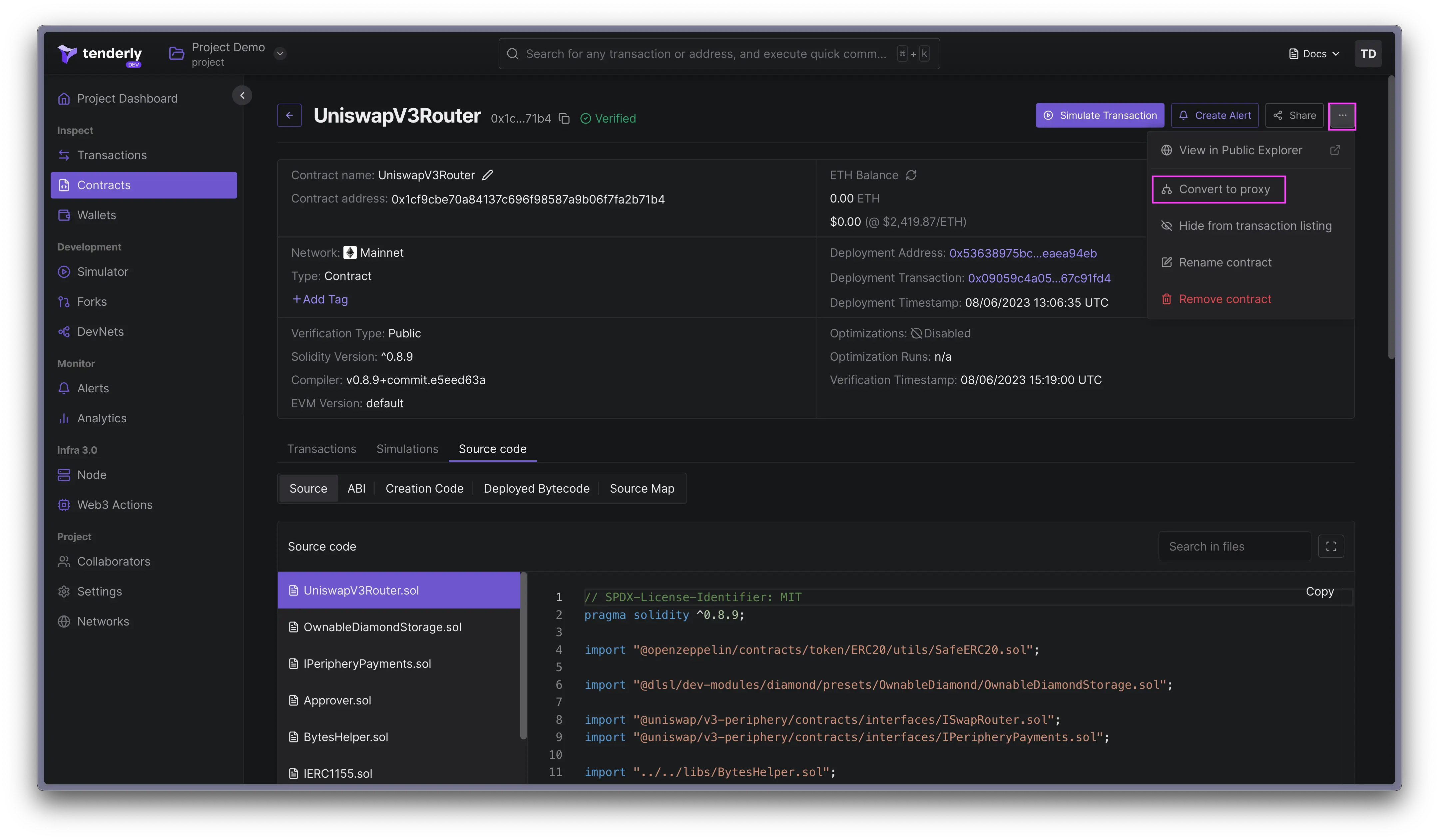
For non-standard solutions, you'll need to manually convert the contract to a proxy.
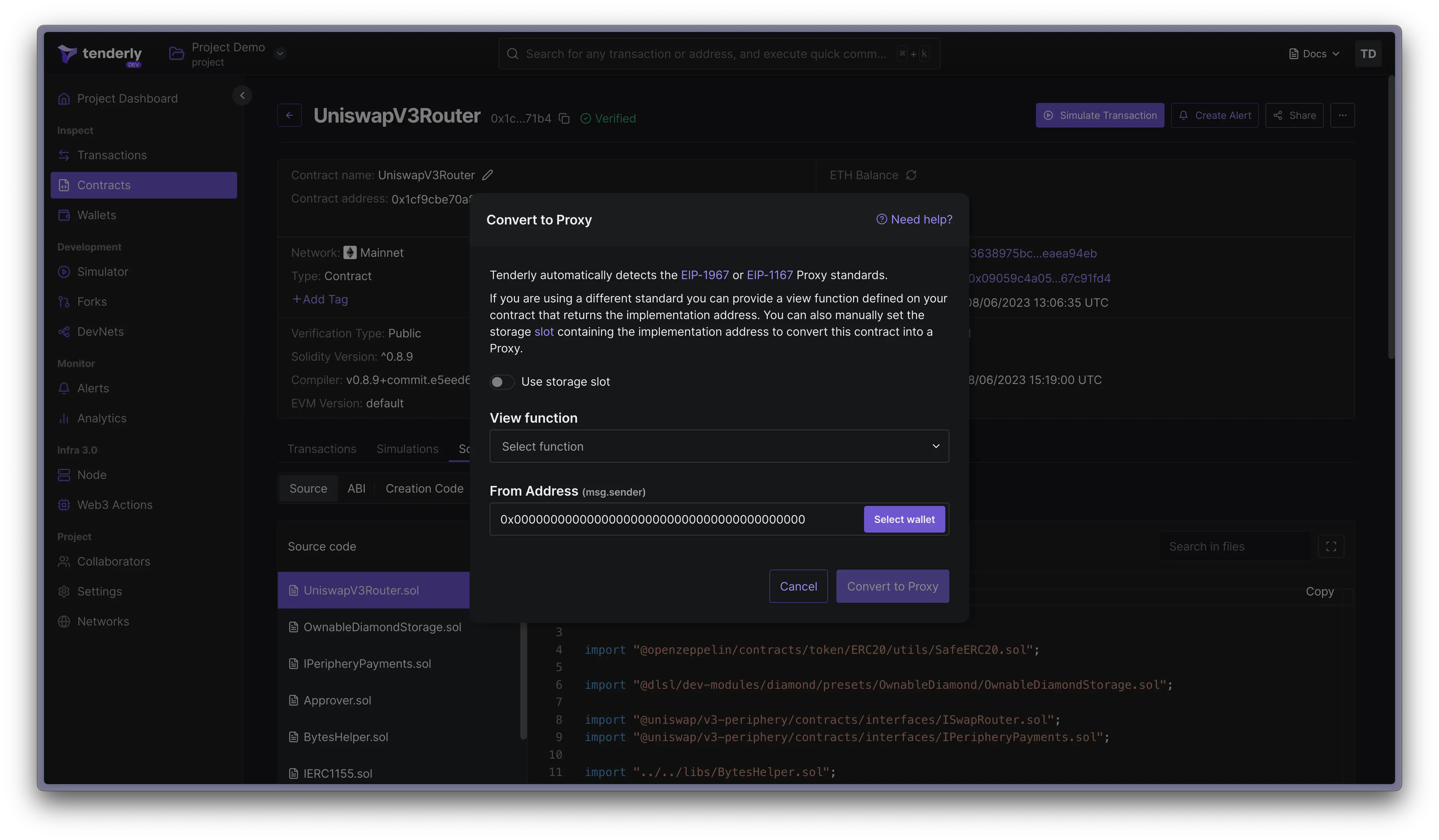
First, click on the **three-dot icon** on the top right of the contract's page and select **Convert to Proxy**
### Non-standard proxy implementations
For non-standard solutions, you'll need to manually convert the contract to a proxy.
First, click on the **three-dot icon** on the top right of the contract's page and select **Convert to Proxy**
 **Set the storage slot** containing the implementation address, or **pick a view function** that returns the implementation address.