> ## Documentation Index
> Fetch the complete documentation index at: https://docs.tenderly.co/llms.txt
> Use this file to discover all available pages before exploring further.
# Wallets
> Add wallets to a Tenderly project, inspect their balances and transactions, and filter activity by tag.
Learn how to add a wallet to your project and keep track of its transactions in the Dashboard. When you add a wallet to a project, you'll see a list of all historical transactions linked to that particular wallet.
 ## Adding a wallet to your project
Navigate to the **Wallets** section from the side menu and click on **Add Wallet**.
## Adding a wallet to your project
Navigate to the **Wallets** section from the side menu and click on **Add Wallet**.
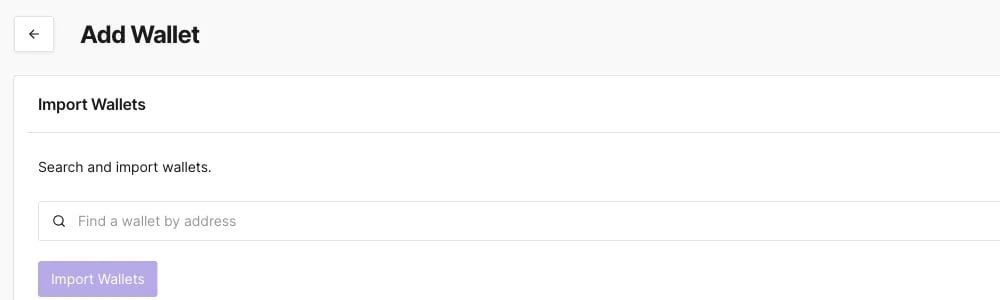 Enter an address into the search field. It returns one result row per network that address has been seen on, each labeled **Wallet** or **Contract** depending on what's deployed there, and either kind can be selected and imported.
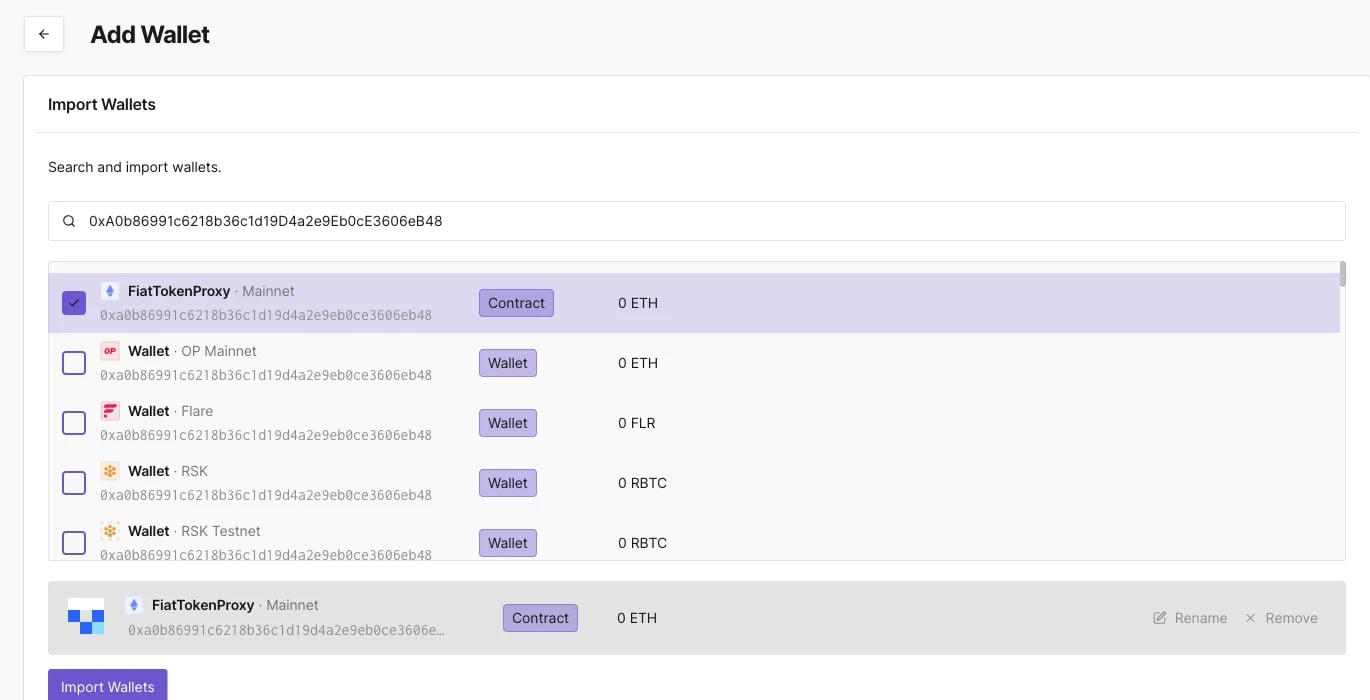 Select the row you want and click **Import Wallets**.
Once imported, you can view all the transactions associated with the wallet in the Dashboard, simulate transactions, or [create Alerts](/monitoring/alerts/introduction) for it.
## Looking up any wallet
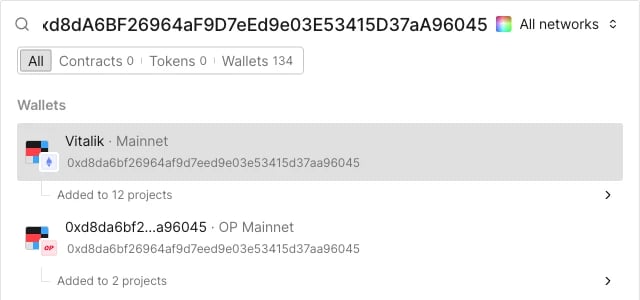
The Dashboard's search functionality allows you to find any wallet on any of the [104 supported networks](/platform/supported-networks), whether or not it's in one of your projects.
1. Enter the wallet's address in the top menu search bar.
2. Select the wallet from the search results.
Select the row you want and click **Import Wallets**.
Once imported, you can view all the transactions associated with the wallet in the Dashboard, simulate transactions, or [create Alerts](/monitoring/alerts/introduction) for it.
## Looking up any wallet
The Dashboard's search functionality allows you to find any wallet on any of the [104 supported networks](/platform/supported-networks), whether or not it's in one of your projects.
1. Enter the wallet's address in the top menu search bar.
2. Select the wallet from the search results.
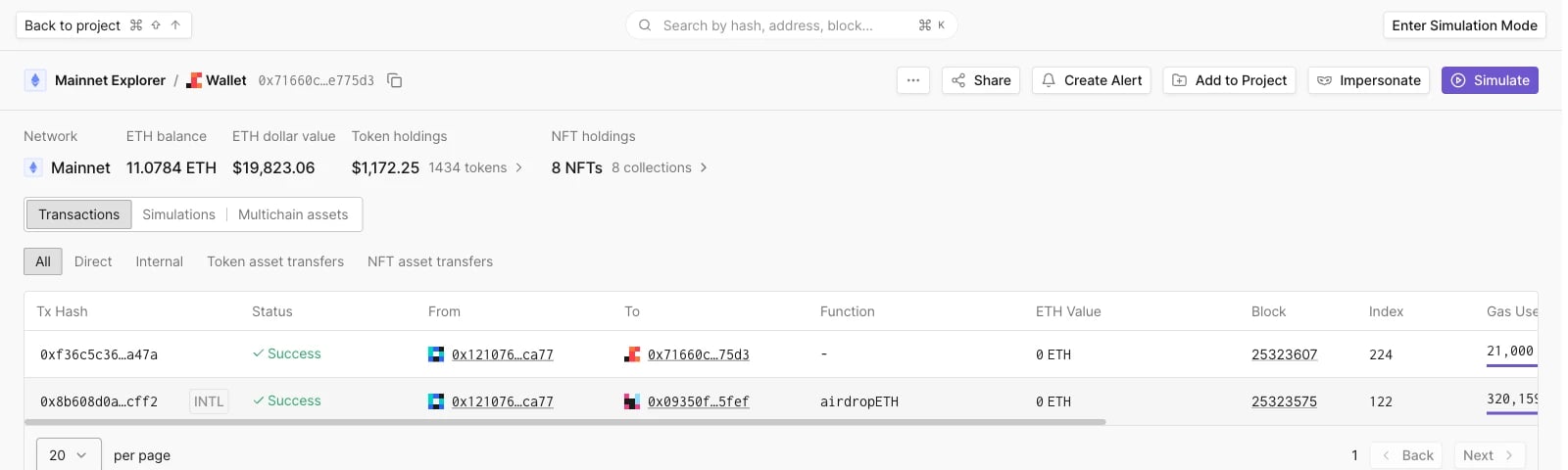
 This opens the same wallet details page described below, reached via a `/wallet//` URL instead of a project path. The header gains an **Add to Project** button alongside Share, Create Alert, Impersonate, and Simulate, and the `...` menu only has **View in Public Explorer**. The Transactions tab also drops the Success/Failed checkboxes and Columns/Filters controls, using simple numbered pagination instead of the project view's continuous list.
 To add the wallet to a project, click **Add to Project** and choose your target project.
## Wallet details
Opening a wallet, whether from your project's **Wallets** page or from a lookup, shows a header info panel followed by three tabs: **Transactions**, **Simulations**, and **Multichain assets**.
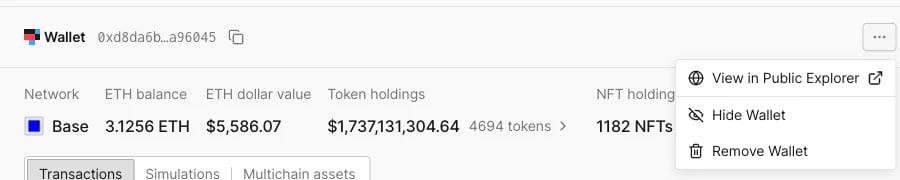
The header info panel shows the network, ETH balance and dollar value, token holdings, and NFT holdings. Unlike contracts, a wallet's info panel has no Tags field: tagging lives on the Wallets list page instead (see [Adding tags to wallets](#adding-tags-to-wallets) below). The `...` menu next to the wallet address has **View in Public Explorer**, **Hide Wallet**, and **Remove Wallet**.
To add the wallet to a project, click **Add to Project** and choose your target project.
## Wallet details
Opening a wallet, whether from your project's **Wallets** page or from a lookup, shows a header info panel followed by three tabs: **Transactions**, **Simulations**, and **Multichain assets**.
The header info panel shows the network, ETH balance and dollar value, token holdings, and NFT holdings. Unlike contracts, a wallet's info panel has no Tags field: tagging lives on the Wallets list page instead (see [Adding tags to wallets](#adding-tags-to-wallets) below). The `...` menu next to the wallet address has **View in Public Explorer**, **Hide Wallet**, and **Remove Wallet**.
 ### Transactions
Lists every direct and internal transaction involving the wallet, with the same filters as a contract's transaction list: **All**, **Direct**, **Internal**, **Token asset transfers**, and **NFT asset transfers**, plus Columns and Filters controls.
### Simulations
Shows the wallet's simulated transaction history, and lets you launch a new [simulation](/simulator-ui/overview) directly against it.
### Multichain assets
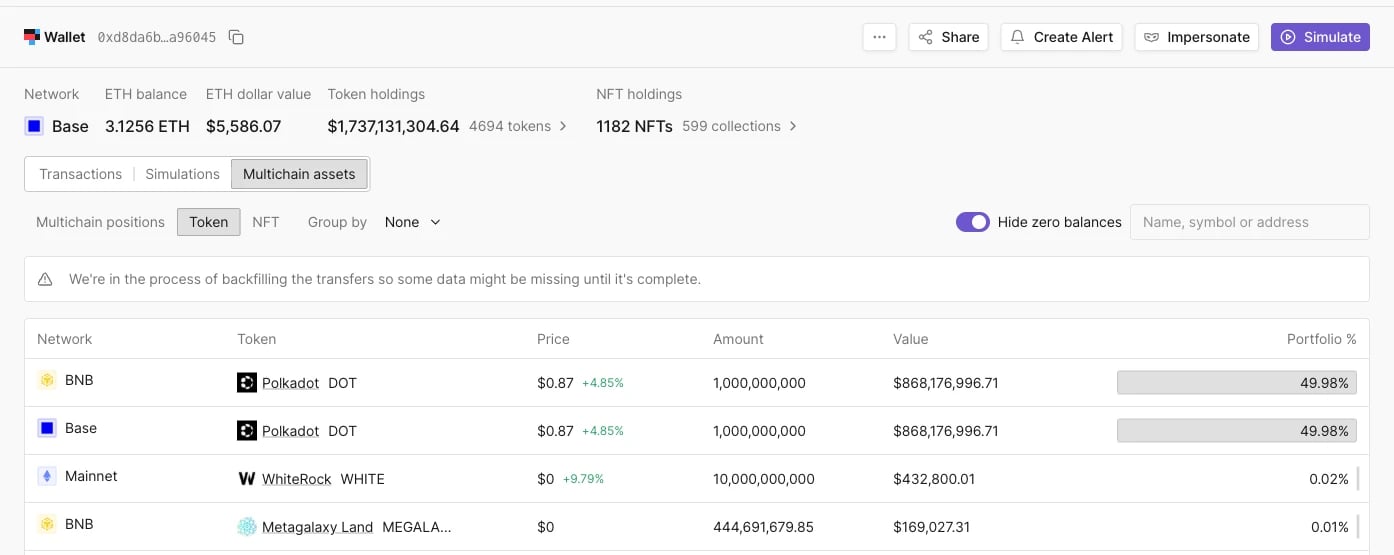
Shows the wallet's holdings across networks over three sub-tabs: **Multichain positions**, **Token**, and **NFT**. Multichain positions is wallet-specific: a net-worth bar broken down by DeFi protocol (for example Uniswap v3 or Aave v3), with each protocol expandable to its individual positions.
### Transactions
Lists every direct and internal transaction involving the wallet, with the same filters as a contract's transaction list: **All**, **Direct**, **Internal**, **Token asset transfers**, and **NFT asset transfers**, plus Columns and Filters controls.
### Simulations
Shows the wallet's simulated transaction history, and lets you launch a new [simulation](/simulator-ui/overview) directly against it.
### Multichain assets
Shows the wallet's holdings across networks over three sub-tabs: **Multichain positions**, **Token**, and **NFT**. Multichain positions is wallet-specific: a net-worth bar broken down by DeFi protocol (for example Uniswap v3 or Aave v3), with each protocol expandable to its individual positions.
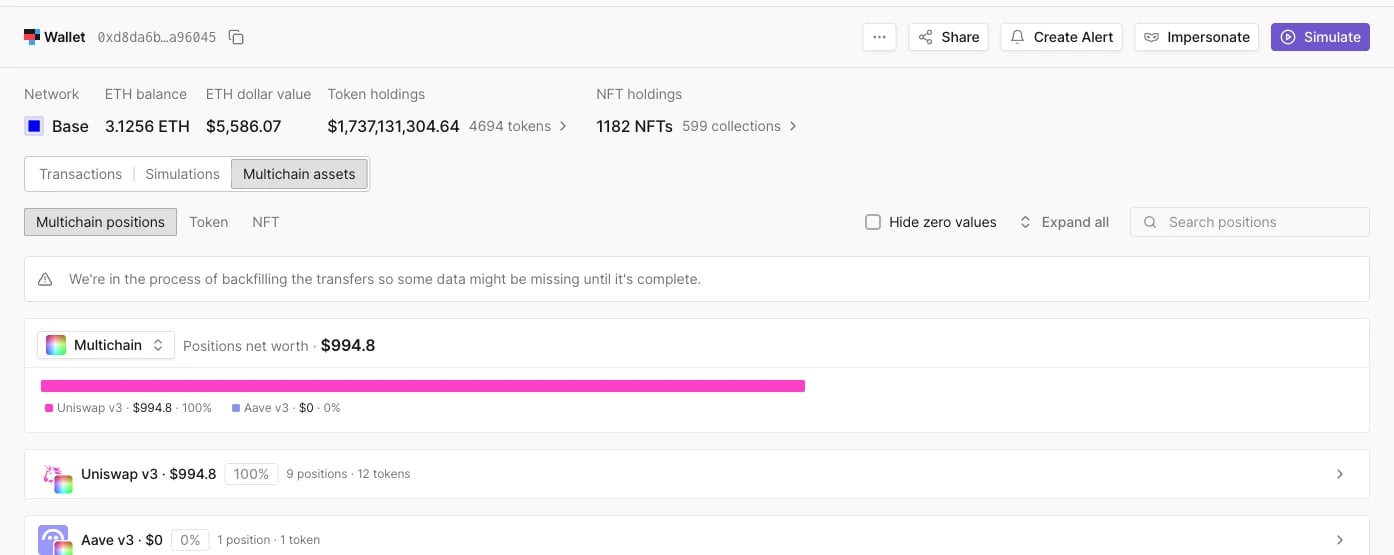 The Token and NFT sub-tabs have the same Group by, "Hide zero balances", and search controls as a contract's Multichain assets tab.
 ## Adding tags to wallets
When working with multiple wallets, you need a way to keep them organized. On the **Wallets** list page, click **Add tag** on a wallet's row to open the tagging dialog.
## Adding tags to wallets
When working with multiple wallets, you need a way to keep them organized. On the **Wallets** list page, click **Add tag** on a wallet's row to open the tagging dialog.
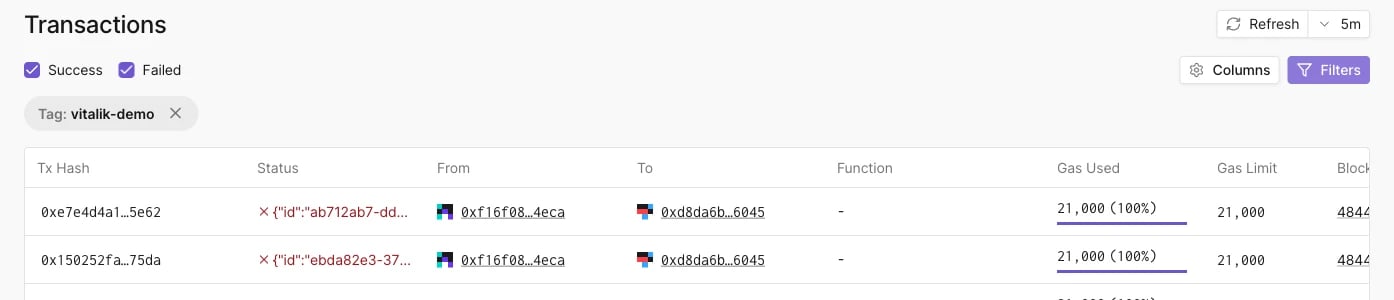
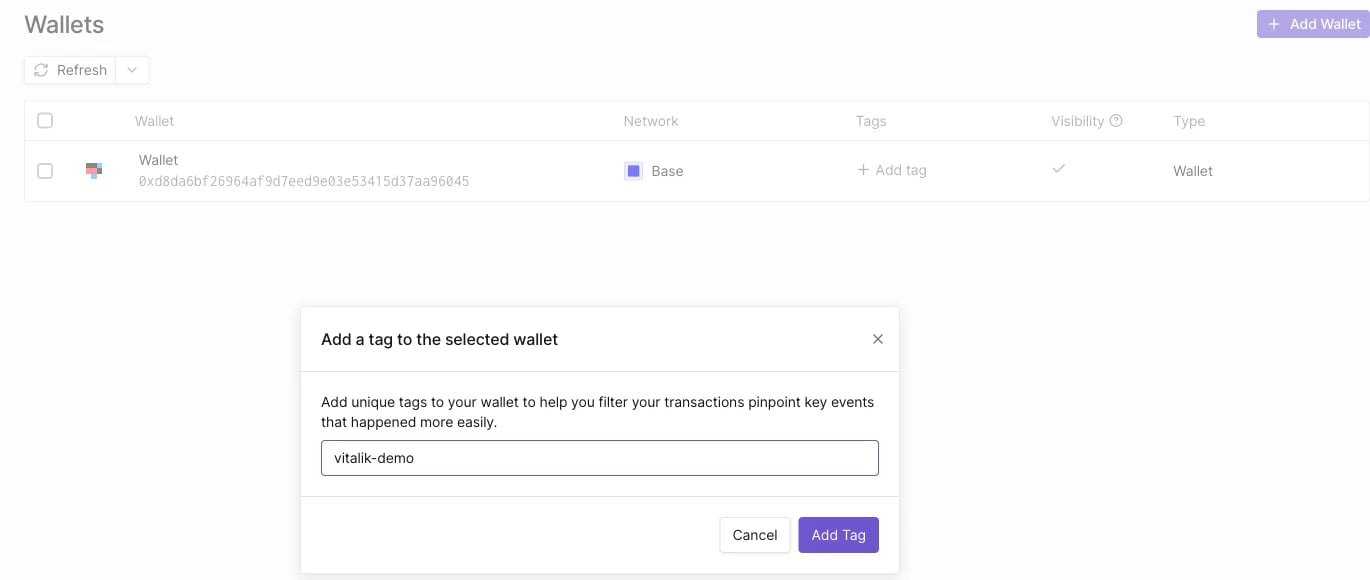 Tags also enable you to monitor multiple contracts or wallets grouped under a single tag using Alerts, and you can filter by tag from the **Filters** panel on the main [Transactions page](/developer-explorer/transaction-listing): open Filters and select a value from the **Tag** dropdown.
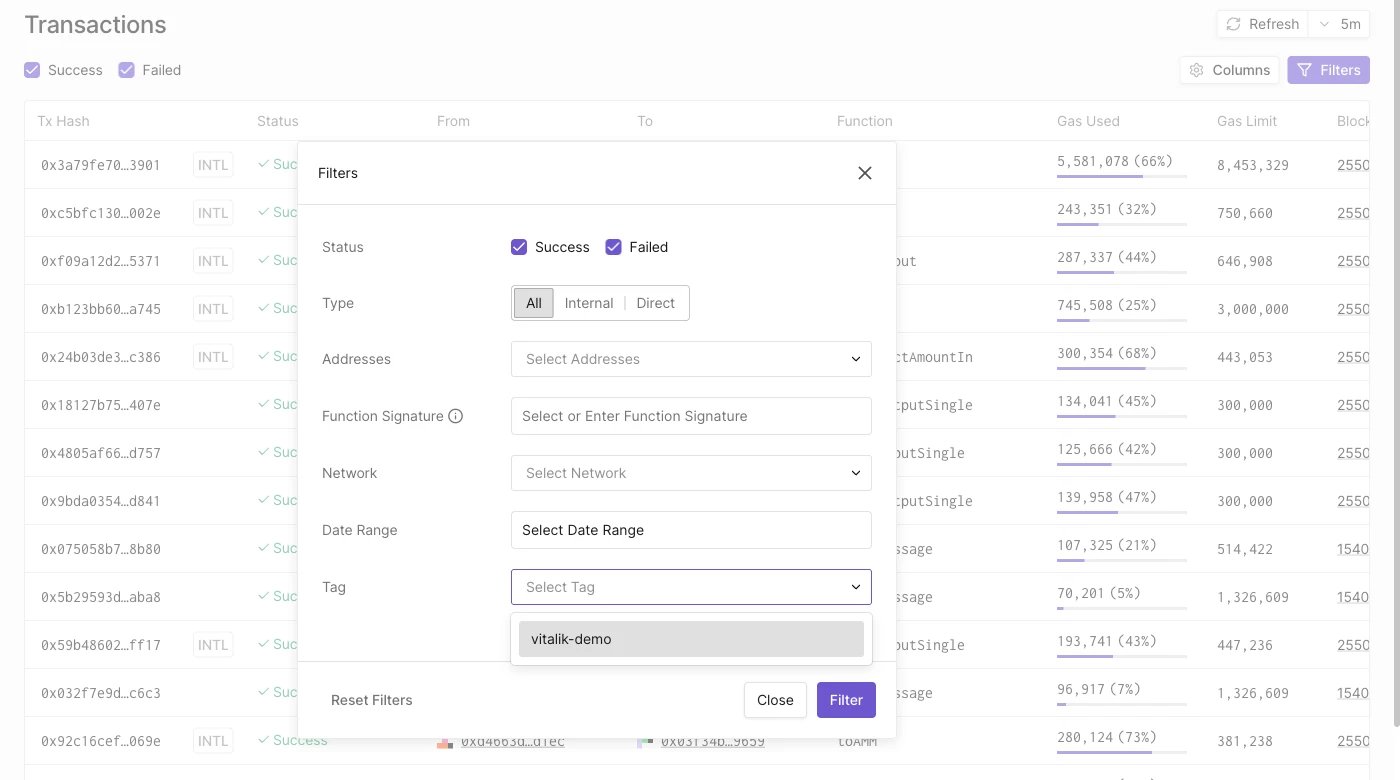 The transaction list then only shows rows where the tagged contract or wallet is the sender or recipient.
 ## Monitoring wallets with Alerts
Click **Create Alert** from a wallet's page to set up an [Alert](/monitoring/alerts/introduction) for it. See the [Alerting Quickstart Guide](/monitoring/alerts/tutorials/quickstart) for the full setup flow and [Alert Types, Targets, and Parameters](/monitoring/alerts/types) for the available triggers.
## Monitoring wallets with Alerts
Click **Create Alert** from a wallet's page to set up an [Alert](/monitoring/alerts/introduction) for it. See the [Alerting Quickstart Guide](/monitoring/alerts/tutorials/quickstart) for the full setup flow and [Alert Types, Targets, and Parameters](/monitoring/alerts/types) for the available triggers.