> ## Documentation Index
> Fetch the complete documentation index at: https://docs.tenderly.co/llms.txt
> Use this file to discover all available pages before exploring further.
# Wallets
> Add wallets to your Tenderly project to track historical transactions, run simulations, and set up alerts for any address.
Learn how to add a wallet to your project and keep track of its transactions in the Dashboard. When you add a wallet to a project, you'll see a list of all historical transactions linked to that particular wallet.
## Adding a wallet to your project
Navigate to the **Wallets** section from the side menu and click on **Add Wallet**.
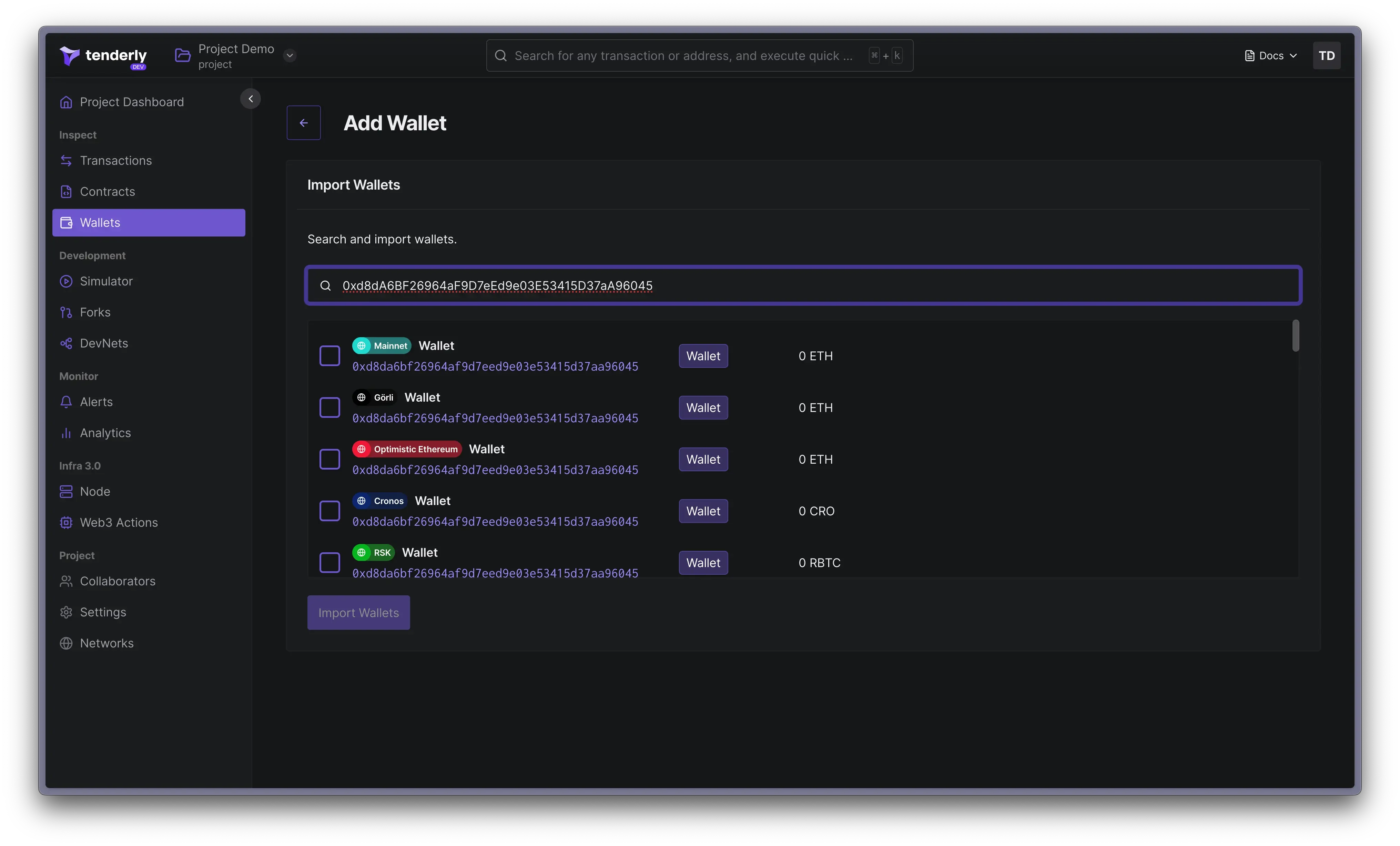 Enter the wallet address into the search field and select the wallet you want to add. Click **Import Wallet**.
Once imported, you can view all the transactions associated with the wallet in the Dashboard, simulate transactions, or [create Alerts](/monitoring/alerts/introduction) for the wallet.
## Finding a wallet on any network
The Dashboard's search functionality allows you to find any wallet on any of the [102 supported networks](/platform/supported-networks).
1. Enter the wallet's address in the top menu search bar.
2. Select the wallet from the search results.
Enter the wallet address into the search field and select the wallet you want to add. Click **Import Wallet**.
Once imported, you can view all the transactions associated with the wallet in the Dashboard, simulate transactions, or [create Alerts](/monitoring/alerts/introduction) for the wallet.
## Finding a wallet on any network
The Dashboard's search functionality allows you to find any wallet on any of the [102 supported networks](/platform/supported-networks).
1. Enter the wallet's address in the top menu search bar.
2. Select the wallet from the search results.
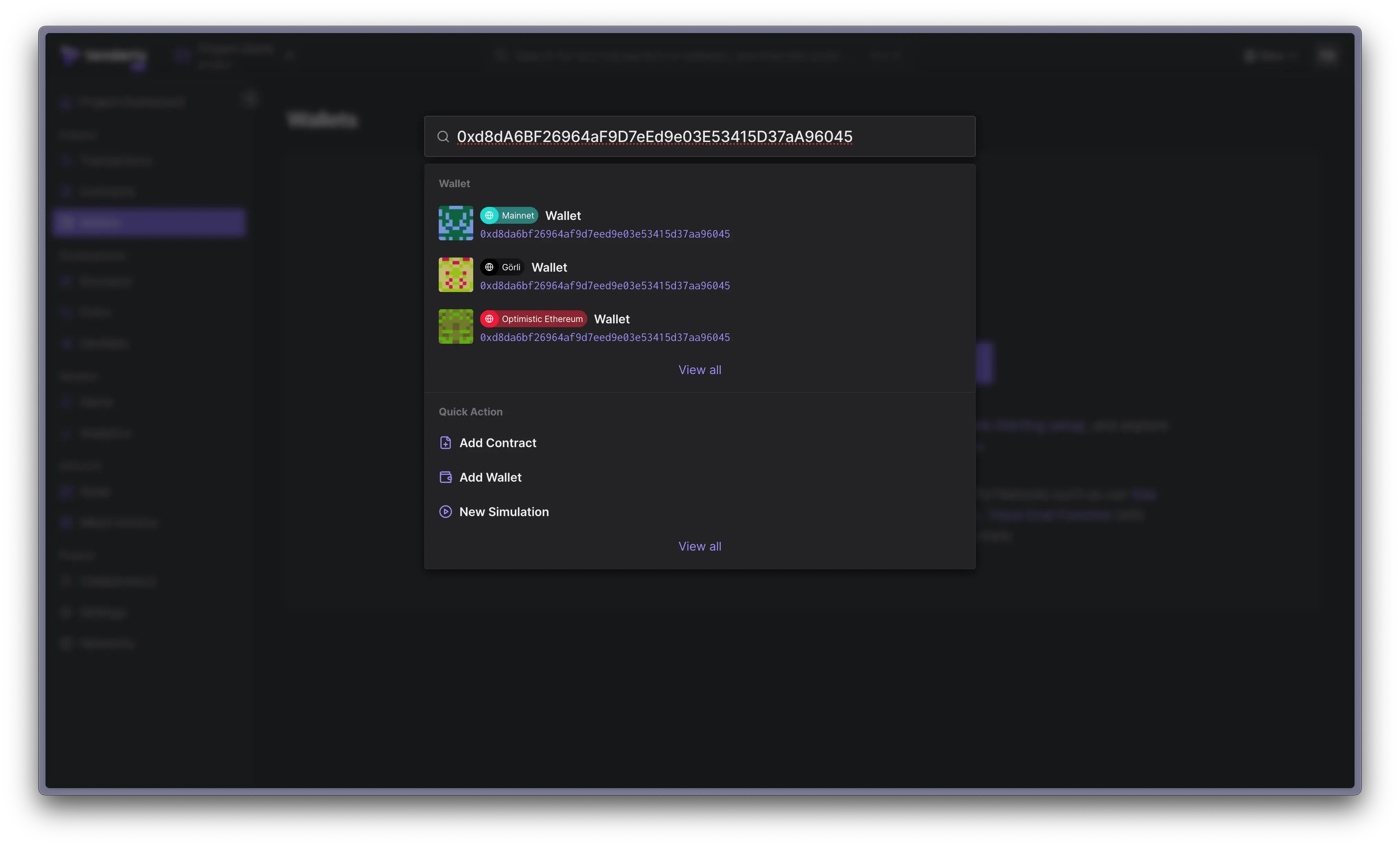 To add the wallet to a project, click **Add to Project** and choose your target project.
## Adding tags to wallets
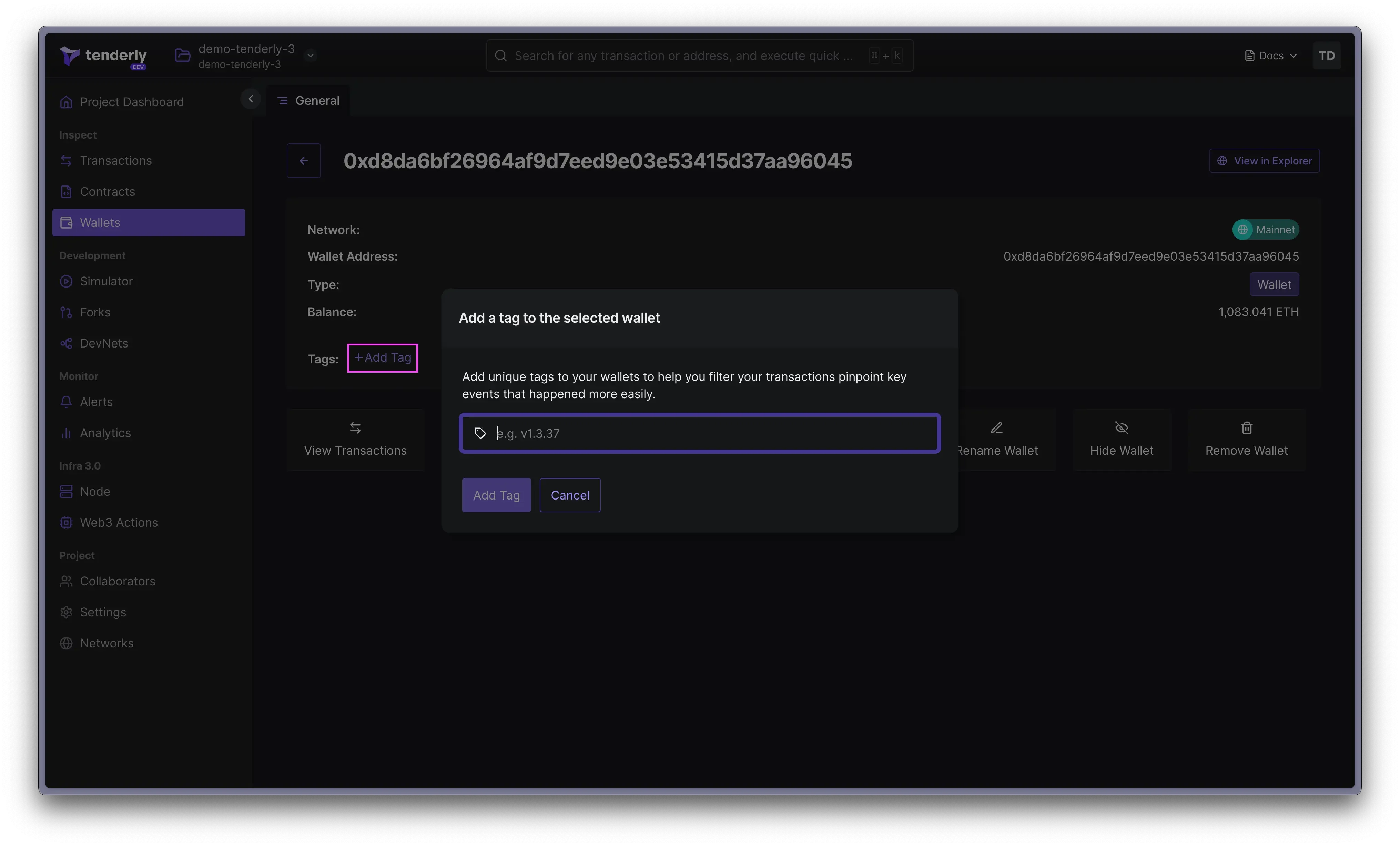
When working with multiple wallets, you need a way to keep them organized. This is where tags come in handy. You can add a tag to a wallet by clicking the **Add Tag** link.
Tags also enable you to monitor multiple contracts or wallets grouped under a single tag using Alerts.
To add the wallet to a project, click **Add to Project** and choose your target project.
## Adding tags to wallets
When working with multiple wallets, you need a way to keep them organized. This is where tags come in handy. You can add a tag to a wallet by clicking the **Add Tag** link.
Tags also enable you to monitor multiple contracts or wallets grouped under a single tag using Alerts.
 ## Monitoring wallets with Alerts
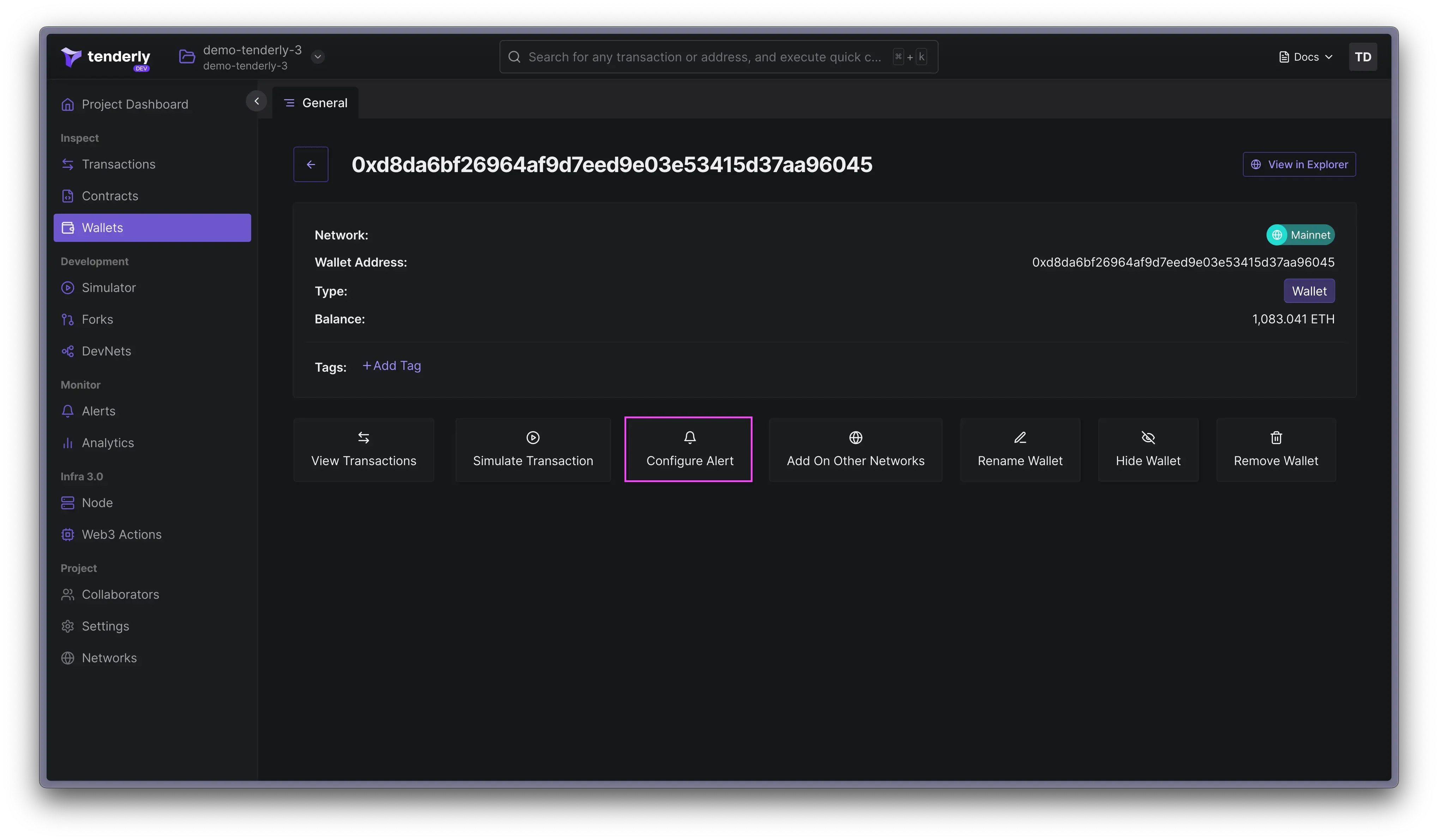
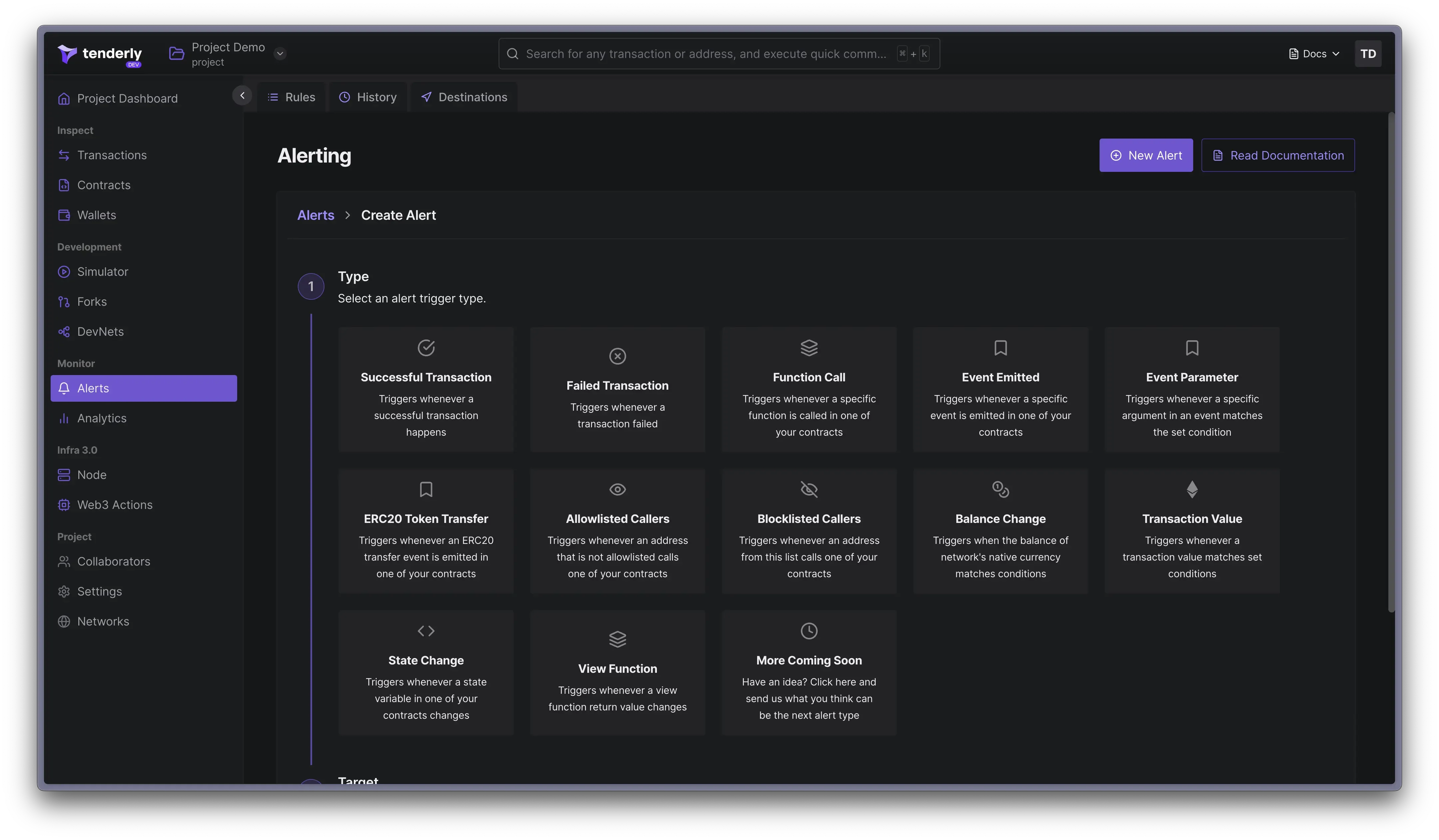
You can set up Alerts to monitor activity on your wallets in real time. To create an Alert, click the **Configure Alert** button from the contract overview page.
## Monitoring wallets with Alerts
You can set up Alerts to monitor activity on your wallets in real time. To create an Alert, click the **Configure Alert** button from the contract overview page.
 With Alerts, you can monitor various events such as failed or successful transactions, function calls, emitted events, blocked callers, and more.
You can choose between 12+ trigger types, and receive notifications in places like Slack, and Telegram, or send the data to [Sentry](/monitoring/alerts/destinations/account-scoped#sentry-destination) and [PagerDuty](/monitoring/alerts/destinations/account-scoped#pagerduty-destination).
With Alerts, you can monitor various events such as failed or successful transactions, function calls, emitted events, blocked callers, and more.
You can choose between 12+ trigger types, and receive notifications in places like Slack, and Telegram, or send the data to [Sentry](/monitoring/alerts/destinations/account-scoped#sentry-destination) and [PagerDuty](/monitoring/alerts/destinations/account-scoped#pagerduty-destination).
 ## Viewing wallet transactions
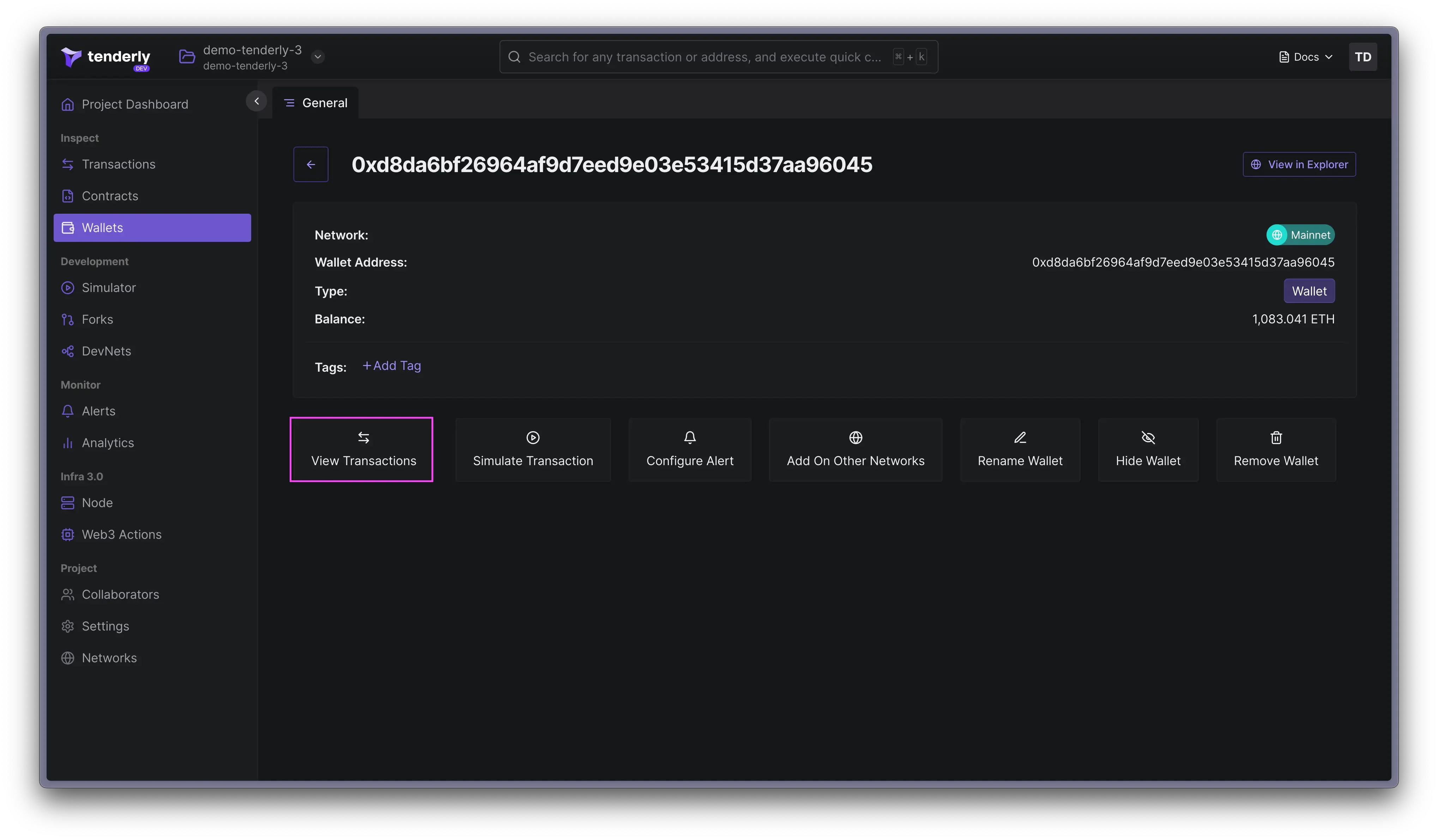
Tenderly will automatically backfill the latest transactions originating from that contract and display them in the Dashboard.
Click on the wallet and then on **View Transactions**.
## Viewing wallet transactions
Tenderly will automatically backfill the latest transactions originating from that contract and display them in the Dashboard.
Click on the wallet and then on **View Transactions**.
 ## Simulating wallet transactions
Click on the executed transaction and then the **Re-Simulate** button to simulate a wallet transaction. This will preload the transaction in Simulator where you can change its parameters and simulate the transaction on the latest state of the blockchain.
Follow this guide to learn how to use the Transaction Simulator UI:
## Simulating wallet transactions
Click on the executed transaction and then the **Re-Simulate** button to simulate a wallet transaction. This will preload the transaction in Simulator where you can change its parameters and simulate the transaction on the latest state of the blockchain.
Follow this guide to learn how to use the Transaction Simulator UI: