> ## Documentation Index
> Fetch the complete documentation index at: https://docs.tenderly.co/llms.txt
> Use this file to discover all available pages before exploring further.
# Transaction Overview
> Tenderly Console में अपने contracts और wallets से सभी direct और internal transactions देखें और फ़िल्टर करें।
जब आप अपने project में प्रवेश करते हैं, तो पहली चीज़ जो आप देखते हैं वह **Transactions** tab है:
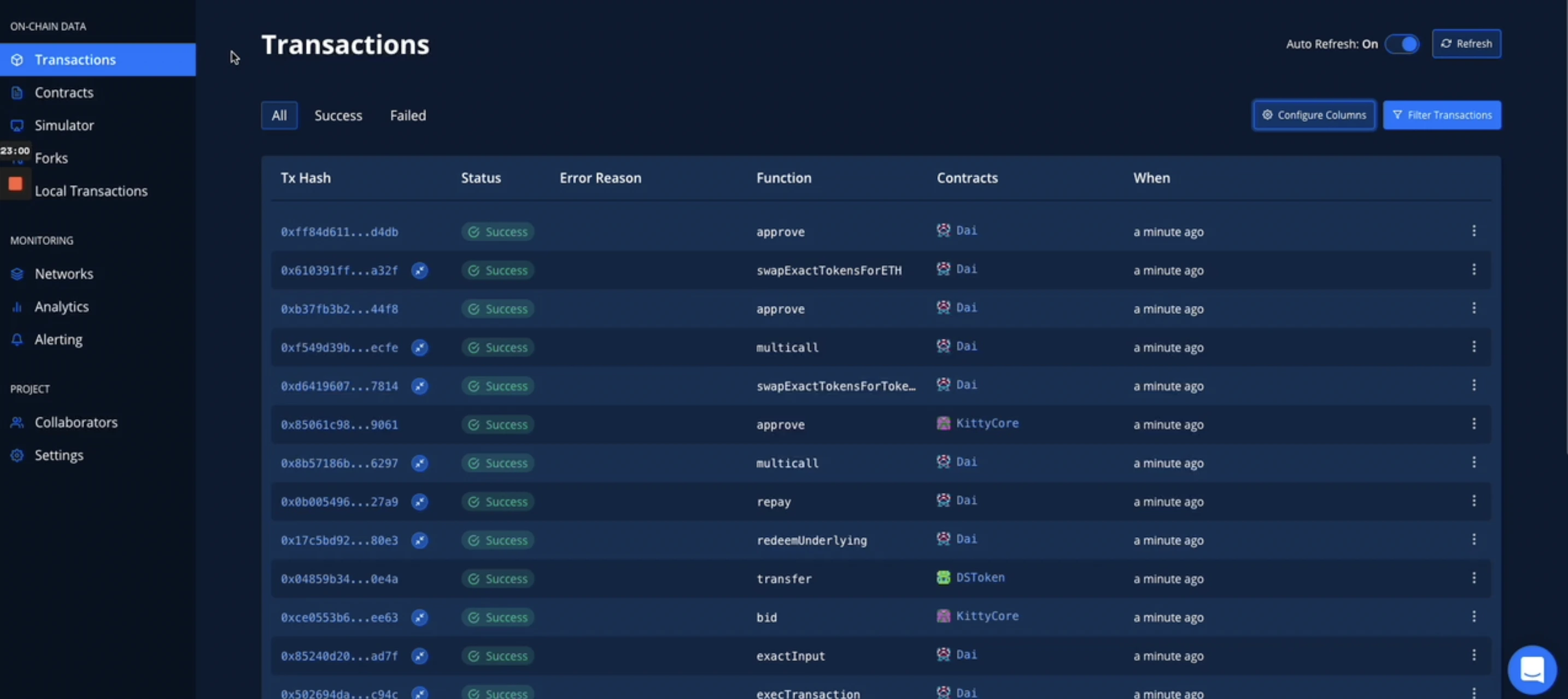 यहाँ आप उन सभी transactions की सूची पा सकते हैं जिनमें आपके किसी भी Smart Contracts शामिल हैं। **हाँ, इसका मतलब है direct और internal transactions दोनों**।
हम उन सभी transactions को भी backfill करते हैं जो आपके Smart Contracts को Tenderly में जोड़ने से पहले हुए थे।
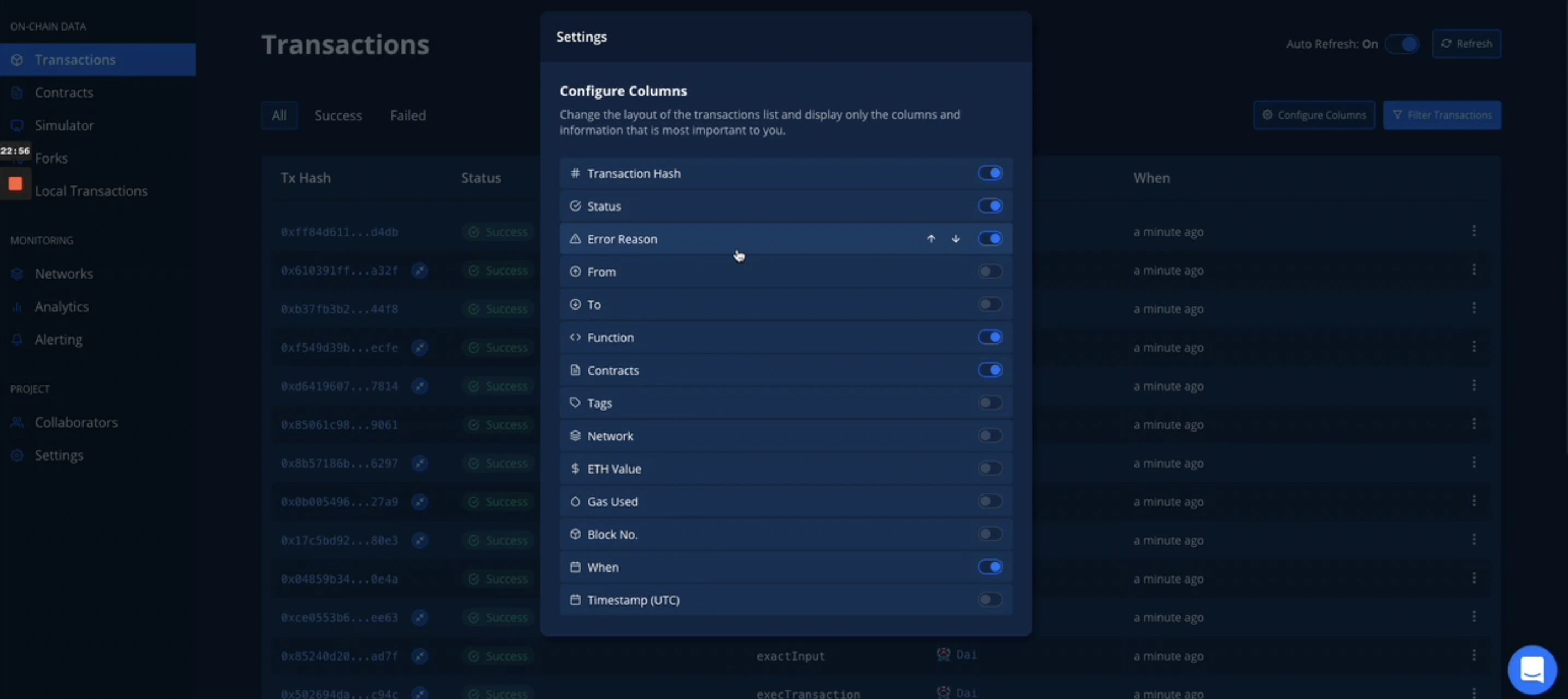
आप यह भी चुन सकते हैं कि transaction overview स्क्रीन पर कौन से columns दिखाए जाएँगे:
यहाँ आप उन सभी transactions की सूची पा सकते हैं जिनमें आपके किसी भी Smart Contracts शामिल हैं। **हाँ, इसका मतलब है direct और internal transactions दोनों**।
हम उन सभी transactions को भी backfill करते हैं जो आपके Smart Contracts को Tenderly में जोड़ने से पहले हुए थे।
आप यह भी चुन सकते हैं कि transaction overview स्क्रीन पर कौन से columns दिखाए जाएँगे:
 इस पेज से आप कई चीज़ें कर सकते हैं - transaction में हुई हर चीज़ देखने के लिए [**Execution Overview**](/developer-explorer/inspect-transaction/overview) का पता लगाएँ, अधिक गहन दृष्टिकोण के लिए [**Debugger**](/debugger/overview) में जाएँ, या यहाँ तक कि transaction के किसी भी और सभी parameters को बदलकर परिणामों के साथ प्रयोग और परीक्षण करने के लिए एक [**Simulation**](/simulator-ui/overview) (या एक [**Virtual Environment**](/virtual-environments/overview)) शुरू करें।
## Transaction Filtering
एक ही स्थान पर सभी transactions होने से बेहतर क्या है? प्रकाश की गति से उनके माध्यम से फ़िल्टर करना! ठीक है, शायद प्रकाश की गति नहीं, लेकिन निश्चित रूप से किसी भी और चीज़ से तेज़।
बाईं navigation में **Transactions** tab में हमारे पास कई parameters के अनुसार transactions को फ़िल्टर करने का विकल्प है:
इस पेज से आप कई चीज़ें कर सकते हैं - transaction में हुई हर चीज़ देखने के लिए [**Execution Overview**](/developer-explorer/inspect-transaction/overview) का पता लगाएँ, अधिक गहन दृष्टिकोण के लिए [**Debugger**](/debugger/overview) में जाएँ, या यहाँ तक कि transaction के किसी भी और सभी parameters को बदलकर परिणामों के साथ प्रयोग और परीक्षण करने के लिए एक [**Simulation**](/simulator-ui/overview) (या एक [**Virtual Environment**](/virtual-environments/overview)) शुरू करें।
## Transaction Filtering
एक ही स्थान पर सभी transactions होने से बेहतर क्या है? प्रकाश की गति से उनके माध्यम से फ़िल्टर करना! ठीक है, शायद प्रकाश की गति नहीं, लेकिन निश्चित रूप से किसी भी और चीज़ से तेज़।
बाईं navigation में **Transactions** tab में हमारे पास कई parameters के अनुसार transactions को फ़िल्टर करने का विकल्प है:
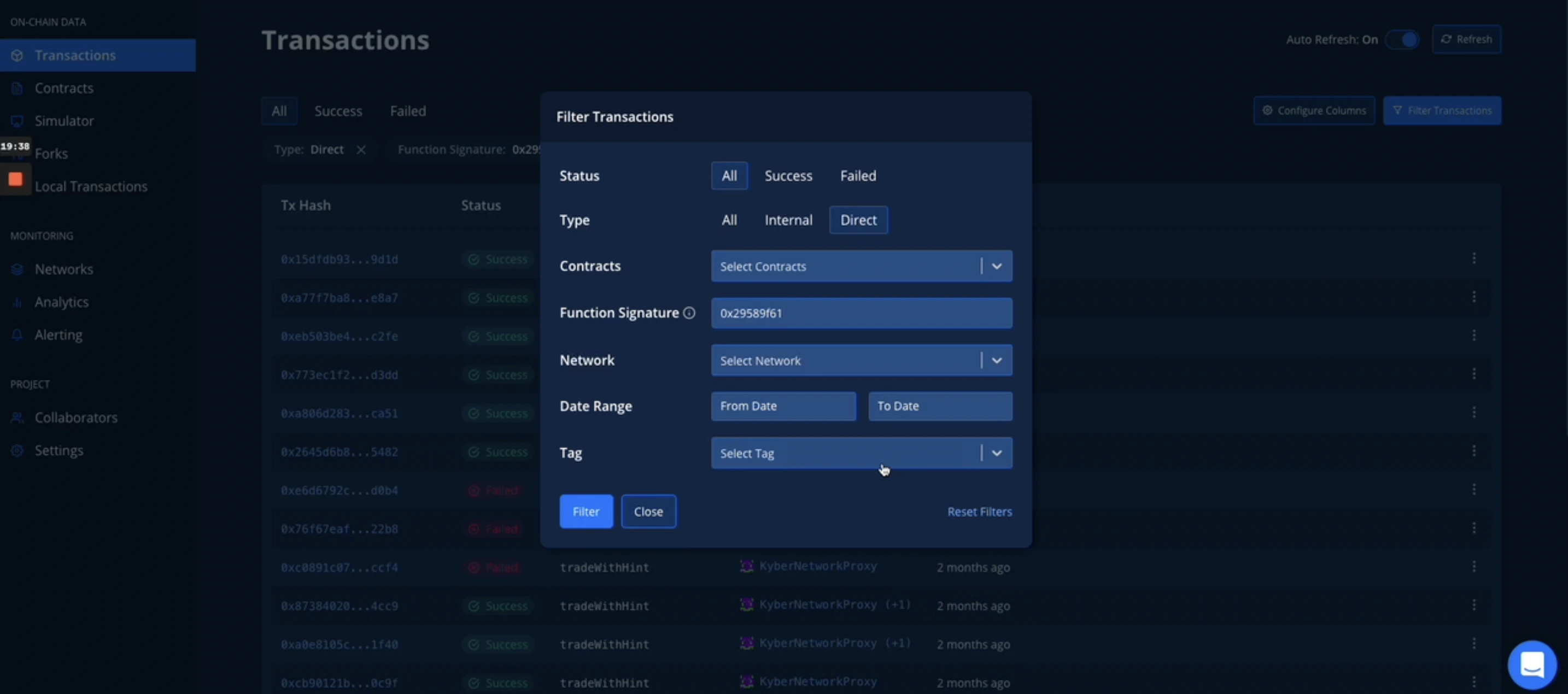 * Status - All/Success/Failed
* Type - All/Internal/Direct
* Contracts (अब **Addresses**) - चुनें कि transaction में कौन सा address (contract या wallet के लिए) मौजूद होना चाहिए
* Function Signature
* Network - यदि आपके पास कई networks पर deploy किए गए contracts हैं तो network निर्दिष्ट करें
* Date Range
* Tag
* Status - All/Success/Failed
* Type - All/Internal/Direct
* Contracts (अब **Addresses**) - चुनें कि transaction में कौन सा address (contract या wallet के लिए) मौजूद होना चाहिए
* Function Signature
* Network - यदि आपके पास कई networks पर deploy किए गए contracts हैं तो network निर्दिष्ट करें
* Date Range
* Tag
%20(1)%20(1).webp?fit=max&auto=format&n=XsEZlaGXYskrtN68&q=85&s=b9d132b9bc3fe576544eeadbe3480f60) फ़िल्टर करने के लिए एक tag चुनने के बाद, केवल उन transactions को दिखाने का विकल्प भी है जो एक निश्चित tag बनाए जाने के बाद हुए:
फ़िल्टर करने के लिए एक tag चुनने के बाद, केवल उन transactions को दिखाने का विकल्प भी है जो एक निश्चित tag बनाए जाने के बाद हुए:
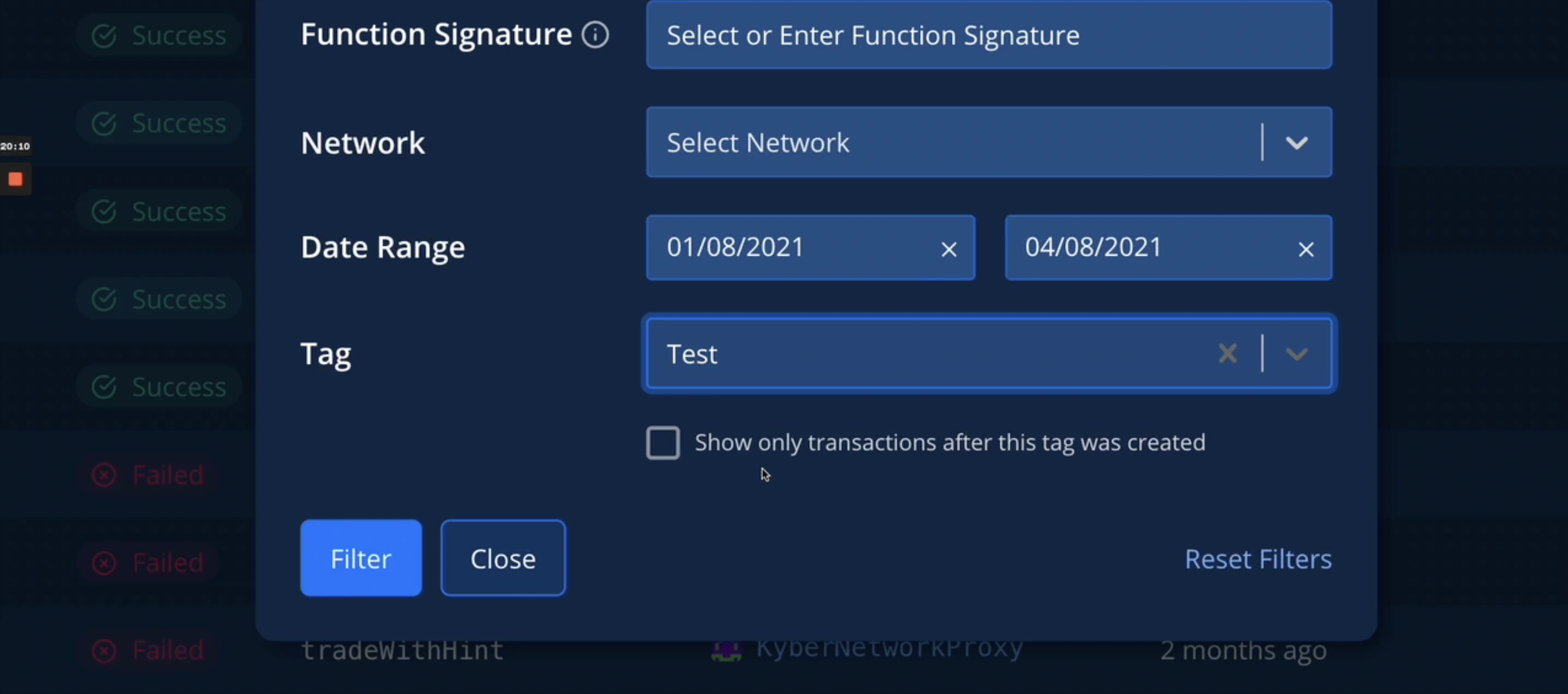 इतनी सटीक और तेज़ फ़िल्टरिंग होना महत्वपूर्ण है जब आपको हज़ारों में से उस विशिष्ट transaction को इंगित करने की आवश्यकता होती है। एक और उदाहरण जो मन में आता है वह है आपके Smart Contracts को भेजे गए internal transactions को खोजना जो विफल हो गए। इस तरह, आप देख सकते हैं कि क्या कोई आपके contract के logic का दुरुपयोग करने की कोशिश कर रहा है या यदि आपका code विफल हो रहा है और कोई इस पर निर्भर है।
Tenderly अब स्वचालित रूप से pending transactions के (अपेक्षित) परिणाम का simulation करता है जब आप tx hash को search bar में पेस्ट करते हैं, आपके [**Dashboard**](https://dashboard.tenderly.co/) और हमारे [**Public Explorer**](https://dashboard.tenderly.co/explorer) दोनों में।
यह सुविधा सभी उपयोगकर्ताओं के लिए उपलब्ध है, भले ही वे logged in न हों। इसका मतलब है कि **आप अब live pending transactions का simulation** इस तरह से [**हमारे Explorer पेज से**](https://dashboard.tenderly.co/explorer) बिना खाता होने के भी कर सकते हैं - लेकिन आपको वास्तव में एक बनाना चाहिए (यह मुफ़्त है) ताकि आप हमारे [**Simulations**](/simulator-ui/overview) और [**Virtual Environment**](/virtual-environments/overview) 🚀 की पूरी शक्ति का उपयोग कर सकें
इसके बारे में [**यहाँ**](/developer-explorer/inspect-transaction/overview) अधिक पढ़ें।
## Advanced Trace Search
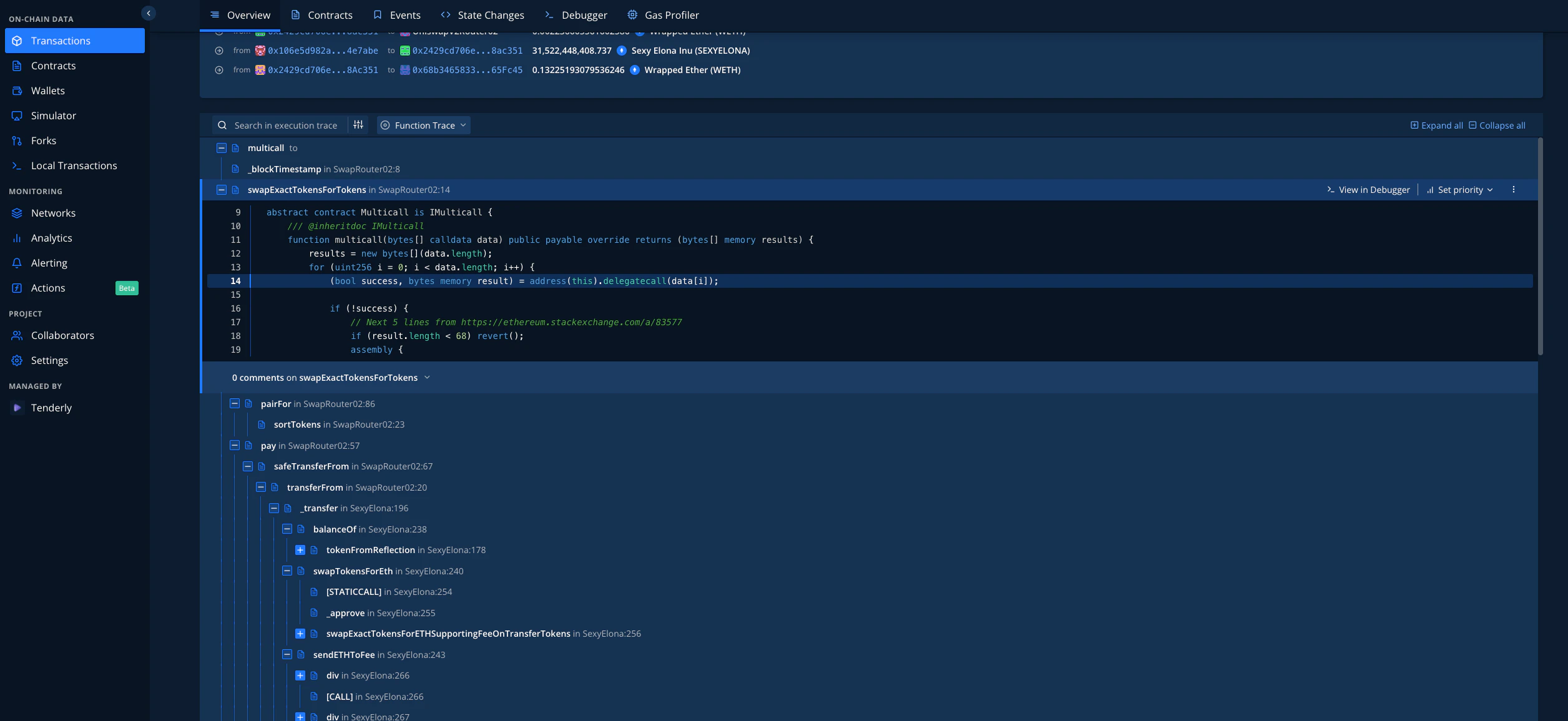
जब आप किसी भी transaction के लिए Transaction Overview के Execution Trace segment को देखते हैं, तो आप Execution Search के बगल में इस बटन को देखेंगे जो Advanced Trace Search खोलता है:
इतनी सटीक और तेज़ फ़िल्टरिंग होना महत्वपूर्ण है जब आपको हज़ारों में से उस विशिष्ट transaction को इंगित करने की आवश्यकता होती है। एक और उदाहरण जो मन में आता है वह है आपके Smart Contracts को भेजे गए internal transactions को खोजना जो विफल हो गए। इस तरह, आप देख सकते हैं कि क्या कोई आपके contract के logic का दुरुपयोग करने की कोशिश कर रहा है या यदि आपका code विफल हो रहा है और कोई इस पर निर्भर है।
Tenderly अब स्वचालित रूप से pending transactions के (अपेक्षित) परिणाम का simulation करता है जब आप tx hash को search bar में पेस्ट करते हैं, आपके [**Dashboard**](https://dashboard.tenderly.co/) और हमारे [**Public Explorer**](https://dashboard.tenderly.co/explorer) दोनों में।
यह सुविधा सभी उपयोगकर्ताओं के लिए उपलब्ध है, भले ही वे logged in न हों। इसका मतलब है कि **आप अब live pending transactions का simulation** इस तरह से [**हमारे Explorer पेज से**](https://dashboard.tenderly.co/explorer) बिना खाता होने के भी कर सकते हैं - लेकिन आपको वास्तव में एक बनाना चाहिए (यह मुफ़्त है) ताकि आप हमारे [**Simulations**](/simulator-ui/overview) और [**Virtual Environment**](/virtual-environments/overview) 🚀 की पूरी शक्ति का उपयोग कर सकें
इसके बारे में [**यहाँ**](/developer-explorer/inspect-transaction/overview) अधिक पढ़ें।
## Advanced Trace Search
जब आप किसी भी transaction के लिए Transaction Overview के Execution Trace segment को देखते हैं, तो आप Execution Search के बगल में इस बटन को देखेंगे जो Advanced Trace Search खोलता है:
.webp?fit=max&auto=format&n=XsEZlaGXYskrtN68&q=85&s=d20471c4a74cf070cafbe94c53a89a11) आप निम्नलिखित श्रेणियों के आधार पर trace खोज सकते हैं:
* All (सभी सूचीबद्ध श्रेणियों को खोजा जाएगा)
* OpCode
* From
* To
* Function
* File
* Contract
* State Variable
आप निम्नलिखित श्रेणियों के आधार पर trace खोज सकते हैं:
* All (सभी सूचीबद्ध श्रेणियों को खोजा जाएगा)
* OpCode
* From
* To
* Function
* File
* Contract
* State Variable
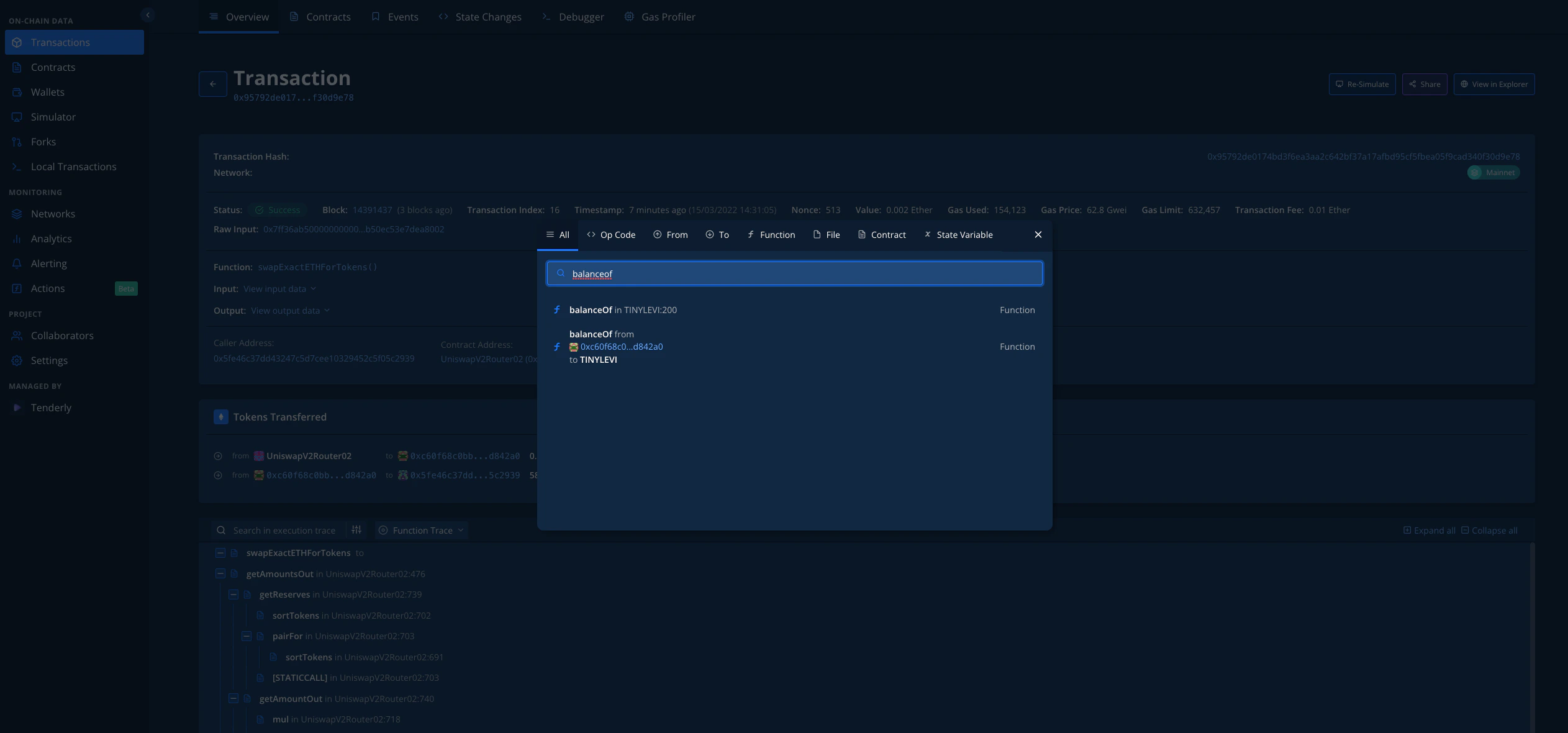
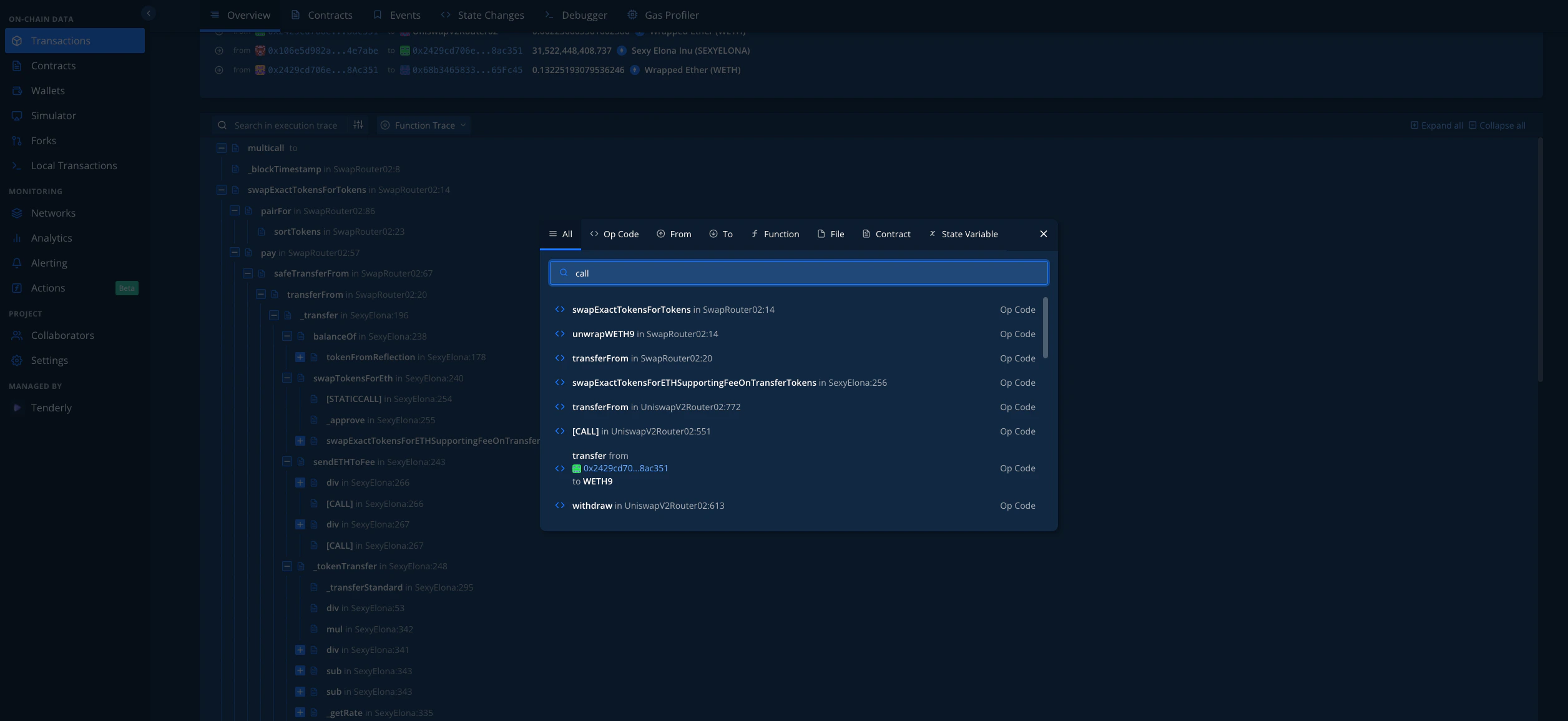 जब आप किसी भी search परिणाम पर क्लिक करते हैं, तो आपको Execution Trace segment में code की संबंधित पंक्ति पर ले जाया जाएगा: