> ## Documentation Index
> Fetch the complete documentation index at: https://docs.tenderly.co/llms.txt
> Use this file to discover all available pages before exploring further.
# Account-Scoped
> यह पेज आपको प्रत्येक account-scoped Alert Destination बनाने के तरीके के बारे में मार्गदर्शन करता है।
[Slack को Tenderly से कनेक्ट करें →](https://dashboard.tenderly.co/account/alerts/destinations)
Account-scoped [Alert destinations](/monitoring/alerts/destinations/overview) आपके Tenderly account के भीतर आपके सभी projects में सुलभ हैं। उन्हें notifications routing करने के तरीके के लिए [Alerts](/monitoring/alerts/introduction) दस्तावेज़ देखें।
### Email Destination
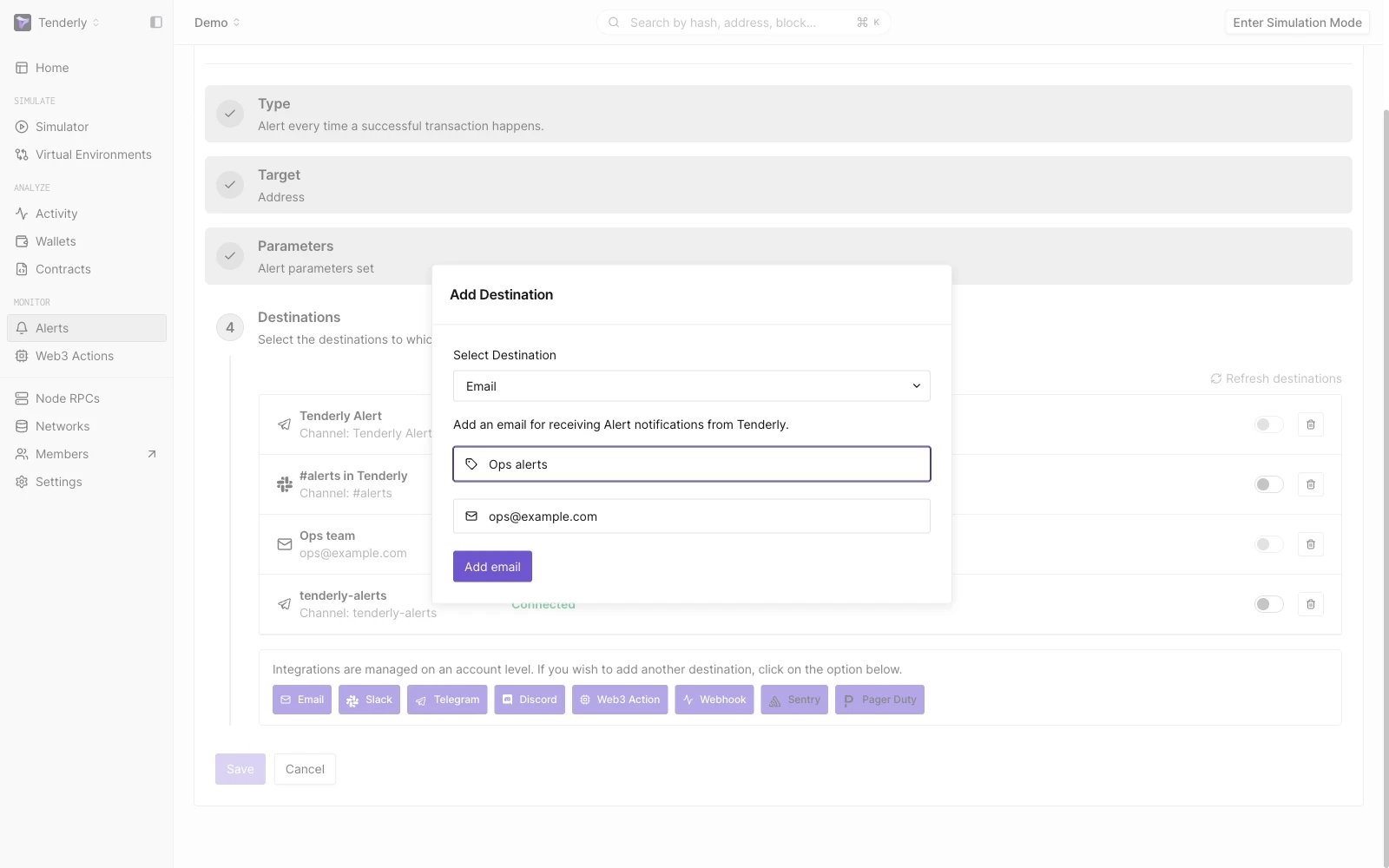 अपने email inbox में Alert notification प्राप्त करें।
**Alerts →** **Destinations → Email** पर जाएँ।
**Add Email पर क्लिक करें।**
आपके द्वारा प्रदान किए गए email address पर एक verification email भेजा जाएगा। यह पुष्टि करने के लिए कि आप ही email address के मालिक हैं, email में दिए गए लिंक पर क्लिक करें।
### Slack Destination
अपने email inbox में Alert notification प्राप्त करें।
**Alerts →** **Destinations → Email** पर जाएँ।
**Add Email पर क्लिक करें।**
आपके द्वारा प्रदान किए गए email address पर एक verification email भेजा जाएगा। यह पुष्टि करने के लिए कि आप ही email address के मालिक हैं, email में दिए गए लिंक पर क्लिक करें।
### Slack Destination
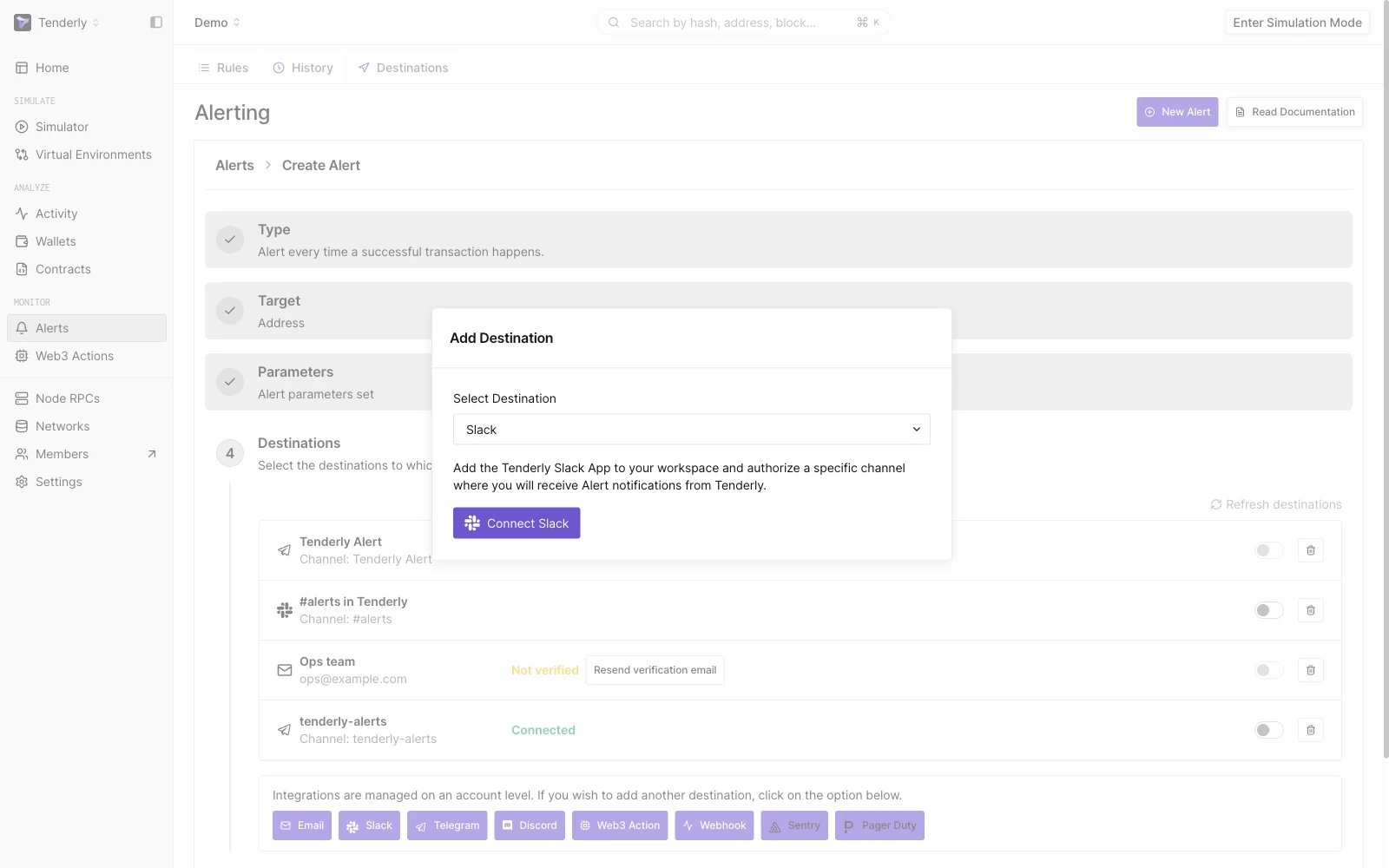 Slack पर private message या channel में Alert notifications प्राप्त करें।
**Alerts →** **Destinations → Slack → Connect Slack** पर जाएँ।
यह आपको Slack अनुमतियों की स्क्रीन पर ले जाएगा, जहाँ आपको notifications प्राप्त करने के लिए Slack channel या private message सेट करना होगा।
### Telegram Destination
Slack पर private message या channel में Alert notifications प्राप्त करें।
**Alerts →** **Destinations → Slack → Connect Slack** पर जाएँ।
यह आपको Slack अनुमतियों की स्क्रीन पर ले जाएगा, जहाँ आपको notifications प्राप्त करने के लिए Slack channel या private message सेट करना होगा।
### Telegram Destination
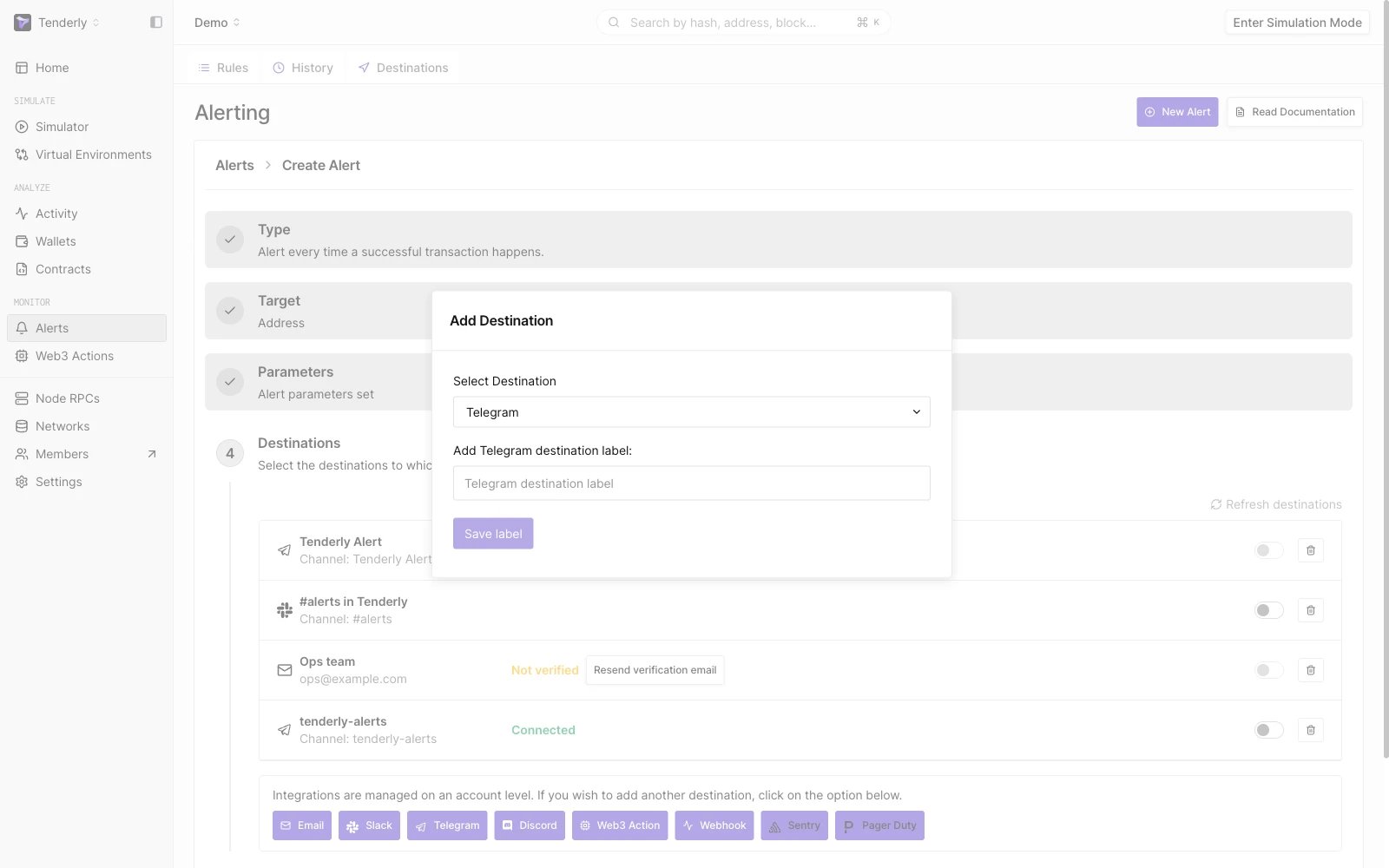 Telegram channel में Alert notifications प्राप्त करें।
**Alerts →** **Destinations → Telegram** पर जाएँ।
Telegram Destination के लिए एक आवश्यक label जोड़ें और Next पर क्लिक करें।
Telegram के लिए TenderlyRobot से कनेक्ट करने हेतु स्क्रीन पर दिए गए **निर्देशों का पालन करें** और **Finish पर क्लिक करें**।
### Discord Destination
Telegram channel में Alert notifications प्राप्त करें।
**Alerts →** **Destinations → Telegram** पर जाएँ।
Telegram Destination के लिए एक आवश्यक label जोड़ें और Next पर क्लिक करें।
Telegram के लिए TenderlyRobot से कनेक्ट करने हेतु स्क्रीन पर दिए गए **निर्देशों का पालन करें** और **Finish पर क्लिक करें**।
### Discord Destination
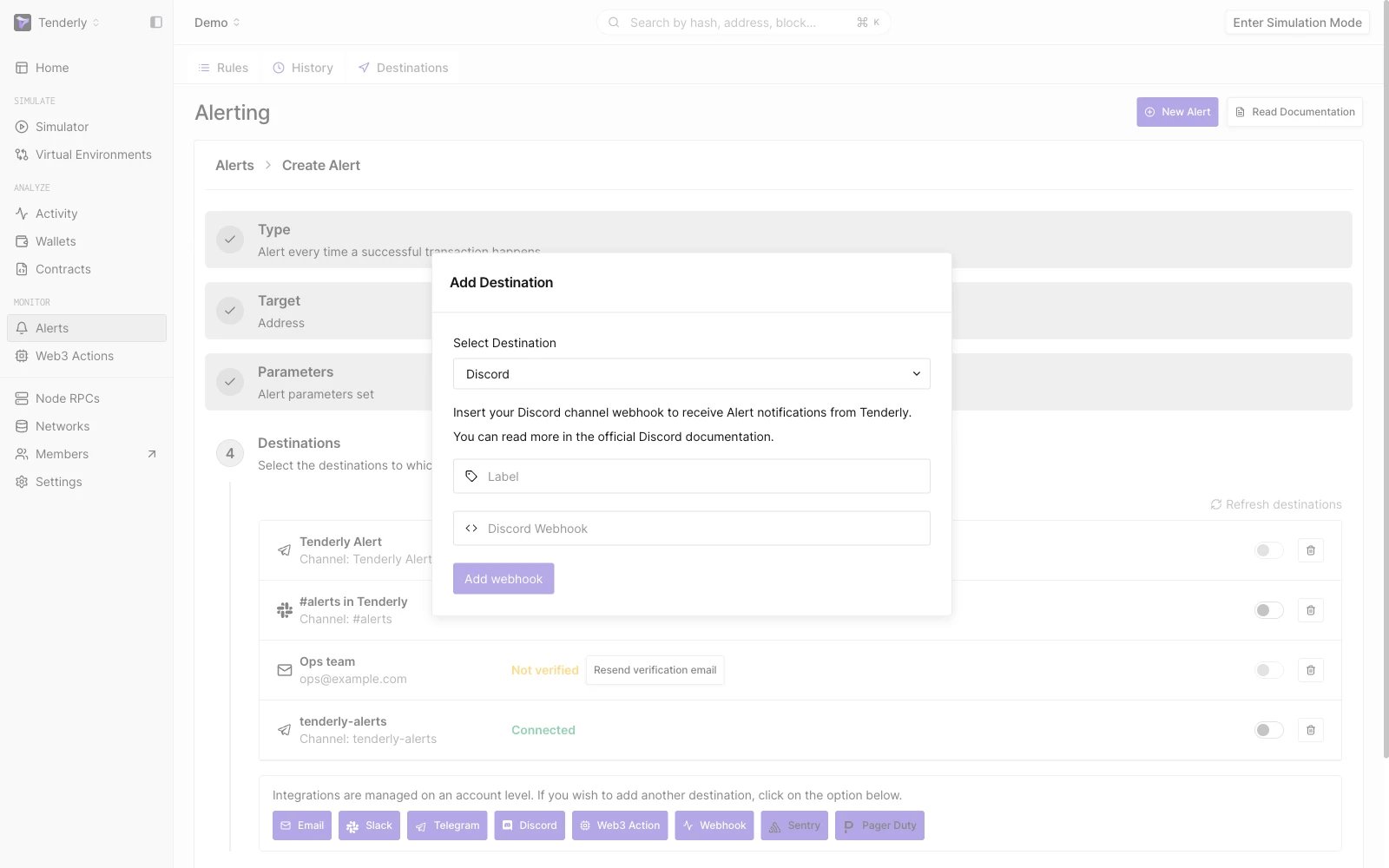 Discord channel में Alert notifications प्राप्त करें।
**Alerts →** **Destinations → Discord** पर जाएँ।
एक आवश्यक label जोड़ें और अपना Discord webhook पेस्ट करें। webhook URL प्राप्त करने के लिए Discord के [आधिकारिक गाइड](https://support.discord.com/hc/en-us/articles/228383668-Intro-to-Webhooks) का पालन करें।
**Add Webhook पर क्लिक करें**।
### Sentry Destination
Discord channel में Alert notifications प्राप्त करें।
**Alerts →** **Destinations → Discord** पर जाएँ।
एक आवश्यक label जोड़ें और अपना Discord webhook पेस्ट करें। webhook URL प्राप्त करने के लिए Discord के [आधिकारिक गाइड](https://support.discord.com/hc/en-us/articles/228383668-Intro-to-Webhooks) का पालन करें।
**Add Webhook पर क्लिक करें**।
### Sentry Destination
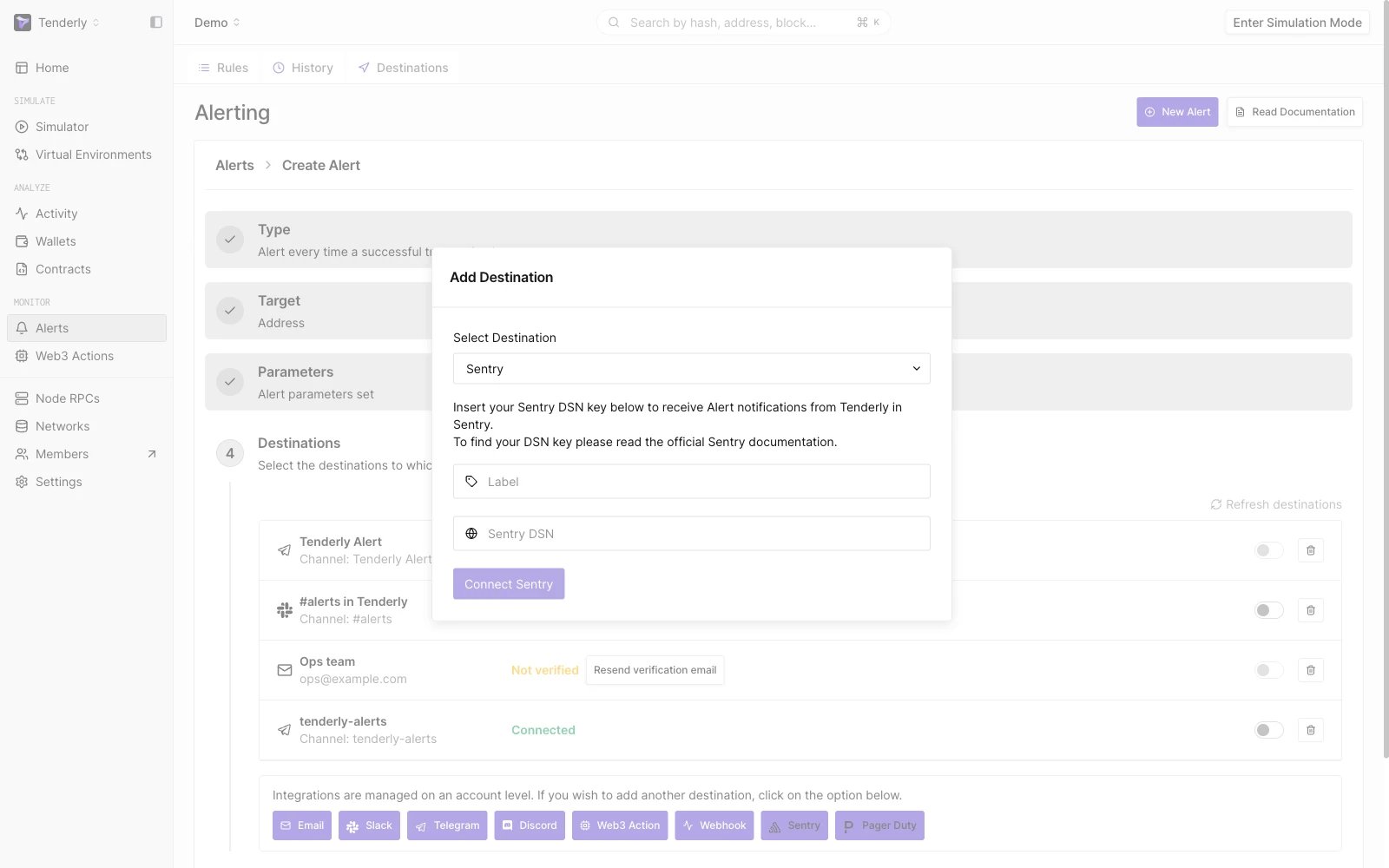 Alert data को Sentry पर भेजें, जो एक तृतीय-पक्ष application alert monitoring और error tracking platform है।
**Alerts →** **Destinations → Sentry** पर जाएँ।
एक आवश्यक label जोड़ें और Sentry DSN key पेस्ट करें। अपना project DSN कैसे खोजें, यह जानने के लिए [आधिकारिक Sentry दस्तावेज़](https://docs.sentry.io/concepts/key-terms/dsn-explainer/) देखें।
**Connect Sentry पर क्लिक करें**।
### PagerDuty Destination
Alert data को Sentry पर भेजें, जो एक तृतीय-पक्ष application alert monitoring और error tracking platform है।
**Alerts →** **Destinations → Sentry** पर जाएँ।
एक आवश्यक label जोड़ें और Sentry DSN key पेस्ट करें। अपना project DSN कैसे खोजें, यह जानने के लिए [आधिकारिक Sentry दस्तावेज़](https://docs.sentry.io/concepts/key-terms/dsn-explainer/) देखें।
**Connect Sentry पर क्लिक करें**।
### PagerDuty Destination
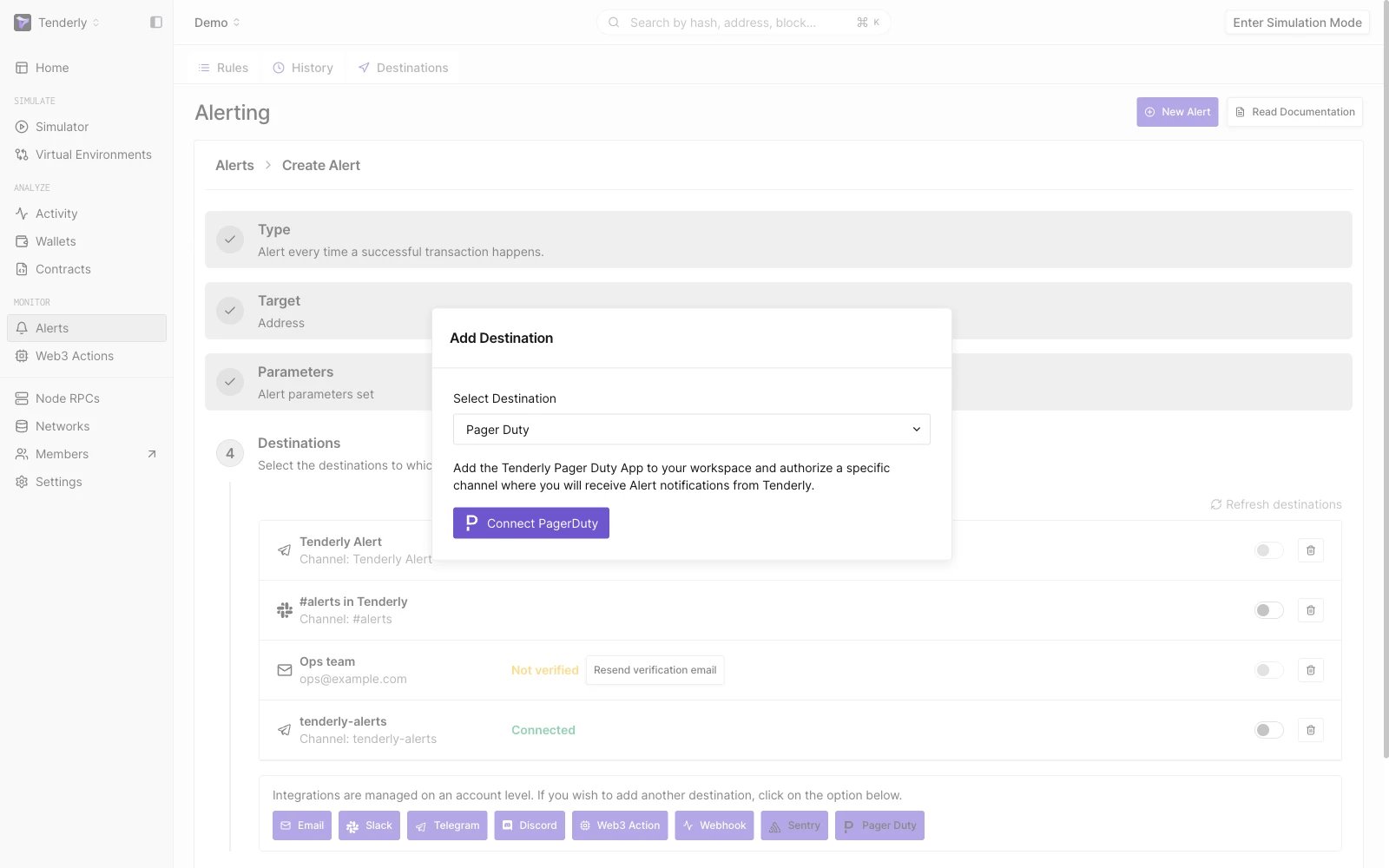 Alert data को PagerDuty पर भेजें, जो एक तृतीय-पक्ष incident response platform है।
**Alerts →** **Destinations → PagerDury → Connect PagerDuty** पर जाएँ।
आपको एक PagerDuty पेज पर redirect कर दिया जाएगा और आपसे Tenderly PagerDuty App को अपने workspace में जोड़ने और Alert notifications प्राप्त करने के लिए एक विशिष्ट channel को authorize करने के लिए कहा जाएगा।
Alert data को PagerDuty पर भेजें, जो एक तृतीय-पक्ष incident response platform है।
**Alerts →** **Destinations → PagerDury → Connect PagerDuty** पर जाएँ।
आपको एक PagerDuty पेज पर redirect कर दिया जाएगा और आपसे Tenderly PagerDuty App को अपने workspace में जोड़ने और Alert notifications प्राप्त करने के लिए एक विशिष्ट channel को authorize करने के लिए कहा जाएगा।