> ## Documentation Index
> Fetch the complete documentation index at: https://docs.tenderly.co/llms.txt
> Use this file to discover all available pages before exploring further.
# Simulation Mode
> dashboard में एक persistent wallet impersonation संदर्भ सक्रिय करें। पेज balance overrides और एक cumulative session log के साथ target wallet के रूप में render होते हैं।
Simulation Mode एक persistent impersonation संदर्भ है। इसे एक wallet address और एक network के साथ सक्रिय करें, और dashboard में हर wired पेज उस wallet के रूप में पढ़ता और simulate करता है। कुछ भी sign नहीं किया जाता है और कुछ भी onchain नहीं जाता है। Simulations एक सत्र में जमा होती हैं: प्रत्येक run पिछले द्वारा उत्पादित state परिवर्तनों को देखता है।
 ## इसका उपयोग कब करें
* अपनी keys को धारण किए बिना **एक wallet के onchain व्यवहार से गुज़रें**। समर्थन, जोखिम समीक्षा, या post-incident विश्लेषण के लिए उपयोगी।
* एक विशिष्ट wallet के रूप में **actions के क्रम को stage करें** (उदा., supply, borrow, repay) और cumulative state प्रभावों का निरीक्षण करें।
* contract Read/Write पेजों, Simulator, और re-simulation flows पर **wallet के दृष्टिकोण से परीक्षण करें**, हर बार address को फिर से दर्ज किए बिना।
* यह देखने के लिए कि किसी asset के अधिक (या कम) के साथ एक action कैसा दिखेगा, चलते-फिरते **token balances को override करें**।
यदि आपको केवल एक one-off simulation या multi-step bundle की आवश्यकता है, तो [Simulator](/simulator-ui/overview) का उपयोग करें। यदि आपको एक पूर्ण RPC environment की आवश्यकता है, तो [Virtual Environment](/virtual-environments/overview) का उपयोग करें।
## एक सत्र कैसे बनाया जाता है
| गुण | व्यवहार |
| ----------------- | ----------------------------------------------------------------------------------------------------------------------- |
| **Keyed by** | `(wallet, network)`। एक समय में एक सक्रिय सत्र। |
| **Persistence** | सत्र उसी `(wallet, network)` जोड़ी के लिए Simulation Mode से बाहर निकलने और फिर से प्रवेश करने के बाद भी जीवित रहता है। |
| **Cumulative** | प्रत्येक सफल simulation session log में जुड़ता है और इसकी state अगले पर आगे बढ़ती है। |
| **Reset** | **Reset session** action सक्रिय सत्र के लिए state साफ़ करता है। |
| **Cross-network** | Networks switch करना सक्रिय सत्र को reset करता है। |
## Simulation Mode में प्रवेश करना
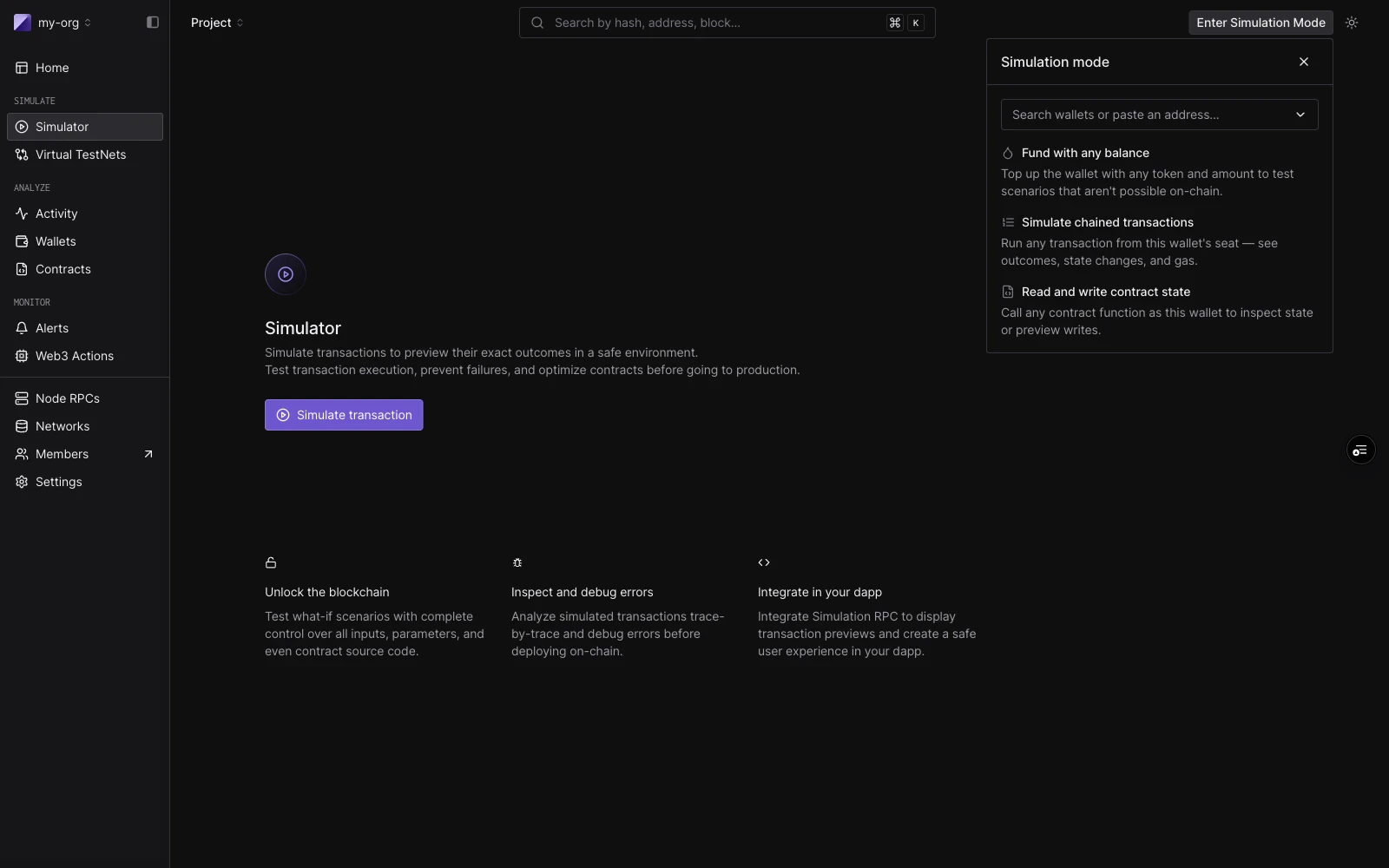
top bar में **Enter Simulation Mode** पर क्लिक करें, या उस wallet के साथ Sim Mode को पूर्व-भरने के लिए किसी भी wallet detail पेज पर **Impersonate** action का उपयोग करें।
एक बार सक्रिय होने पर, top-bar बटन को एक `SIMULATING` pill से बदल दिया जाता है जो impersonated wallet की identity icon, संक्षिप्त address, और कुल USD balance दिखाता है।
## इसका उपयोग कब करें
* अपनी keys को धारण किए बिना **एक wallet के onchain व्यवहार से गुज़रें**। समर्थन, जोखिम समीक्षा, या post-incident विश्लेषण के लिए उपयोगी।
* एक विशिष्ट wallet के रूप में **actions के क्रम को stage करें** (उदा., supply, borrow, repay) और cumulative state प्रभावों का निरीक्षण करें।
* contract Read/Write पेजों, Simulator, और re-simulation flows पर **wallet के दृष्टिकोण से परीक्षण करें**, हर बार address को फिर से दर्ज किए बिना।
* यह देखने के लिए कि किसी asset के अधिक (या कम) के साथ एक action कैसा दिखेगा, चलते-फिरते **token balances को override करें**।
यदि आपको केवल एक one-off simulation या multi-step bundle की आवश्यकता है, तो [Simulator](/simulator-ui/overview) का उपयोग करें। यदि आपको एक पूर्ण RPC environment की आवश्यकता है, तो [Virtual Environment](/virtual-environments/overview) का उपयोग करें।
## एक सत्र कैसे बनाया जाता है
| गुण | व्यवहार |
| ----------------- | ----------------------------------------------------------------------------------------------------------------------- |
| **Keyed by** | `(wallet, network)`। एक समय में एक सक्रिय सत्र। |
| **Persistence** | सत्र उसी `(wallet, network)` जोड़ी के लिए Simulation Mode से बाहर निकलने और फिर से प्रवेश करने के बाद भी जीवित रहता है। |
| **Cumulative** | प्रत्येक सफल simulation session log में जुड़ता है और इसकी state अगले पर आगे बढ़ती है। |
| **Reset** | **Reset session** action सक्रिय सत्र के लिए state साफ़ करता है। |
| **Cross-network** | Networks switch करना सक्रिय सत्र को reset करता है। |
## Simulation Mode में प्रवेश करना
top bar में **Enter Simulation Mode** पर क्लिक करें, या उस wallet के साथ Sim Mode को पूर्व-भरने के लिए किसी भी wallet detail पेज पर **Impersonate** action का उपयोग करें।
एक बार सक्रिय होने पर, top-bar बटन को एक `SIMULATING` pill से बदल दिया जाता है जो impersonated wallet की identity icon, संक्षिप्त address, और कुल USD balance दिखाता है।
 ## Sim Mode panel
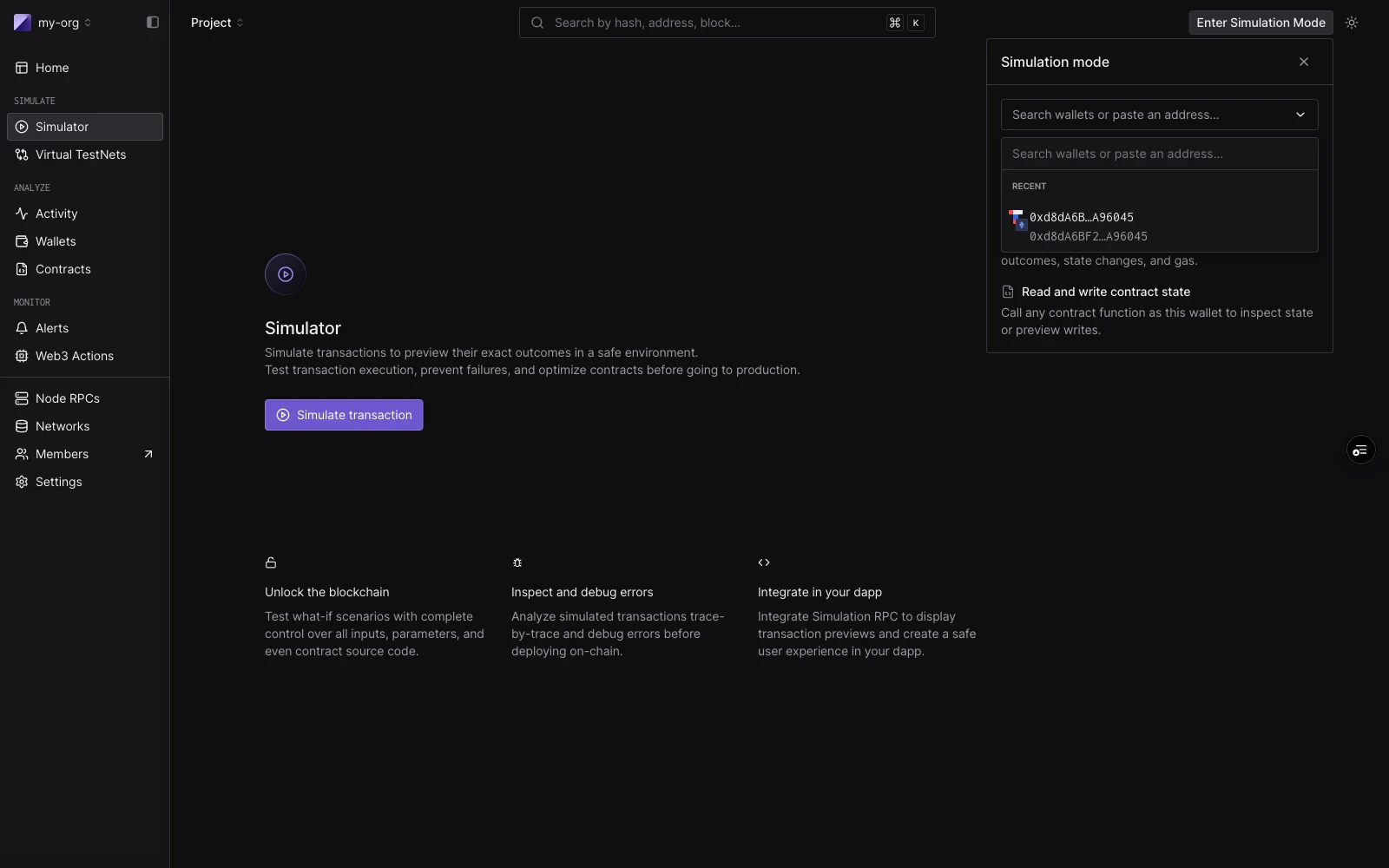
सक्रिय Sim Mode panel dashboard के ऊपरी-दाईं ओर anchor होता है। इसके चार भाग हैं:
* **Network row**: switch करने के लिए dropdown के साथ current network।
* **State row**: block number, block position, और timestamp settings (default: latest block, end of block, auto timestamp)।
* **Wallet card**: identity icon, संक्षिप्त address, USD balance, और refresh।
* **Tabs**: **Tokens** और **Simulated transactions**।
### Tokens tab
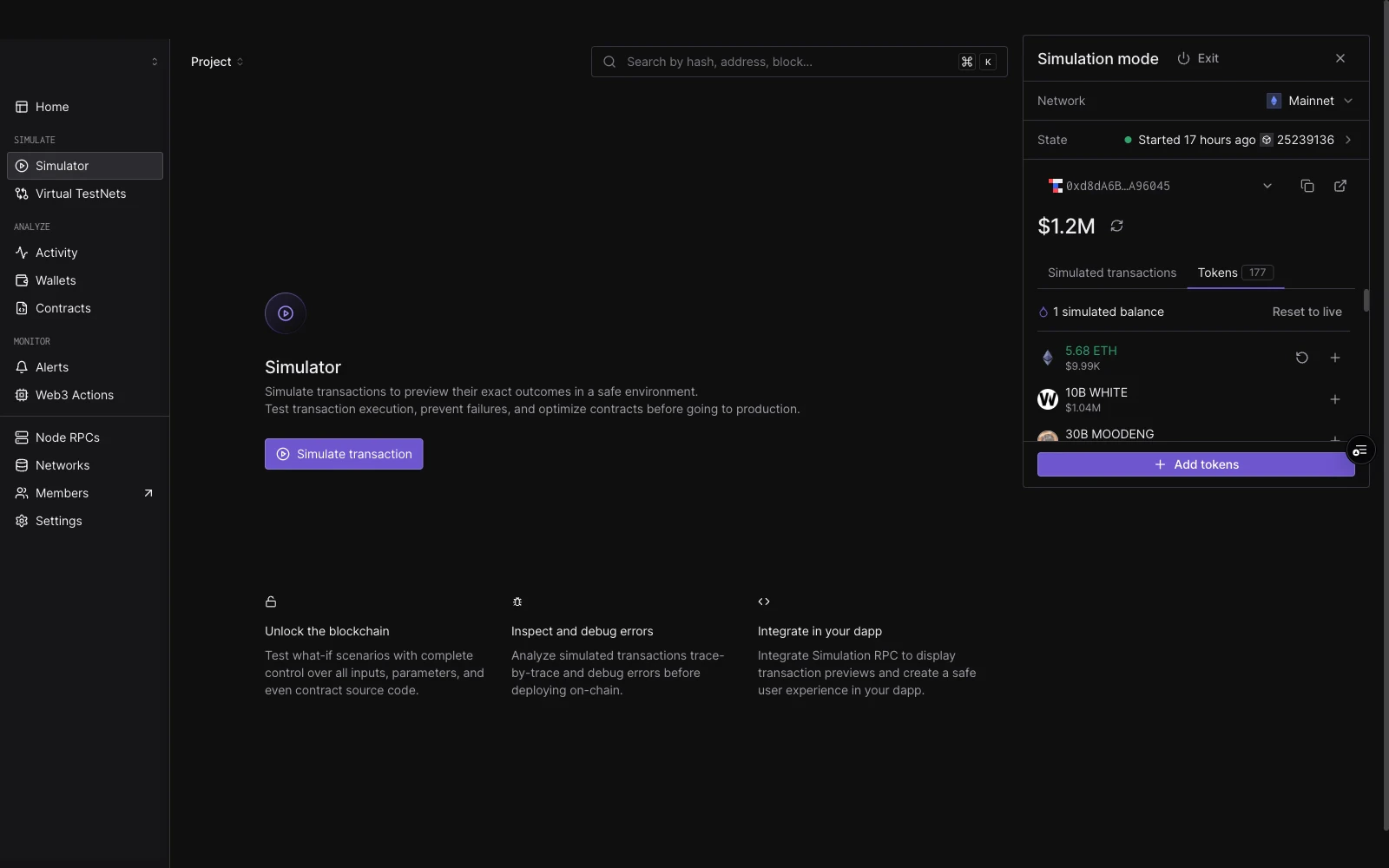
सक्रिय network पर impersonated wallet द्वारा रखे गए tokens को सूचीबद्ध करता है।
* live balance के साथ पूर्व-भरा एक inline editor खोलने के लिए किसी भी row पर **+** पर क्लिक करें।
* एक overridden row simulated amount, एक हरा diff badge (उदा., `+123.3K`), एक undo control, और एक edit control दिखाता है।
* सूची के शीर्ष पर simulated balances की गिनती और एक **Reset to live** action दिखाता है।
* नीचे: **+ Add tokens** उन tokens के लिए funding flow खोलता है जो wallet वर्तमान में नहीं रखता है।
## Sim Mode panel
सक्रिय Sim Mode panel dashboard के ऊपरी-दाईं ओर anchor होता है। इसके चार भाग हैं:
* **Network row**: switch करने के लिए dropdown के साथ current network।
* **State row**: block number, block position, और timestamp settings (default: latest block, end of block, auto timestamp)।
* **Wallet card**: identity icon, संक्षिप्त address, USD balance, और refresh।
* **Tabs**: **Tokens** और **Simulated transactions**।
### Tokens tab
सक्रिय network पर impersonated wallet द्वारा रखे गए tokens को सूचीबद्ध करता है।
* live balance के साथ पूर्व-भरा एक inline editor खोलने के लिए किसी भी row पर **+** पर क्लिक करें।
* एक overridden row simulated amount, एक हरा diff badge (उदा., `+123.3K`), एक undo control, और एक edit control दिखाता है।
* सूची के शीर्ष पर simulated balances की गिनती और एक **Reset to live** action दिखाता है।
* नीचे: **+ Add tokens** उन tokens के लिए funding flow खोलता है जो wallet वर्तमान में नहीं रखता है।
 ### Simulated transactions tab
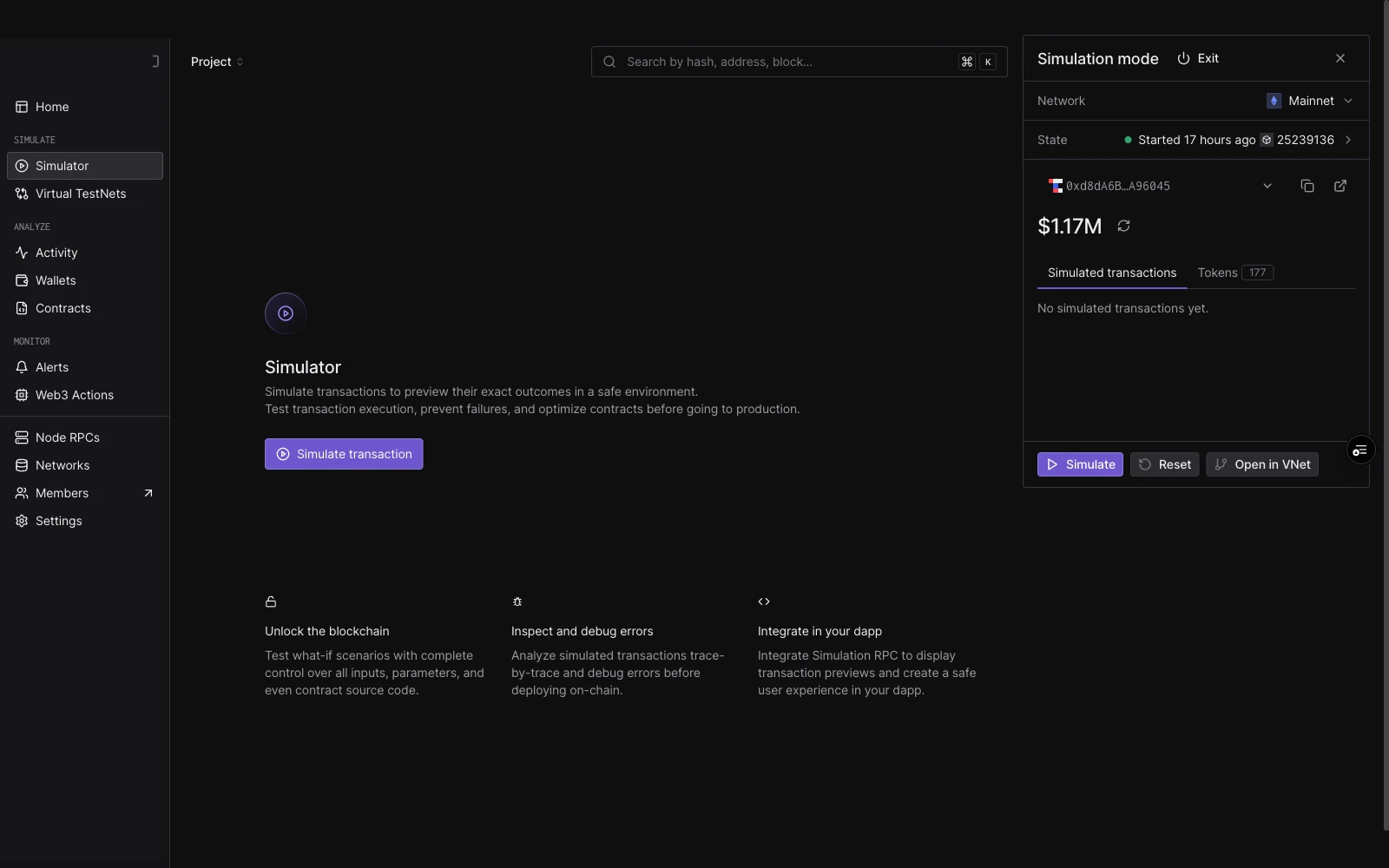
इस सत्र में सफल simulations का एक session log।
* प्रत्येक row: status dot, function नाम, relative time।
* Bottom action bar: **▷ Simulate** (primary), **↺ Reset session**, **⚡ Convert to Virtual Environment**, **◆ Send onchain**।
### Simulated transactions tab
इस सत्र में सफल simulations का एक session log।
* प्रत्येक row: status dot, function नाम, relative time।
* Bottom action bar: **▷ Simulate** (primary), **↺ Reset session**, **⚡ Convert to Virtual Environment**, **◆ Send onchain**।
 ### State settings
अंतर्निहित simulation parameters को उजागर करने के लिए **State** row पर क्लिक करें:
| Field | Default |
| ----------------- | ----------- |
| Block number | Latest |
| Position in block | At end |
| Block timestamp | Auto |
| Gas | `8,000,000` |
| Gas price | `0` |
| Value | `0` |
## Network switch करना
network picker **impersonated wallet के कुल value द्वारा descending क्रम में** क्रमबद्ध है, प्रति-network balance पूर्वावलोकन के साथ।
Network switch करना **सक्रिय सत्र को reset करता है**। नया network बिना balance overrides और खाली simulation log के साथ नए सिरे से शुरू होता है।
## Wired surfaces
जब Simulation Mode सक्रिय होता है, तो ये surfaces सत्र संदर्भ को स्वचालित रूप से उठा लेते हैं:
| Surface | व्यवहार |
| ---------------------------------- | ----------------------------------------------------------------------------------------------------------------------------------------------------------------------- |
| **Simulator** | Sender impersonated wallet के रूप में पूर्व-भरता है। सफल sims session log में जुड़ जाते हैं। |
| **Contract Read/Write पेज** | एक बैंगनी banner इंगित करता है कि Sim Mode सक्रिय है। Write बटन छिपा है। Simulate primary action बन जाता है। `From` field impersonated wallet के साथ auto-fill होता है। |
| **Re-Simulate (tx और sim detail)** | Re-Simulate dropdown में **Re-simulate as \[wallet]** विकल्प जुड़ता है। यहाँ से Re-simulations session log में नहीं जुड़ती हैं। |
| **Wallet detail पेज** | Create Alert और Simulate के बीच एक **Impersonate** बटन बैठता है। उस wallet के साथ Sim Mode को पूर्व-भरता है। |
### Cross-network mismatch
यदि आप अपने सक्रिय Sim Mode सत्र से भिन्न network पर एक पेज खोलते हैं, तो एक banner एक-क्लिक **Switch Sim Mode to \[network]** प्रदान करता है। Read और Write actions आपके switch करने तक अक्षम हैं।
### सक्रिय सत्र को बदलना
यदि आप सक्रिय के बजाय एक अलग `(wallet, network)` जोड़ी पर Simulation Mode flow शुरू करते हैं, तो एक modal switch की पुष्टि करता है। Switch करने से सक्रिय सत्र समाप्त हो जाता है।
## सीमाएँ
Simulation Mode उपयोग आपके account के simulation कोटा के विरुद्ध गिना जाता है। कोई अलग per-session सीमा नहीं है। आप कितने सत्र चला सकते हैं यह इस पर निर्भर करता है कि आपका plan कितने simulations की अनुमति देता है।
## यह भी देखें
* [Simulator UI](/simulator-ui/overview): single simulations और multi-step bundles।
* [Virtual Environments](/virtual-environments/overview): जब आपको एक पूर्ण RPC environment की आवश्यकता हो।
### State settings
अंतर्निहित simulation parameters को उजागर करने के लिए **State** row पर क्लिक करें:
| Field | Default |
| ----------------- | ----------- |
| Block number | Latest |
| Position in block | At end |
| Block timestamp | Auto |
| Gas | `8,000,000` |
| Gas price | `0` |
| Value | `0` |
## Network switch करना
network picker **impersonated wallet के कुल value द्वारा descending क्रम में** क्रमबद्ध है, प्रति-network balance पूर्वावलोकन के साथ।
Network switch करना **सक्रिय सत्र को reset करता है**। नया network बिना balance overrides और खाली simulation log के साथ नए सिरे से शुरू होता है।
## Wired surfaces
जब Simulation Mode सक्रिय होता है, तो ये surfaces सत्र संदर्भ को स्वचालित रूप से उठा लेते हैं:
| Surface | व्यवहार |
| ---------------------------------- | ----------------------------------------------------------------------------------------------------------------------------------------------------------------------- |
| **Simulator** | Sender impersonated wallet के रूप में पूर्व-भरता है। सफल sims session log में जुड़ जाते हैं। |
| **Contract Read/Write पेज** | एक बैंगनी banner इंगित करता है कि Sim Mode सक्रिय है। Write बटन छिपा है। Simulate primary action बन जाता है। `From` field impersonated wallet के साथ auto-fill होता है। |
| **Re-Simulate (tx और sim detail)** | Re-Simulate dropdown में **Re-simulate as \[wallet]** विकल्प जुड़ता है। यहाँ से Re-simulations session log में नहीं जुड़ती हैं। |
| **Wallet detail पेज** | Create Alert और Simulate के बीच एक **Impersonate** बटन बैठता है। उस wallet के साथ Sim Mode को पूर्व-भरता है। |
### Cross-network mismatch
यदि आप अपने सक्रिय Sim Mode सत्र से भिन्न network पर एक पेज खोलते हैं, तो एक banner एक-क्लिक **Switch Sim Mode to \[network]** प्रदान करता है। Read और Write actions आपके switch करने तक अक्षम हैं।
### सक्रिय सत्र को बदलना
यदि आप सक्रिय के बजाय एक अलग `(wallet, network)` जोड़ी पर Simulation Mode flow शुरू करते हैं, तो एक modal switch की पुष्टि करता है। Switch करने से सक्रिय सत्र समाप्त हो जाता है।
## सीमाएँ
Simulation Mode उपयोग आपके account के simulation कोटा के विरुद्ध गिना जाता है। कोई अलग per-session सीमा नहीं है। आप कितने सत्र चला सकते हैं यह इस पर निर्भर करता है कि आपका plan कितने simulations की अनुमति देता है।
## यह भी देखें
* [Simulator UI](/simulator-ui/overview): single simulations और multi-step bundles।
* [Virtual Environments](/virtual-environments/overview): जब आपको एक पूर्ण RPC environment की आवश्यकता हो।