> ## Documentation Index
> Fetch the complete documentation index at: https://docs.tenderly.co/llms.txt
> Use this file to discover all available pages before exploring further.
# Simulation with State Overrides
> simulation चलने से पहले custom contract state सेट करने के लिए simulation builder में state overrides का उपयोग करें, जो एक non-ward address से DAI mint करके प्रदर्शित किया गया है।
State overrides एक simulation execute होने से पहले contract के storage के लिए custom values सेट करते हैं। access-control जाँच को संतुष्ट करने, balances को स्थापित करने, या किसी भी storage slot को उस value पर सेट करने के लिए उनका उपयोग करें जिसकी आपके परिदृश्य को आवश्यकता है, वास्तविक network पर keys या state के मालिक हुए बिना।
यह पेज एक पूर्ण उदाहरण के माध्यम से चलता है। State overrides cheatcode के field-स्तरीय reference के लिए, [Simulation Parameters](/simulator-ui/parameters#state-overrides) देखें।
## उदाहरण: 2 DAI mint करना
हम `0xe2e2e2e2e2e2e2e2e2e2e2e2e2e2e2e2e2e2e2e2` से भेजे गए holder `0xe58b9ee93700a616b50509c8292977fa7a0f8ce1` को 2 DAI (`2000000000000000000` wei) mint करने का simulate करेंगे।
DAI का `mint` function एक `wards` mapping द्वारा संरक्षित है: केवल पंजीकृत ward addresses ही mint कर सकते हैं। sender Mainnet पर ward नहीं है, इसलिए एक सादा simulation revert हो जाता है। override `wards[0xe2e2…e2e2] = 1` इसे simulation की अवधि के लिए एक ward बनाता है।
### mint step बनाएँ
1. **Simulator** पर जाएँ और **New Simulation** पर क्लिक करें।
2. **Contract** field में, `0x6b175474e89094c44da98b954eedeac495271d0f` paste करें और **Dai** चुनें।
3. **Function** field में **mint** चुनें।
4. **usr** को `0xe58b9ee93700a616b50509c8292977fa7a0f8ce1` पर सेट करें और **wad** को `2000000000000000000` पर।
5. step के **From** को `0xe2e2e2e2e2e2e2e2e2e2e2e2e2e2e2e2e2e2e2e2` पर सेट करें।
### state override जोड़ें
6. step fields के नीचे **State overrides** section का विस्तार करें और **Add State Override** पर क्लिक करें। override का contract step के target (Dai) पर डिफ़ॉल्ट होता है।
7. **Storage variables** के अंतर्गत, key `wards[0xe2e2e2e2e2e2e2e2e2e2e2e2e2e2e2e2e2e2e2e2]` और value `1` दर्ज करें। key field contract के decoded storage variables (`wards[]`, `balanceOf[]`, `totalSupply`, और इसी तरह) का सुझाव देता है; brackets के अंदर mapping key भरें।
8. जोड़ी जोड़ने के लिए value के आगे **+** बटन पर क्लिक करें। committed जोड़ी Storage variables के तहत एक row के रूप में दिखाई देती है। Tenderly इसे computed storage slot hash के रूप में store करता है।
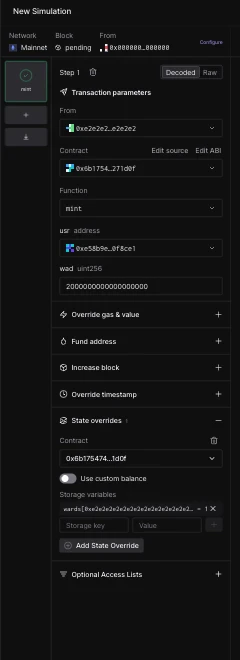 override जोड़ी को **+** बटन के साथ commit करना होगा। एक uncommitted key/value entry को अमान्य माना जाता है और simulation शुरू नहीं होगी।
storage के बजाय (या इसके अलावा) contract के native balance को override करने के लिए, उसी section में **Use custom balance** switch को flip करें।
### चलाएँ और निरीक्षण करें
9. **Simulate** पर क्लिक करें। mint सफलतापूर्वक execute होता है क्योंकि simulation sender को एक ward के रूप में देखती है।
override जोड़ी को **+** बटन के साथ commit करना होगा। एक uncommitted key/value entry को अमान्य माना जाता है और simulation शुरू नहीं होगी।
storage के बजाय (या इसके अलावा) contract के native balance को override करने के लिए, उसी section में **Use custom balance** switch को flip करें।
### चलाएँ और निरीक्षण करें
9. **Simulate** पर क्लिक करें। mint सफलतापूर्वक execute होता है क्योंकि simulation sender को एक ward के रूप में देखती है।
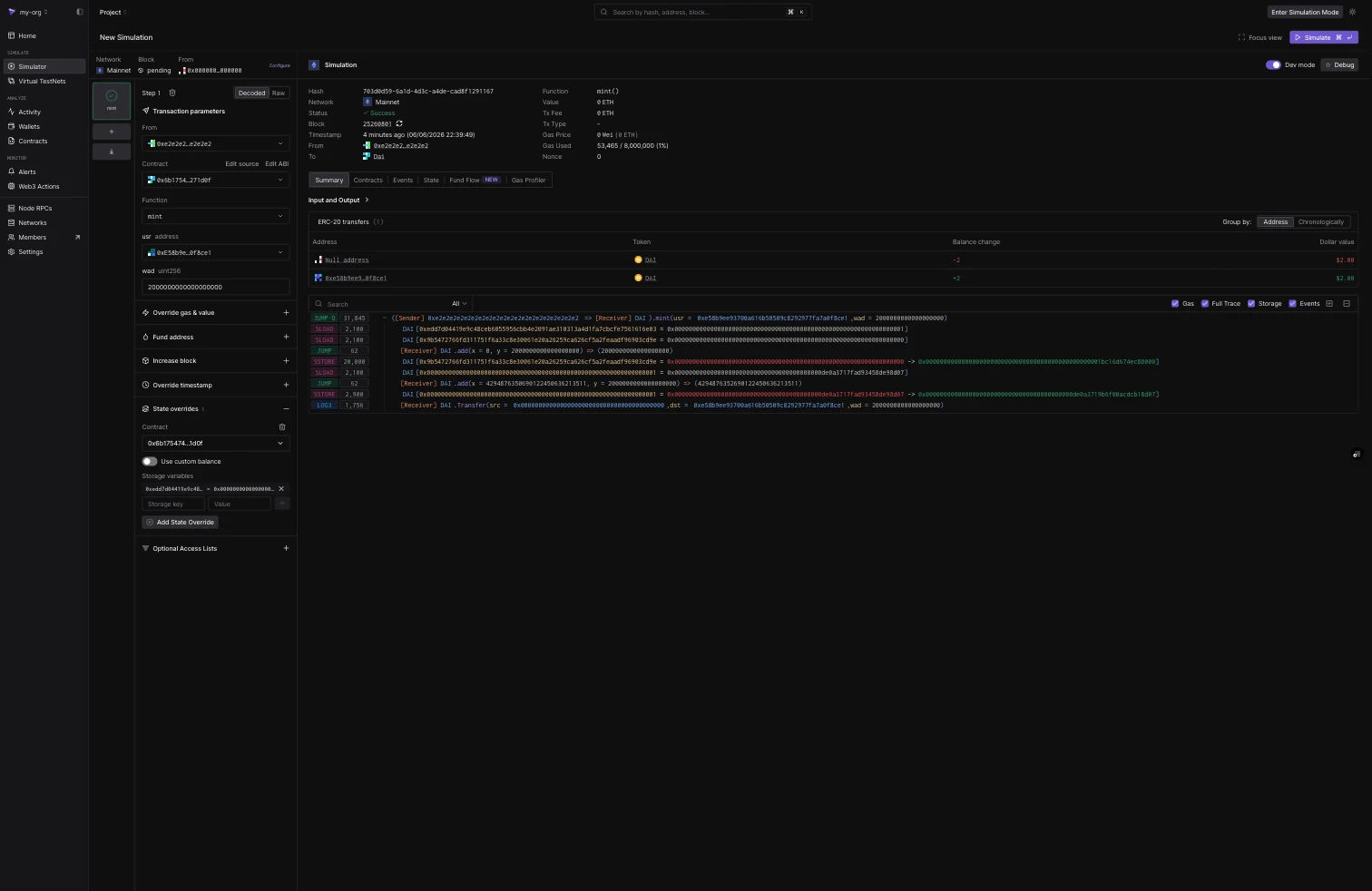 result tabs पुष्टि करते हैं कि override ने क्या बदला:
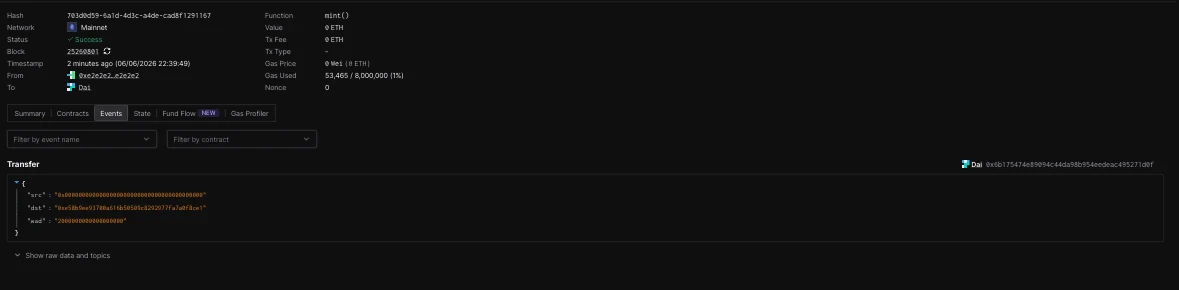
* **Events** tab `2000000000000000000` wei के लिए zero address से holder तक `Transfer` event दिखाता है।
result tabs पुष्टि करते हैं कि override ने क्या बदला:
* **Events** tab `2000000000000000000` wei के लिए zero address से holder तक `Transfer` event दिखाता है।
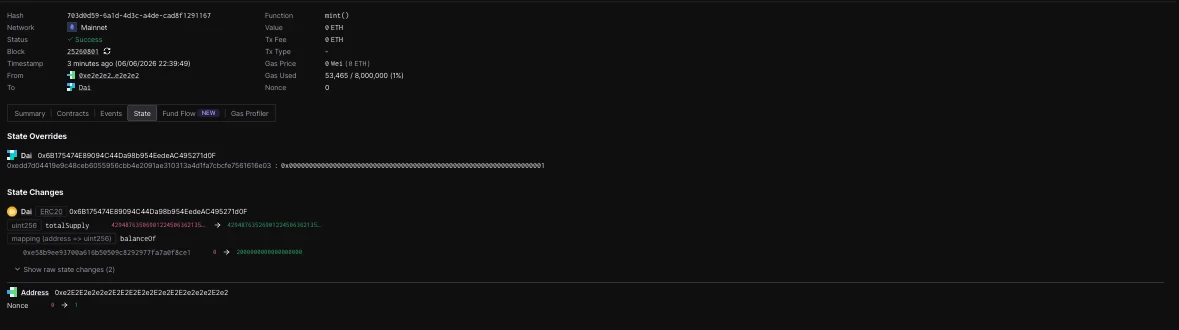
 * **State** tab लागू **State Overrides** (ward slot `1` पर सेट) और परिणामी **State Changes** को सूचीबद्ध करता है: holder का `balanceOf` `0` से `2000000000000000000` तक जाना, बढ़ा हुआ `totalSupply`, और sender का nonce।
 ## Raw storage keys
decoded `mapping[key]` फ़ॉर्म के बजाय, आप raw 32-byte storage slot को सीधे दर्ज कर सकते हैं। storage position `p` पर एक Solidity mapping के लिए, `mapping[k]` के लिए slot `keccak256(abi.encode(k, p))` है। ऊपर wards override इस पर resolve होता है:
```bash theme={"theme":{"light":"catppuccin-latte","dark":"catppuccin-mocha"}}
0xedd7d04419e9c48ceb6055956cbb4e2091ae310313a4d1fa7cbcfe7561616e03
```
verified source के बिना contracts के लिए Raw keys एकमात्र विकल्प हैं, और वे [Simulation API के state overrides](/simulations/state-overrides) और [bundle guide](/simulations/guides/mint-approve-transfer-bundle) द्वारा उपयोग किए गए format से मेल खाते हैं।
## Overridden state को persist करना
Simulations stateless हैं: override एक run पर लागू होता है। एक persistent environment के रूप में संशोधित state रखने के लिए जिसके विरुद्ध आप बार-बार transact कर सकते हैं, [Virtual Environments](/virtual-environments/overview) का उपयोग करें।
## Raw storage keys
decoded `mapping[key]` फ़ॉर्म के बजाय, आप raw 32-byte storage slot को सीधे दर्ज कर सकते हैं। storage position `p` पर एक Solidity mapping के लिए, `mapping[k]` के लिए slot `keccak256(abi.encode(k, p))` है। ऊपर wards override इस पर resolve होता है:
```bash theme={"theme":{"light":"catppuccin-latte","dark":"catppuccin-mocha"}}
0xedd7d04419e9c48ceb6055956cbb4e2091ae310313a4d1fa7cbcfe7561616e03
```
verified source के बिना contracts के लिए Raw keys एकमात्र विकल्प हैं, और वे [Simulation API के state overrides](/simulations/state-overrides) और [bundle guide](/simulations/guides/mint-approve-transfer-bundle) द्वारा उपयोग किए गए format से मेल खाते हैं।
## Overridden state को persist करना
Simulations stateless हैं: override एक run पर लागू होता है। एक persistent environment के रूप में संशोधित state रखने के लिए जिसके विरुद्ध आप बार-बार transact कर सकते हैं, [Virtual Environments](/virtual-environments/overview) का उपयोग करें।