> ## Documentation Index
> Fetch the complete documentation index at: https://docs.tenderly.co/llms.txt
> Use this file to discover all available pages before exploring further.
# Account-Scoped
> This page walks you through how to create each account-scoped Alert Destination.
[Connect Slack to Tenderly →](https://dashboard.tenderly.co/account/alerts/destinations)
Account-scoped [Alert destinations](/monitoring/alerts/destinations/overview) are accessible across all your projects within your Tenderly account. See the [Alerts](/monitoring/alerts/introduction) documentation for how to route notifications to them.
### Email Destination
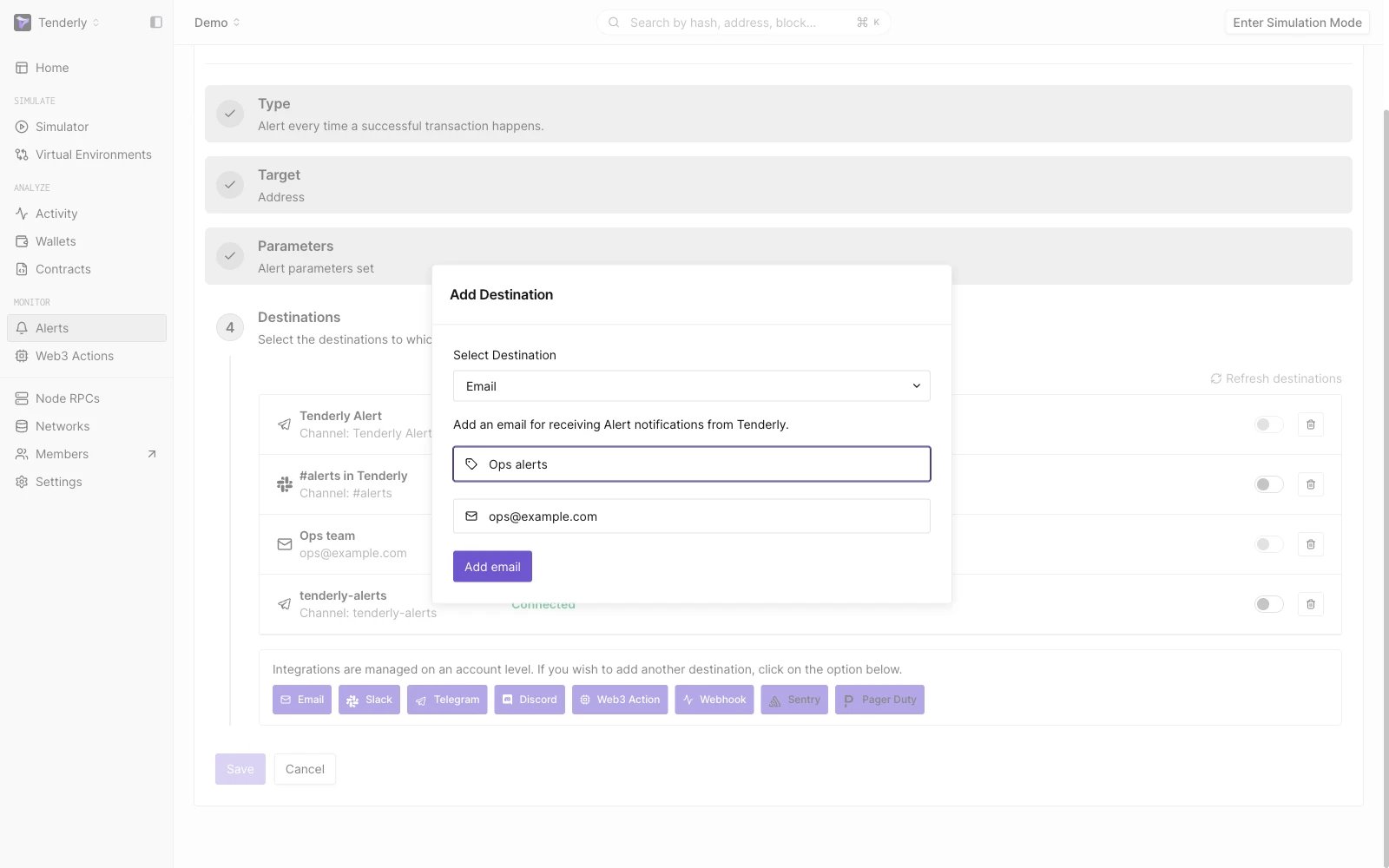 Get an Alert notification in your email inbox.
Go to **Alerts →** **Destinations → Email.**
**Click Add Email.**
A verification email will be sent to the email address you provided. Click the link in the email to confirm that you’re the owner of the email address.
### Slack Destination
Get an Alert notification in your email inbox.
Go to **Alerts →** **Destinations → Email.**
**Click Add Email.**
A verification email will be sent to the email address you provided. Click the link in the email to confirm that you’re the owner of the email address.
### Slack Destination
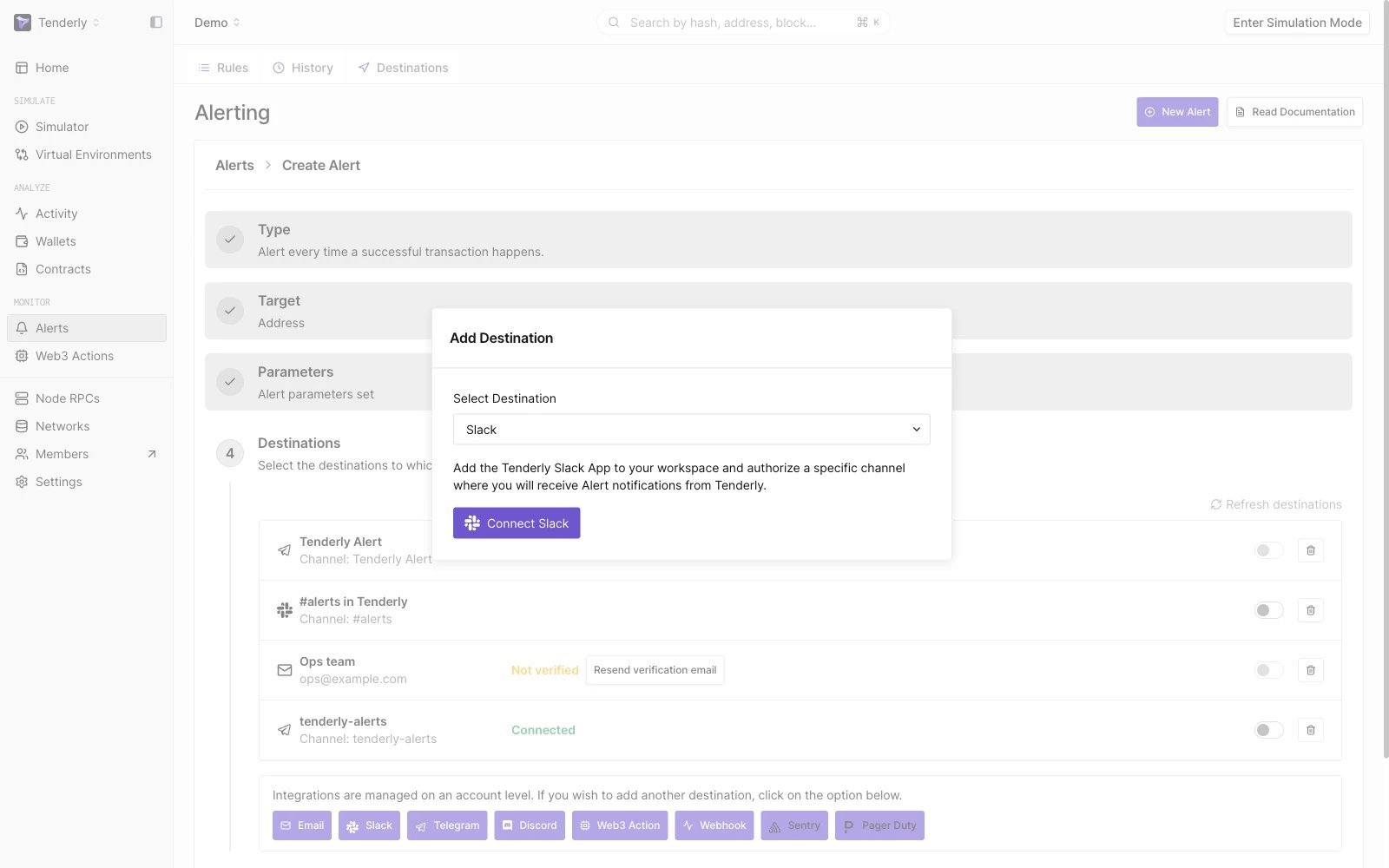 Get Alert notifications in a private message or a channel on Slack.
Go to **Alerts →** **Destinations → Slack → Connect Slack.**
This will take you to the Slack permissions screen, where you need to set the Slack channel or private message to receive notifications.
### Telegram Destination
Get Alert notifications in a private message or a channel on Slack.
Go to **Alerts →** **Destinations → Slack → Connect Slack.**
This will take you to the Slack permissions screen, where you need to set the Slack channel or private message to receive notifications.
### Telegram Destination
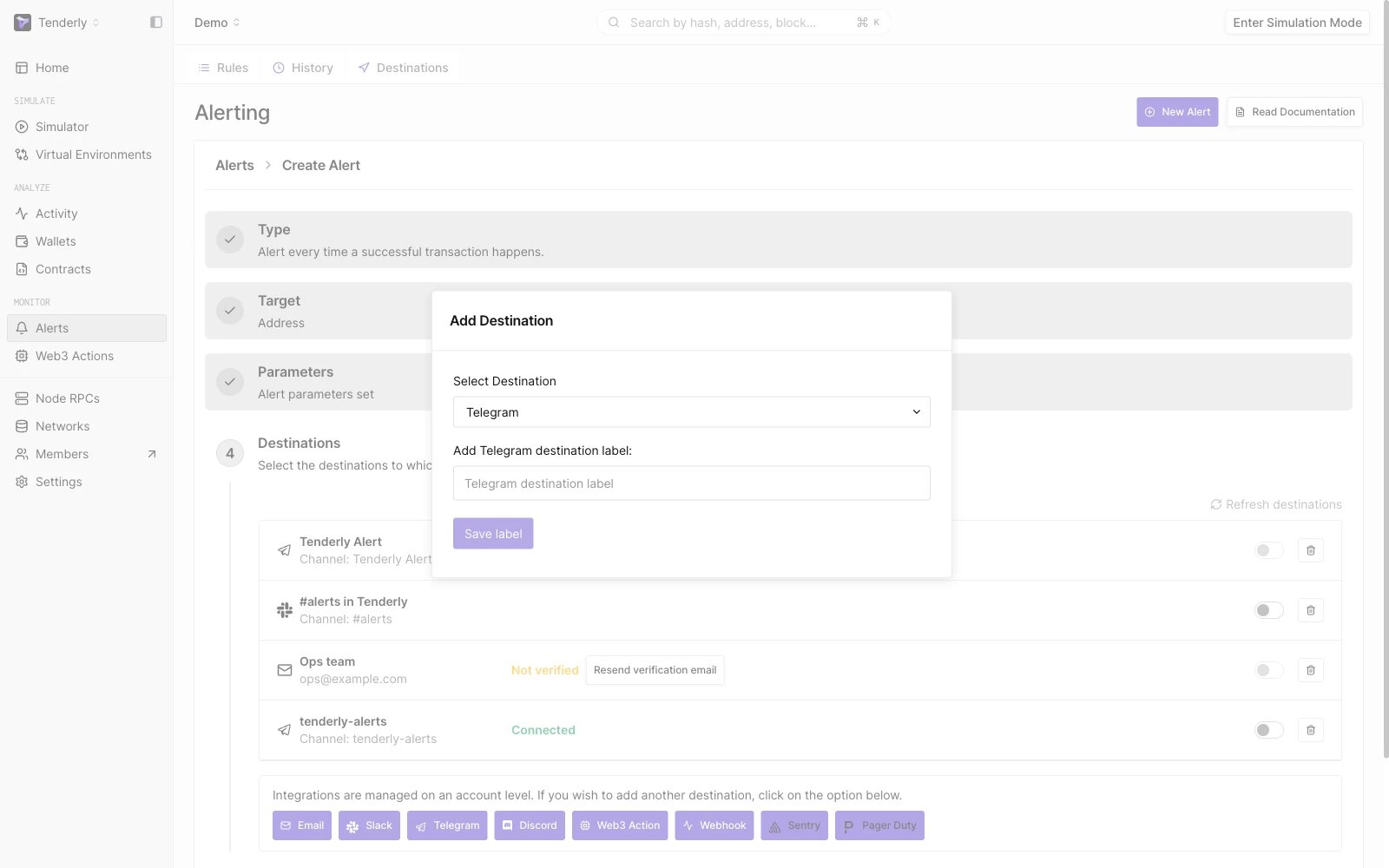 Get Alert notifications in a Telegram channel.
Go to **Alerts →** **Destinations → Telegram.**
Add a required label for the Telegram Destination and click **Save label**.
**Follow the instruction** on the screen to connect to TenderlyRobot for Telegram and **click Finish**.
### Discord Destination
Get Alert notifications in a Telegram channel.
Go to **Alerts →** **Destinations → Telegram.**
Add a required label for the Telegram Destination and click **Save label**.
**Follow the instruction** on the screen to connect to TenderlyRobot for Telegram and **click Finish**.
### Discord Destination
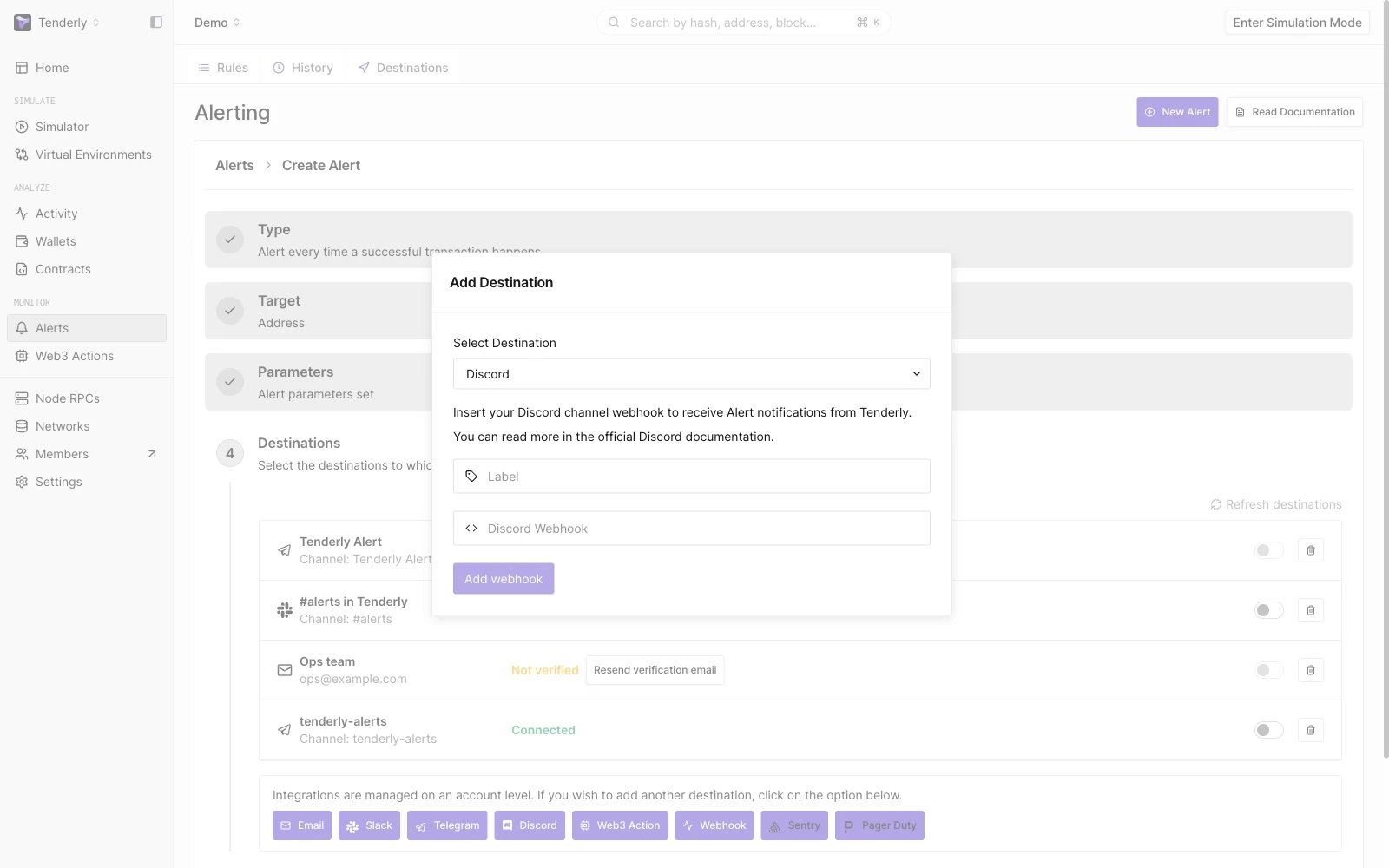 Get Alert notifications in a Discord channel.
Go to **Alerts →** **Destinations → Discord.**
Add a required label and paste your Discord webhook. Follow this [official guide from Discord](https://support.discord.com/hc/en-us/articles/228383668-Intro-to-Webhooks) to get the webhook URL.
**Click Add Webhook**.
### Sentry Destination
Get Alert notifications in a Discord channel.
Go to **Alerts →** **Destinations → Discord.**
Add a required label and paste your Discord webhook. Follow this [official guide from Discord](https://support.discord.com/hc/en-us/articles/228383668-Intro-to-Webhooks) to get the webhook URL.
**Click Add Webhook**.
### Sentry Destination
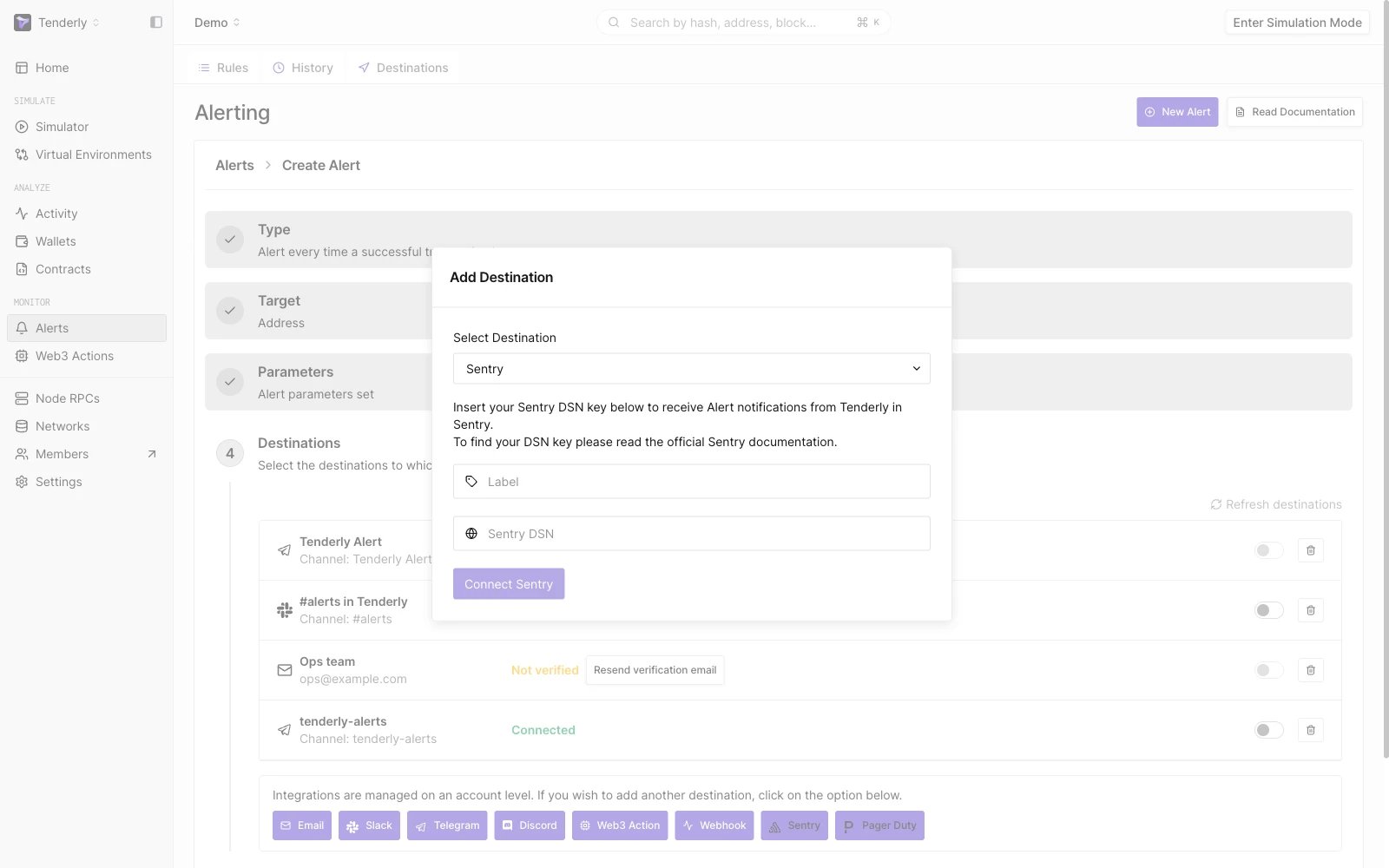 Send Alert data to Sentry, a third-party application alert monitoring and error tracking platform.
Go to **Alerts →** **Destinations → Sentry.**
Add a required label and paste the Sentry DSN key. Check the [official Sentry documentation](https://docs.sentry.io/concepts/key-terms/dsn-explainer/) to learn how to find your project DSN.
**Click Connect Sentry**.
### PagerDuty Destination
Send Alert data to Sentry, a third-party application alert monitoring and error tracking platform.
Go to **Alerts →** **Destinations → Sentry.**
Add a required label and paste the Sentry DSN key. Check the [official Sentry documentation](https://docs.sentry.io/concepts/key-terms/dsn-explainer/) to learn how to find your project DSN.
**Click Connect Sentry**.
### PagerDuty Destination
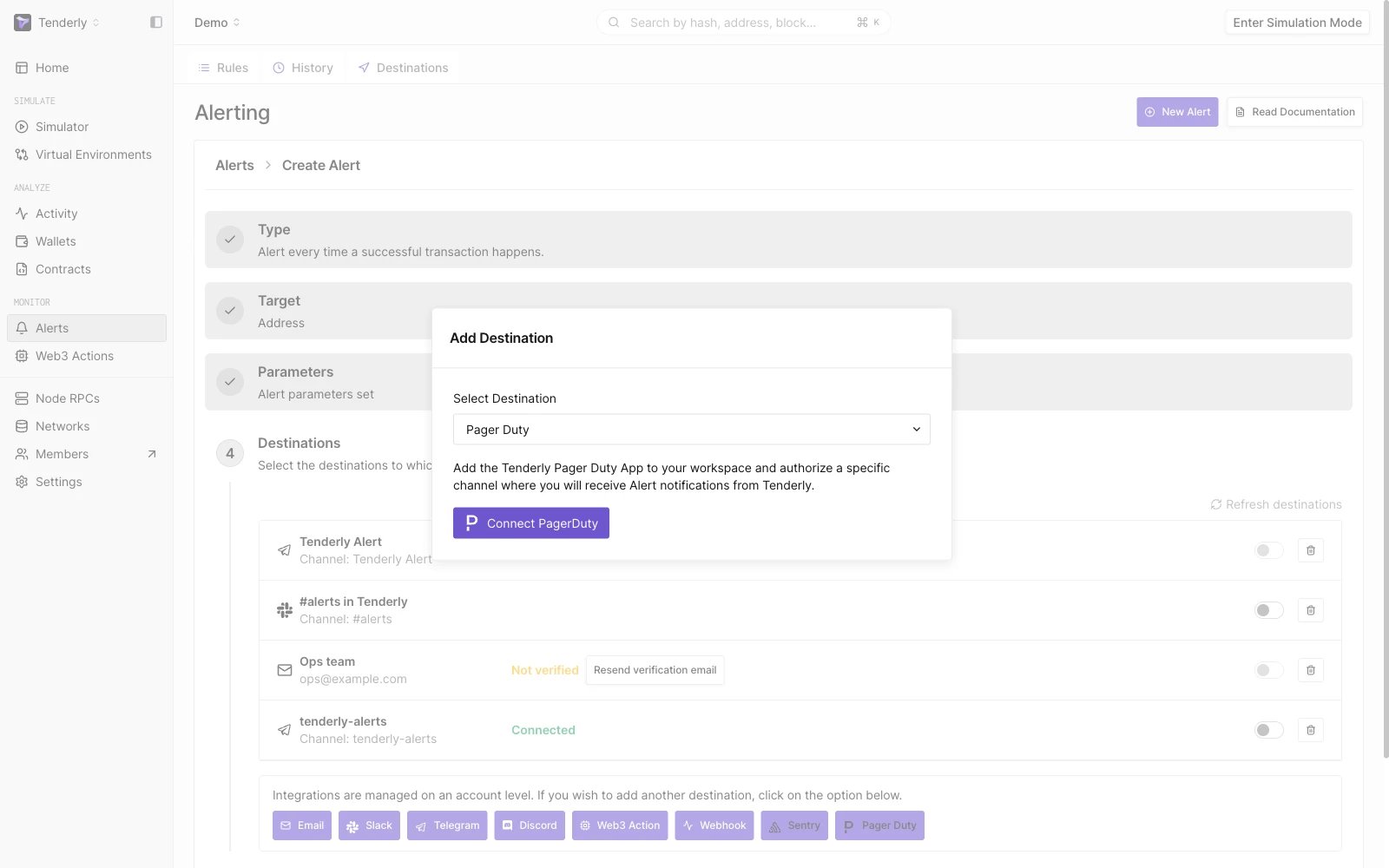 Send Alert data to PagerDuty, a third-party incident response platform.
Go to **Alerts →** **Destinations → Pager Duty → Connect PagerDuty.**
You'll get redirected to a PagerDuty page and asked to add the Tenderly PagerDuty App to your workspace and authorize a specific channel to receive Alert notifications.
Send Alert data to PagerDuty, a third-party incident response platform.
Go to **Alerts →** **Destinations → Pager Duty → Connect PagerDuty.**
You'll get redirected to a PagerDuty page and asked to add the Tenderly PagerDuty App to your workspace and authorize a specific channel to receive Alert notifications.