> ## Documentation Index
> Fetch the complete documentation index at: https://docs.tenderly.co/llms.txt
> Use this file to discover all available pages before exploring further.
# Context: Gateway, Storage, Secrets
> Access blockchain via Node RPC, store and fetch data from Storage, and save sensitive information like API keys in Secrets.
This guide provides an overview of the `context` object and how to use it to get access to Gateway, Storage, and Secrets utilities within Web3 Actions.
You’ll also learn how to access [Node RPC](/node-rpc/overview) through `context`, how to manage and access private data such as API keys with Secrets, how to persist data to Storage, and how to access this data from your application.
### Context
`context` is an object that gives you access to Storage and Secrets from within your code. Context is the first parameter that needs to be specified in your functions, enabling access to the execution context when Tenderly runs your code.
```typescript title="example.ts" showLineNumbers theme={"theme":{"light":"catppuccin-latte","dark":"catppuccin-mocha"}}
export const actionFun: ActionFn = async (context: Context, event: Event) => {
// ...
await context.storage.putJson(key, storedValue);
};
```
Storage and Secrets are shared between all Actions within a project in Tenderly.
#### Gateways
The Gateways utility (`context.gateways`) gives you access to [Node RPC](/node-rpc/overview), allowing you to send transactions or read on-chain data with Web3 Actions.
The `gateways` property gives you access to a method called `getGateway()`, which requires one argument - the network you want to access. To access the Mainnet, for example, the argument needs to be formatted like this `Network.MAINNET`.
An example of a completed statement stored in a variable looks like this:
```jsx title="example.jsx" showLineNumbers theme={"theme":{"light":"catppuccin-latte","dark":"catppuccin-mocha"}}
const defaultGatewayURL = context.gateways.getGateway(Network.MAINNET);
```
Here’s a list of arguments for the `getGateway()` method for each supported network in Node RPC:
* `Network.MAINNET`
* `Network.GOERLI`
* `Network.SEPOLIA`
* `Network.POLYGON`
* `Network.MUMBAI`
* `Network.BOBA_ETHEREUM`
For more details about how `context.gateways` works and sample code snippets to help you understand how to use it, read through the [**Node RPC access on the Web3 Actions**](/node-rpc/overview) documentation page.
### Storage
You can use the Storage utility to make your Web3 Actions stateful. Web3 Actions Storage is a key-value-based store. You can save data to Storage both from your custom code (functions) and the Tenderly Dashboard.
Below is a code snippet that shows you how to store JSON objects to Storage.
```javascript title="example.js" showLineNumbers theme={"theme":{"light":"catppuccin-latte","dark":"catppuccin-mocha"}}
await context.storage.putJson(key, valueStored);
```
All functions that interact with Storage are asynchronous, so you need to use the `await` operator
to avoid undesired behavior.
#### Saving and retrieving data from Storage
To save data to Storage, use the following functions, which store values of their respective type:
* `putBigInt`
* `putStr`
* `putNumber`
* `putJson`
To retrieve data from Storage, use the following functions to fetch a specific data type:
* `getBigInt`
* `getStr`
* `getNumber`
* `getJson`
Below is an example of how to save and fetch a JSON object from Storage.
```javascript title="example.js" showLineNumbers theme={"theme":{"light":"catppuccin-latte","dark":"catppuccin-mocha"}}
await context.storage.putJson('BAR_BAZ', { bar: 'baz' });
//....
const barBaz = await context.storage.getJson('BAR_BAZ');
```
#### Storage Limits
| Limit | Value |
| ------------------------ | ------ |
| Maximum keys per project | 1,000 |
| Maximum key size | 1 KB |
| Maximum value size | 100 KB |
If the limits get exceeded, the client will surface a `400 Bad Request` error with a message indicating the specific limit that was breached.
Storage is project-wide, all actions in a project share the same key pool.
Storage is not a database, it’s for small stateful data like config parameters or counters. For large datasets or high-frequency operations, use an external database and store credentials in [**Secrets**](/monitoring/web3-actions/references/context#secrets).
#### Accessing Storage via the Tenderly Dashboard
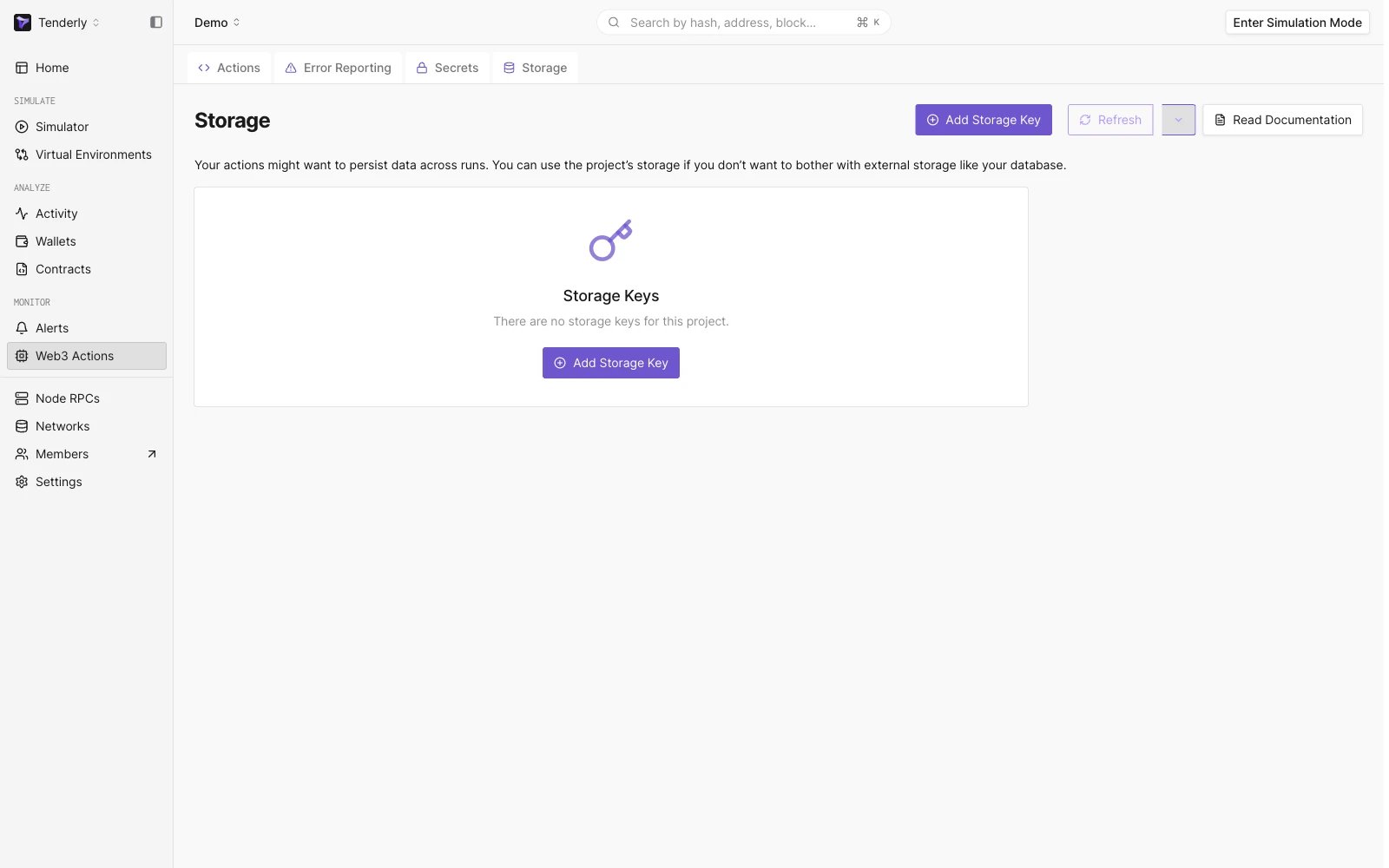
To view data saved to Storage via the **Tenderly Dashboard**, go to **Web3 Actions** from the left-hand menu and click **Storage** from the page menu.
 ### Secrets
Secrets are used to store sensitive information such as private API keys for services that your Web3 Action might call during the execution. Secrets are stored as key-value pairs and are comprised of the name and secret value.
#### Creating and storing Secrets
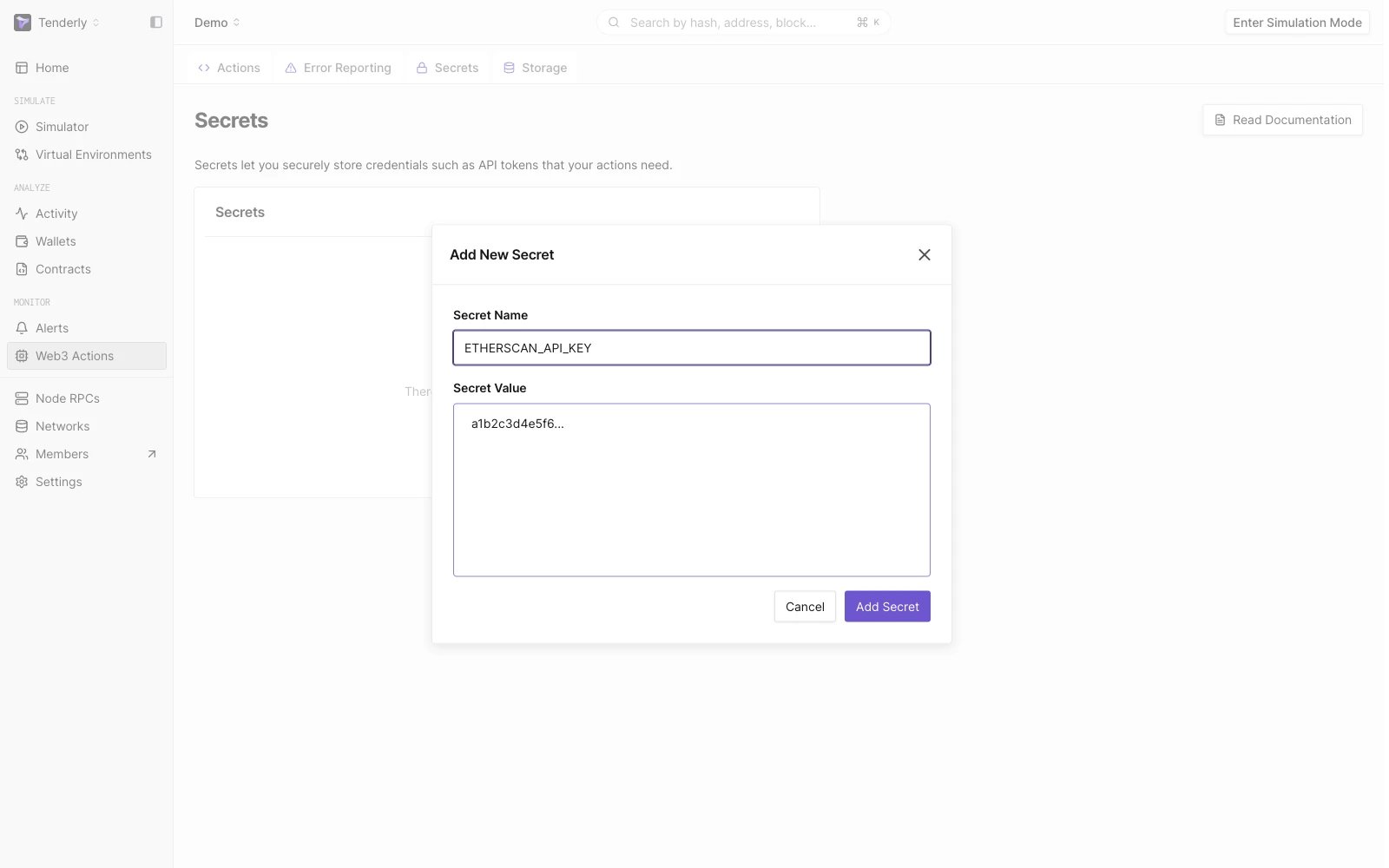
The only way to create secrets is via the **Tenderly Dashboard**. Go to **Web3 Actions** from the left-hand menu and click **Secrets** from the page menu.
Add Secrets by clicking the **Add Secret** button and provide the key name and value.
### Secrets
Secrets are used to store sensitive information such as private API keys for services that your Web3 Action might call during the execution. Secrets are stored as key-value pairs and are comprised of the name and secret value.
#### Creating and storing Secrets
The only way to create secrets is via the **Tenderly Dashboard**. Go to **Web3 Actions** from the left-hand menu and click **Secrets** from the page menu.
Add Secrets by clicking the **Add Secret** button and provide the key name and value.
 #### Fetching Secrets data from inside your code
You can fetch Secrets data from within your code using the `context`object with the `get()` method. As the argument, use the exact key name you specified via the Tenderly Dashboard.
```javascript title="example.js" showLineNumbers theme={"theme":{"light":"catppuccin-latte","dark":"catppuccin-mocha"}}
const fooApiKey = await context.secrets.get('FOO_API_KEY');
```
#### Fetching Secrets data from inside your code
You can fetch Secrets data from within your code using the `context`object with the `get()` method. As the argument, use the exact key name you specified via the Tenderly Dashboard.
```javascript title="example.js" showLineNumbers theme={"theme":{"light":"catppuccin-latte","dark":"catppuccin-mocha"}}
const fooApiKey = await context.secrets.get('FOO_API_KEY');
```