> ## Documentation Index
> Fetch the complete documentation index at: https://docs.tenderly.co/llms.txt
> Use this file to discover all available pages before exploring further.
# Notifications
> Set up email notifications for failed Web3 Actions and learn how Tenderly groups repeated failures into incidents and when failure emails are sent.
Tenderly can notify you by email when a [Web3 Action](/monitoring/web3-actions/introduction) fails to execute. Since Web3 Actions often run as part of critical workflows, email notifications let you react quickly when an Action stops working, without watching the Tenderly Dashboard.
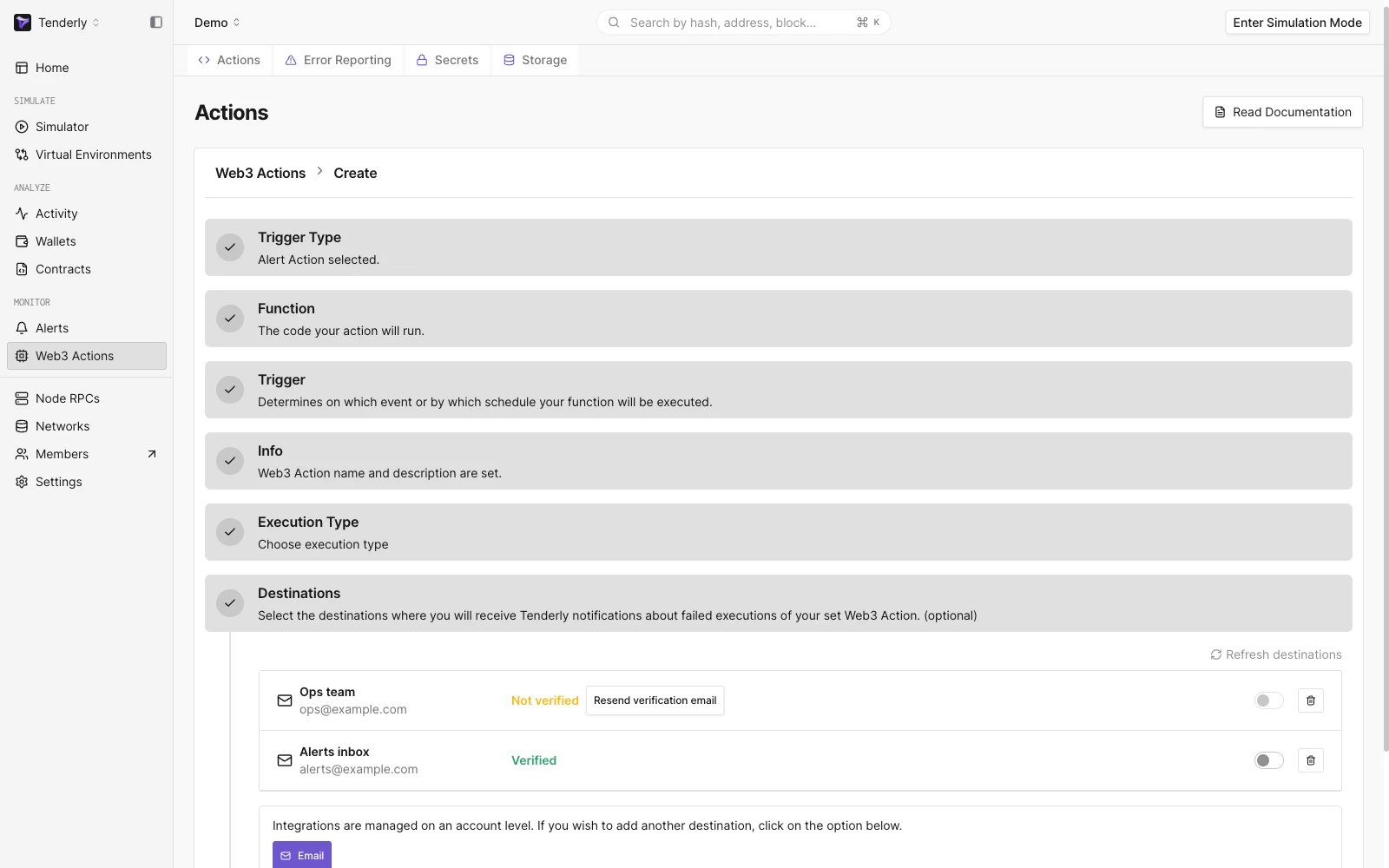
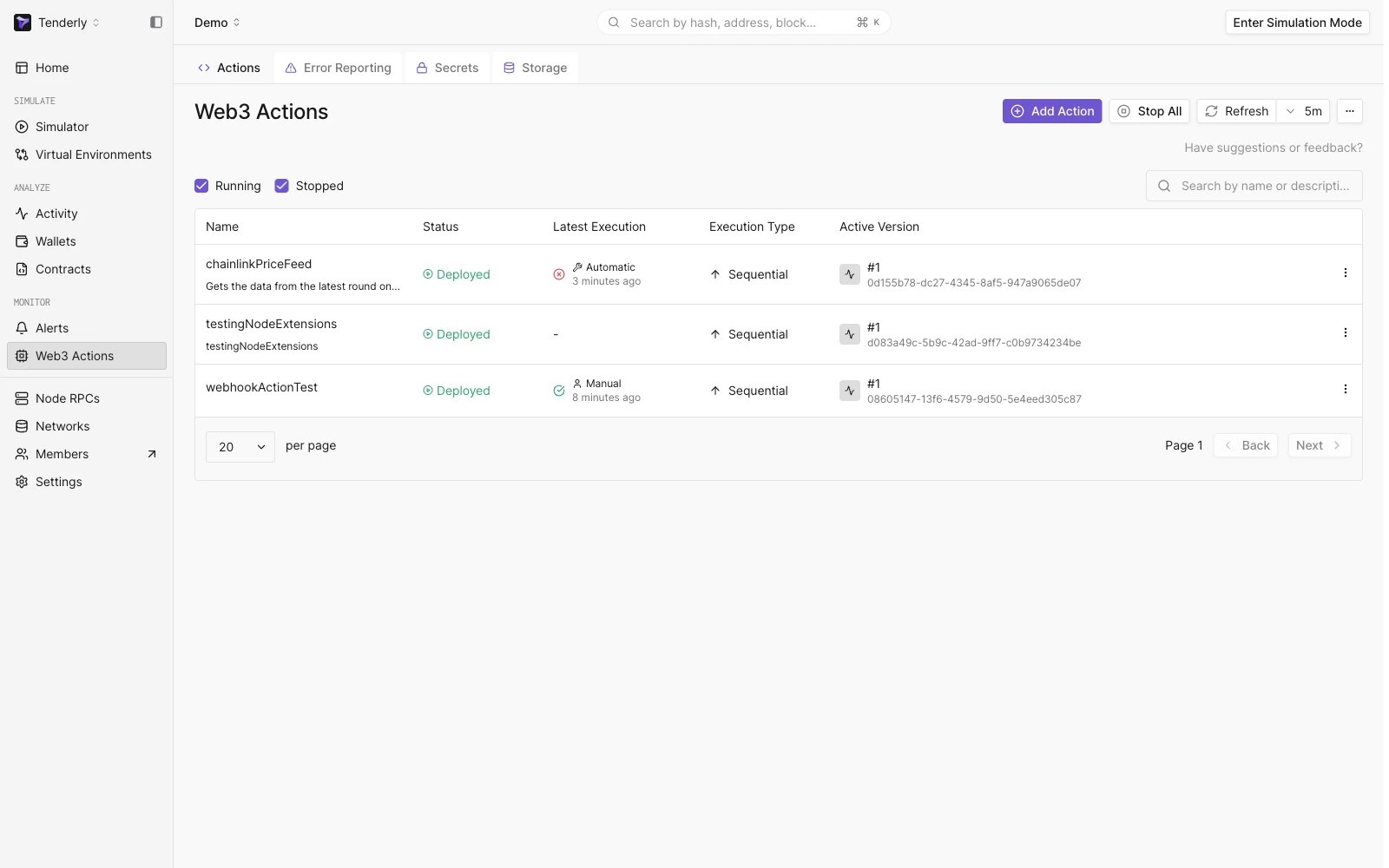 You can now set up an email as a destination where you will receive Tenderly notifications about failed executions of your set Web3 Action(s) by clicking any Action:
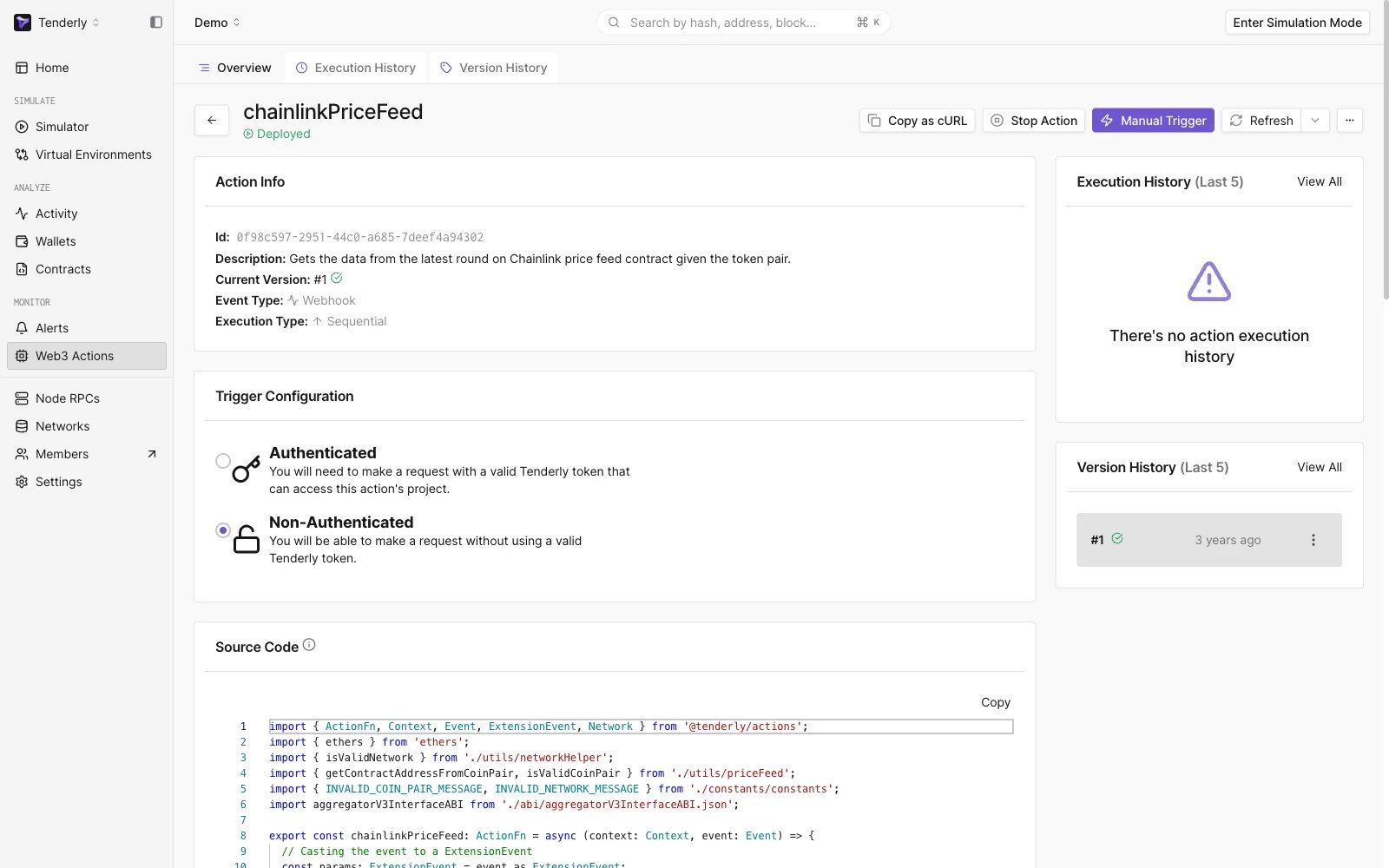 Scroll down to the Destinations section:
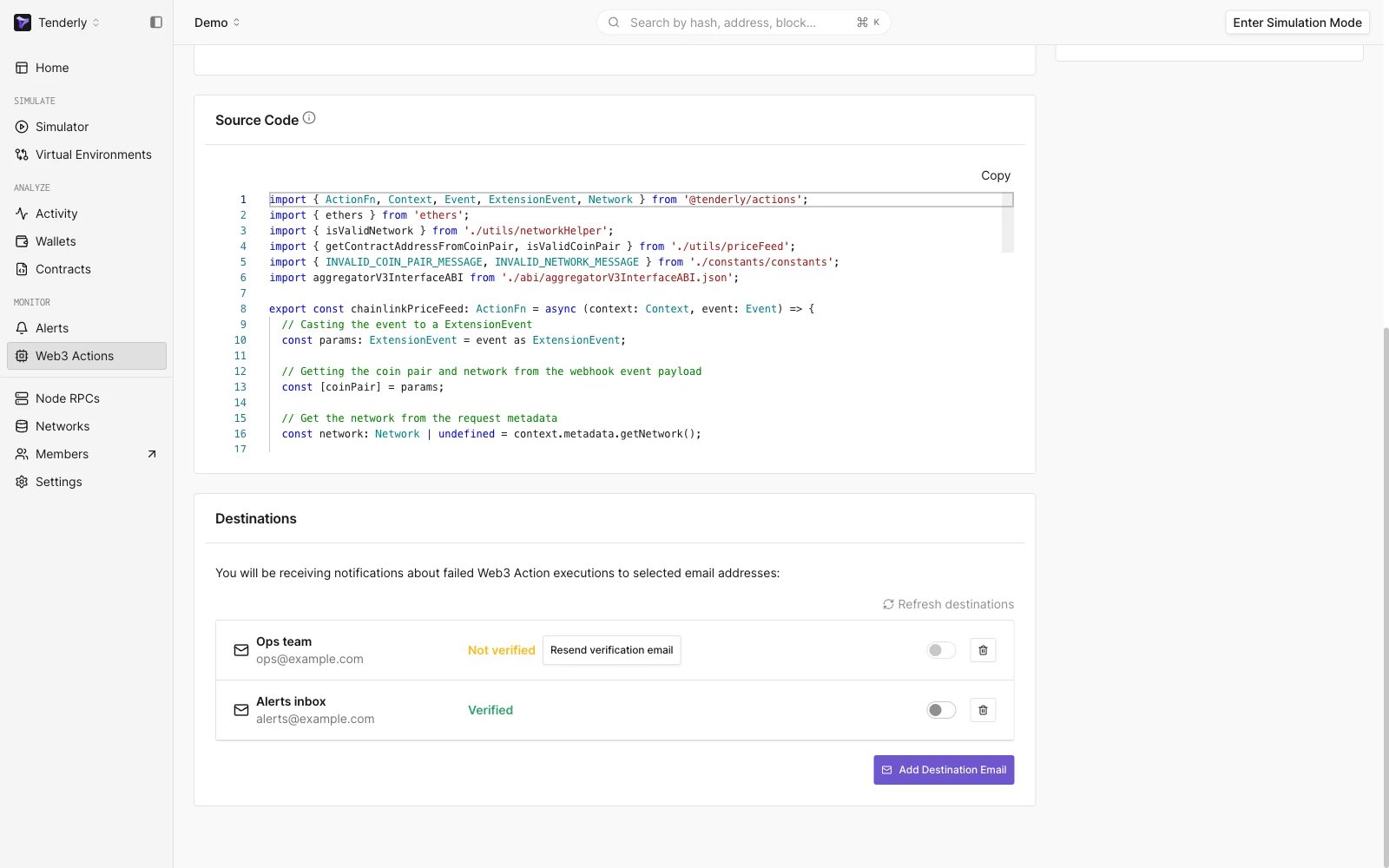 We already have a couple of email destinations set up. We can turn them on or off so we don't have to delete certain email delivery channels in periods when we don't want to use them.
To add a new email delivery channel, just click the **Add Destination Email** button in the bottom right corner, type in the email you want to use, and that's it.
You will need to verify your email and turn the switch for that email to "on" after the verification. You can also choose multiple emails as delivery channels for a single Action.
If you are adding an email you are already using as your account email, or if you added that email through some other flow to Tenderly (e.g. through [Alerts](/monitoring/alerts/introduction)), your email will be recognized and you won't have to verify it again.
We already have a couple of email destinations set up. We can turn them on or off so we don't have to delete certain email delivery channels in periods when we don't want to use them.
To add a new email delivery channel, just click the **Add Destination Email** button in the bottom right corner, type in the email you want to use, and that's it.
You will need to verify your email and turn the switch for that email to "on" after the verification. You can also choose multiple emails as delivery channels for a single Action.
If you are adding an email you are already using as your account email, or if you added that email through some other flow to Tenderly (e.g. through [Alerts](/monitoring/alerts/introduction)), your email will be recognized and you won't have to verify it again.
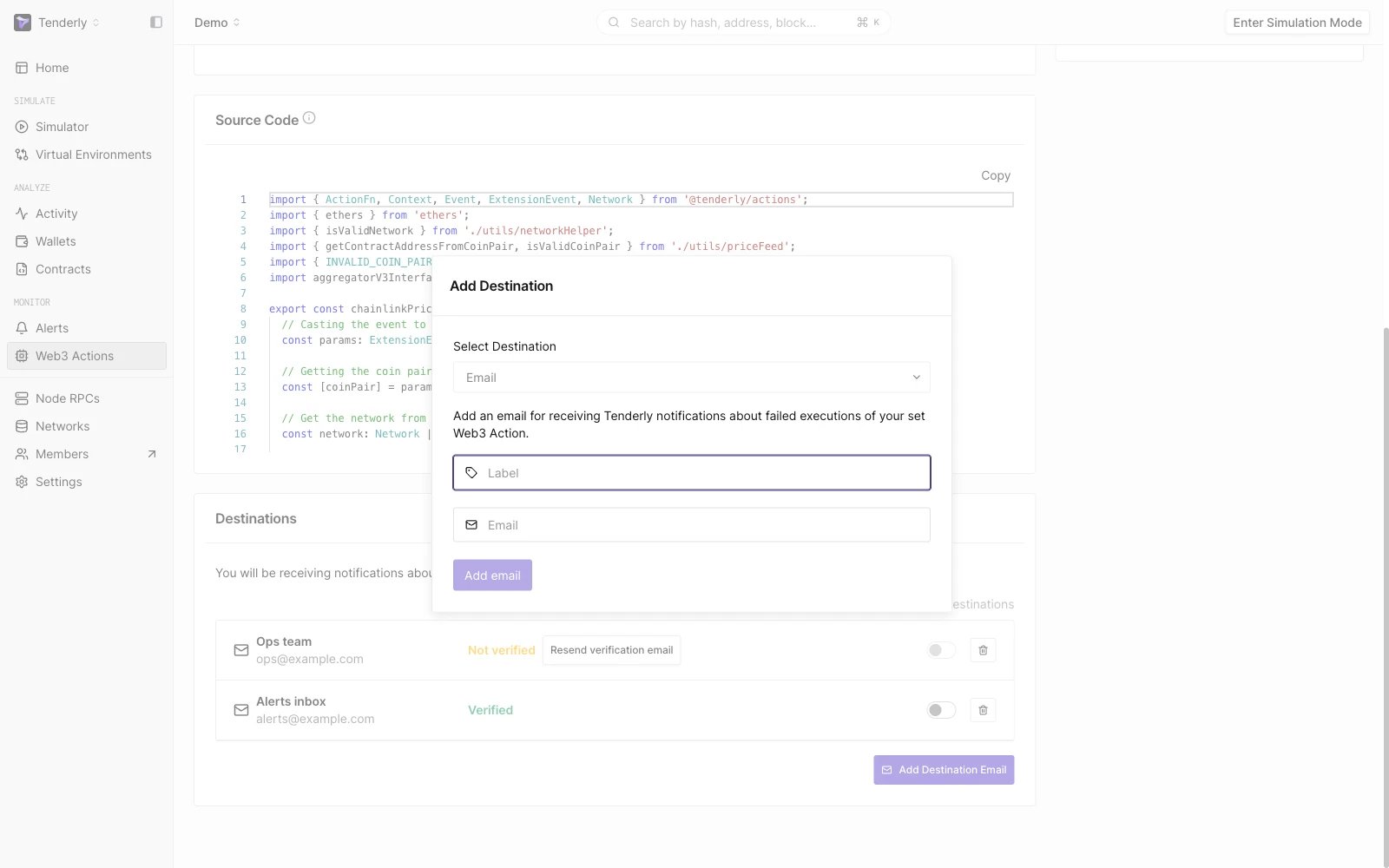 You are also able to choose the email notification delivery channels when creating a new action. However, if you want to add a new email as a destination, you will have to do that first before choosing it as an option in the Create New Action flow.
 ## When failure emails are sent
Tenderly groups failed executions into incidents instead of emailing you about every failure. When an execution fails, the failure is matched to an incident based on the Action version and the error. You receive an email only when a new incident is created, that is, the first time a given error occurs for the current version of your Action.
While an incident is open, repeated occurrences of the same error are grouped under it and don't trigger additional emails. Incidents are never resolved automatically, even if later executions succeed. Manage them in [Error Reporting](/monitoring/web3-actions/references/error-reporting), where the incident status controls notifications:
* **Acknowledging** an incident keeps notifications for that error muted.
* **Resolving** an incident re-arms notifications: if the same error occurs again, a new incident is created and you receive a new email.
Publishing a new version of the Action also resets the grouping: the first failure of the new version creates a new incident and triggers an email.
Failure emails cover executions that fail with an error. Executions that [time out or get rate-limited](/monitoring/web3-actions/references/execution#web3-action-execution-status-types) don't trigger failure emails.
## When failure emails are sent
Tenderly groups failed executions into incidents instead of emailing you about every failure. When an execution fails, the failure is matched to an incident based on the Action version and the error. You receive an email only when a new incident is created, that is, the first time a given error occurs for the current version of your Action.
While an incident is open, repeated occurrences of the same error are grouped under it and don't trigger additional emails. Incidents are never resolved automatically, even if later executions succeed. Manage them in [Error Reporting](/monitoring/web3-actions/references/error-reporting), where the incident status controls notifications:
* **Acknowledging** an incident keeps notifications for that error muted.
* **Resolving** an incident re-arms notifications: if the same error occurs again, a new incident is created and you receive a new email.
Publishing a new version of the Action also resets the grouping: the first failure of the new version creates a new incident and triggers an email.
Failure emails cover executions that fail with an error. Executions that [time out or get rate-limited](/monitoring/web3-actions/references/execution#web3-action-execution-status-types) don't trigger failure emails.