> ## Documentation Index
> Fetch the complete documentation index at: https://docs.tenderly.co/llms.txt
> Use this file to discover all available pages before exploring further.
# Simulate Safe{Wallet} transactions in your Tenderly project
> Set the Tenderly API URL and access token in Safe Wallet's Environment variables settings to simulate Safe transactions in your own Tenderly project.
Safe\{Wallet} simulates transactions with the [Tenderly Simulation API](/simulations/single-simulations#simulate-via-api). Built-in simulation is part of Safe Pro. On other Safe plans, the **Transaction simulation** check in Safe Shield shows a **Set** link, and queued transactions show **Set up simulation**, instead of a result. To simulate on any Safe plan, add your own Tenderly project in Safe's **Environment variables** settings. Safe then sends every simulation request to your project, and each simulation is saved there with its full call trace.
Generating API access tokens and using the Tenderly API are available on the paid plan. To enable them for your account, [contact our sales team](https://tenderly.co/contact-us) to schedule a call and discuss upgrading your plan.
## Prerequisites
* A Tenderly project.
* An [access token](/platform/account/projects/api-tokens) that can reach the project. A project token (**One project** scope) is enough.
* A Safe account where your connected wallet is an owner.
## Build the Tenderly API URL
The **Tenderly API URL** field takes the full Simulation API endpoint, including the `/simulate` path:
```bash title="Tenderly API URL" theme={"theme":{"light":"catppuccin-latte","dark":"catppuccin-mocha"}}
https://api.tenderly.co/api/v1/account/{account_slug}/project/{project_slug}/simulate
```
To build it, open your project in Tenderly, go to **Settings**, click **Copy API URL** next to **Project Access Tokens**, and add `simulate` to the end of the copied URL. For account `my-org` and project `treasury`, the result is `https://api.tenderly.co/api/v1/account/my-org/project/treasury/simulate`.
**Copy API URL** copies the base project URL, which ends at `/project/{project_slug}/`. Safe sends requests to the exact URL you enter, so the base URL without `simulate` makes every simulation fail.
## Add your Tenderly project in Safe\{Wallet} settings
1. In Safe\{Wallet}, open **Settings** and select the **Environment variables** tab. The **Set** and **Set up simulation** links open the same page.
2. Under **Tenderly**, paste the URL from the previous section into **Tenderly API URL**.
3. Paste your access token into **Tenderly access token**.
4. Click **Save**. Safe reloads the page and applies the settings.
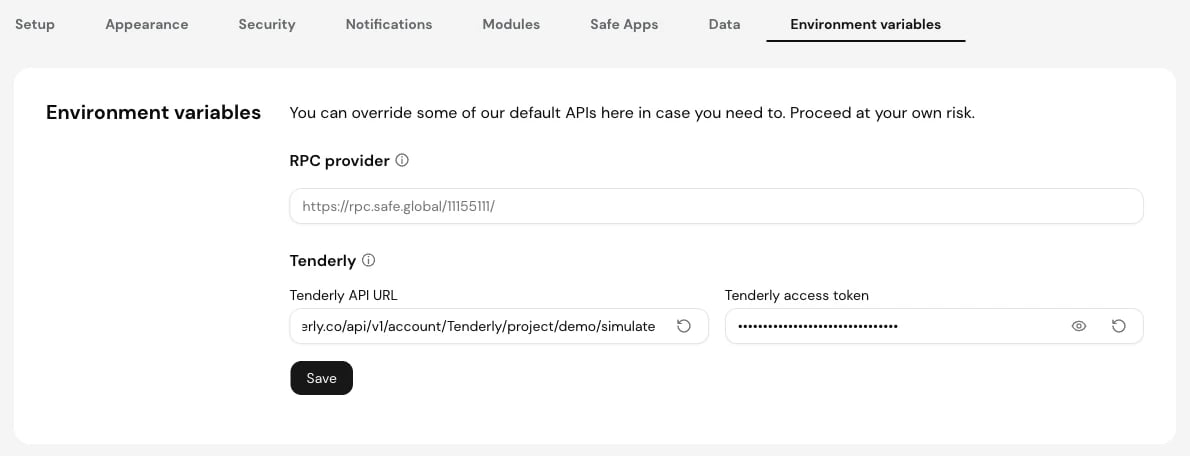 Fill in both fields. Safe uses your project only when both the URL and the access token are set.
Safe stores the values in your browser's local storage. They apply to every Safe and network you open in that browser, so repeat the setup in each browser you use. To return to the defaults, click the reset icon in each field and click **Save**.
## Run a Safe transaction simulation
1. In Safe\{Wallet}, click **New transaction**, set up the transaction, and click **Next**. The **Confirm transaction** screen opens with the Safe Shield panel on the right.
2. Next to **Transaction simulation**, click **Run**.
3. The check changes to **Simulation successful** or **Simulation failed**. Click **View** to open the simulation in your Tenderly project.
Fill in both fields. Safe uses your project only when both the URL and the access token are set.
Safe stores the values in your browser's local storage. They apply to every Safe and network you open in that browser, so repeat the setup in each browser you use. To return to the defaults, click the reset icon in each field and click **Save**.
## Run a Safe transaction simulation
1. In Safe\{Wallet}, click **New transaction**, set up the transaction, and click **Next**. The **Confirm transaction** screen opens with the Safe Shield panel on the right.
2. Next to **Transaction simulation**, click **Run**.
3. The check changes to **Simulation successful** or **Simulation failed**. Click **View** to open the simulation in your Tenderly project.
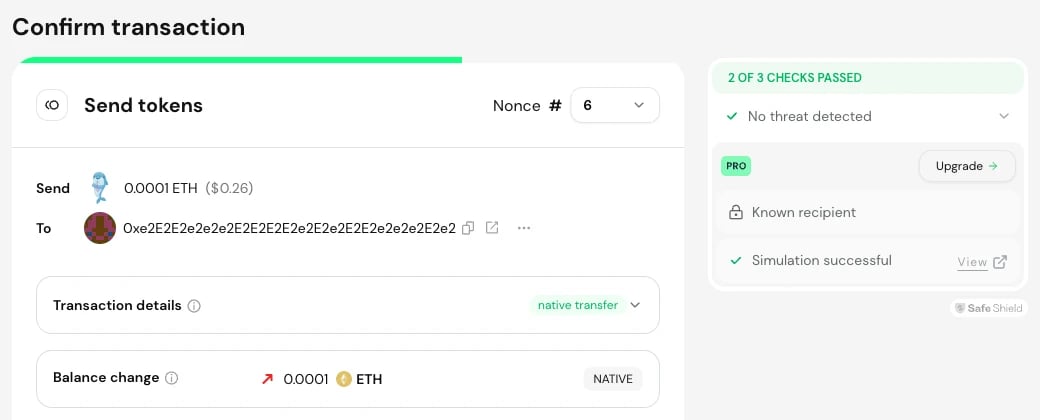 To simulate a transaction that is already queued, open **Transactions**, expand the transaction in the **Queue** tab, and click **Simulate**.
The **View** link opens `https://dashboard.tenderly.co/{account_slug}/{project_slug}/simulator/{simulation_id}`, where you can inspect the [call trace, state changes, and events](/simulator-ui/overview) of the simulated `execTransaction` call.
## What Safe sends to the Simulation API
Safe sends a `POST` request to the Tenderly API URL with the access token in the `X-Access-Key` header. The request body is a [single simulation](/simulations/single-simulations) of the Safe's `execTransaction` call (or a `multiSend` call for batches) with these settings:
| Field | Value |
| - | - |
| `from` | Your connected wallet if it is an owner, otherwise the Safe's first owner |
| `gas_price` | `0`, so the sender needs no balance for gas |
| `save`, `save_if_fails` | `true`: every simulation is saved to your project, including failed ones |
| `state_objects` | [State overrides](/simulations/state-overrides) on the Safe contract: threshold set to `1` when signatures are missing, nonce set to the transaction's nonce when it is not next in the queue, and the transaction guard removed when one is set |
## Troubleshooting: Error while simulating
When the Simulation API returns an error, Safe shows **Error while simulating** in the transaction queue and **Simulation failed** in Safe Shield, without the error details. To see the actual response:
1. Open your browser's developer tools and select the **Network** tab.
2. Run the simulation again.
3. Select the request sent to `api.tenderly.co` and read its status code and response body.
| Response | Cause | Fix |
| - | - | - |
| `400` `validation`: `at least one of name, options, restricted or members must be provided` | The URL is the base project URL, without `simulate` | Add `simulate` to the end of the URL, as in [Build the Tenderly API URL](#build-the-tenderly-api-url) |
| `401` `unauthorized` or `403` `insufficient_permissions` | The access token is revoked, expired, or mistyped | [Create a new access token](/platform/account/projects/api-tokens) and paste it into Safe |
| `404` `Project not found` | The project slug is wrong, or the token can't reach the project | Copy the URL again with **Copy API URL** and check the token's scope |
| `404` `Platform Account not found` | The account slug is wrong | Copy the URL again with **Copy API URL** |
| CORS error | The URL points to `dashboard.tenderly.co` instead of `api.tenderly.co` | Use the API URL from [Build the Tenderly API URL](#build-the-tenderly-api-url) |
| `200` with `simulation.status: false` | The simulation ran and the transaction reverts | Click **View** and inspect the revert in the [Debugger](/debugger/overview) |
If no request reaches `api.tenderly.co`, check that both fields are saved: Safe shows the **Set** link until the URL and the access token are both set.
This documentation is built and hosted on [Mintlify](https://mintlify.com), a developer documentation platform.
To simulate a transaction that is already queued, open **Transactions**, expand the transaction in the **Queue** tab, and click **Simulate**.
The **View** link opens `https://dashboard.tenderly.co/{account_slug}/{project_slug}/simulator/{simulation_id}`, where you can inspect the [call trace, state changes, and events](/simulator-ui/overview) of the simulated `execTransaction` call.
## What Safe sends to the Simulation API
Safe sends a `POST` request to the Tenderly API URL with the access token in the `X-Access-Key` header. The request body is a [single simulation](/simulations/single-simulations) of the Safe's `execTransaction` call (or a `multiSend` call for batches) with these settings:
| Field | Value |
| - | - |
| `from` | Your connected wallet if it is an owner, otherwise the Safe's first owner |
| `gas_price` | `0`, so the sender needs no balance for gas |
| `save`, `save_if_fails` | `true`: every simulation is saved to your project, including failed ones |
| `state_objects` | [State overrides](/simulations/state-overrides) on the Safe contract: threshold set to `1` when signatures are missing, nonce set to the transaction's nonce when it is not next in the queue, and the transaction guard removed when one is set |
## Troubleshooting: Error while simulating
When the Simulation API returns an error, Safe shows **Error while simulating** in the transaction queue and **Simulation failed** in Safe Shield, without the error details. To see the actual response:
1. Open your browser's developer tools and select the **Network** tab.
2. Run the simulation again.
3. Select the request sent to `api.tenderly.co` and read its status code and response body.
| Response | Cause | Fix |
| - | - | - |
| `400` `validation`: `at least one of name, options, restricted or members must be provided` | The URL is the base project URL, without `simulate` | Add `simulate` to the end of the URL, as in [Build the Tenderly API URL](#build-the-tenderly-api-url) |
| `401` `unauthorized` or `403` `insufficient_permissions` | The access token is revoked, expired, or mistyped | [Create a new access token](/platform/account/projects/api-tokens) and paste it into Safe |
| `404` `Project not found` | The project slug is wrong, or the token can't reach the project | Copy the URL again with **Copy API URL** and check the token's scope |
| `404` `Platform Account not found` | The account slug is wrong | Copy the URL again with **Copy API URL** |
| CORS error | The URL points to `dashboard.tenderly.co` instead of `api.tenderly.co` | Use the API URL from [Build the Tenderly API URL](#build-the-tenderly-api-url) |
| `200` with `simulation.status: false` | The simulation ran and the transaction reverts | Click **View** and inspect the revert in the [Debugger](/debugger/overview) |
If no request reaches `api.tenderly.co`, check that both fields are saved: Safe shows the **Set** link until the URL and the access token are both set.
This documentation is built and hosted on [Mintlify](https://mintlify.com), a developer documentation platform.