> ## Documentation Index
> Fetch the complete documentation index at: https://docs.tenderly.co/llms.txt
> Use this file to discover all available pages before exploring further.
# Simulation Bundles
> Run up to five simulated transactions that share state, where each step sees prior changes. Build and inspect multi-step flows in the simulation builder.
A simulation bundle runs up to **five transactions in sequence against shared state**: each step sees the state changes made by the step before it. Use a bundle whenever one transaction depends on another, for example an approval that enables a later `transferFrom`, or a deposit that a subsequent withdrawal spends.
Bundles use the same builder as single simulations. A single simulation is simply a one-step bundle, so nothing changes about the editor when you add more steps.
 ## Building a bundle
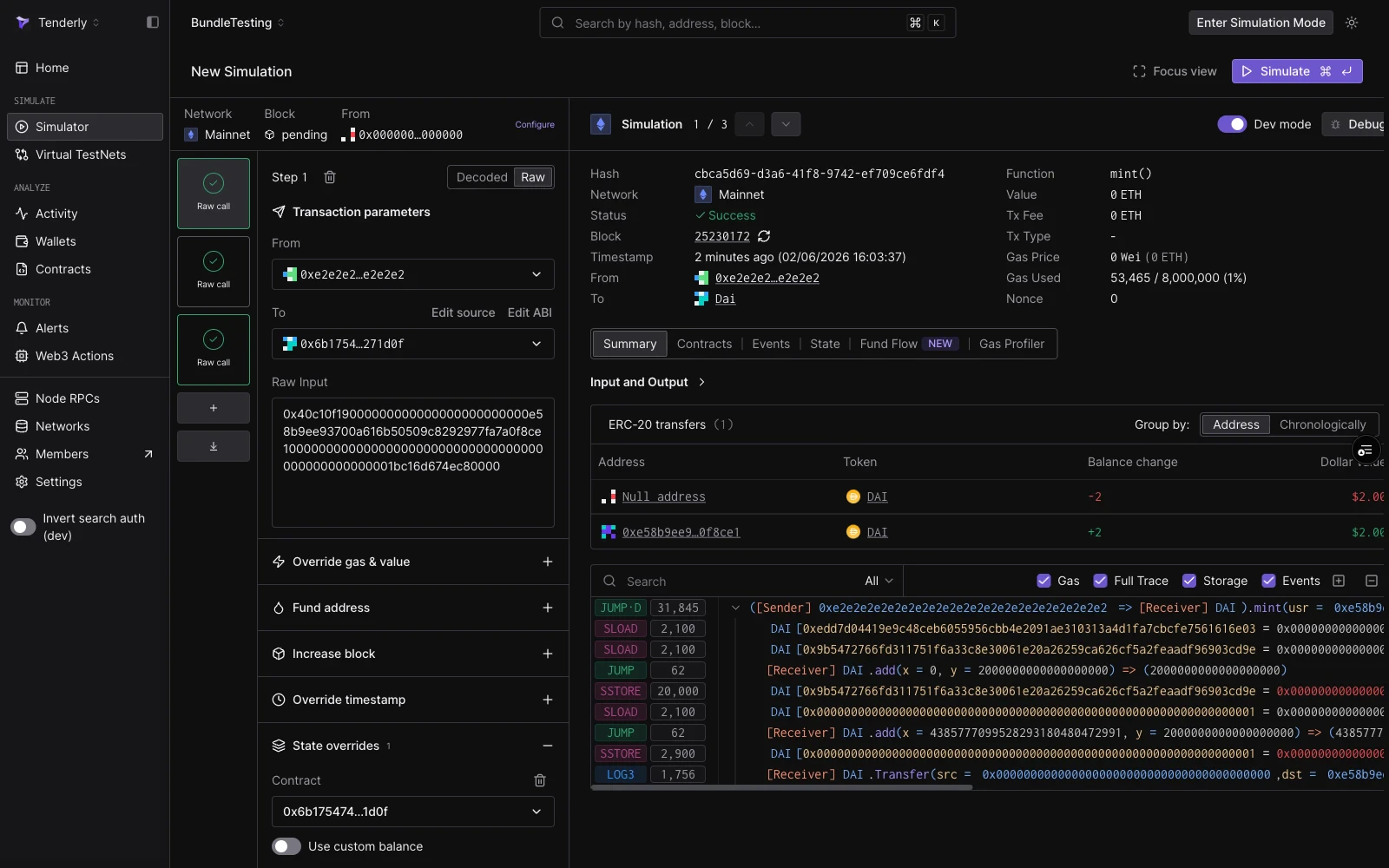
Start from **Simulator → New Simulation** and configure the first step as usual. Then grow the bundle from the rail on the left:
* **Add a step** with the **+** button under the step cards.
* **Import a transaction** with the import button: paste an existing transaction hash or raw payload and its inputs load as a new step.
* **Reorder** steps by dragging their cards. Steps execute in rail order.
Each step is independent in everything except state: it has its own Decoded/Raw toggle, its own **From** override, and its own set of [cheatcodes](/simulator-ui/parameters#cheatcodes) (gas and value overrides, funded addresses, block and timestamp manipulation, state overrides, access lists). Cheatcodes run immediately before their step.
The bundle is the unit of execution: clicking **Simulate** runs all steps at once, in order, on the network and block configured in the session strip.
## Reading the results
After a run, each step card in the rail shows a result badge:
| Badge | Meaning |
| --------------- | ----------------------------------------------------------------------- |
| Green checkmark | Step succeeded. |
| Red ✗ | Step reverted or failed pre-EVM (malformed calldata, unknown contract). |
Click any step card to focus its individual result in the right panel: decoded output, gas used, and the Events, State, Fund Flow, and Gas Profiler tabs for that step.
State flows forward only. A balance minted in step 1 is visible to steps 2 through 5, but a revert in a later step does not undo earlier steps' results in the displayed output; each step's view reflects the state at its position in the sequence.
## Bundles in the simulation history
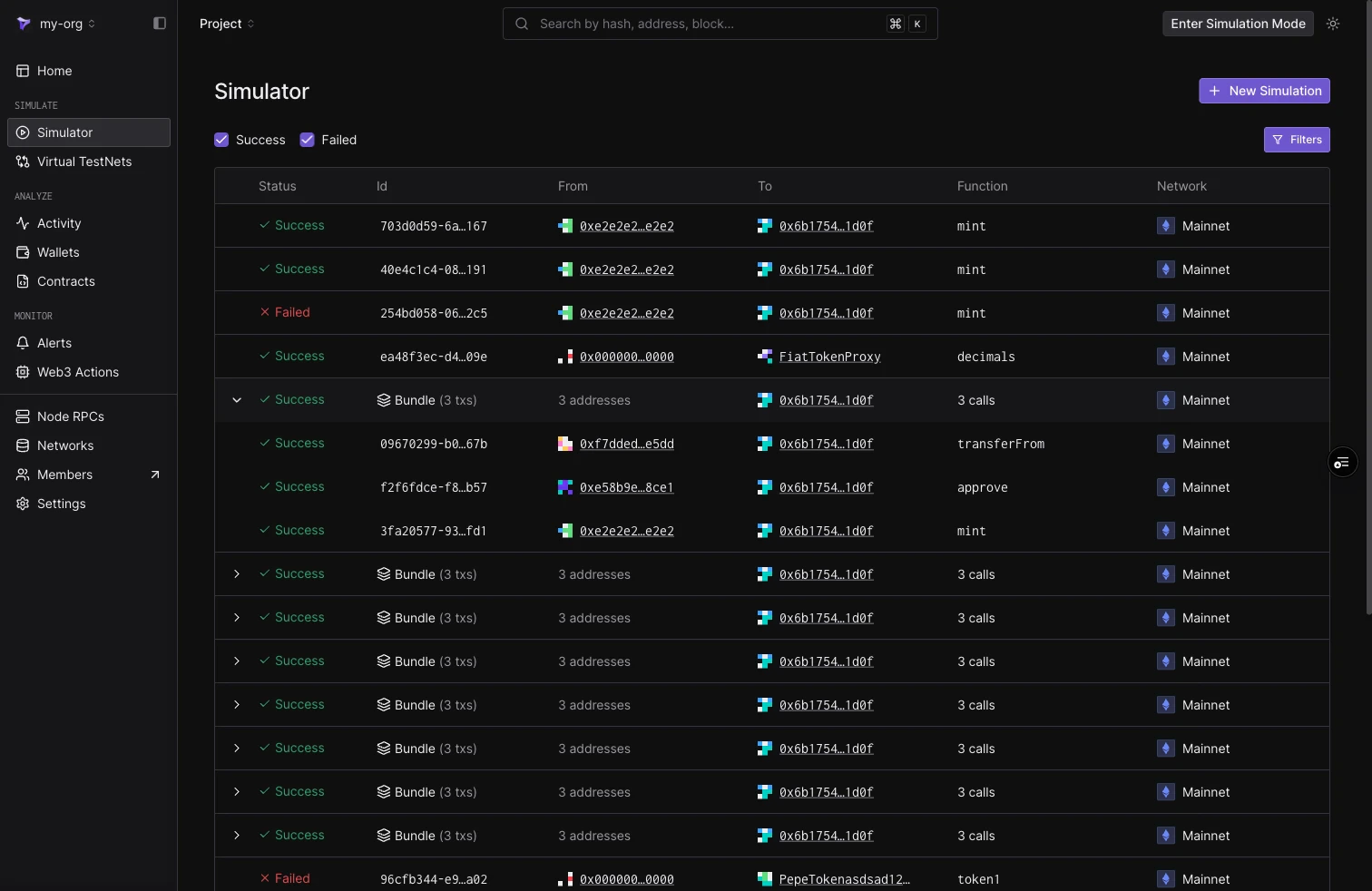
Executed bundles appear in the **Simulator** list as a single `Bundle (N txs)` row showing the shared network, block, and call count. Expand the row to see each step as its own entry with its individual status and function.
## Building a bundle
Start from **Simulator → New Simulation** and configure the first step as usual. Then grow the bundle from the rail on the left:
* **Add a step** with the **+** button under the step cards.
* **Import a transaction** with the import button: paste an existing transaction hash or raw payload and its inputs load as a new step.
* **Reorder** steps by dragging their cards. Steps execute in rail order.
Each step is independent in everything except state: it has its own Decoded/Raw toggle, its own **From** override, and its own set of [cheatcodes](/simulator-ui/parameters#cheatcodes) (gas and value overrides, funded addresses, block and timestamp manipulation, state overrides, access lists). Cheatcodes run immediately before their step.
The bundle is the unit of execution: clicking **Simulate** runs all steps at once, in order, on the network and block configured in the session strip.
## Reading the results
After a run, each step card in the rail shows a result badge:
| Badge | Meaning |
| --------------- | ----------------------------------------------------------------------- |
| Green checkmark | Step succeeded. |
| Red ✗ | Step reverted or failed pre-EVM (malformed calldata, unknown contract). |
Click any step card to focus its individual result in the right panel: decoded output, gas used, and the Events, State, Fund Flow, and Gas Profiler tabs for that step.
State flows forward only. A balance minted in step 1 is visible to steps 2 through 5, but a revert in a later step does not undo earlier steps' results in the displayed output; each step's view reflects the state at its position in the sequence.
## Bundles in the simulation history
Executed bundles appear in the **Simulator** list as a single `Bundle (N txs)` row showing the shared network, block, and call count. Expand the row to see each step as its own entry with its individual status and function.
 ## Limits
* Five steps per bundle.
* Cheatcodes are step-scoped. There is no bundle-level cheatcode surface.
* Bundles are stateless between runs: re-running starts again from the configured block. For a persistent environment that accumulates state across many transactions, use [Virtual Environments](/virtual-environments/overview).
## Worked example
[Simulate a Token Mint, Approve, and TransferFrom Bundle](/simulations/guides/mint-approve-transfer-bundle) builds a complete 3-step DAI bundle, including the state override that lets the mint succeed and the step-by-step results.
To run bundles programmatically instead, see [Bundled Simulations](/simulations/bundled-simulations) in the Simulation API.
## Limits
* Five steps per bundle.
* Cheatcodes are step-scoped. There is no bundle-level cheatcode surface.
* Bundles are stateless between runs: re-running starts again from the configured block. For a persistent environment that accumulates state across many transactions, use [Virtual Environments](/virtual-environments/overview).
## Worked example
[Simulate a Token Mint, Approve, and TransferFrom Bundle](/simulations/guides/mint-approve-transfer-bundle) builds a complete 3-step DAI bundle, including the state override that lets the mint succeed and the step-by-step results.
To run bundles programmatically instead, see [Bundled Simulations](/simulations/bundled-simulations) in the Simulation API.