> ## Documentation Index
> Fetch the complete documentation index at: https://docs.tenderly.co/llms.txt
> Use this file to discover all available pages before exploring further.
# Simulation Mode
> Activate a persistent wallet impersonation context in the dashboard. Pages render as the target wallet with balance overrides and a cumulative session log.
Simulation Mode is a persistent impersonation context. Activate it with a wallet address and a network, and every wired page in the dashboard reads and simulates as that wallet. Nothing is signed and nothing goes onchain. Simulations accumulate in a session: each run sees the state changes produced by the previous ones.
 ## When to use it
* **Walk through a wallet's onchain behavior** without holding its keys. Useful for support, risk reviews, or post-incident analysis.
* **Stage a sequence of actions** as a specific wallet (e.g. supply, borrow, repay) and inspect the cumulative state effects.
* **Test from the wallet's perspective** on contract Read/Write pages, the Simulator, and re-simulation flows, all without re-entering the address every time.
* **Override token balances** on the fly to test what an action would look like with more (or less) of an asset.
If you only need a one-off simulation or a multi-step bundle, use the [Simulator](/simulator-ui/overview). If you need a full RPC environment, use a [Virtual Environment](/virtual-environments/overview).
## How a session is built
| Property | Behavior |
| ----------------- | ----------------------------------------------------------------------------------------------------- |
| **Keyed by** | `(wallet, network)`. One active session at a time. |
| **Persistence** | The session survives exiting and re-entering Simulation Mode for the same `(wallet, network)` pair. |
| **Cumulative** | Every successful simulation appends to the session log and its state carries forward to the next one. |
| **Reset** | The **Reset session** action clears state for the active session. |
| **Cross-network** | Switching networks resets the active session. |
## Entering Simulation Mode
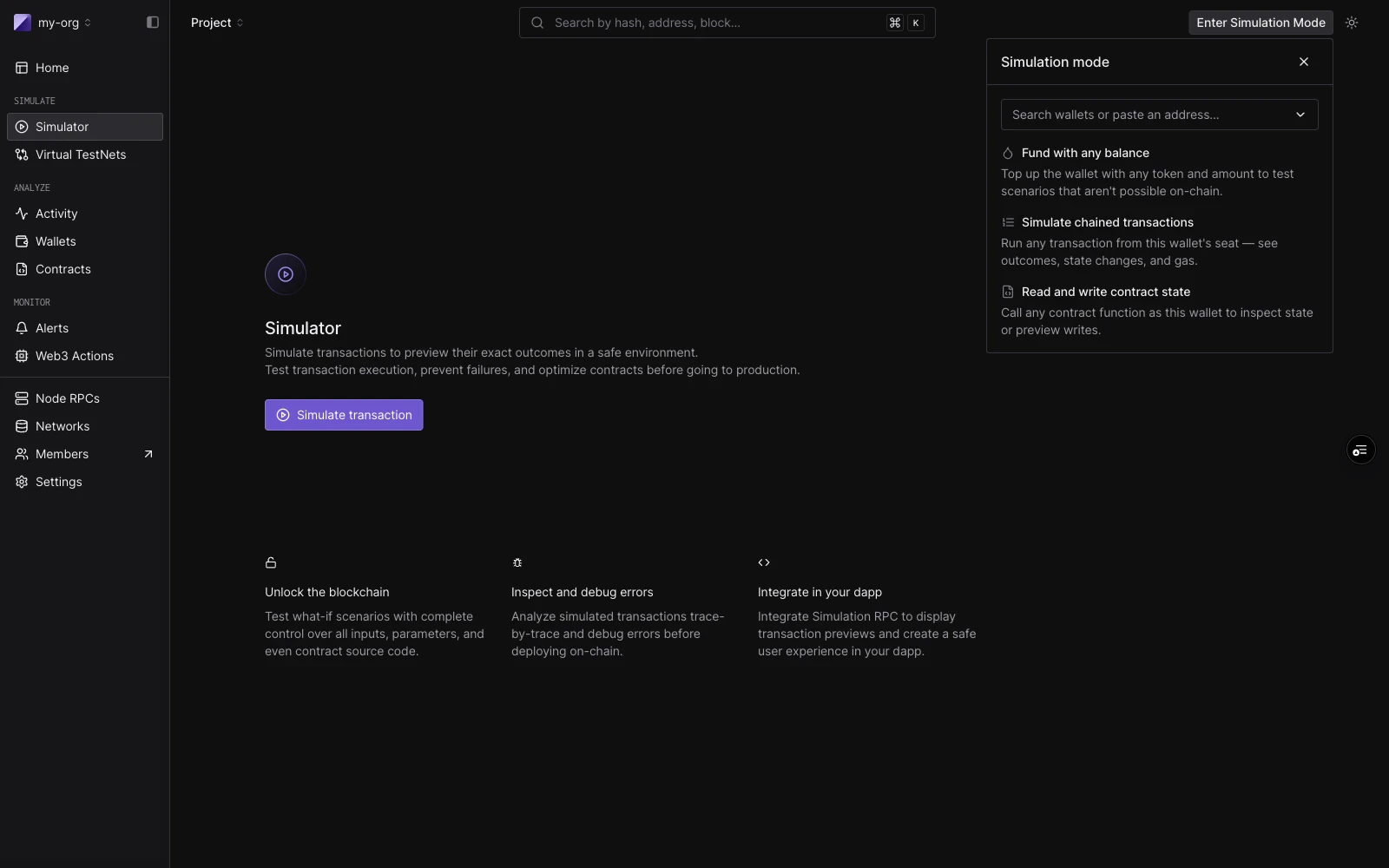
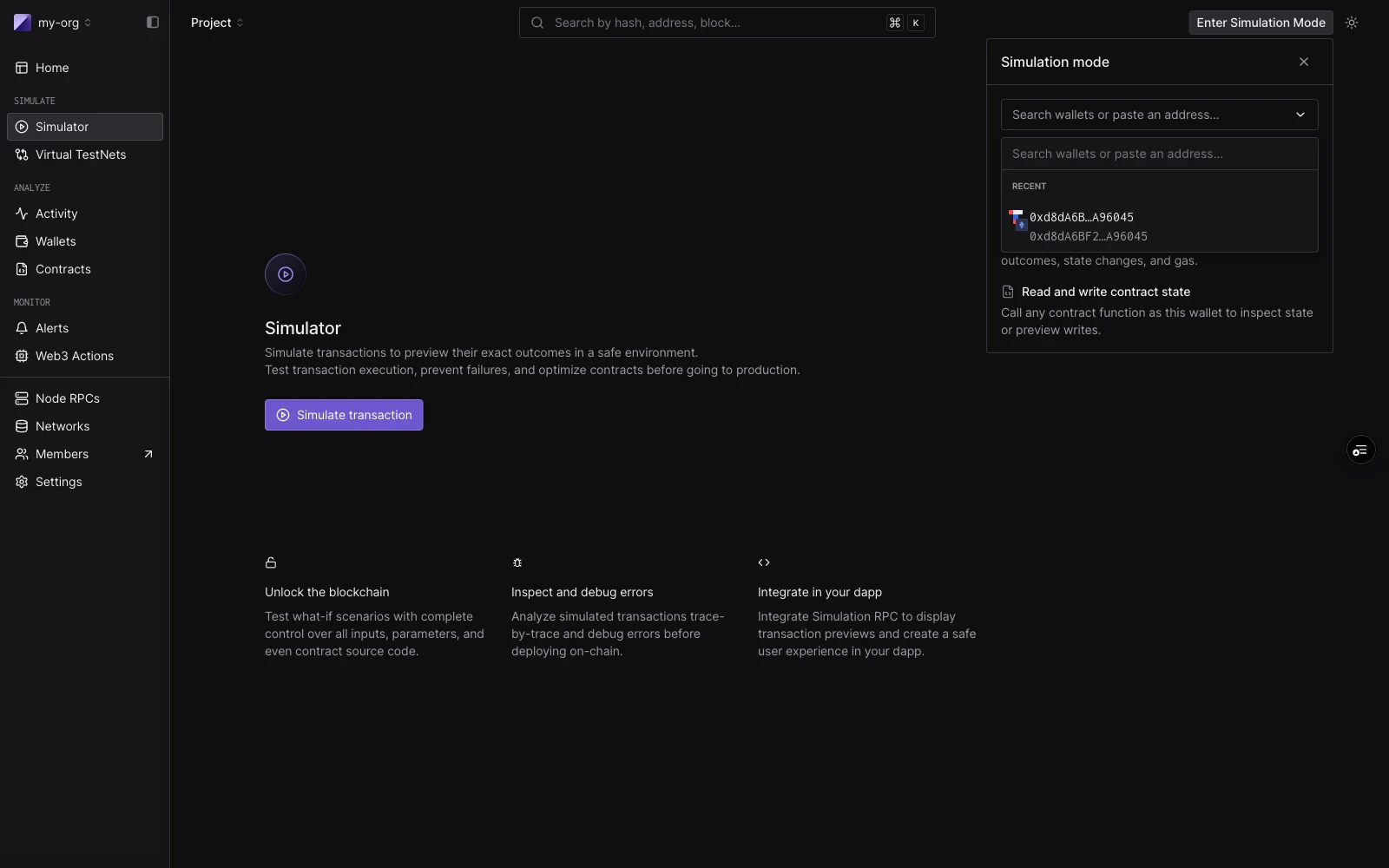
Click **Enter Simulation Mode** in the top bar, or use the **Impersonate** action on any wallet detail page to pre-fill Sim Mode with that wallet.
Once active, the top-bar button is replaced with a `SIMULATING` pill showing the impersonated wallet's identity icon, abbreviated address, and total USD balance.
## When to use it
* **Walk through a wallet's onchain behavior** without holding its keys. Useful for support, risk reviews, or post-incident analysis.
* **Stage a sequence of actions** as a specific wallet (e.g. supply, borrow, repay) and inspect the cumulative state effects.
* **Test from the wallet's perspective** on contract Read/Write pages, the Simulator, and re-simulation flows, all without re-entering the address every time.
* **Override token balances** on the fly to test what an action would look like with more (or less) of an asset.
If you only need a one-off simulation or a multi-step bundle, use the [Simulator](/simulator-ui/overview). If you need a full RPC environment, use a [Virtual Environment](/virtual-environments/overview).
## How a session is built
| Property | Behavior |
| ----------------- | ----------------------------------------------------------------------------------------------------- |
| **Keyed by** | `(wallet, network)`. One active session at a time. |
| **Persistence** | The session survives exiting and re-entering Simulation Mode for the same `(wallet, network)` pair. |
| **Cumulative** | Every successful simulation appends to the session log and its state carries forward to the next one. |
| **Reset** | The **Reset session** action clears state for the active session. |
| **Cross-network** | Switching networks resets the active session. |
## Entering Simulation Mode
Click **Enter Simulation Mode** in the top bar, or use the **Impersonate** action on any wallet detail page to pre-fill Sim Mode with that wallet.
Once active, the top-bar button is replaced with a `SIMULATING` pill showing the impersonated wallet's identity icon, abbreviated address, and total USD balance.
 ## The Sim Mode panel
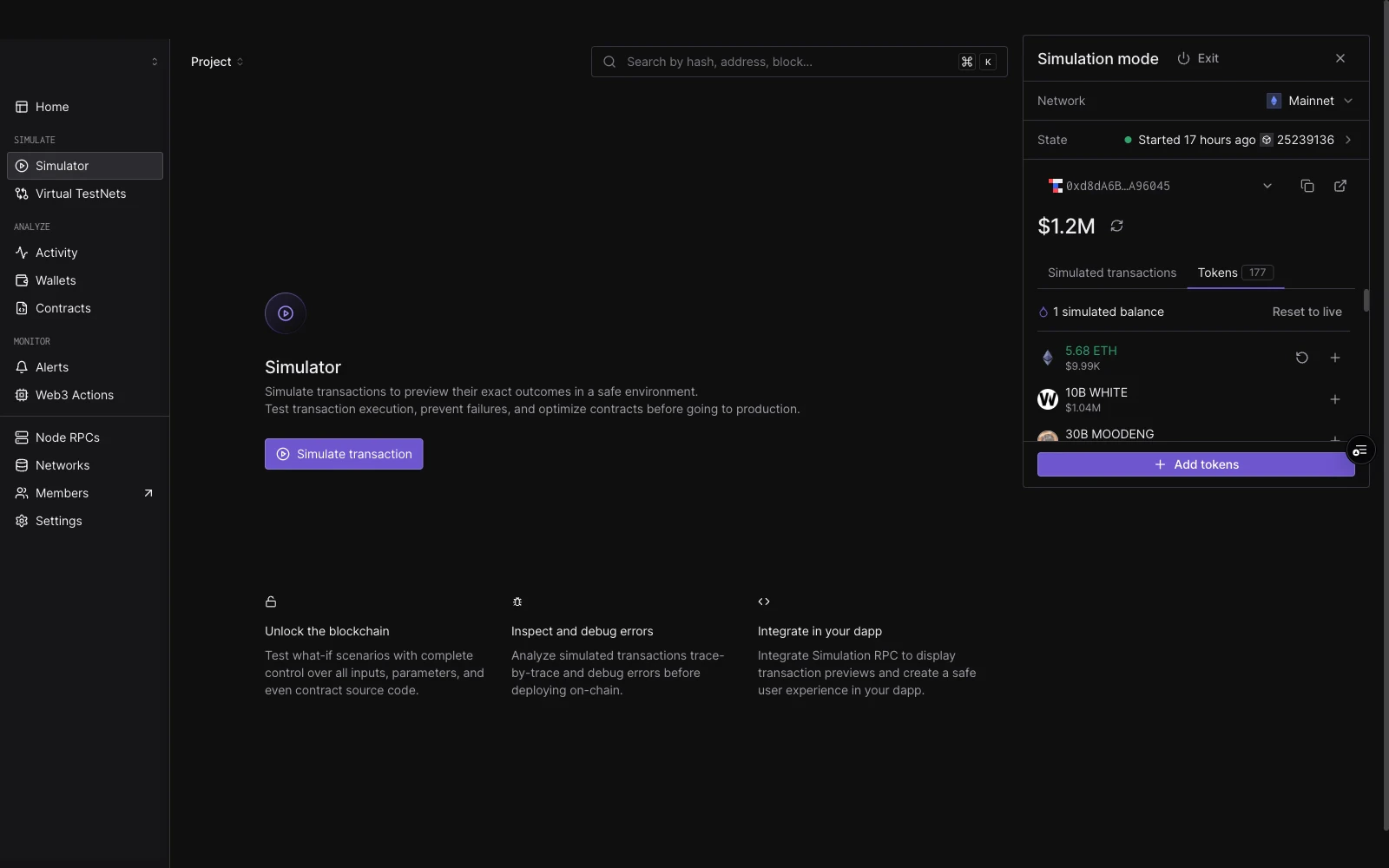
The active Sim Mode panel anchors to the top-right of the dashboard. It has four parts:
* **Network row**: current network with a dropdown to switch.
* **State row**: block number, block position, and timestamp settings (default: latest block, end of block, auto timestamp).
* **Wallet card**: identity icon, abbreviated address, USD balance, and refresh.
* **Tabs**: **Tokens** and **Simulated transactions**.
### Tokens tab
Lists tokens held by the impersonated wallet on the active network.
* Click the **+** on any row to open an inline editor pre-filled with the live balance.
* An overridden row shows the simulated amount, a green diff badge (e.g. `+123.3K`), an undo control, and an edit control.
* Top of the list shows the count of simulated balances and a **Reset to live** action.
* Bottom: **+ Add tokens** opens the funding flow for tokens the wallet doesn't currently hold.
## The Sim Mode panel
The active Sim Mode panel anchors to the top-right of the dashboard. It has four parts:
* **Network row**: current network with a dropdown to switch.
* **State row**: block number, block position, and timestamp settings (default: latest block, end of block, auto timestamp).
* **Wallet card**: identity icon, abbreviated address, USD balance, and refresh.
* **Tabs**: **Tokens** and **Simulated transactions**.
### Tokens tab
Lists tokens held by the impersonated wallet on the active network.
* Click the **+** on any row to open an inline editor pre-filled with the live balance.
* An overridden row shows the simulated amount, a green diff badge (e.g. `+123.3K`), an undo control, and an edit control.
* Top of the list shows the count of simulated balances and a **Reset to live** action.
* Bottom: **+ Add tokens** opens the funding flow for tokens the wallet doesn't currently hold.
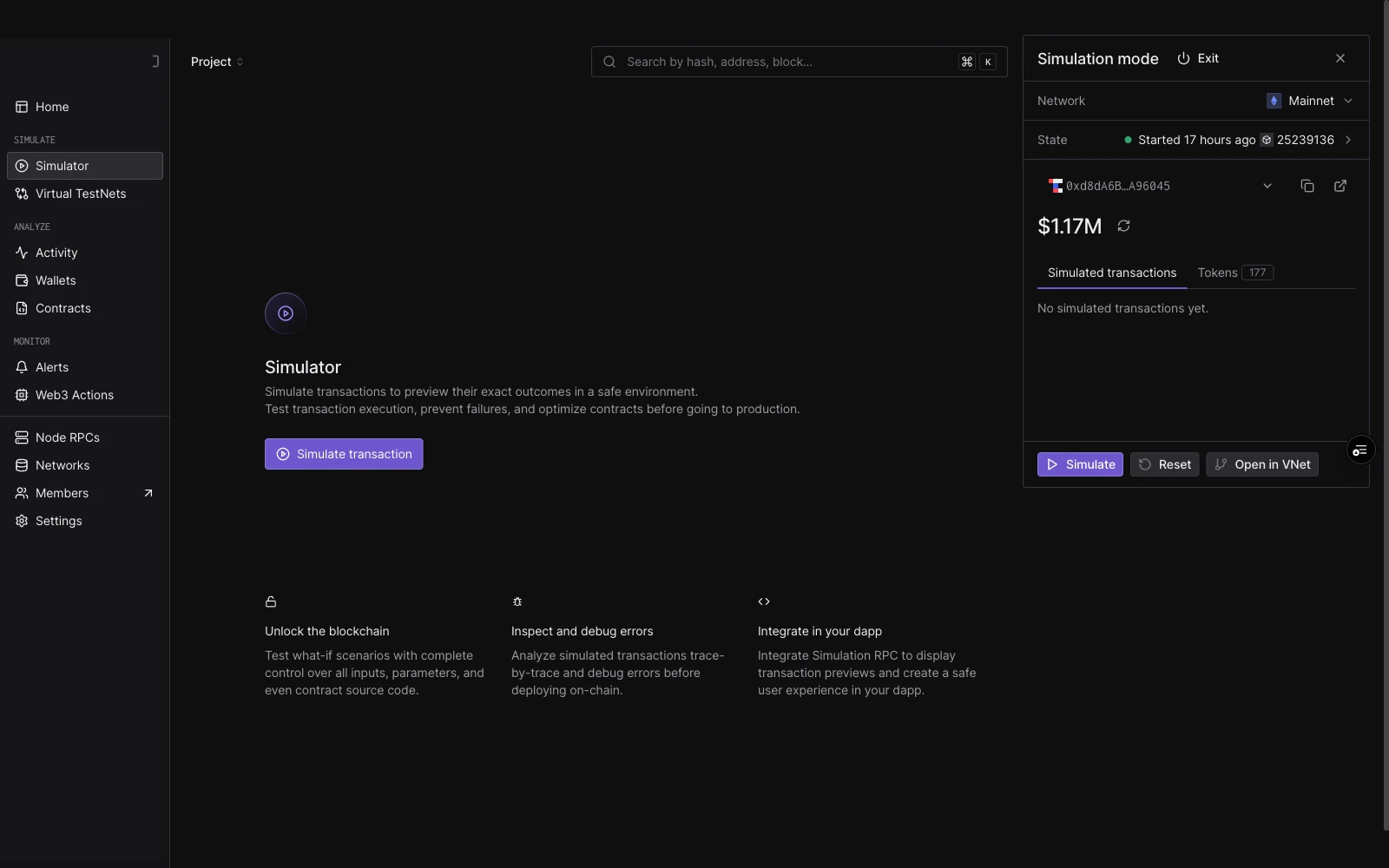
 ### Simulated transactions tab
A session log of successful simulations in this session.
* Each row: status dot, function name, relative time.
* Bottom action bar: **▷ Simulate** (primary), **↺ Reset session**, **⚡ Convert to Virtual Environment**, **◆ Send onchain**.
### Simulated transactions tab
A session log of successful simulations in this session.
* Each row: status dot, function name, relative time.
* Bottom action bar: **▷ Simulate** (primary), **↺ Reset session**, **⚡ Convert to Virtual Environment**, **◆ Send onchain**.
 ### State settings
Click the **State** row to expose the underlying simulation parameters:
| Field | Default |
| ----------------- | ----------- |
| Block number | Latest |
| Position in block | At end |
| Block timestamp | Auto |
| Gas | `8,000,000` |
| Gas price | `0` |
| Value | `0` |
## Switching network
The network picker is **sorted by the impersonated wallet's total value, descending**, with a per-network balance preview.
Switching network **resets the active session**. The new network starts fresh with no balance overrides and an empty simulation log.
## Wired surfaces
When Simulation Mode is active, these surfaces pick up the session context automatically:
| Surface | Behavior |
| ----------------------------------- | ------------------------------------------------------------------------------------------------------------------------------------------------------------------------ |
| **Simulator** | Sender pre-fills as the impersonated wallet. Successful sims append to the session log. |
| **Contract Read/Write pages** | A purple banner indicates Sim Mode is active. The Write button is hidden. Simulate becomes the primary action. The `From` field auto-fills with the impersonated wallet. |
| **Re-Simulate (tx and sim detail)** | The Re-Simulate dropdown gains a **Re-simulate as \[wallet]** option. Re-simulations from here do not append to the session log. |
| **Wallet detail pages** | An **Impersonate** button sits between Create Alert and Simulate. Pre-fills Sim Mode with that wallet. |
### Cross-network mismatch
If you open a page on a network different from your active Sim Mode session, a banner offers a one-click **Switch Sim Mode to \[network]**. Read and Write actions are disabled until you switch.
### Replacing the active session
If you start a Simulation Mode flow on a different `(wallet, network)` pair than the active one, a modal confirms the switch. Switching ends the active session.
## Limits
Simulation Mode usage counts against your account's simulation quota. There is no separate per-session limit. The number of sessions you can run is bounded by how many simulations your plan allows.
## See also
* [Simulator UI](/simulator-ui/overview): single simulations and multi-step bundles.
* [Virtual Environments](/virtual-environments/overview): when you need a full RPC environment.
### State settings
Click the **State** row to expose the underlying simulation parameters:
| Field | Default |
| ----------------- | ----------- |
| Block number | Latest |
| Position in block | At end |
| Block timestamp | Auto |
| Gas | `8,000,000` |
| Gas price | `0` |
| Value | `0` |
## Switching network
The network picker is **sorted by the impersonated wallet's total value, descending**, with a per-network balance preview.
Switching network **resets the active session**. The new network starts fresh with no balance overrides and an empty simulation log.
## Wired surfaces
When Simulation Mode is active, these surfaces pick up the session context automatically:
| Surface | Behavior |
| ----------------------------------- | ------------------------------------------------------------------------------------------------------------------------------------------------------------------------ |
| **Simulator** | Sender pre-fills as the impersonated wallet. Successful sims append to the session log. |
| **Contract Read/Write pages** | A purple banner indicates Sim Mode is active. The Write button is hidden. Simulate becomes the primary action. The `From` field auto-fills with the impersonated wallet. |
| **Re-Simulate (tx and sim detail)** | The Re-Simulate dropdown gains a **Re-simulate as \[wallet]** option. Re-simulations from here do not append to the session log. |
| **Wallet detail pages** | An **Impersonate** button sits between Create Alert and Simulate. Pre-fills Sim Mode with that wallet. |
### Cross-network mismatch
If you open a page on a network different from your active Sim Mode session, a banner offers a one-click **Switch Sim Mode to \[network]**. Read and Write actions are disabled until you switch.
### Replacing the active session
If you start a Simulation Mode flow on a different `(wallet, network)` pair than the active one, a modal confirms the switch. Switching ends the active session.
## Limits
Simulation Mode usage counts against your account's simulation quota. There is no separate per-session limit. The number of sessions you can run is bounded by how many simulations your plan allows.
## See also
* [Simulator UI](/simulator-ui/overview): single simulations and multi-step bundles.
* [Virtual Environments](/virtual-environments/overview): when you need a full RPC environment.