> ## Documentation Index
> Fetch the complete documentation index at: https://docs.tenderly.co/llms.txt
> Use this file to discover all available pages before exploring further.
# Simulation with State Overrides
> Use state overrides in the simulation builder to set custom contract state before a simulation runs, demonstrated by minting DAI from a non-ward address.
State overrides set custom values for a contract's storage before a simulation executes. Use them to satisfy access-control checks, plant balances, or set any storage slot to the value your scenario needs, without owning the keys or state on the real network.
This page walks through a complete example. For the field-level reference of the State overrides cheatcode, see [Simulation Parameters](/simulator-ui/parameters#state-overrides).
## Example: minting 2 DAI
We'll simulate minting 2 DAI (`2000000000000000000` wei) to the holder `0xe58b9ee93700a616b50509c8292977fa7a0f8ce1`, sent from `0xe2e2e2e2e2e2e2e2e2e2e2e2e2e2e2e2e2e2e2e2`.
DAI's `mint` function is guarded by a `wards` mapping: only registered ward addresses can mint. The sender is not a ward on Mainnet, so a plain simulation reverts. The override `wards[0xe2e2…e2e2] = 1` makes it a ward for the duration of the simulation.
### Build the mint step
1. Go to **Simulator** and click **New Simulation**.
2. In the **Contract** field, paste `0x6b175474e89094c44da98b954eedeac495271d0f` and select **Dai**.
3. Select **mint** in the **Function** field.
4. Set **usr** to `0xe58b9ee93700a616b50509c8292977fa7a0f8ce1` and **wad** to `2000000000000000000`.
5. Set the step's **From** to `0xe2e2e2e2e2e2e2e2e2e2e2e2e2e2e2e2e2e2e2e2`.
### Add the state override
6. Expand the **State overrides** section below the step fields and click **Add State Override**. The override's contract defaults to the step's target (Dai).
7. Under **Storage variables**, enter the key `wards[0xe2e2e2e2e2e2e2e2e2e2e2e2e2e2e2e2e2e2e2e2]` and the value `1`. The key field suggests the contract's decoded storage variables (`wards[]`, `balanceOf[]`, `totalSupply`, and so on); fill the mapping key inside the brackets.
8. Click the **+** button next to the value to add the pair. The committed pair appears as a row under Storage variables. Tenderly stores it as the computed storage slot hash.
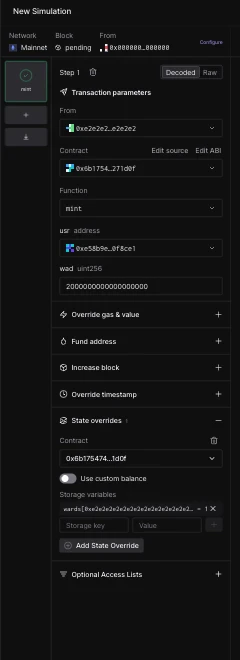 The override pair must be committed with the **+** button. An uncommitted key/value entry is treated as invalid and the simulation will not start.
To override the contract's native balance instead of (or in addition to) storage, flip the **Use custom balance** switch in the same section.
### Run and inspect
9. Click **Simulate**. The mint executes successfully because the simulation sees the sender as a ward.
The override pair must be committed with the **+** button. An uncommitted key/value entry is treated as invalid and the simulation will not start.
To override the contract's native balance instead of (or in addition to) storage, flip the **Use custom balance** switch in the same section.
### Run and inspect
9. Click **Simulate**. The mint executes successfully because the simulation sees the sender as a ward.
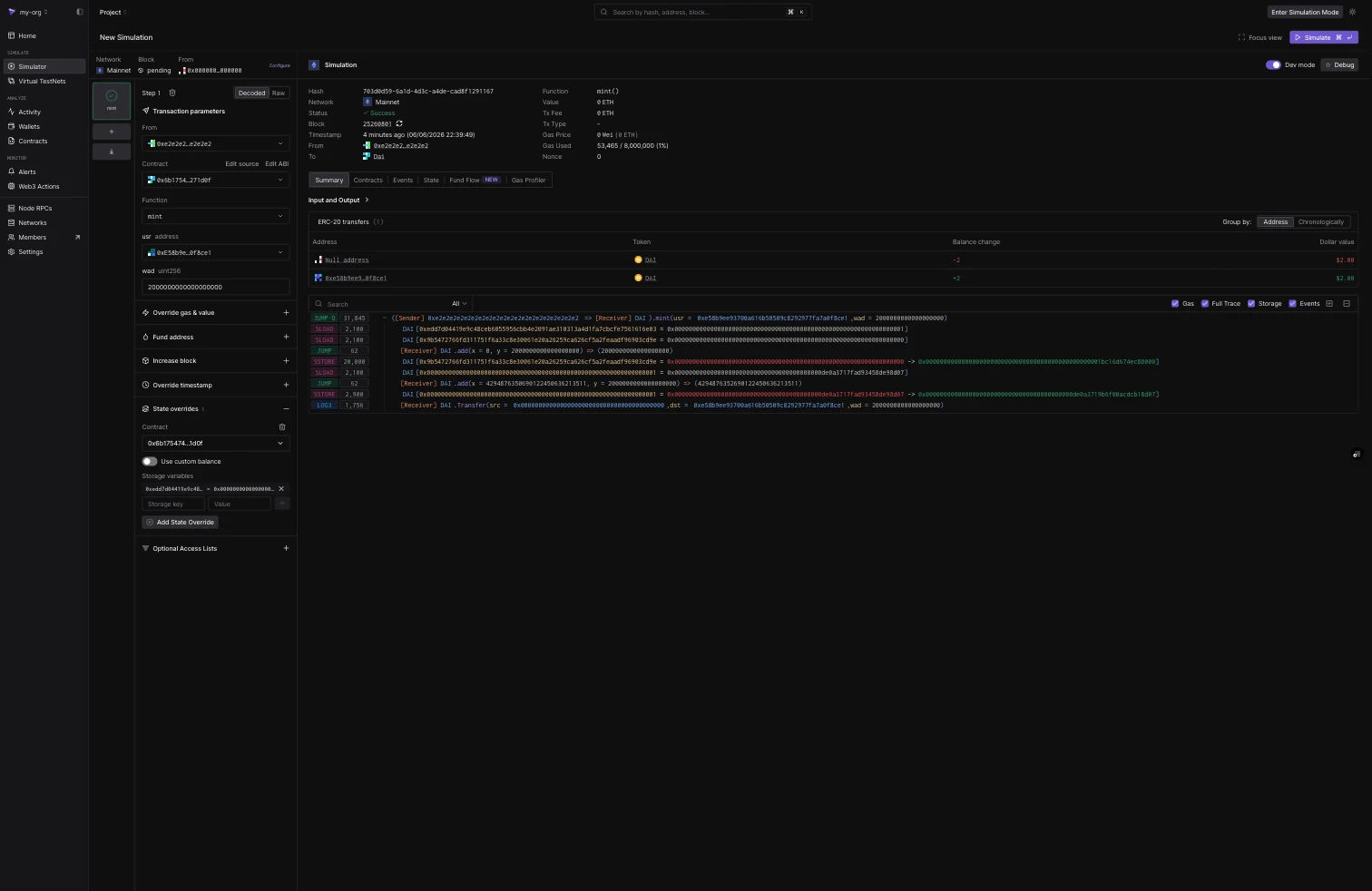 The result tabs confirm what the override changed:
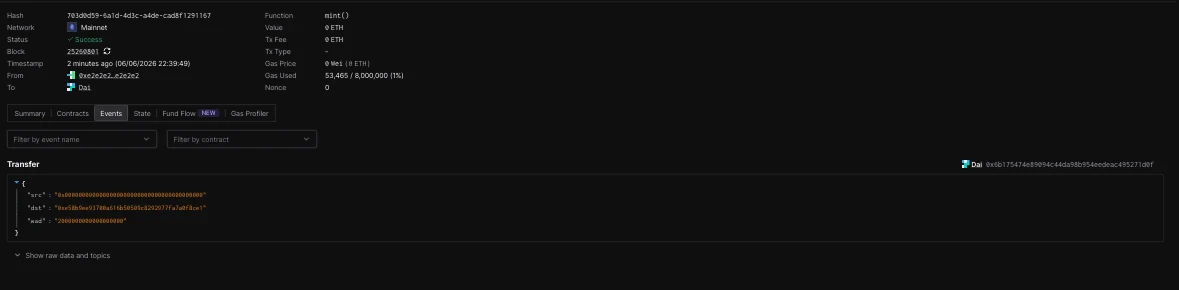
* The **Events** tab shows the `Transfer` event from the zero address to the holder for `2000000000000000000` wei.
The result tabs confirm what the override changed:
* The **Events** tab shows the `Transfer` event from the zero address to the holder for `2000000000000000000` wei.
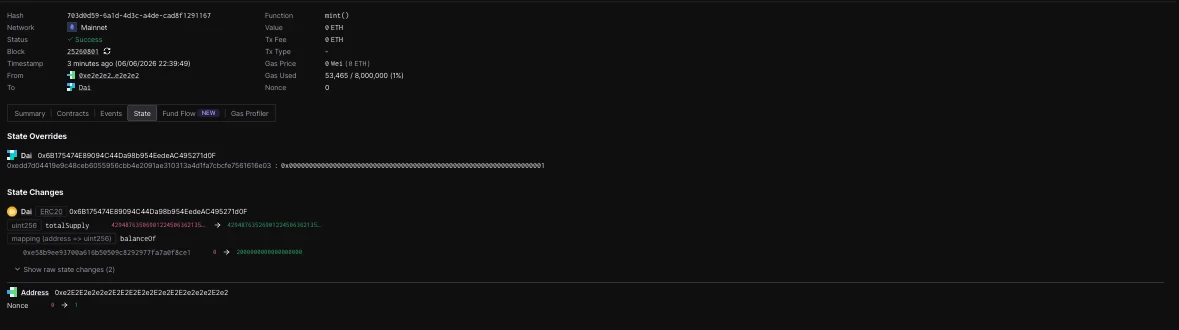
 * The **State** tab lists the applied **State Overrides** (the ward slot set to `1`) and the resulting **State Changes**: the holder's `balanceOf` going from `0` to `2000000000000000000`, the increased `totalSupply`, and the sender's nonce.
 ## Raw storage keys
Instead of the decoded `mapping[key]` form, you can enter the raw 32-byte storage slot directly. For a Solidity mapping at storage position `p`, the slot for `mapping[k]` is `keccak256(abi.encode(k, p))`. The wards override above resolves to:
```bash theme={"theme":{"light":"catppuccin-latte","dark":"catppuccin-mocha"}}
0xedd7d04419e9c48ceb6055956cbb4e2091ae310313a4d1fa7cbcfe7561616e03
```
Raw keys are the only option for contracts without verified source, and they match the format used by the [Simulation API's state overrides](/simulations/state-overrides) and the [bundle guide](/simulations/guides/mint-approve-transfer-bundle).
## Persisting overridden state
Simulations are stateless: the override applies to one run. To keep modified state as a persistent environment you can transact against repeatedly, use [Virtual Environments](/virtual-environments/overview).
## Raw storage keys
Instead of the decoded `mapping[key]` form, you can enter the raw 32-byte storage slot directly. For a Solidity mapping at storage position `p`, the slot for `mapping[k]` is `keccak256(abi.encode(k, p))`. The wards override above resolves to:
```bash theme={"theme":{"light":"catppuccin-latte","dark":"catppuccin-mocha"}}
0xedd7d04419e9c48ceb6055956cbb4e2091ae310313a4d1fa7cbcfe7561616e03
```
Raw keys are the only option for contracts without verified source, and they match the format used by the [Simulation API's state overrides](/simulations/state-overrides) and the [bundle guide](/simulations/guides/mint-approve-transfer-bundle).
## Persisting overridden state
Simulations are stateless: the override applies to one run. To keep modified state as a persistent environment you can transact against repeatedly, use [Virtual Environments](/virtual-environments/overview).