> ## Documentation Index
> Fetch the complete documentation index at: https://docs.tenderly.co/llms.txt
> Use this file to discover all available pages before exploring further.
# 交易列表
> 关于在 Tenderly Dashboard 中管理和分析交易,用于开发和监控的指南。
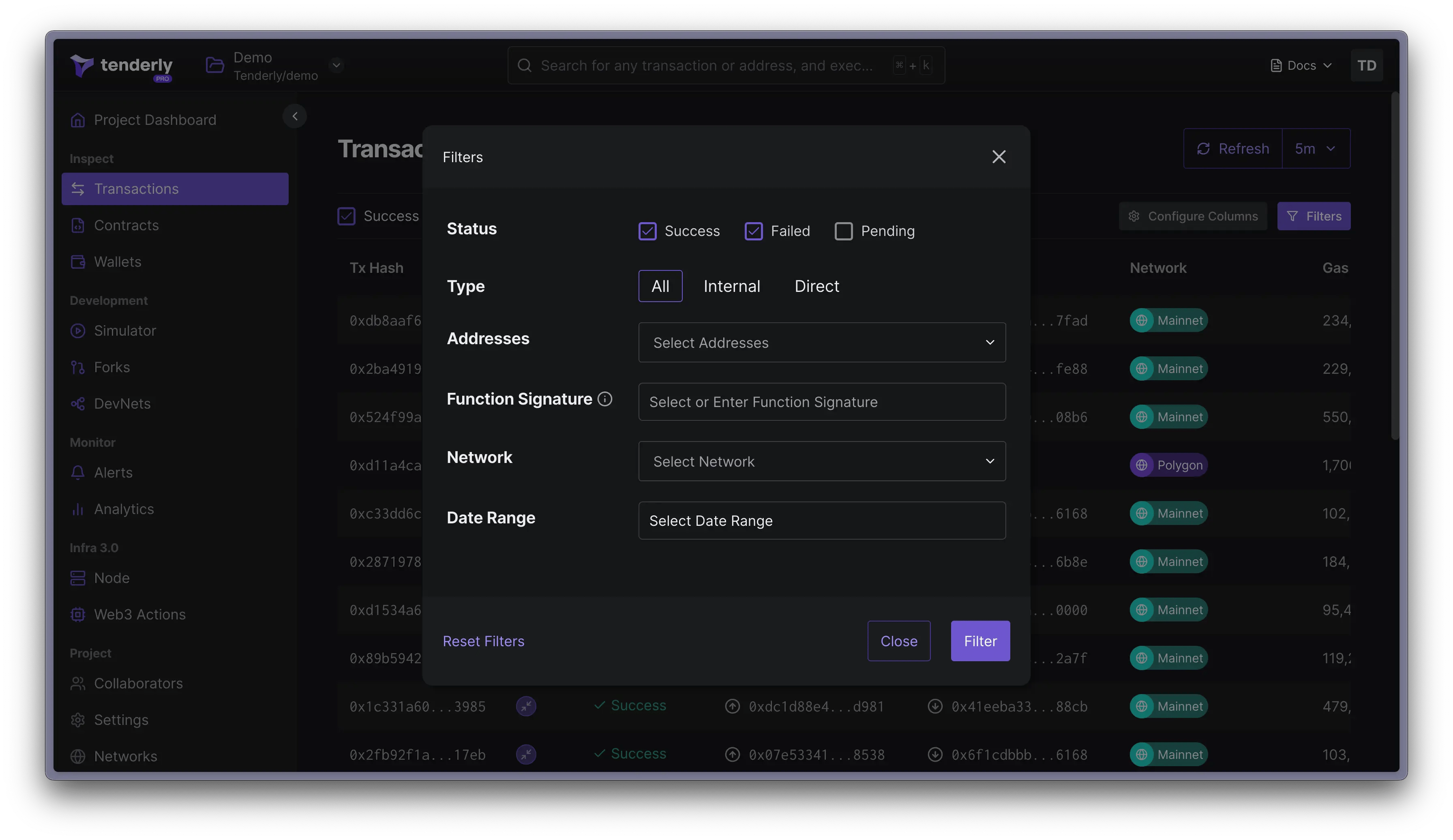
一旦您从任何受支持的网络添加合约或钱包后,来自这些资产的所有交易都将显示在 Dashboard 中。这样您可以轻松地在一个地方跟踪所有内容。您还可以使用筛选器对交易进行排序并找到对您最重要的交易,这在开发和监控过程中都很有帮助。
[在 Loom 上观看 →](https://www.loom.com/share/ec9c8aac4ca24bb19226b6dd96606f97?sid=07229573-c019-42d8-8a6c-8a89acdefbb3)
要查看项目的所有交易,请前往 **Transactions** 页面。在这里,您可以应用筛选器和排序交易,以聚焦于对您最相关的信息。
点击 **Filters** 按钮访问筛选和排序选项。
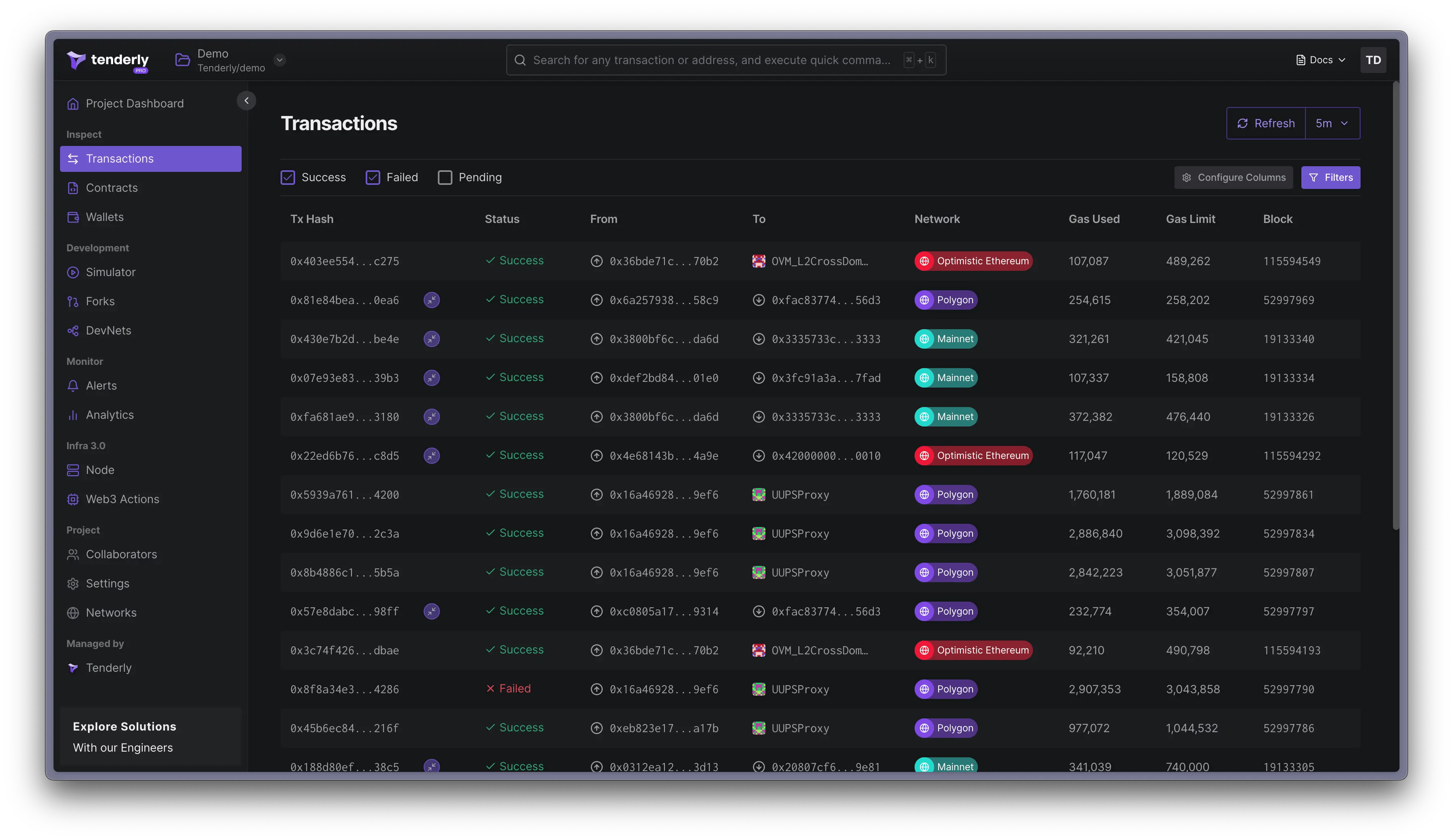 交易可以按以下条件进行筛选:
* **状态**(成功、[待处理](/developer-explorer/inspect-transaction/overview#mempool-pending-transactions)、失败)
* **类型**(内部和直接)
* 涉及的**合约地址**
* 调用的**函数**
* **网络**(支持 104 个网络)
* **日期**或日期范围
交易可以按以下条件进行筛选:
* **状态**(成功、[待处理](/developer-explorer/inspect-transaction/overview#mempool-pending-transactions)、失败)
* **类型**(内部和直接)
* 涉及的**合约地址**
* 调用的**函数**
* **网络**(支持 104 个网络)
* **日期**或日期范围