> ## Documentation Index
> Fetch the complete documentation index at: https://docs.tenderly.co/llms.txt
> Use this file to discover all available pages before exploring further.

# 如何使用 Webhook 进行告警

> 学习如何创建第一个 webhook 并开始接收告警事件。

欢迎阅读本指南，了解如何创建 webhook 作为告警目标，以从告警服务接收事件。在本指南中，您将学习如何设置 webhook 并查看其执行情况。

### 将 webhook 添加为告警目标

<Note>
  要继续操作，请 [登录您的账户](https://dashboard.tenderly.co/) 或如果您还没有账户，可 [创建一个免费
  账户](https://dashboard.tenderly.co/register)。
</Note>

登录后，创建一个新的 [Tenderly 项目](/platform/account/projects/overview) 或选择您希望在其中创建 Webhook 的现有项目。

从左侧菜单中，前往 **Alerts → Destinations** 选项卡，您将看到 [所有可用目标的列表](/monitoring/alerts/destinations/overview)。
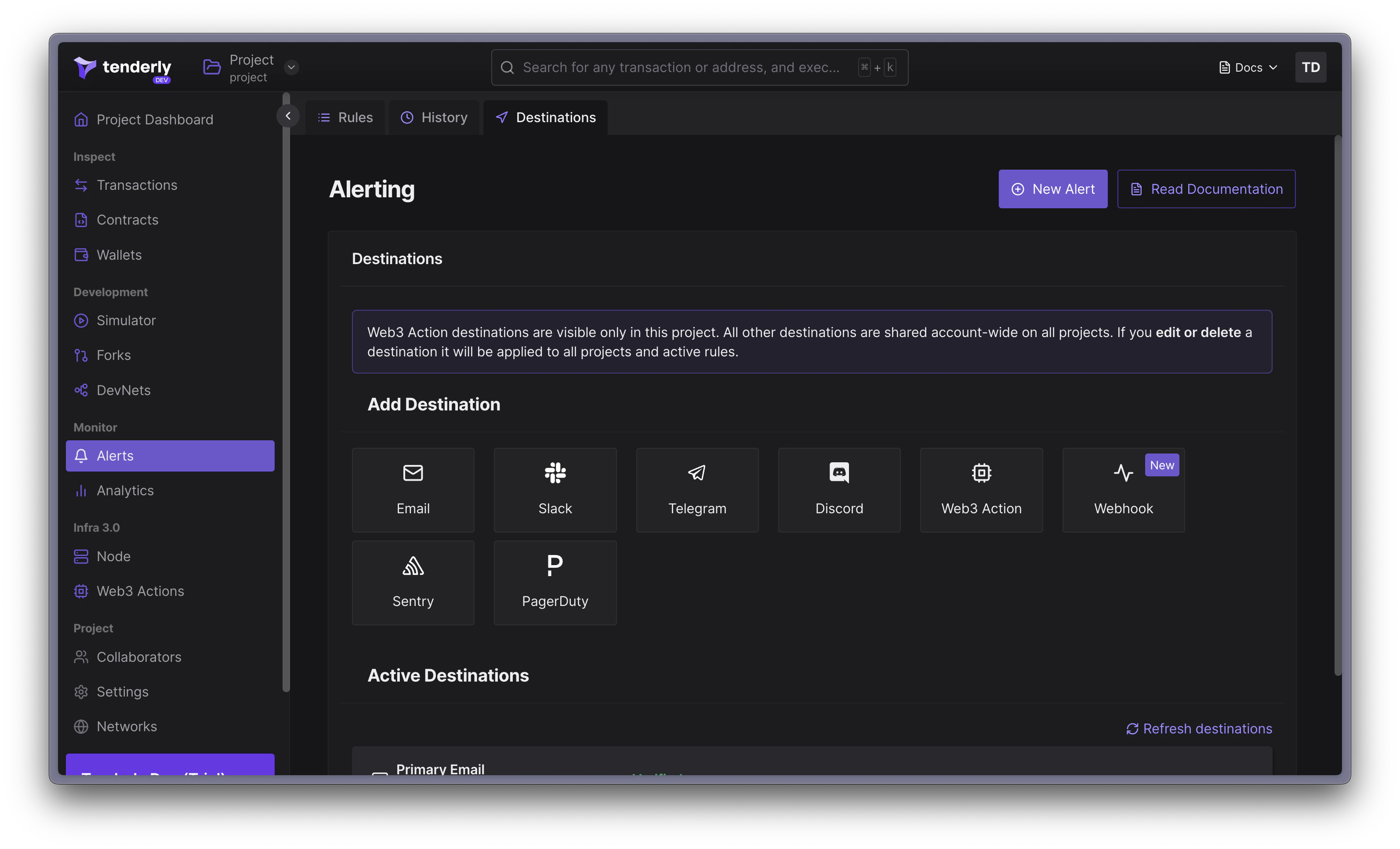
<Frame caption="导航到 Destination 部分">
  <img src="https://mintcdn.com/tenderly/XsEZlaGXYskrtN68/images/alerts/how-to-use-webhooks-for-alerting-1.webp?fit=max&auto=format&n=XsEZlaGXYskrtN68&q=85&s=5081e986e0f1637eecc285aafacefd4f" alt="Navigating to the Destination section" width="3186" height="1932" data-path="images/alerts/how-to-use-webhooks-for-alerting-1.webp" />
</Frame>

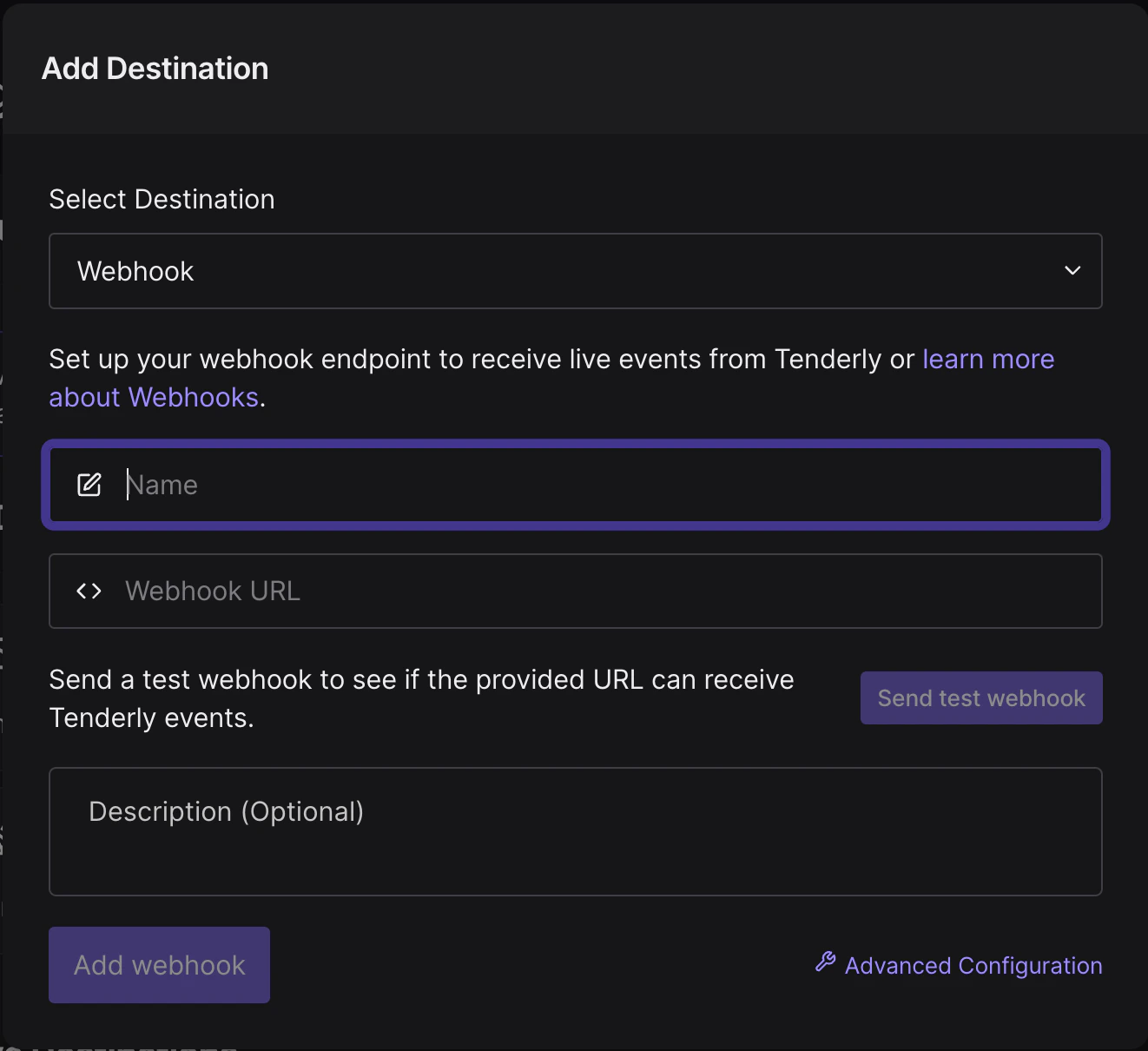
要创建 webhook 告警目标，请点击 Webhook 卡片，这将打开配置弹窗。系统会提示您配置以下选项：

* **Webhook 名称** — 必须唯一，且之后不能更改
* **Webhook URL** — 您将在此 URL 接收来自 Tenderly 的实时事件
* **描述** — 可选参数，可用于提供有关 webhook 配置的更多信息

<Frame caption="添加 Webhook 弹窗">
  <img src="https://mintcdn.com/tenderly/XsEZlaGXYskrtN68/images/alerts/how-to-use-webhooks-for-alerting-2.webp?fit=max&auto=format&n=XsEZlaGXYskrtN68&q=85&s=3327f3664a1f1ec5b9ecbc642c0081fa" alt="Add Webhook Modal" width="1322" height="1210" data-path="images/alerts/how-to-use-webhooks-for-alerting-2.webp" />
</Frame>

如果您点击 **Advanced Configuration** 链接，将打开一个弹窗，展示可用于设置自定义 webhook 的 JavaScript、Python 或 Go 代码片段。
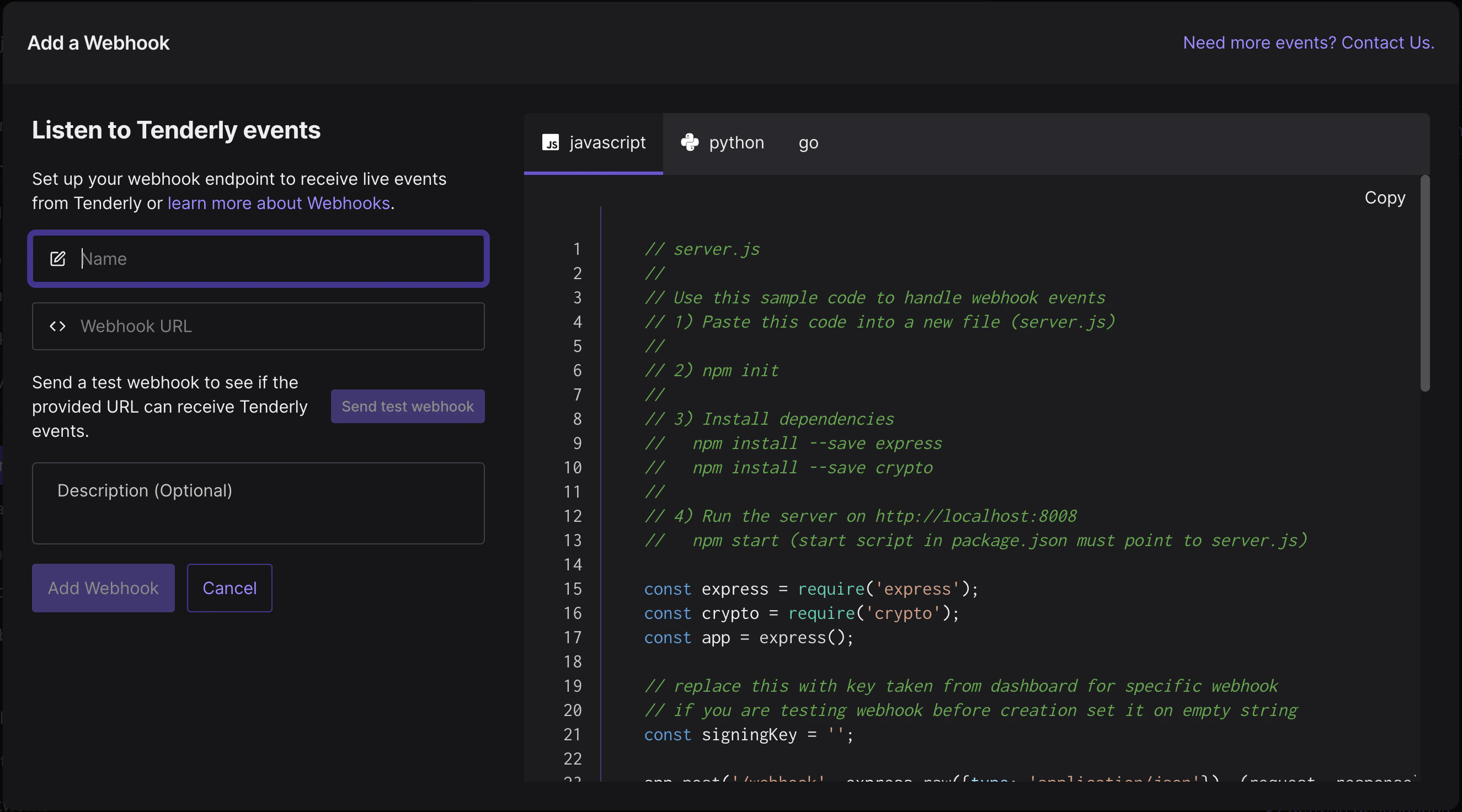
<Frame caption="Webhook 弹窗的高级配置">
  <img src="https://mintcdn.com/tenderly/XsEZlaGXYskrtN68/images/alerts/how-to-use-webhooks-for-alerting-3.webp?fit=max&auto=format&n=XsEZlaGXYskrtN68&q=85&s=992dec434e4fd86fdff9c2f61b70a36d" alt="Webhook Modal Advanced Configuration Modal" width="2650" height="1472" data-path="images/alerts/how-to-use-webhooks-for-alerting-3.webp" />
</Frame>

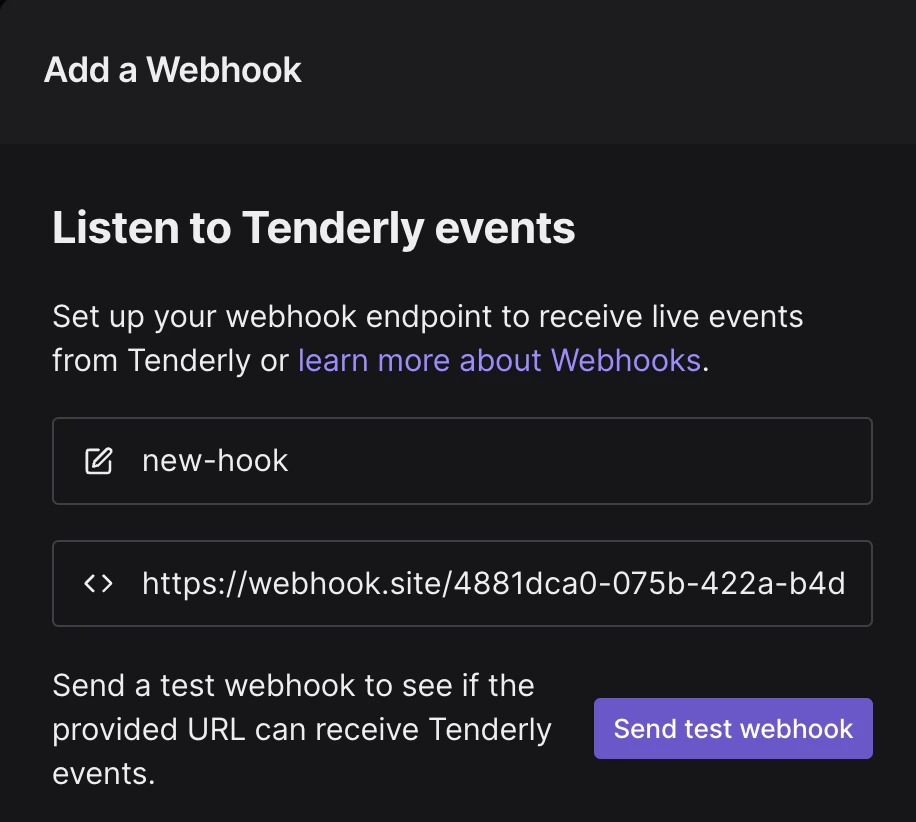
要测试提供的 URL 是否能够接收来自 Tenderly 的事件，请点击 **Send test webhook** 按钮，预定义的测试负载将被发送到您的端点。

<Frame caption="发送测试 Webhook">
  <img src="https://mintcdn.com/tenderly/XsEZlaGXYskrtN68/images/alerts/how-to-use-webhooks-for-alerting-4.webp?fit=max&auto=format&n=XsEZlaGXYskrtN68&q=85&s=a965f4441f9ae179104989380c43b192" alt="Send Test Webhook" width="916" height="822" data-path="images/alerts/how-to-use-webhooks-for-alerting-4.webp" />
</Frame>

如果一切正常并且您收到了事件，请点击 **Add Webhook** 按钮。此操作会将新的 webhook 目标添加到 **Active Destinations** 列表中。
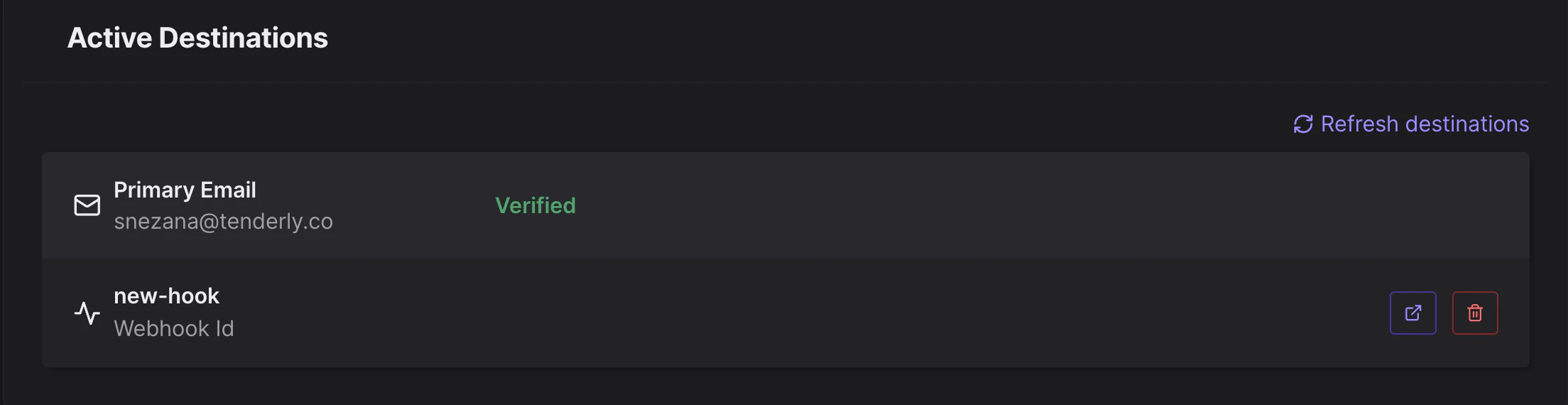
<Frame caption="新的 Webhook 被添加到活跃目标列表">
  <img src="https://mintcdn.com/tenderly/XsEZlaGXYskrtN68/images/alerts/how-to-use-webhooks-for-alerting-5.webp?fit=max&auto=format&n=XsEZlaGXYskrtN68&q=85&s=396c2f24af38b9b0fef4f638e9ab4a09" alt="New Webhook is added to the active destinations list" width="2208" height="570" data-path="images/alerts/how-to-use-webhooks-for-alerting-5.webp" />
</Frame>

点击右侧的按钮将打开 Webhook 概览页面。您可以在此找到 webhook 状态、URL、创建日期、签名密钥等信息。
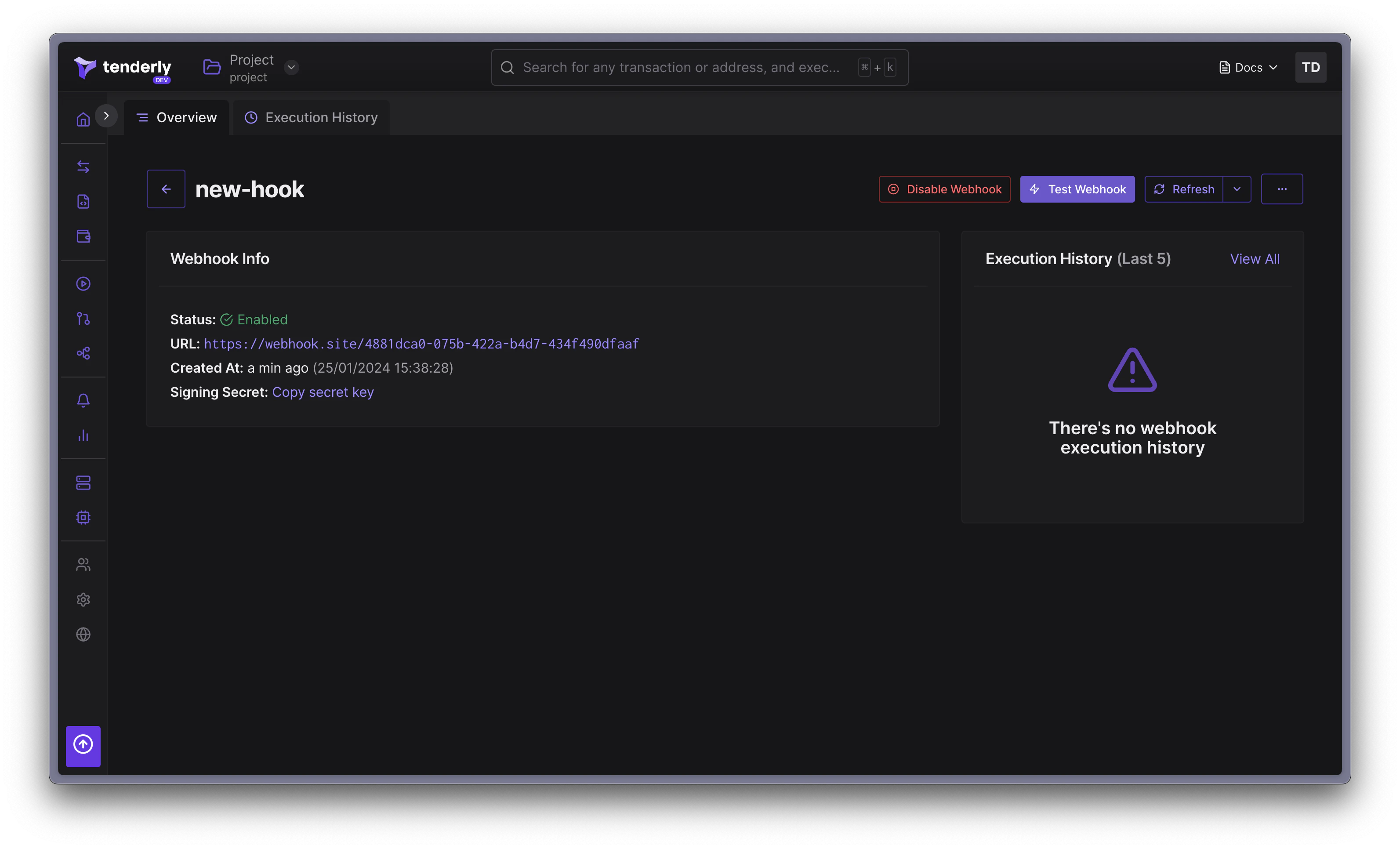
<Frame caption="Webhook 页面">
  <img src="https://mintcdn.com/tenderly/XsEZlaGXYskrtN68/images/alerts/how-to-use-webhooks-for-alerting-6.webp?fit=max&auto=format&n=XsEZlaGXYskrtN68&q=85&s=ce7941e7f04bf69c9ecb4c9cd2287f85" alt="Webhook Page" width="3186" height="1932" data-path="images/alerts/how-to-use-webhooks-for-alerting-6.webp" />
</Frame>

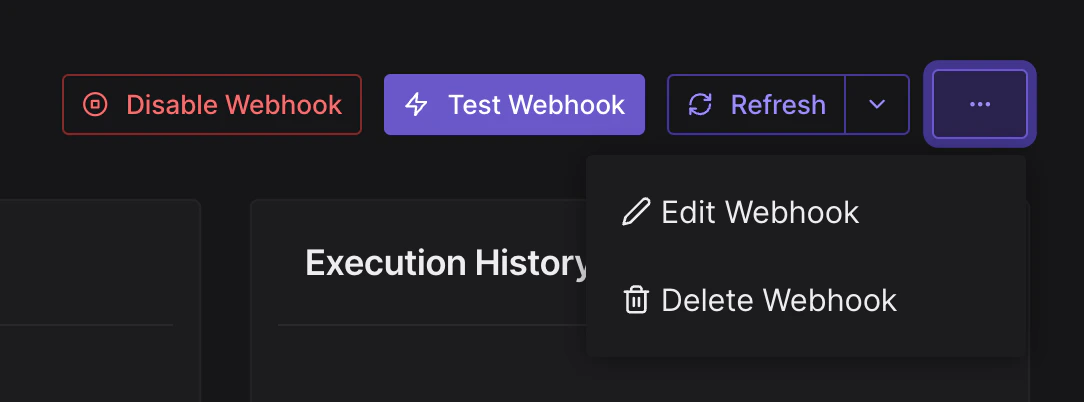
您还可以对 webhook 执行其他操作，例如启用/禁用 webhook 或修改现有配置。

**启用/禁用 Webhook：** 在活动和非活动状态之间切换 webhook 的状态。

**删除 Webhook**：从您的 Tenderly 项目中移除 webhook。删除 webhook 是永久性操作，无法撤销。

<Frame caption="Webhook 选项">
  <img src="https://mintcdn.com/tenderly/XsEZlaGXYskrtN68/images/alerts/how-to-use-webhooks-for-alerting-7.webp?fit=max&auto=format&n=XsEZlaGXYskrtN68&q=85&s=f5b584ed5ca779c0d021692d1f3129f6" alt="Webhook Options" width="1084" height="402" data-path="images/alerts/how-to-use-webhooks-for-alerting-7.webp" />
</Frame>

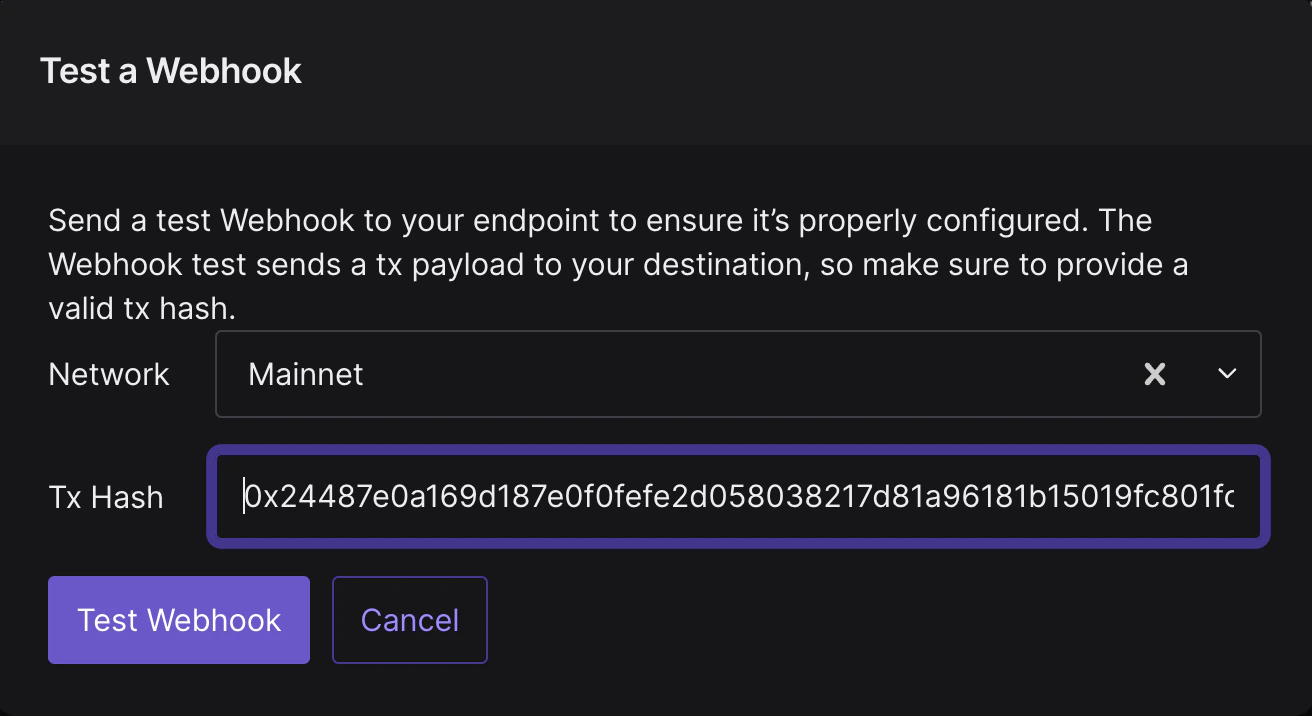
**发送测试请求：** 通过提供事务哈希及其所在网络，向提供的 URL 发送测试事件，从而测试 webhook 的功能。

<Frame caption="测试 Webhook 弹窗">
  <img src="https://mintcdn.com/tenderly/XsEZlaGXYskrtN68/images/alerts/how-to-use-webhooks-for-alerting-8.webp?fit=max&auto=format&n=XsEZlaGXYskrtN68&q=85&s=31d30fd1edfa75c3c8da5d280c6db2ef" alt="Test Webhook Modal" width="1312" height="716" data-path="images/alerts/how-to-use-webhooks-for-alerting-8.webp" />
</Frame>

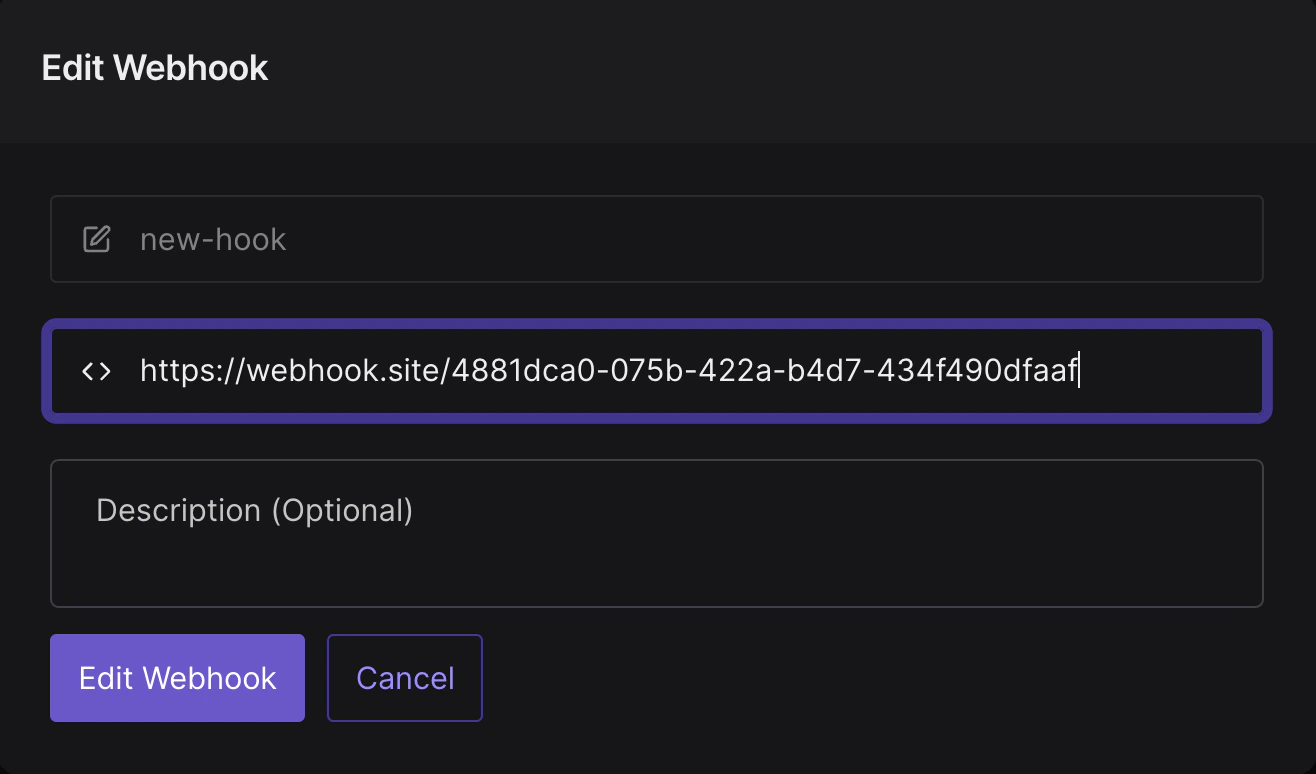
**编辑 Webhook**：修改现有 webhook 的配置，例如 URL 或描述。

<Frame caption="编辑 Webhook 弹窗">
  <img src="https://mintcdn.com/tenderly/XsEZlaGXYskrtN68/images/alerts/how-to-use-webhooks-for-alerting-9.webp?fit=max&auto=format&n=XsEZlaGXYskrtN68&q=85&s=c5993f7e59b7a248710729b610db5332" alt="Edit Webhook Modal" width="1316" height="774" data-path="images/alerts/how-to-use-webhooks-for-alerting-9.webp" />
</Frame>

### Webhook 执行历史

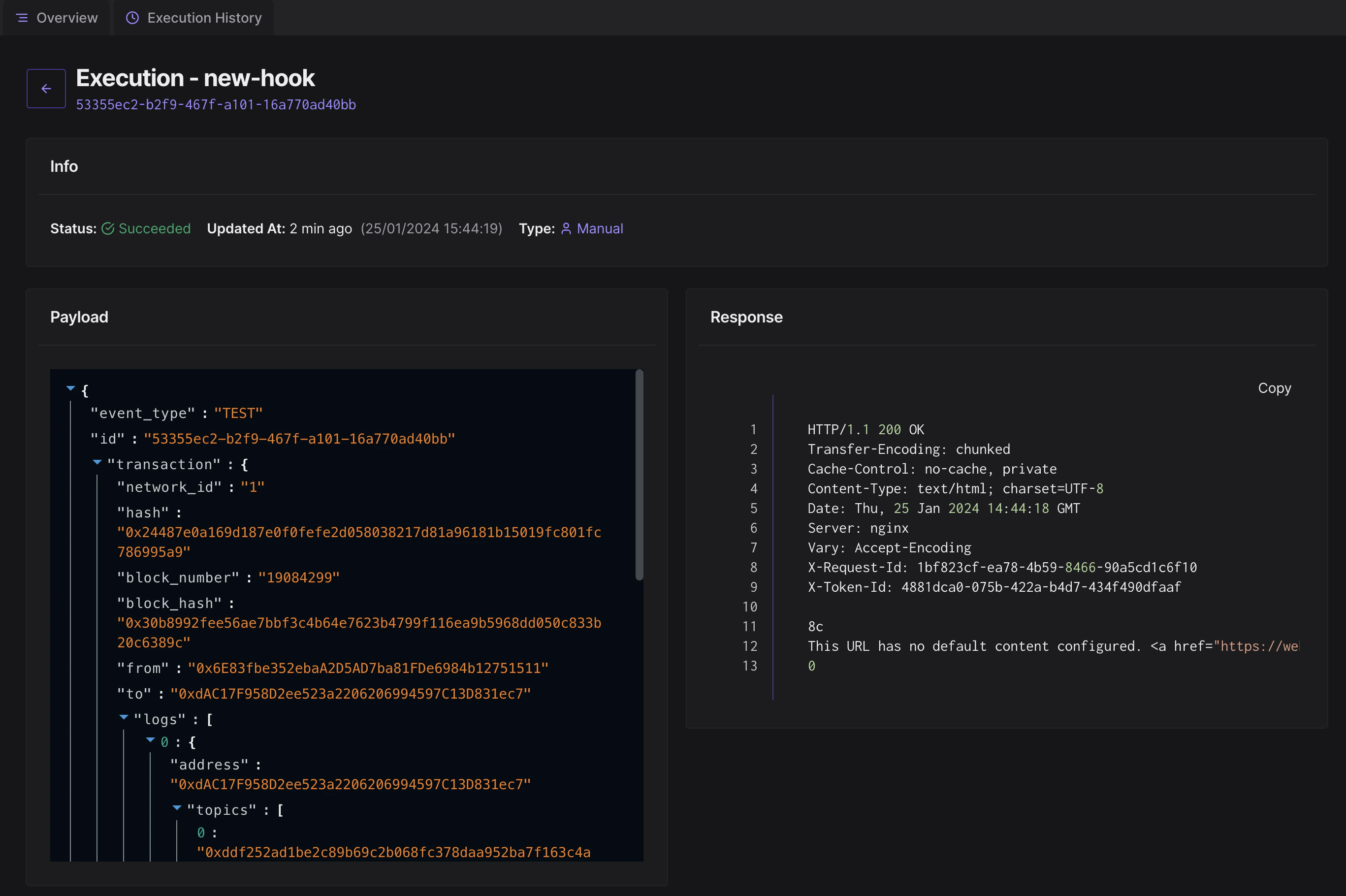
在 webhook 概览页面，点击 Execution History 查看已发送到指定 webhook URL 的事务负载以及来自 webhook 端点的响应。
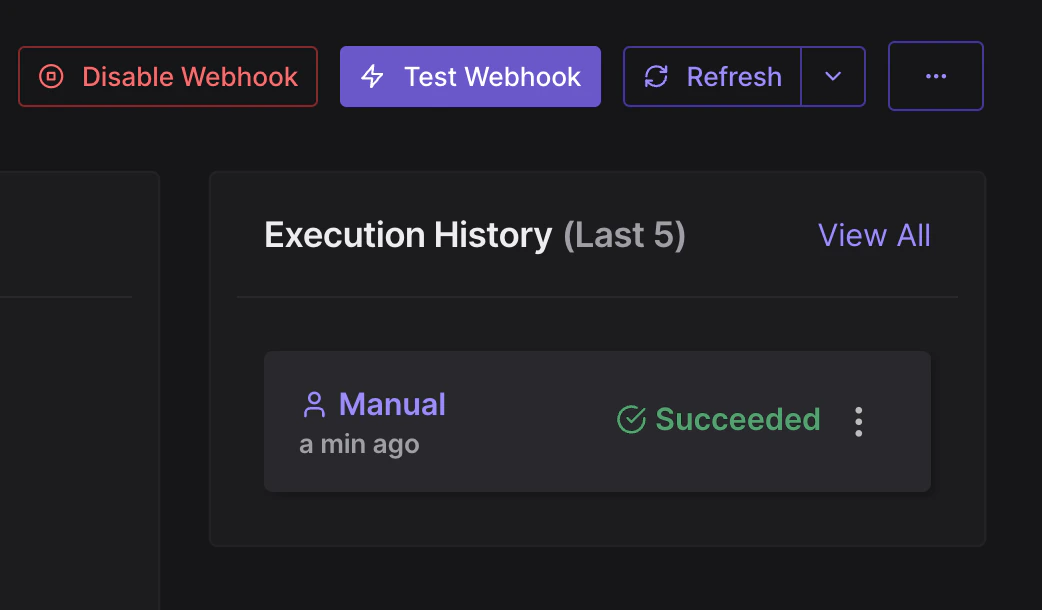
<Frame caption="点击 Test Webhook 按钮后手动触发的 Webhook">
  <img src="https://mintcdn.com/tenderly/XsEZlaGXYskrtN68/images/alerts/how-to-use-webhooks-for-alerting-10.webp?fit=max&auto=format&n=XsEZlaGXYskrtN68&q=85&s=19e5e4ce268469c2ab898b32ae45fd93" alt="Manually Triggered Webhook After Clicking on Test Webhook Button" width="1042" height="610" data-path="images/alerts/how-to-use-webhooks-for-alerting-10.webp" />
</Frame>

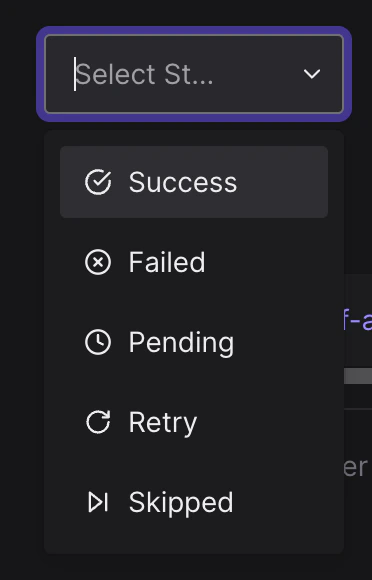
Webhook 执行可能有以下多种状态：

* **Success：** Webhook 已成功执行，事件已投递到指定的 URL。
* **Failed**：由于错误（例如连接问题、URL 问题或其他原因），webhook 无法执行。请检查响应内容以了解错误原因，或联系我们的支持。
* **Pending**：Webhook 正在执行中，尚未完成。
* **Retry**：Webhook 执行失败，但将最多重试 5 次，直到状态变为 Success 或 Failed。
* **Skipped**：Webhook 未被执行，因为它已被禁用。

<Frame caption="Webhook 执行页面">
  <img src="https://mintcdn.com/tenderly/XsEZlaGXYskrtN68/images/alerts/how-to-use-webhooks-for-alerting-11.webp?fit=max&auto=format&n=XsEZlaGXYskrtN68&q=85&s=b0c46e22e2546272ac16ef5ba3a1d17b" alt="Webhook Execution Page" width="2734" height="1820" data-path="images/alerts/how-to-use-webhooks-for-alerting-11.webp" />
</Frame>

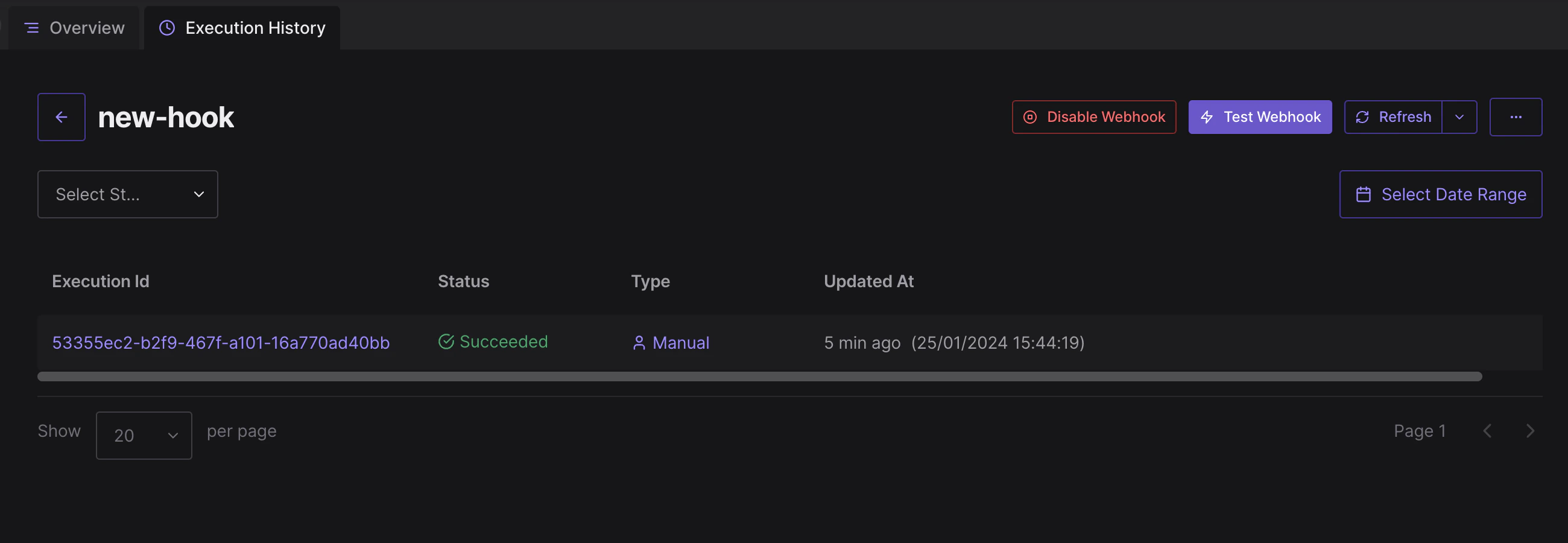
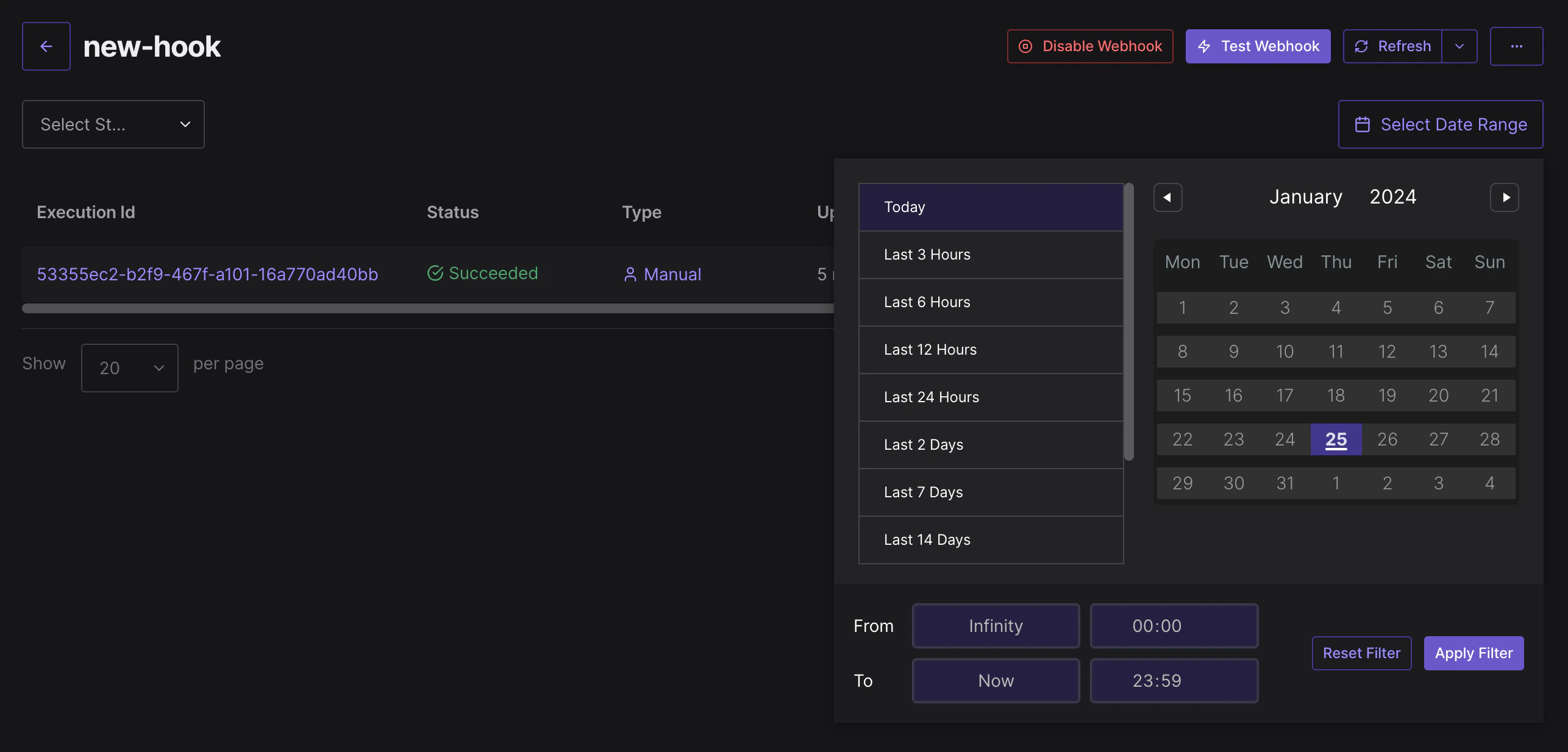
您还可以通过应用不同的过滤器（例如 **按状态过滤** 和 **选择日期范围**）查看之前的 webhook 执行记录。

<Frame caption="Webhook 执行历史页面">
  <img src="https://mintcdn.com/tenderly/XsEZlaGXYskrtN68/images/alerts/how-to-use-webhooks-for-alerting-12.webp?fit=max&auto=format&n=XsEZlaGXYskrtN68&q=85&s=8d0820aced9bbbaf657448b5889b647d" alt="Webhook Execution History Page" width="2600" height="900" data-path="images/alerts/how-to-use-webhooks-for-alerting-12.webp" />
</Frame>

<Frame caption="选择 Webhook 状态下拉菜单">
  <img src="https://mintcdn.com/tenderly/XsEZlaGXYskrtN68/images/alerts/how-to-use-webhooks-for-alerting-13.webp?fit=max&auto=format&n=XsEZlaGXYskrtN68&q=85&s=d713943ca9d54b5367f1fcebb3efb4b1" alt="Select Webhook Status Dropdown" width="372" height="580" data-path="images/alerts/how-to-use-webhooks-for-alerting-13.webp" />
</Frame>

<Frame caption="选择日期范围下拉菜单">
  <img src="https://mintcdn.com/tenderly/XsEZlaGXYskrtN68/images/alerts/how-to-use-webhooks-for-alerting-14.webp?fit=max&auto=format&n=XsEZlaGXYskrtN68&q=85&s=2498dc8ea3bf70411a72e17ff33671c3" alt="Select Date Range Dropdown" width="2572" height="1234" data-path="images/alerts/how-to-use-webhooks-for-alerting-14.webp" />
</Frame>

### 将 webhook 连接到 Alert

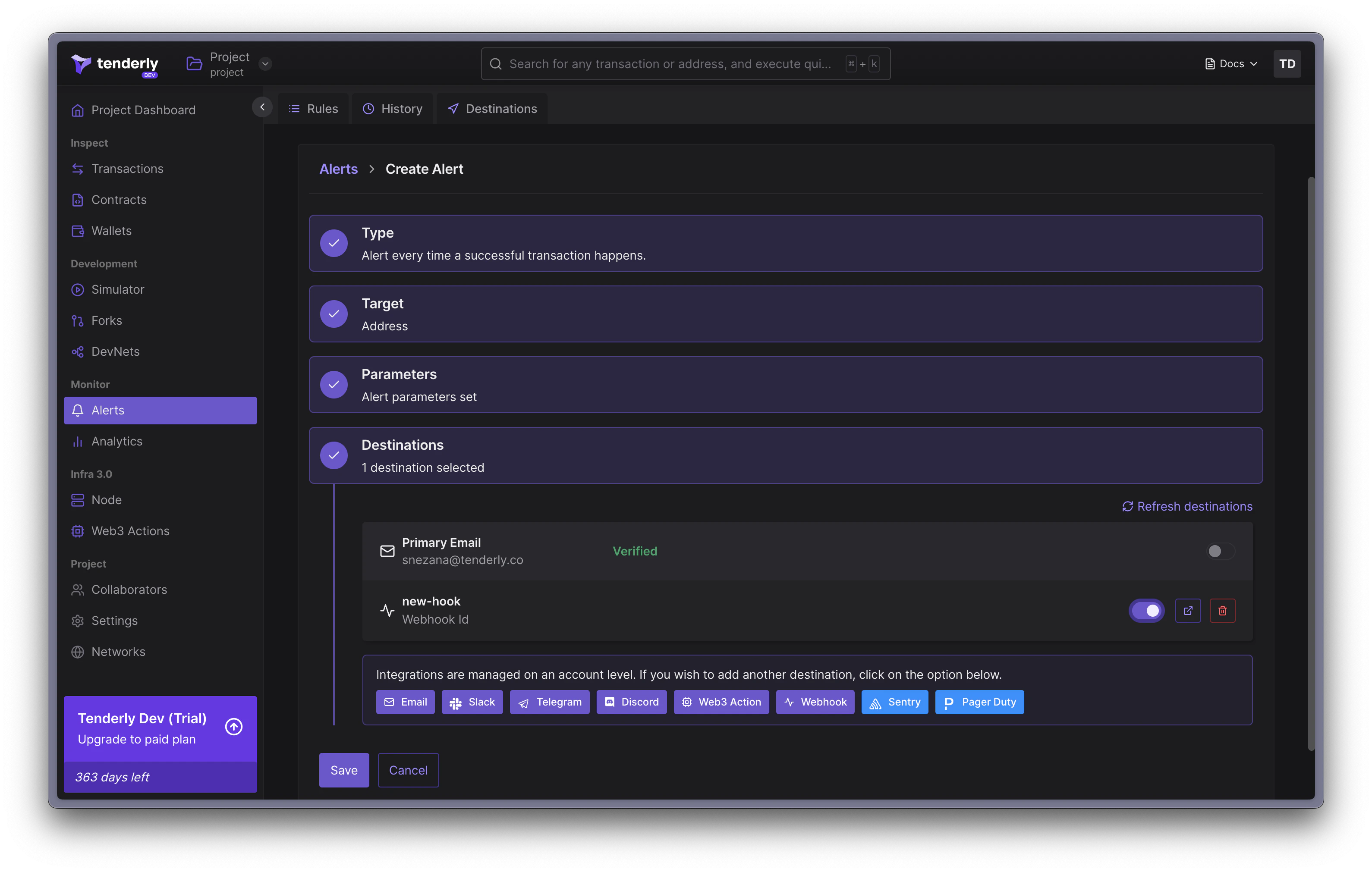
配置好 webhook 端点后，您可以将其作为 Destination 添加到任何 Alert。

<Info>
  [按照本指南](/monitoring/alerts/tutorials/quickstart) 学习如何设置 Alert。
</Info>

<Frame caption="将 Webhook 作为 Destination 添加到 Alert 规则">
  <img src="https://mintcdn.com/tenderly/XsEZlaGXYskrtN68/images/alerts/how-to-use-webhooks-for-alerting-15.webp?fit=max&auto=format&n=XsEZlaGXYskrtN68&q=85&s=2f3702b3cb1406ef17bd9596e34ed555" alt="Adding a Webhook as a Destination to the Alert Rule" width="3180" height="2022" data-path="images/alerts/how-to-use-webhooks-for-alerting-15.webp" />
</Frame>

创建 Alert 规则时，您将被重定向到以下页面：

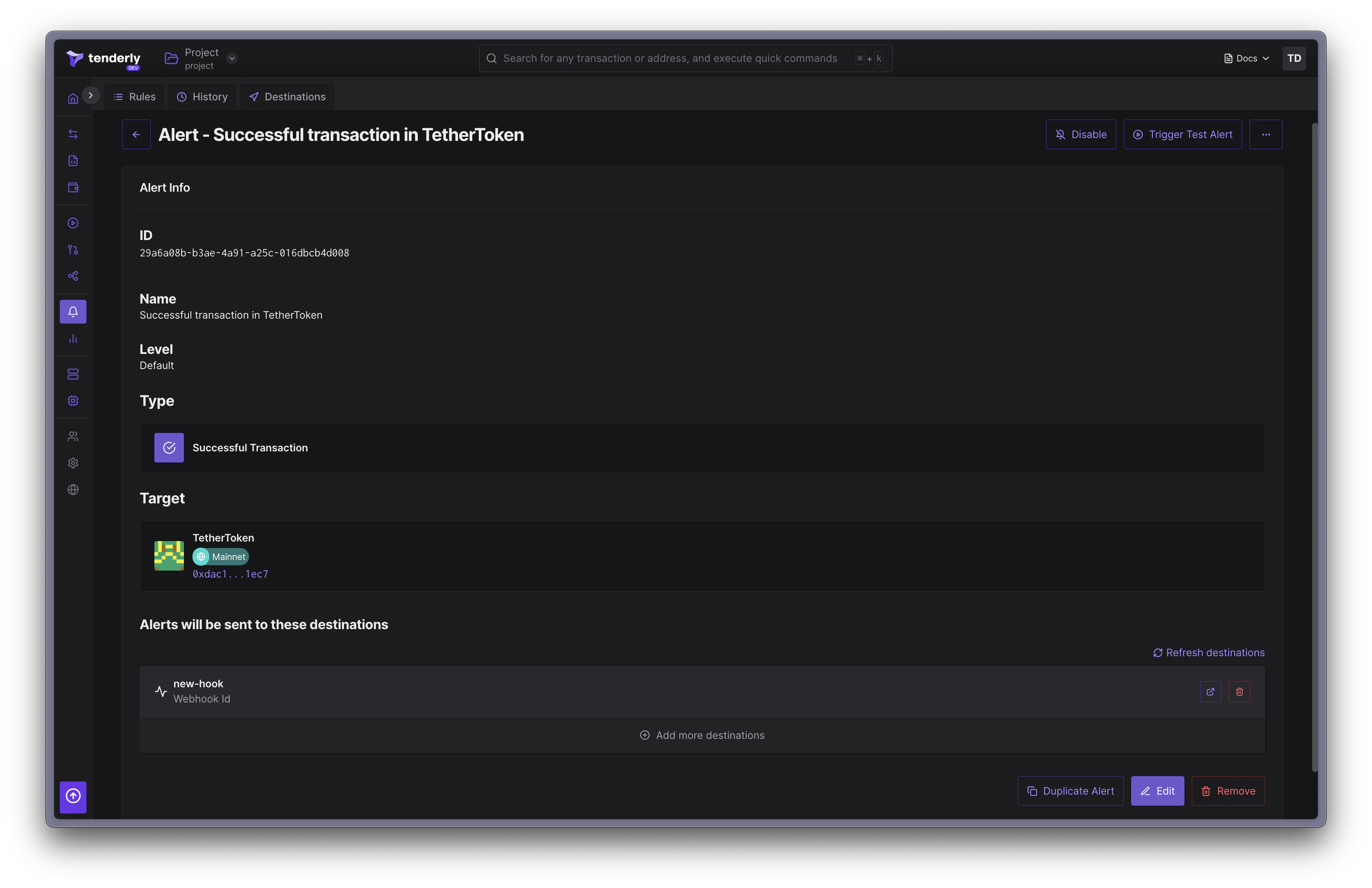
<Frame caption="以 Webhook 作为 Destination 的 Alert 规则">
  <img src="https://mintcdn.com/tenderly/XsEZlaGXYskrtN68/images/alerts/how-to-use-webhooks-for-alerting-16.webp?fit=max&auto=format&n=XsEZlaGXYskrtN68&q=85&s=93b904f96c99f499a29d1f7d5ad7095c" alt="Alert Rule with a Webhook as a Destination" width="3350" height="2168" data-path="images/alerts/how-to-use-webhooks-for-alerting-16.webp" />
</Frame>

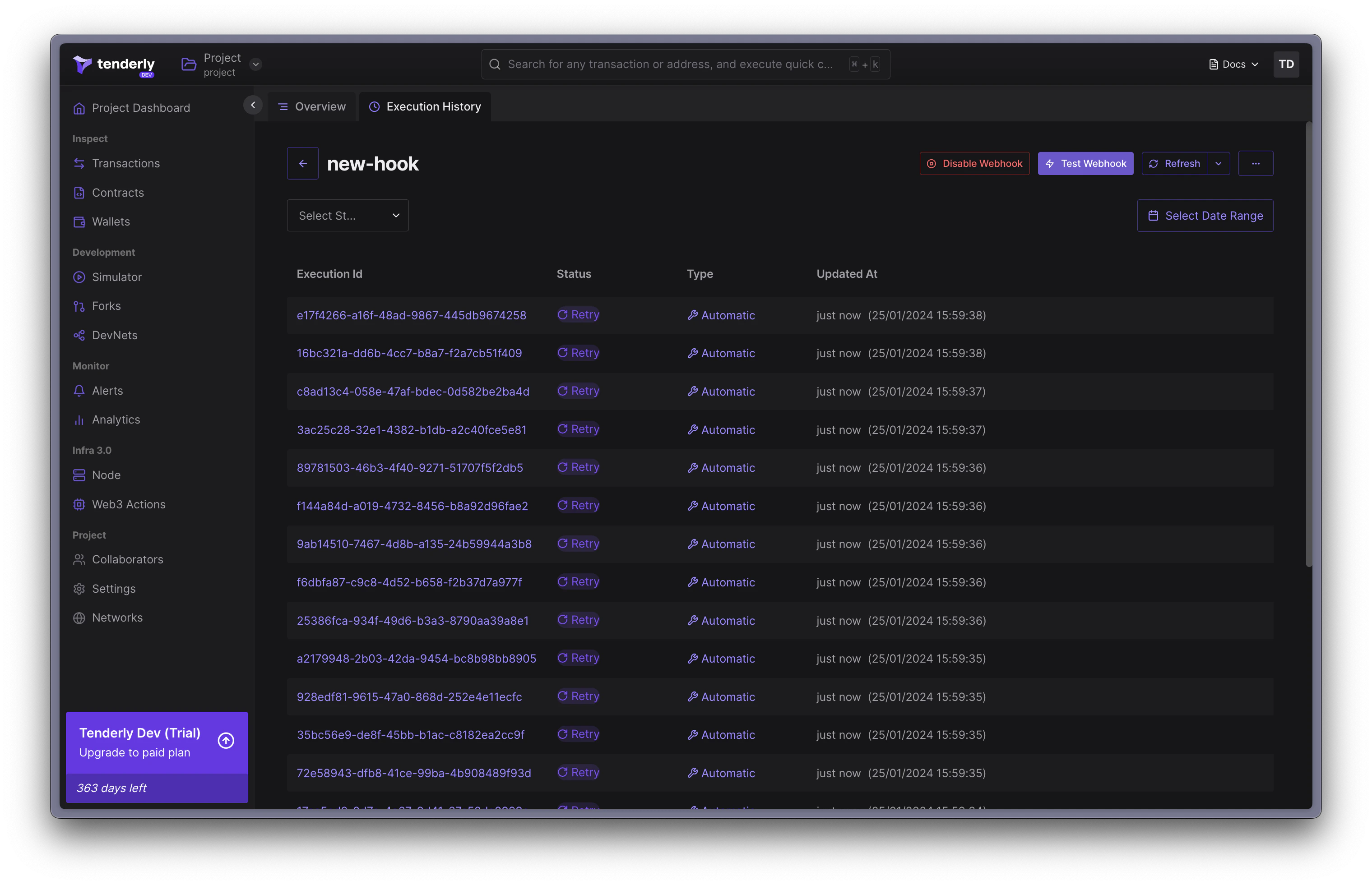
如果您的 Alert 已启用，您将开始向 webhook 端点接收事件。

<Frame caption="Webhook 执行历史页面">
  <img src="https://mintcdn.com/tenderly/XsEZlaGXYskrtN68/images/alerts/how-to-use-webhooks-for-alerting-17.webp?fit=max&auto=format&n=XsEZlaGXYskrtN68&q=85&s=7cb913db45bfbcfaf688ca0634da2169" alt="Webhook Execution History Page" width="3040" height="1962" data-path="images/alerts/how-to-use-webhooks-for-alerting-17.webp" />
</Frame>

在此示例中，我们使用 [https://webhook.site](https://webhook.site/) 创建了一个临时的 webhook 端点来测试 Tenderly webhook 的工作方式。下图展示了成功发送到 webhook 的负载。
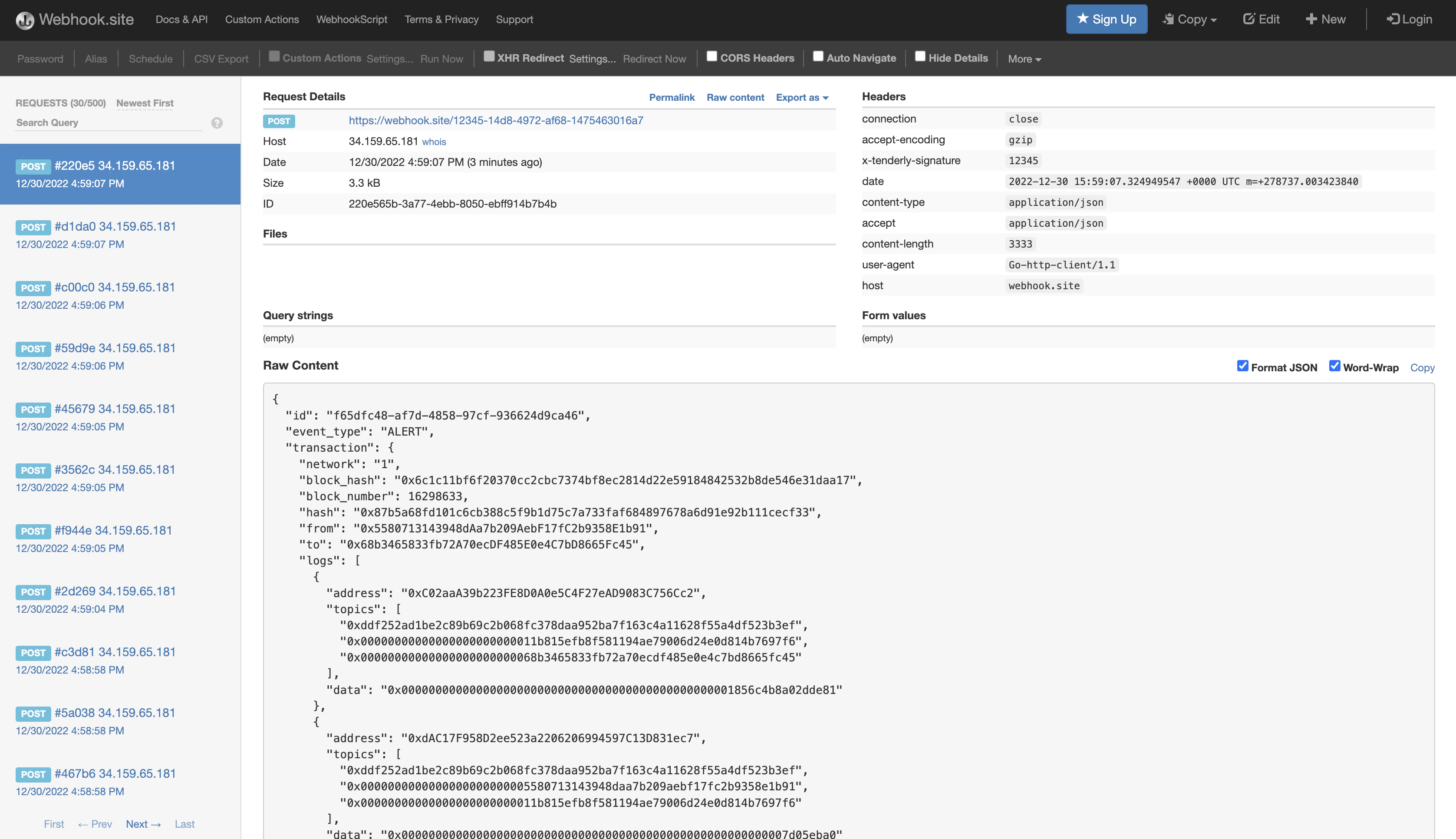
<Frame caption="成功的 Webhook 执行">
  <img src="https://mintcdn.com/tenderly/XsEZlaGXYskrtN68/images/alerts/how-to-use-webhooks-for-alerting-18.webp?fit=max&auto=format&n=XsEZlaGXYskrtN68&q=85&s=5d0fae3a15e01503b31a57e87efe72a1" alt="Successful Webhook Executions" width="3354" height="1932" data-path="images/alerts/how-to-use-webhooks-for-alerting-18.webp" />
</Frame>