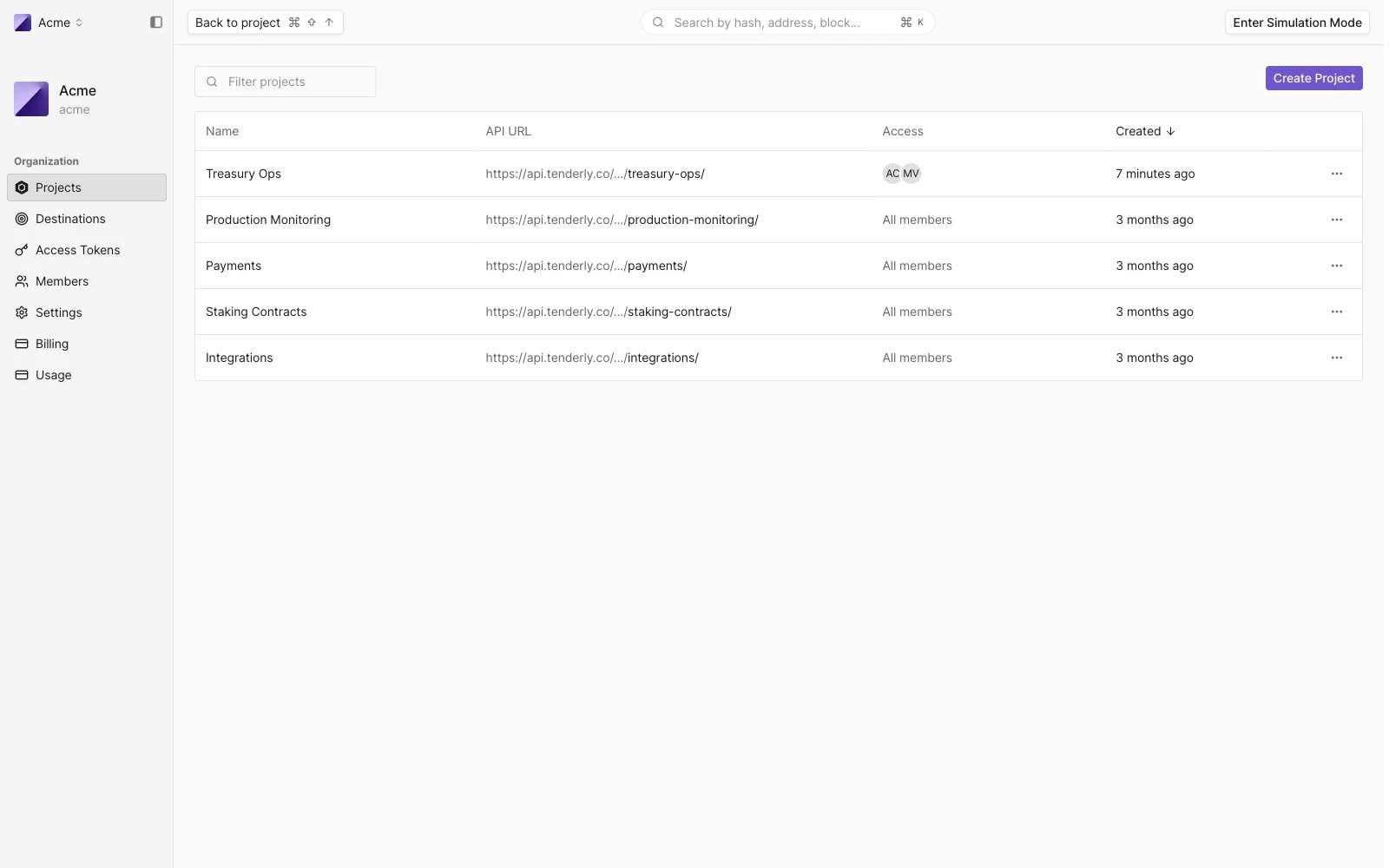
restricted and members fields of Create a project and Update a project set the same options.
Project access options
- All members: everyone in the organization has access, including all global tokens. This is the default and matches the behavior projects had before access control was introduced.
- Only invited members: only members you add have access, and API access requires a project token.
Create a restricted project
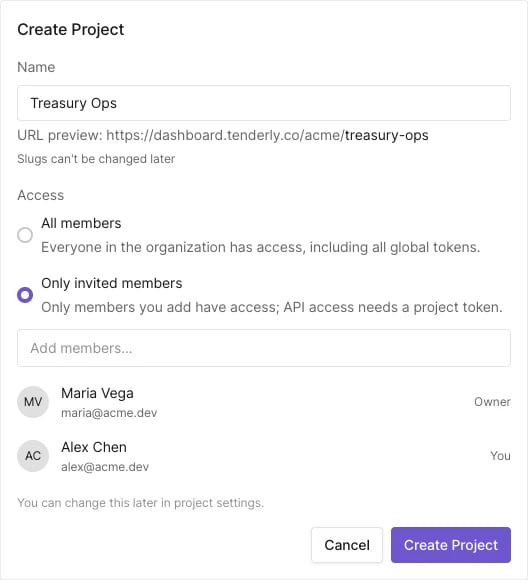
- On the organization’s Projects page, click Create Project.
- Enter a project name. The URL preview updates as you type; the project slug cannot be changed later.
- Under Access, select Only invited members. A member picker appears.
- Use Add members to search organization members and add them to the project. The organization owner and you are on the list by default and cannot be removed.
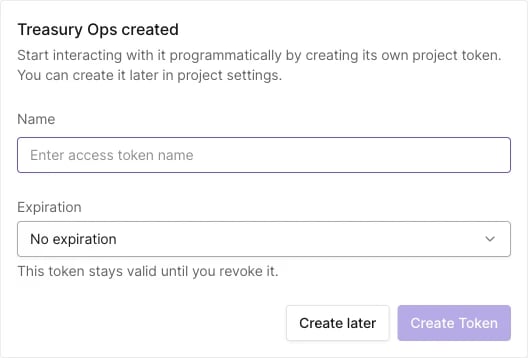
- Click Create Project.
Restrict an existing project
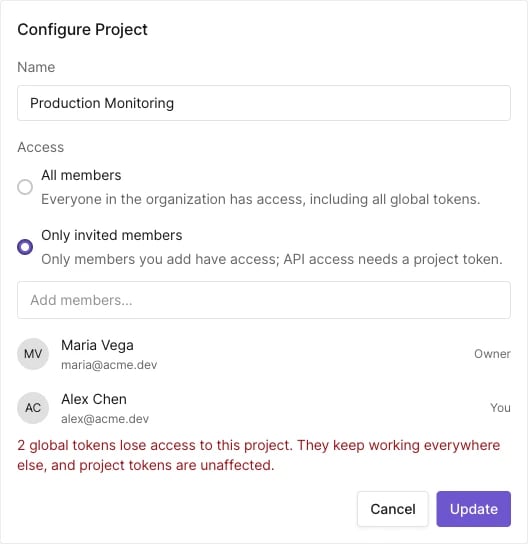
- On the organization’s Projects page, open the project’s row menu and select Configure. The same controls are available in the project’s Settings.
- Under Access, select Only invited members.
- Review the warning: it states how many global tokens lose access to this project. Those tokens keep working everywhere else, and project tokens are unaffected. If your integrations use global tokens against this project, create a project token for them before you confirm.
- Adjust the member list, then click Update.
Open a restricted project to all members
Select All members in the project’s Configure dialog or Settings. Global tokens gain access to the project; existing project tokens keep working, still scoped to that project only. Nothing breaks when a project is opened up.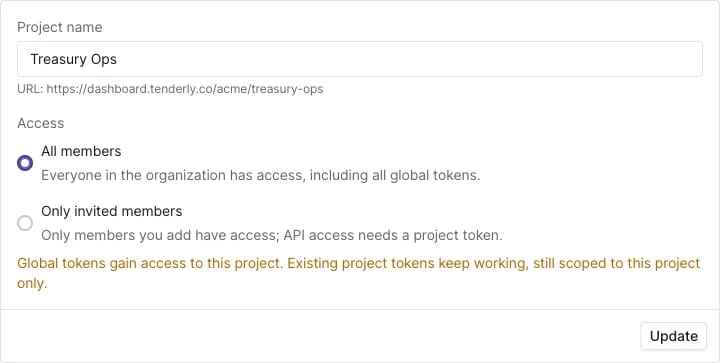
Manage project members
Add or remove members from the Access section of the project’s Settings or the Configure dialog. The member list shows each member’s name and email, with Owner and You badges. The organization owner cannot be removed. Adding or removing project members never affects access tokens. Tokens react only to the project switching between restricted and all-members access.Who can manage project access
- Changing a project’s access and managing its members requires the Update projects permission.
- Organization admins keep access to every project, including restricted ones, and are members of every restricted project.
- Creating an access token for a restricted project additionally requires membership in that project. See access tokens.
What non-members see
For organization members who are not on a restricted project’s member list, the project does not exist anywhere in the dashboard:- It does not appear in the organization’s Projects page, the project switcher, or search.
- Opening the project’s URL directly shows the no-permission page.
- API requests return
404 Project not found. Personal access tokens have no access to restricted projects. See access token scopes.