

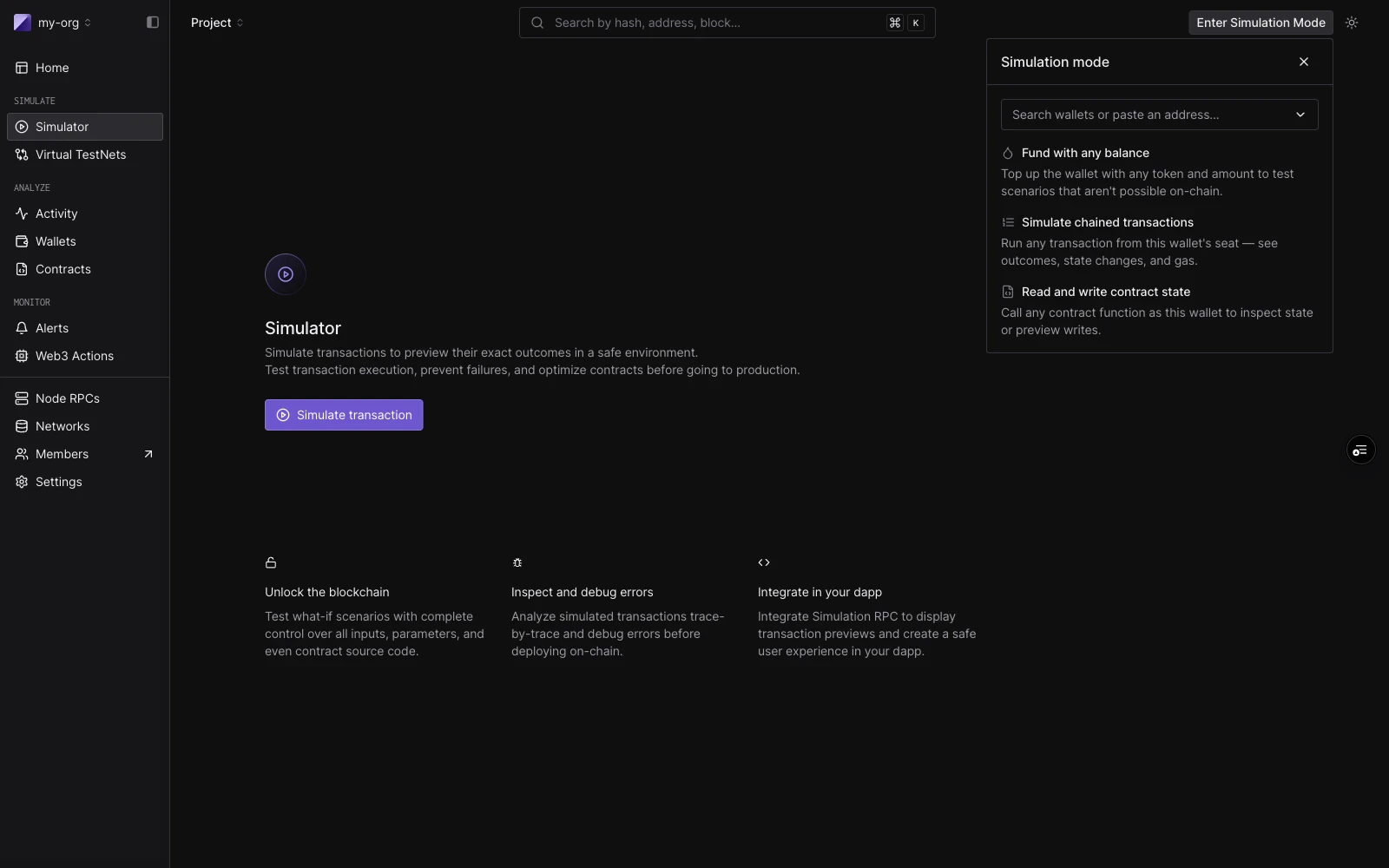
Simulation Mode panel: wallet search, and the three capabilities, Fund with any balance, Simulate chained transactions, Read and write contract state.
When to use it
- Walk through a wallet’s onchain behavior without holding its keys. Useful for support, risk reviews, or post-incident analysis.
- Stage a sequence of actions as a specific wallet (e.g. supply, borrow, repay) and inspect the cumulative state effects.
- Test from the wallet’s perspective on contract Read/Write pages, the Simulator, and re-simulation flows, all without re-entering the address every time.
- Override token balances on the fly to test what an action would look like with more (or less) of an asset.
How a session is built
Entering Simulation Mode
Click Enter Simulation Mode in the top bar, or use the Impersonate action on any wallet detail page to pre-fill Sim Mode with that wallet. Once active, the top-bar button is replaced with aSIMULATING pill showing the impersonated wallet’s identity icon, abbreviated address, and total USD balance.
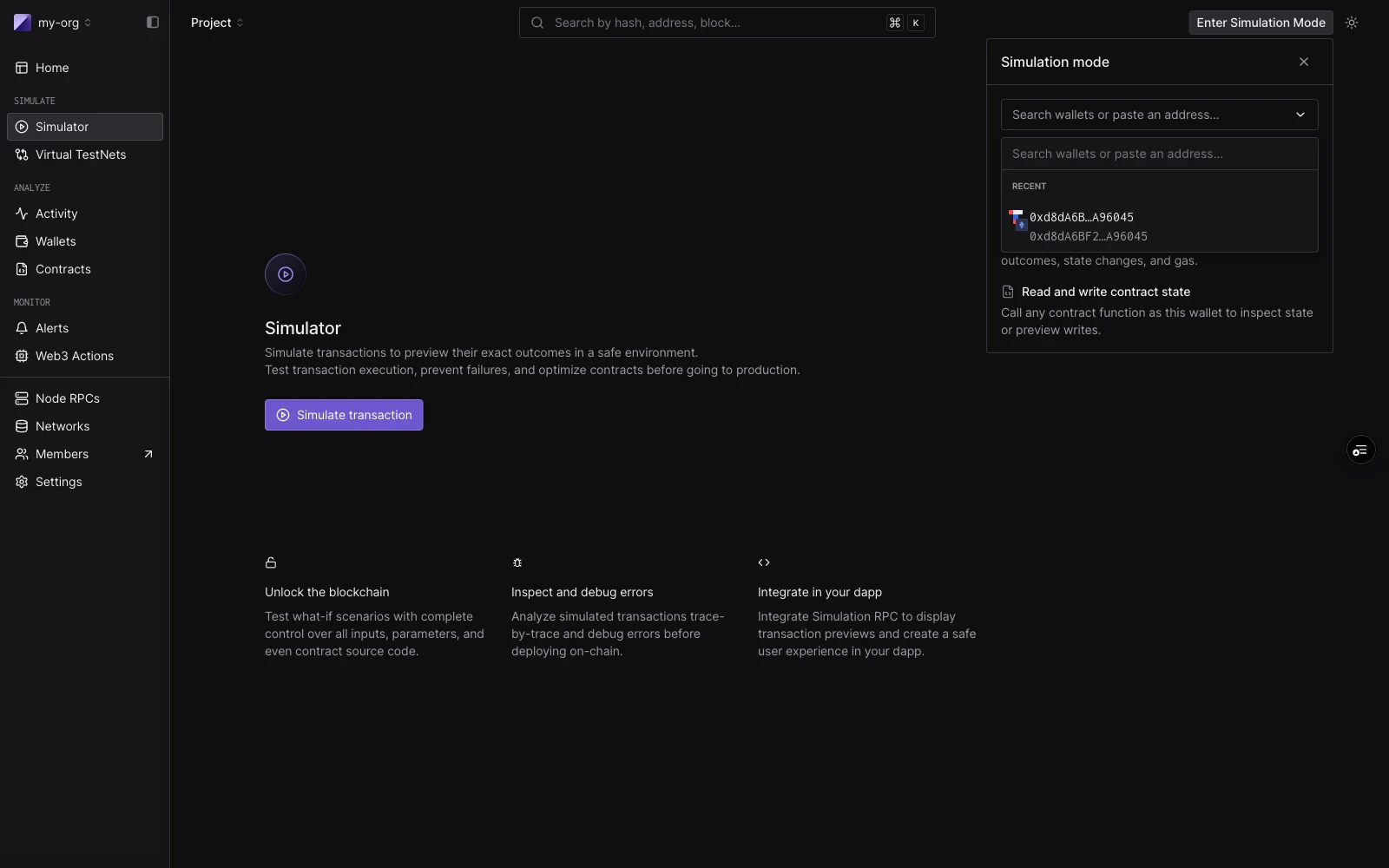
Enter Simulation Mode button in the top bar (inactive state) and wallet search open ready to accept a wallet address or name.
The Sim Mode panel
The active Sim Mode panel anchors to the top-right of the dashboard. It has four parts:- Network row: current network with a dropdown to switch.
- State row: block number, block position, and timestamp settings (default: latest block, end of block, auto timestamp).
- Wallet card: identity icon, abbreviated address, USD balance, and refresh.
- Tabs: Tokens and Simulated transactions.
Tokens tab
Lists tokens held by the impersonated wallet on the active network.- Click the + on any row to open an inline editor pre-filled with the live balance.
- An overridden row shows the simulated amount, a green diff badge (e.g.
+123.3K), an undo control, and an edit control. - Top of the list shows the count of simulated balances and a Reset to live action.
- Bottom: + Add tokens opens the funding flow for tokens the wallet doesn’t currently hold.
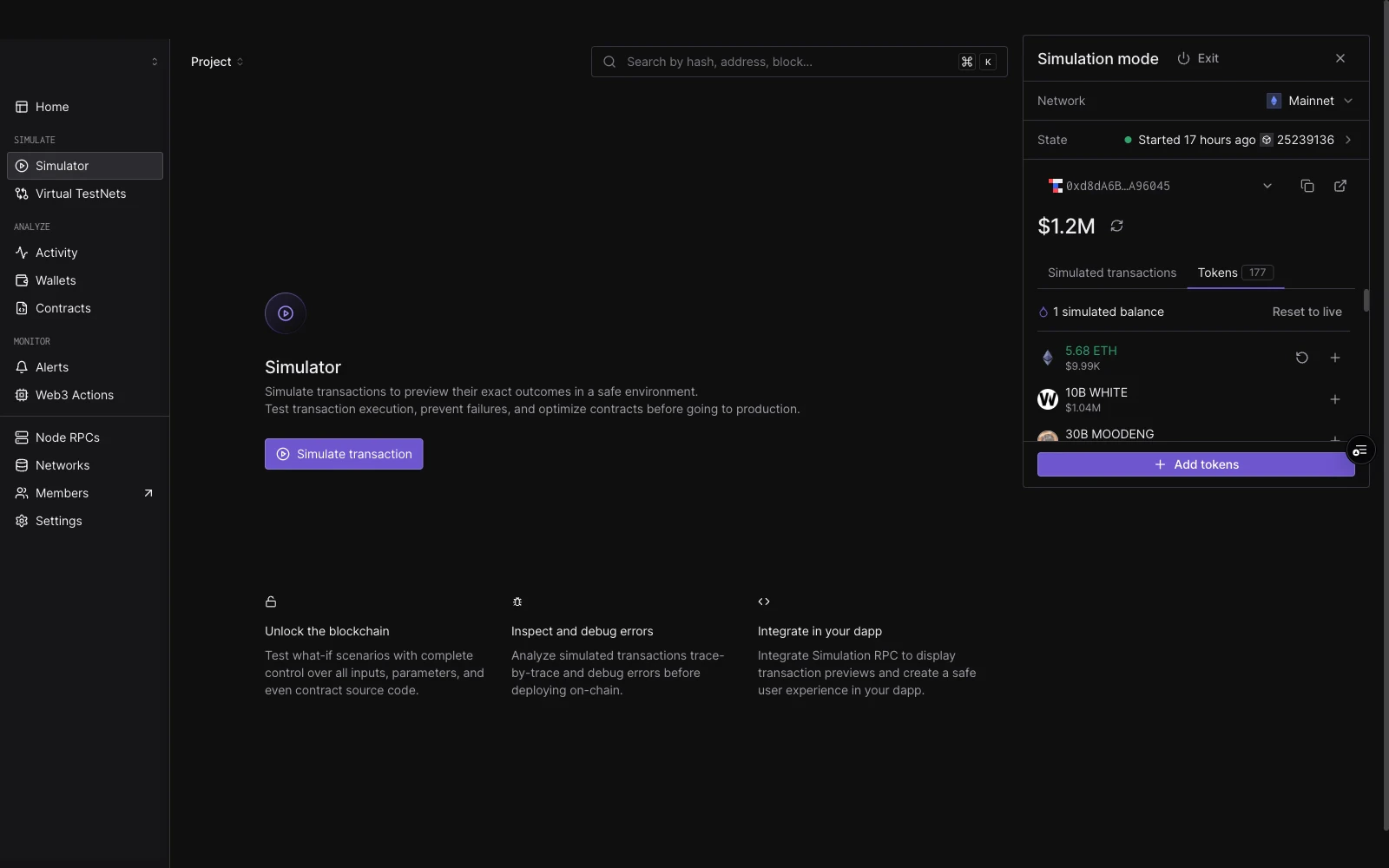
Tokens tab: '1 simulated balance' counter and Reset to live action at top, with the inline amount editor open on an ETH row.
Simulated transactions tab
A session log of successful simulations in this session.- Each row: status dot, function name, relative time.
- Bottom action bar: ▷ Simulate (primary), ↺ Reset session, ⚡ Convert to Virtual Environment, ◆ Send onchain.
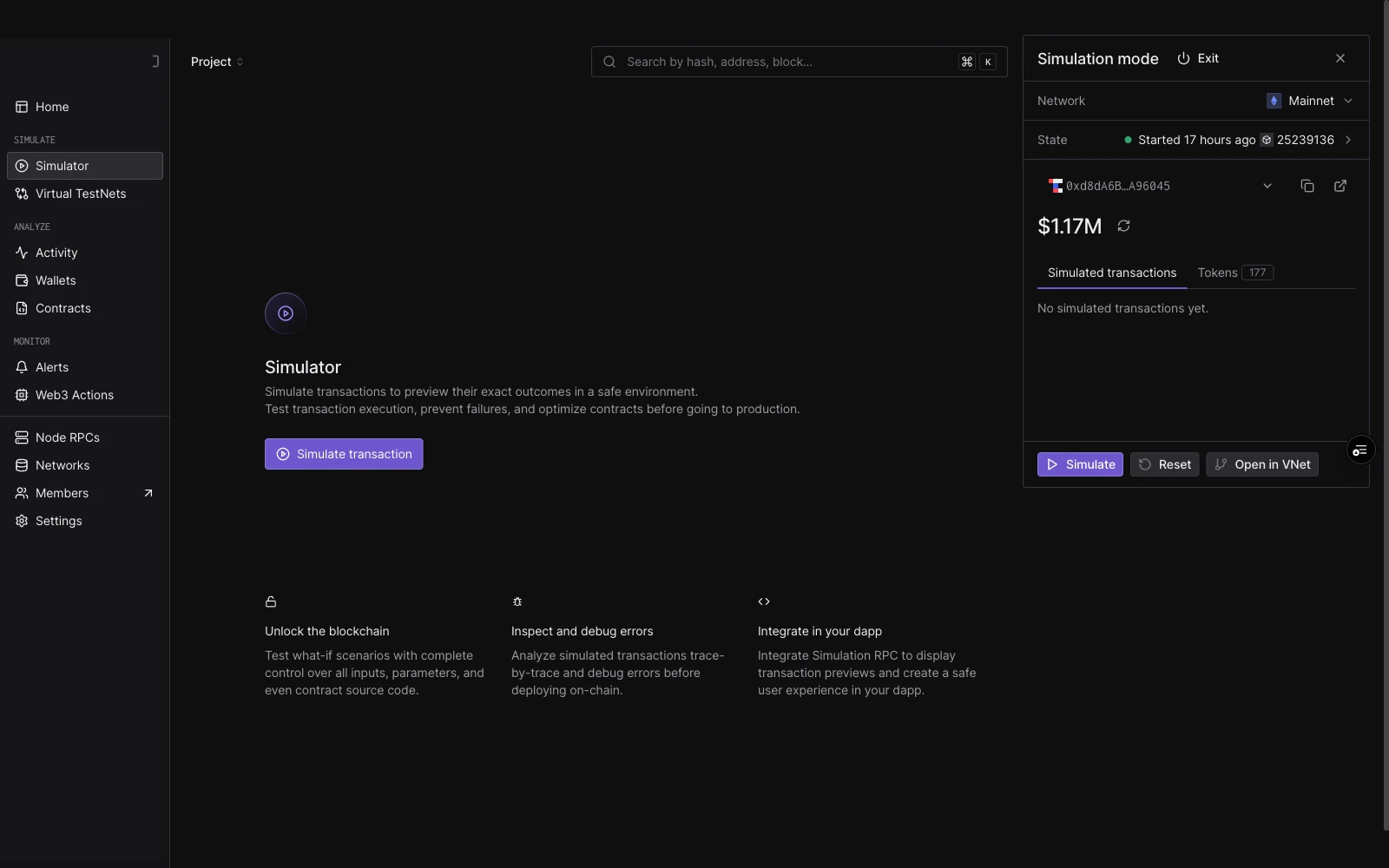
Simulated transactions tab with the Simulate, Reset, and Open in Virtual Environment action bar at the bottom.
State settings
Click the State row to expose the underlying simulation parameters:Switching network
The network picker is sorted by the impersonated wallet’s total value, descending, with a per-network balance preview. Switching network resets the active session. The new network starts fresh with no balance overrides and an empty simulation log.Wired surfaces
When Simulation Mode is active, these surfaces pick up the session context automatically:Cross-network mismatch
If you open a page on a network different from your active Sim Mode session, a banner offers a one-click Switch Sim Mode to [network]. Read and Write actions are disabled until you switch.Replacing the active session
If you start a Simulation Mode flow on a different(wallet, network) pair than the active one, a modal confirms the switch. Switching ends the active session.
Limits
Simulation Mode usage counts against your account’s simulation quota. There is no separate per-session limit. The number of sessions you can run is bounded by how many simulations your plan allows.See also
- Simulator UI: single simulations and multi-step bundles.
- Virtual Environments: when you need a full RPC environment.