

- Session defaults in the strip at the top apply to every step: Network, Block, and the default From address. Click Configure to edit them.
- Step fields define the call itself: sender, target contract, function, and arguments.
- Cheatcodes below the step fields modify the execution environment immediately before the step runs.
Session defaults
Click Configure in the session strip to open the defaults panel. Values set here apply to every new step in the bundle.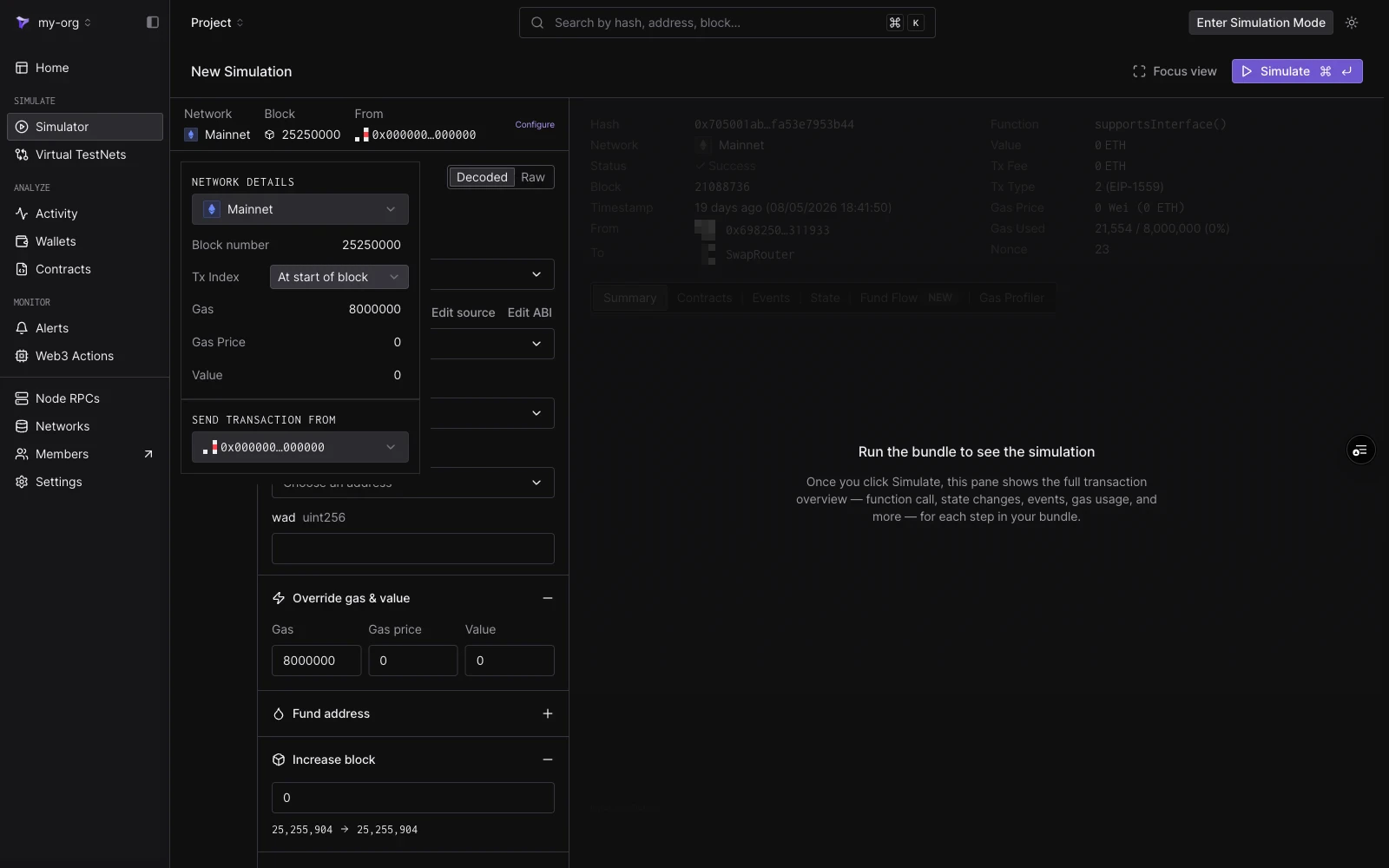
The Configure panel: network, block number, transaction index, gas defaults, and the default From address.
Pending vs historical block
Leave Block number empty to simulate on the pending block. Tenderly executes the bundle against the latest available network state, as if it were included in the next block. Type a block number to simulate on a historical block. The bundle then executes against the chain state as it was at that block, on any block going back to the start of the network. With a block pinned, Tx Index controls where in the block the simulation executes:
The three options map to
transaction_index on the Simulation API: At start of block sends 0, At tx sends the chosen index, and At end of block sends the block’s transaction count. The pending block corresponds to a request without block_number.
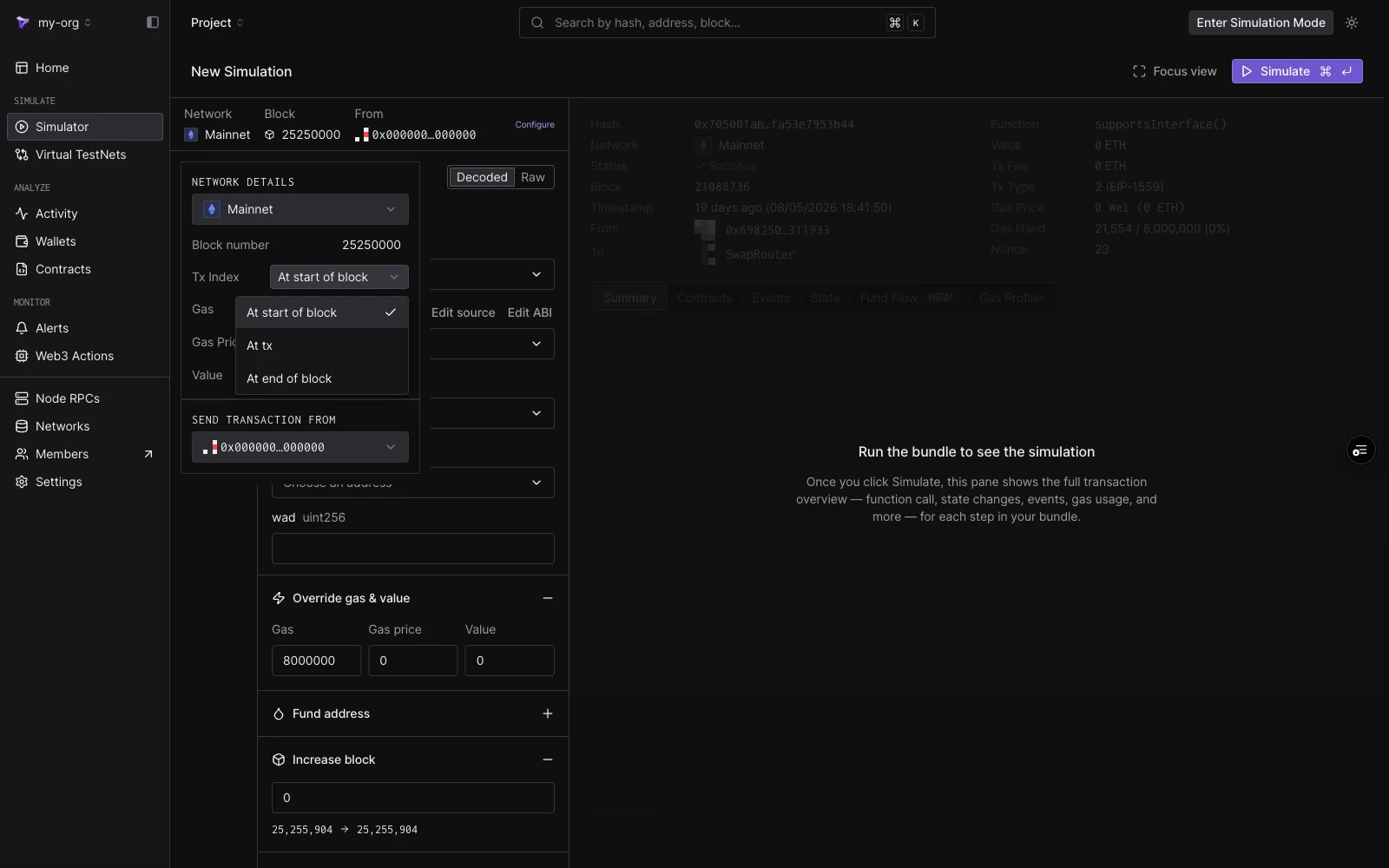
A pinned block unlocks the Tx Index control with At start of block, At tx, and At end of block options.
From addresses
Simulations need no private keys or signatures, so any address can act as the sender. The From dropdown offers:- The zero address (
0x0000…0000), the default sender. - Your project wallets on the selected network, grouped under “Selected network”. Changing the network changes which wallets appear.
- Any address you paste or search in the input at the top of the dropdown.
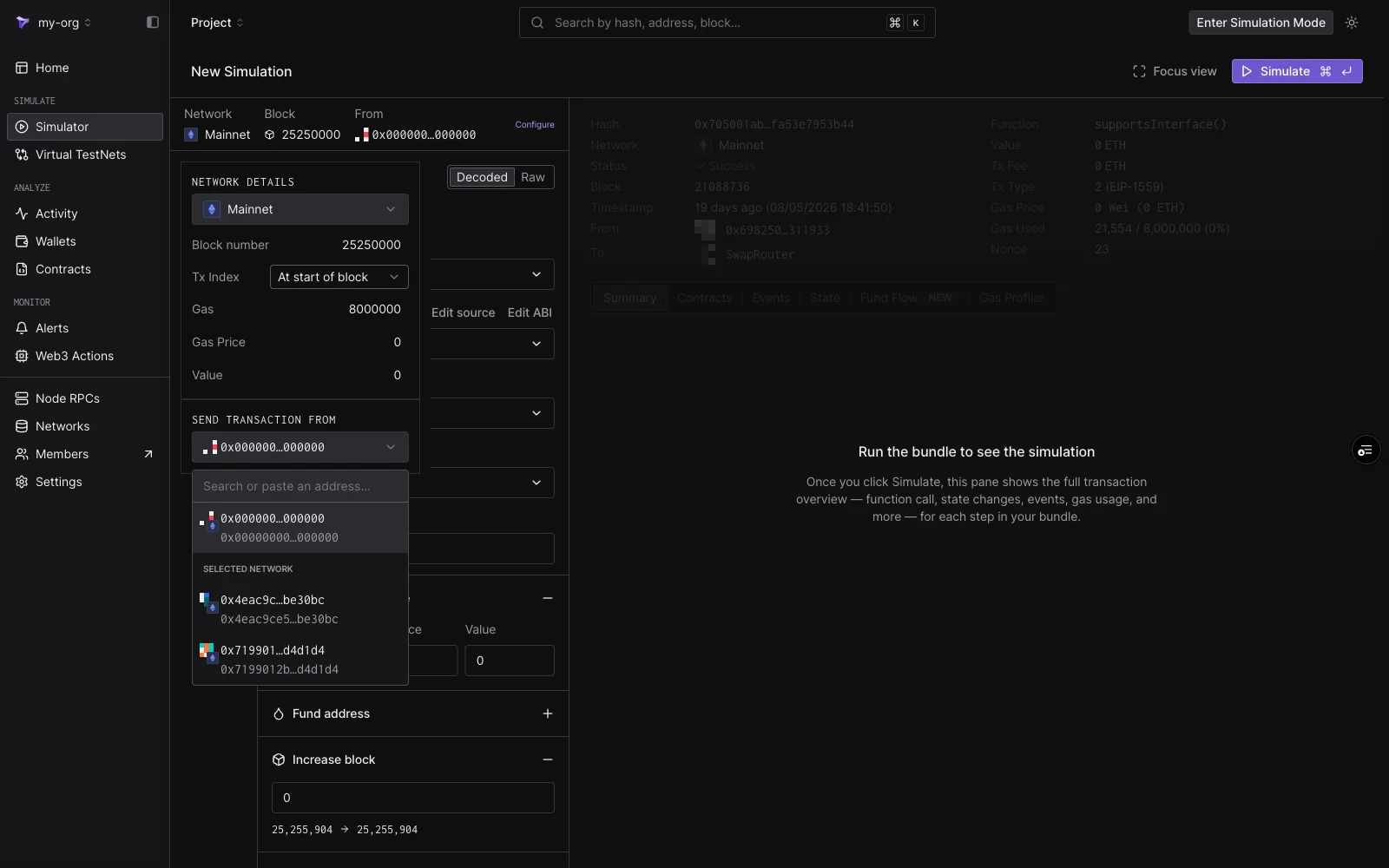
The From dropdown: search or paste an address, or pick the zero address or a project wallet on the selected network.
Step fields
Each step is built in Decoded or Raw mode, toggled at the top of the step editor.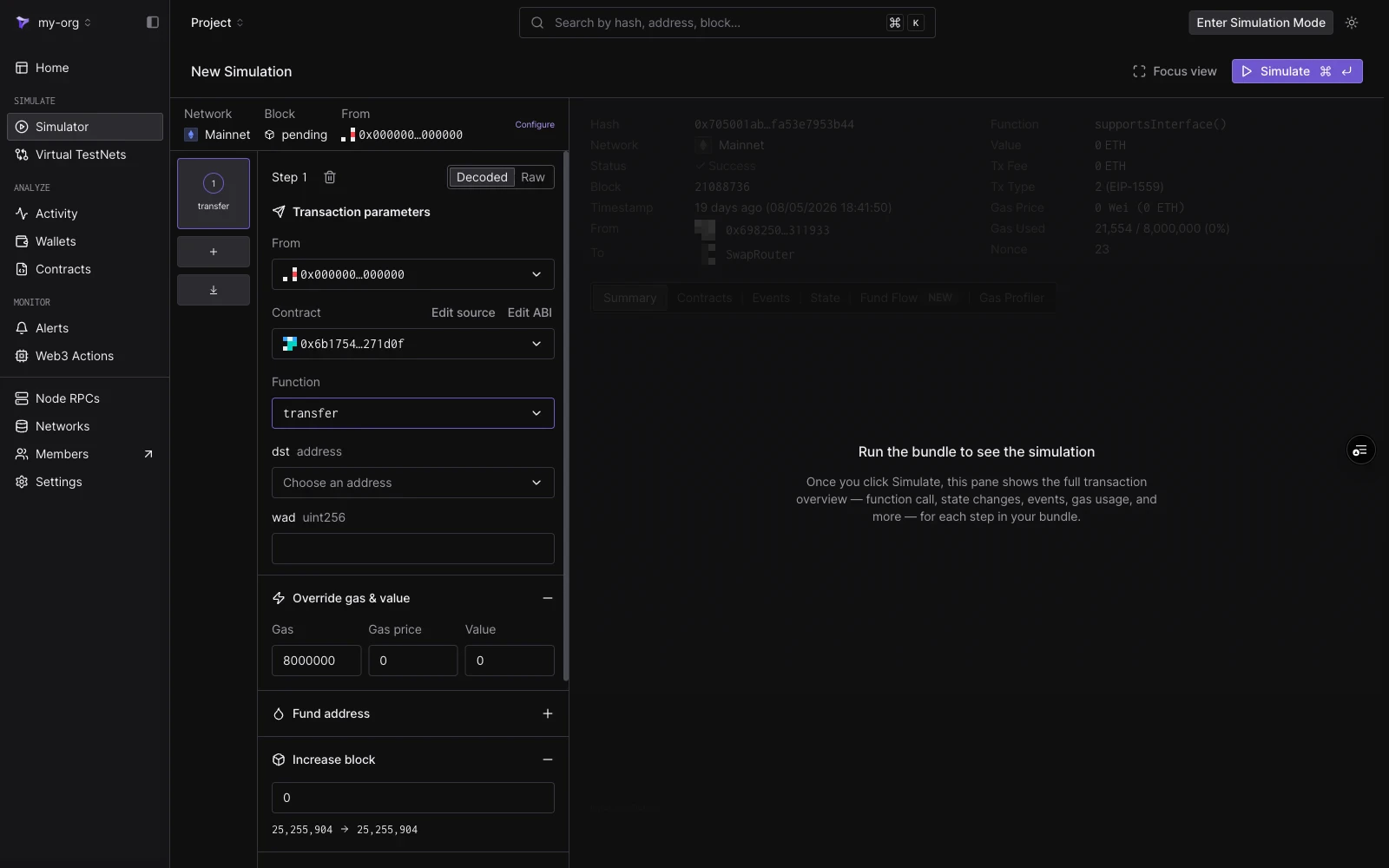
A step in Decoded mode: From, Contract (with Edit source and Edit ABI), Function, one typed input per argument, and the cheatcode sections below.
Raw mode takes a target address and a
0x-prefixed hex payload directly. Use it when you already have calldata from an existing transaction or a manual encode.
Cheatcodes
Each step carries six cheatcode sections. They run immediately before the step executes and are scoped to that step only.Override gas & value
Set a custom Gas limit, Gas price, and Value for this step, overriding the session defaults.Fund address
Credit any address with token balances before the step runs. Each entry takes a Target address, a token (searchable by symbol, name, or address), and an amount. Click Add more tokens to fund multiple tokens, and add further entries for other addresses. To set an address’s native balance instead, use the custom balance switch in State overrides.Increase block
Advance the block number by an offset before the step executes. The section shows the current block and the resulting block. Contracts that readblock.number see the increased value.
Override timestamp
Set the block timestamp the step executes with, in one of two modes:- Increase time: advance the clock by an amount and unit (seconds, minutes, and so on).
- Set UNIX timestamp: jump to an absolute timestamp.
block.timestamp see the overridden value.
State overrides
Override contract state before the step runs. Each override targets one contract (defaulting to the step’s target) and supports:- Use custom balance: set the contract’s native balance.
- Storage variables: key and value pairs for individual storage slots, with Add storage override for more slots.