

Example: minting 2 DAI
We’ll simulate minting 2 DAI (2000000000000000000 wei) to the holder 0xe58b9ee93700a616b50509c8292977fa7a0f8ce1, sent from 0xe2e2e2e2e2e2e2e2e2e2e2e2e2e2e2e2e2e2e2e2.
DAI’s mint function is guarded by a wards mapping: only registered ward addresses can mint. The sender is not a ward on Mainnet, so a plain simulation reverts. The override wards[0xe2e2…e2e2] = 1 makes it a ward for the duration of the simulation.
Build the mint step
- Go to Simulator and click New Simulation.
- In the Contract field, paste
0x6b175474e89094c44da98b954eedeac495271d0fand select Dai. - Select mint in the Function field.
- Set usr to
0xe58b9ee93700a616b50509c8292977fa7a0f8ce1and wad to2000000000000000000. - Set the step’s From to
0xe2e2e2e2e2e2e2e2e2e2e2e2e2e2e2e2e2e2e2e2.
Add the state override
- Expand the State overrides section below the step fields and click Add State Override. The override’s contract defaults to the step’s target (Dai).
- Under Storage variables, enter the key
wards[0xe2e2e2e2e2e2e2e2e2e2e2e2e2e2e2e2e2e2e2e2]and the value1. The key field suggests the contract’s decoded storage variables (wards[],balanceOf[],totalSupply, and so on); fill the mapping key inside the brackets. - Click the + button next to the value to add the pair. The committed pair appears as a row under Storage variables. Tenderly stores it as the computed storage slot hash.
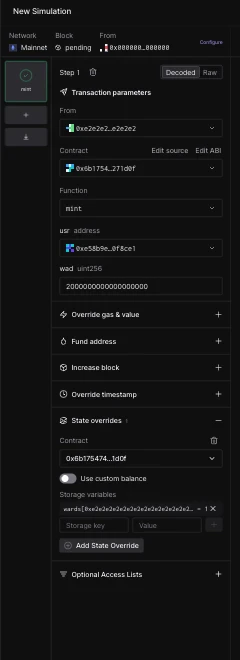
The mint step with the committed wards override under Storage variables.
The override pair must be committed with the + button. An uncommitted key/value entry is treated as invalid and the simulation will not start.
Run and inspect
- Click Simulate. The mint executes successfully because the simulation sees the sender as a ward.
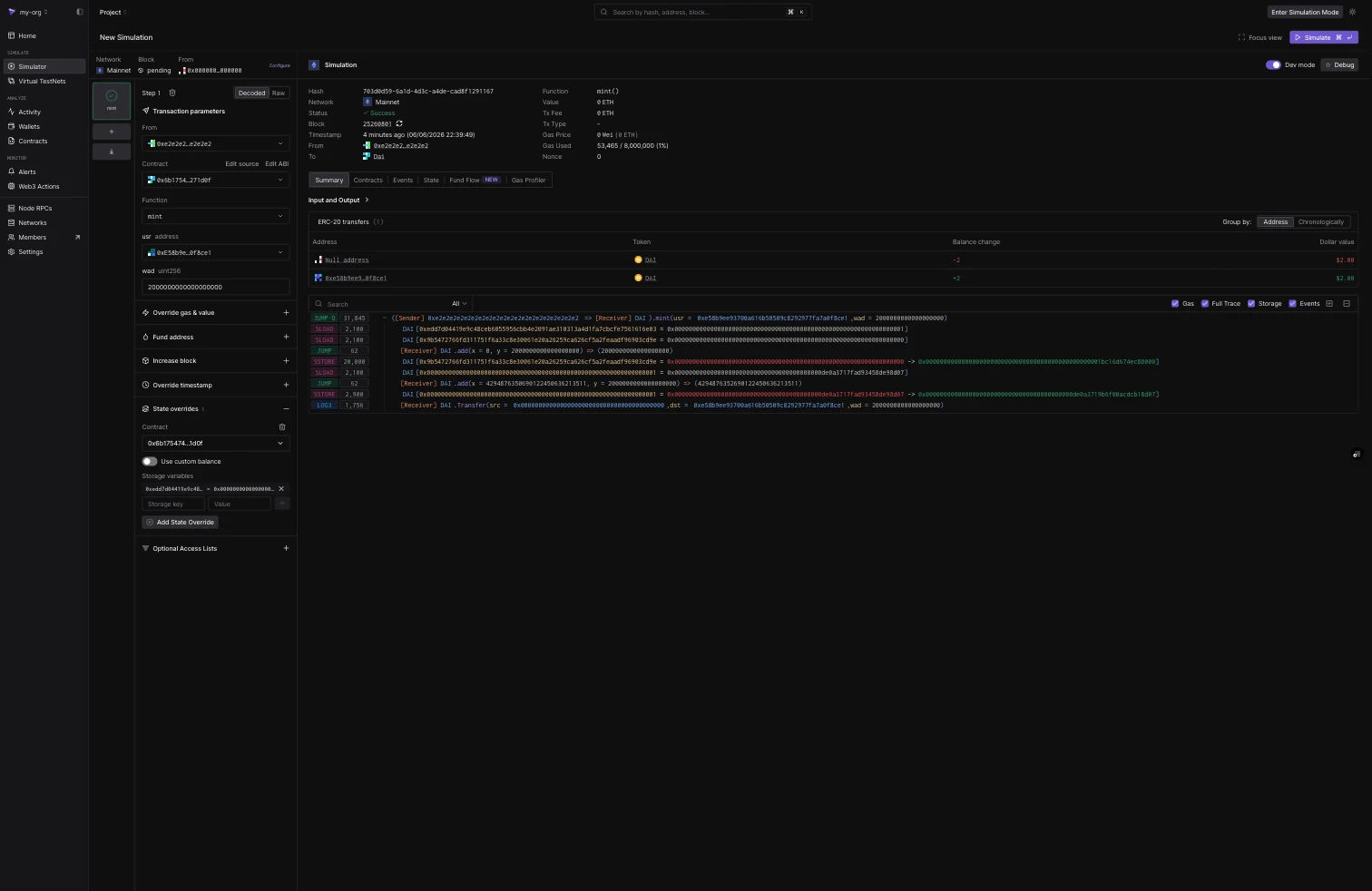
The successful mint: ERC-20 transfer of 2 DAI to the holder, with the executed trace below.
- The Events tab shows the
Transferevent from the zero address to the holder for2000000000000000000wei.
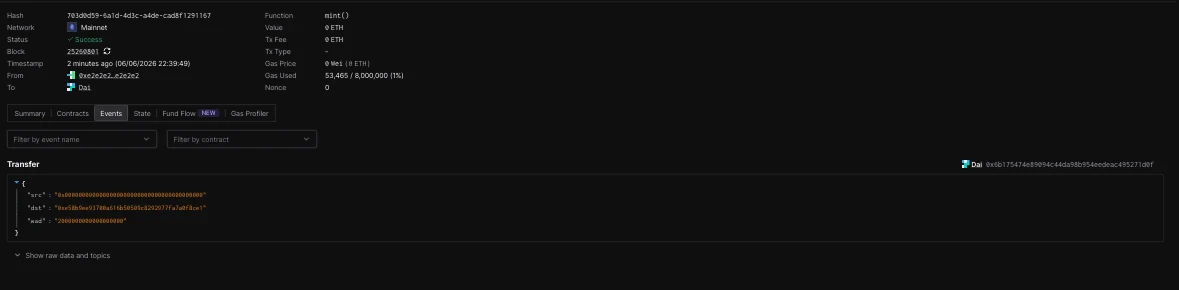
The Transfer event emitted by the mint.
- The State tab lists the applied State Overrides (the ward slot set to
1) and the resulting State Changes: the holder’sbalanceOfgoing from0to2000000000000000000, the increasedtotalSupply, and the sender’s nonce.
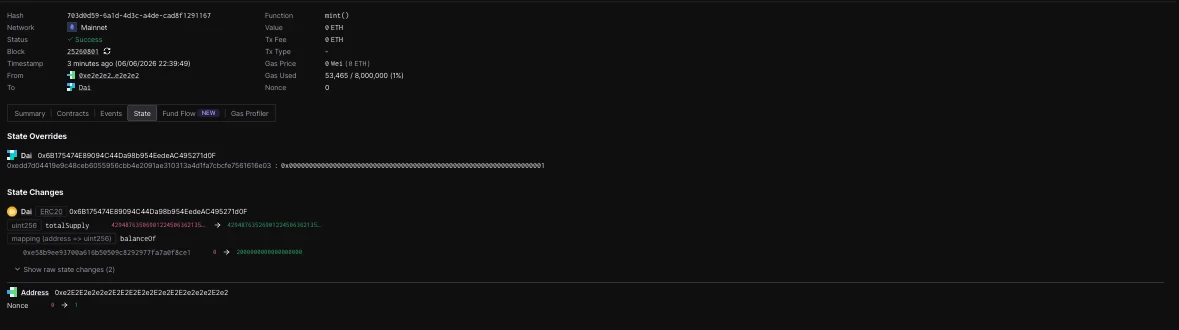
The State tab: applied overrides at the top, decoded state changes below.
Raw storage keys
Instead of the decodedmapping[key] form, you can enter the raw 32-byte storage slot directly. For a Solidity mapping at storage position p, the slot for mapping[k] is keccak256(abi.encode(k, p)). The wards override above resolves to: