

Step 1: Launch the Alerts setup wizard
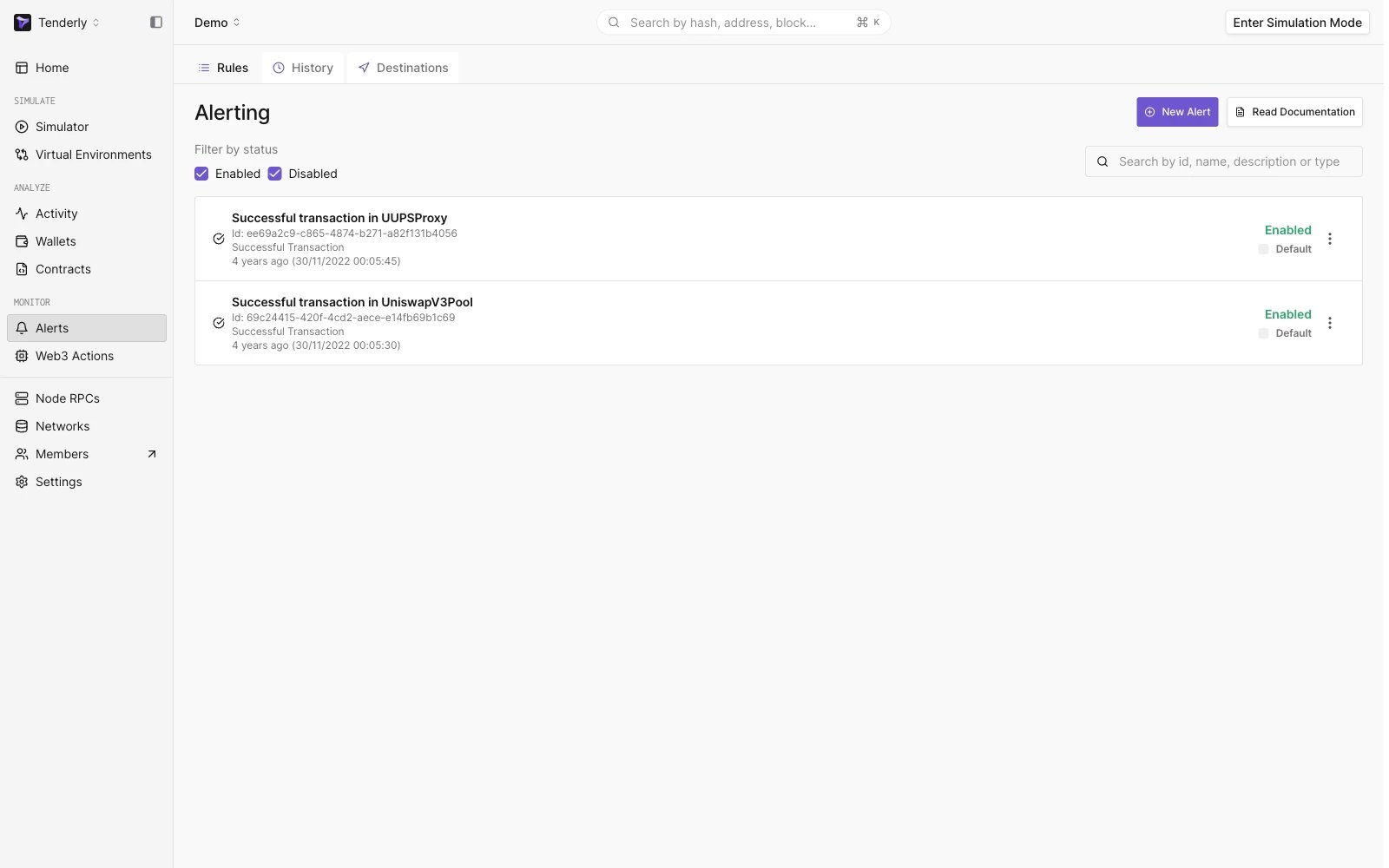
Alerts landing page
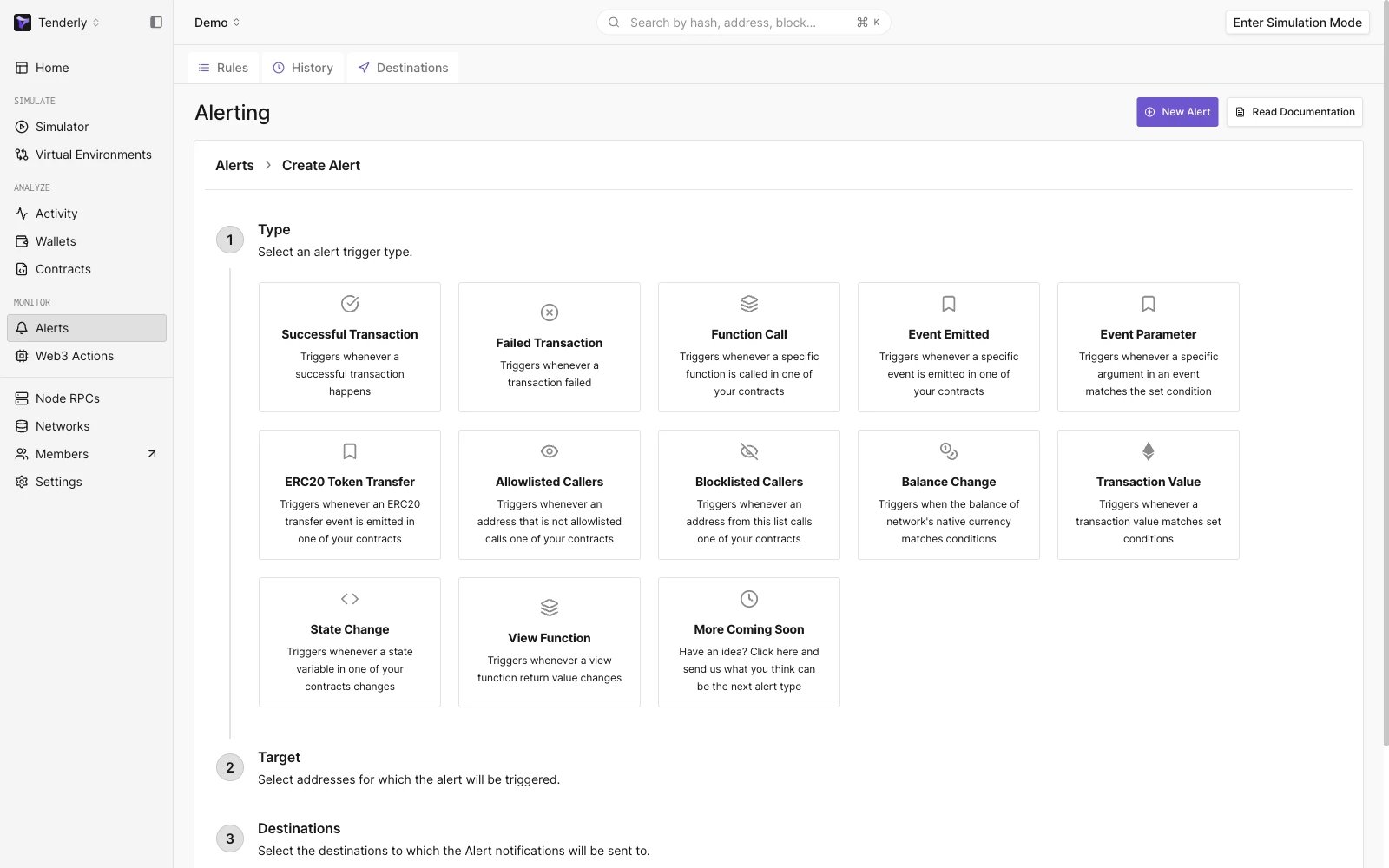
Alert set up wizard
- Alert Type: The event you want the Alert to listen for and send you a notification when it happens. Tenderly supports 12 Alert Types.
- Alert Target: Here, you tell Tenderly which addresses you want to monitor. The Target options are the same across all Alert Types.
- Alert Parameters: Based on the Target, this is where you select the specific address(es) you want to monitor along with other settings specific to the Alert Type.
- Alert Destinations: Location where you want to receive notifications when the event occurs.
Step 2: Choose the Successful Transaction Alert Type
From the list of available Alert Types, select Successful Transaction to monitor when a successful transaction happens.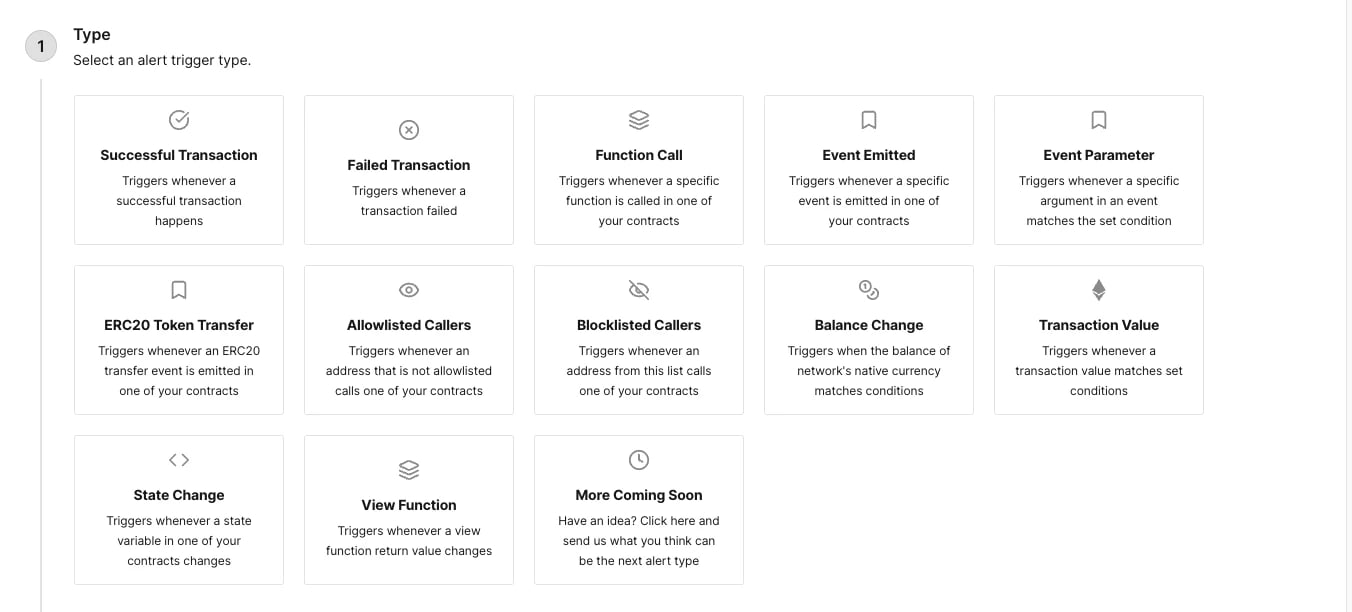
Available Alert trigger types
Some Alert Types are self-explanatory, while others are more nuanced, so please refer to the
Alert Trigger Types documentation page for detailed
explanations of each.
Step 3: Set the Alert Target to Address
The Alert Target section is where you tell Tenderly which address(es) you’d like to monitor and where they are located. The available Target options are the same for all Alert Types and include:- Address: Monitor a single smart contract or wallet
- Network: Monitor all transactions on a specific network
- Project: Monitor all addresses that are part of your Tenderly Project
- Tag: Monitor all contracts and wallets labeled with the specific tag
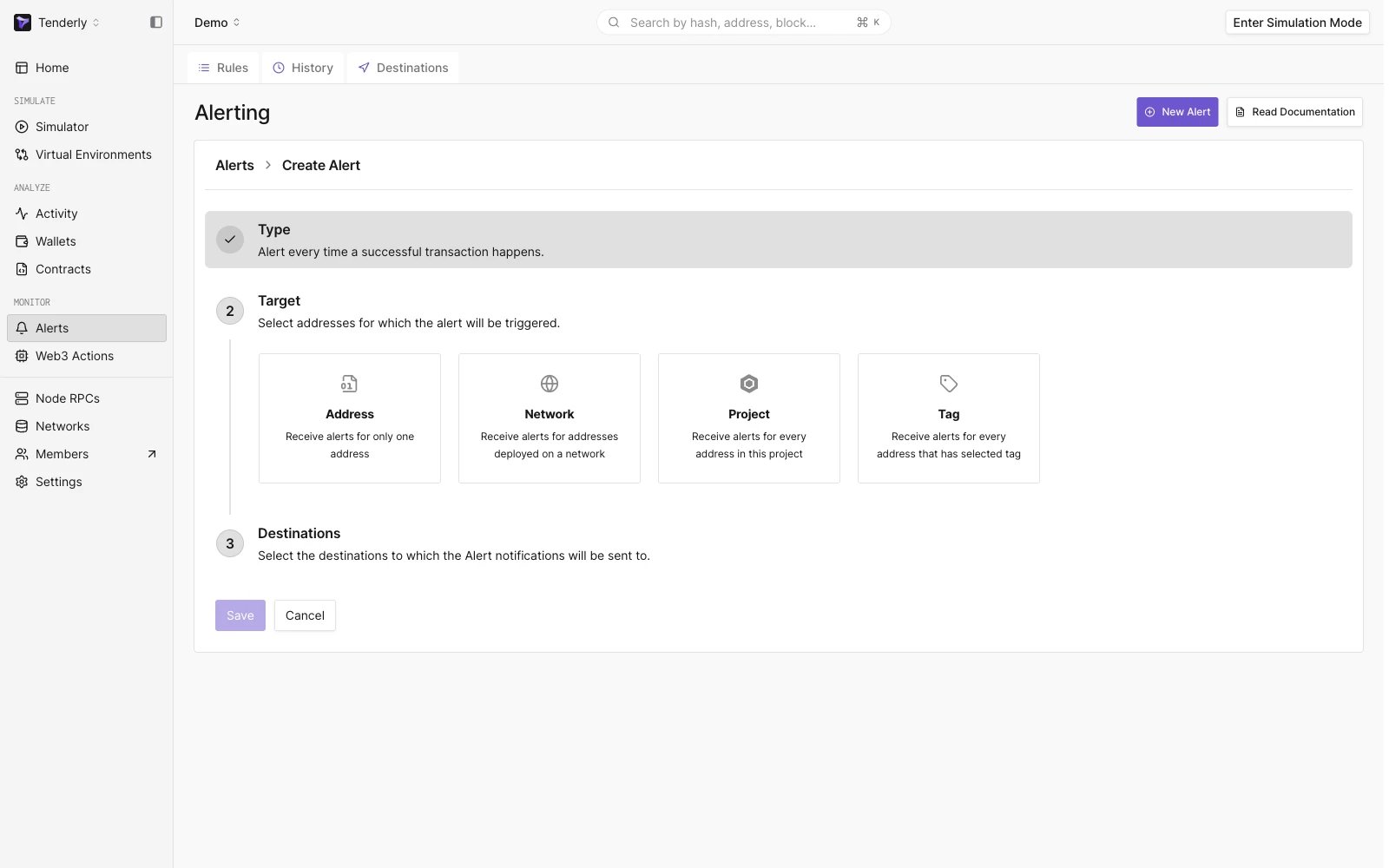
Available Alert Targets
Step 4: Set the wallet address as the Target Parameter
With the Target set to Address, we need to tell Tenderly which wallet address we want to monitor. Tenderly will pull all the smart contracts and wallets associated with your project and display them in a dropdown.If you haven’t added any smart contracts or wallets to your Tenderly Project, follow these quick
guides to learn how to add a wallet or a smart
contract. Alerts are evaluated only for your project’s addresses,
so the address you want to monitor must be added to the project. If the added address makes the
project’s Transactions view noisy, you can hide it from the transaction
listing without
affecting Alerts.
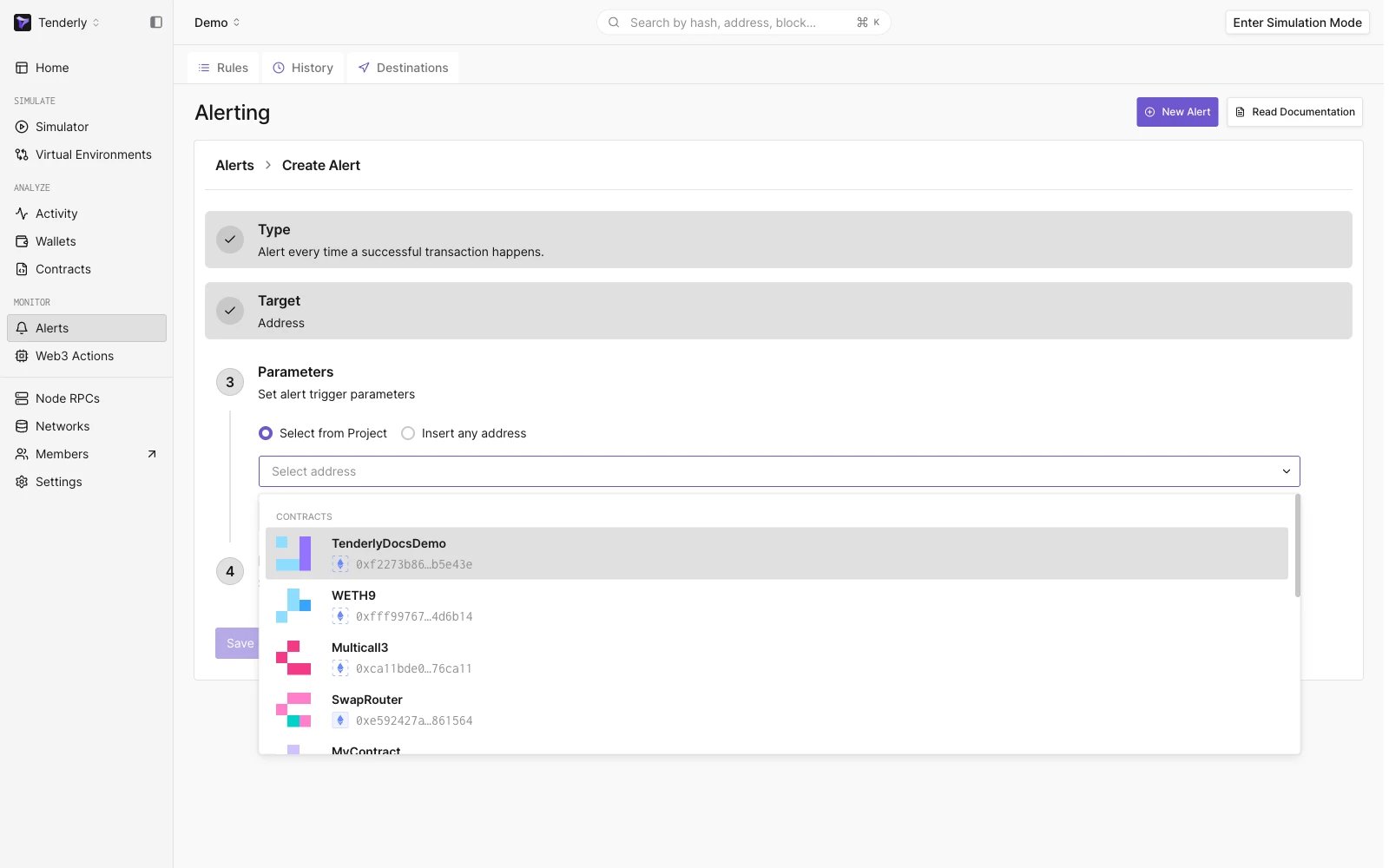
List of smart contracts and wallets associated with the project
Step 5: Choose Email as the Alert Destination
To keep things simple, we want to receive an email notification informing us about successful transactions coming to and from our Tenderly Wallet. Select Email as the Alert Destination and fill out the required details, including the email address. If you’re adding a new email address, you’ll have to confirm that you’re the owner to be able to receive notifications there.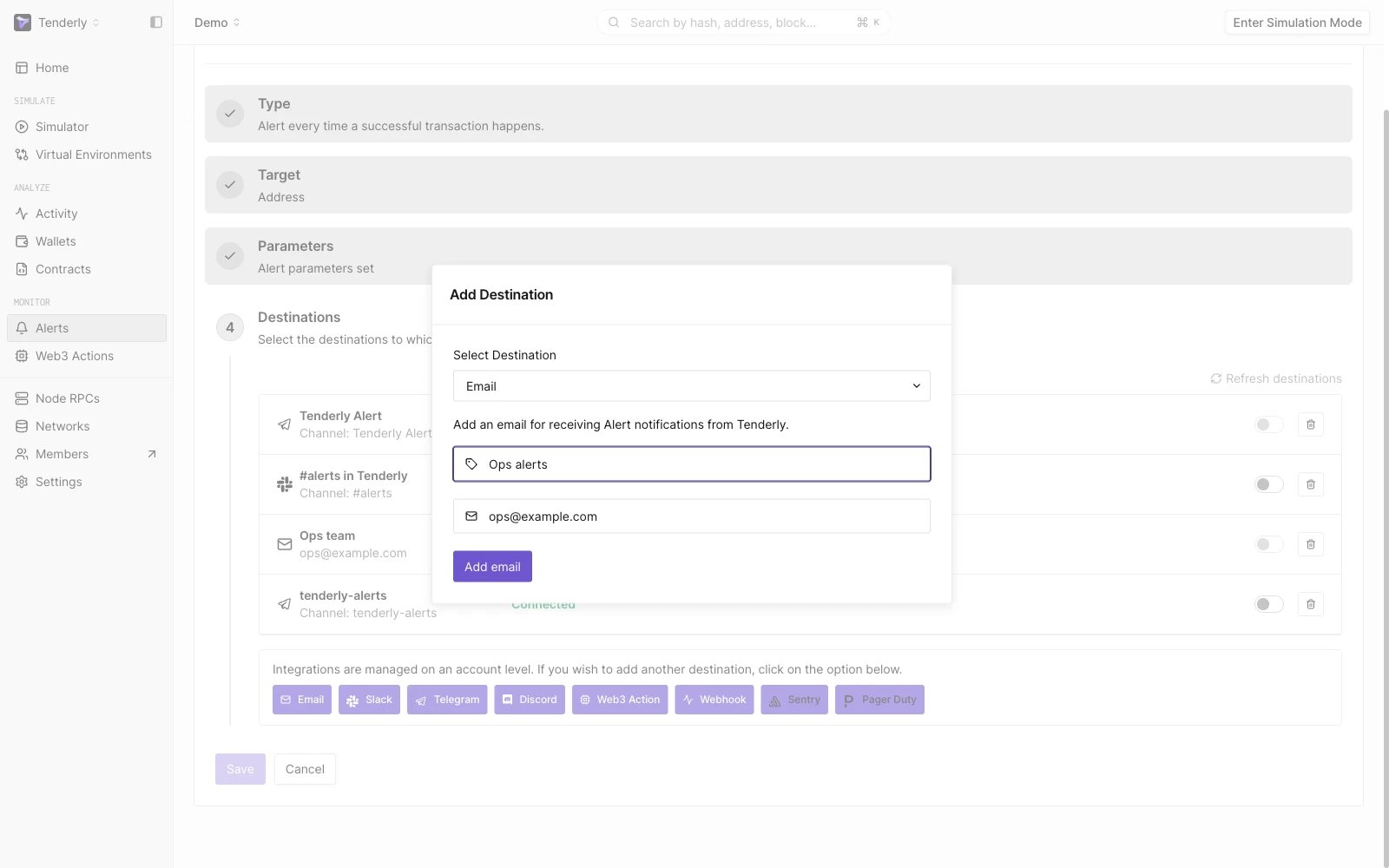
Setting Email as the Alert Destination
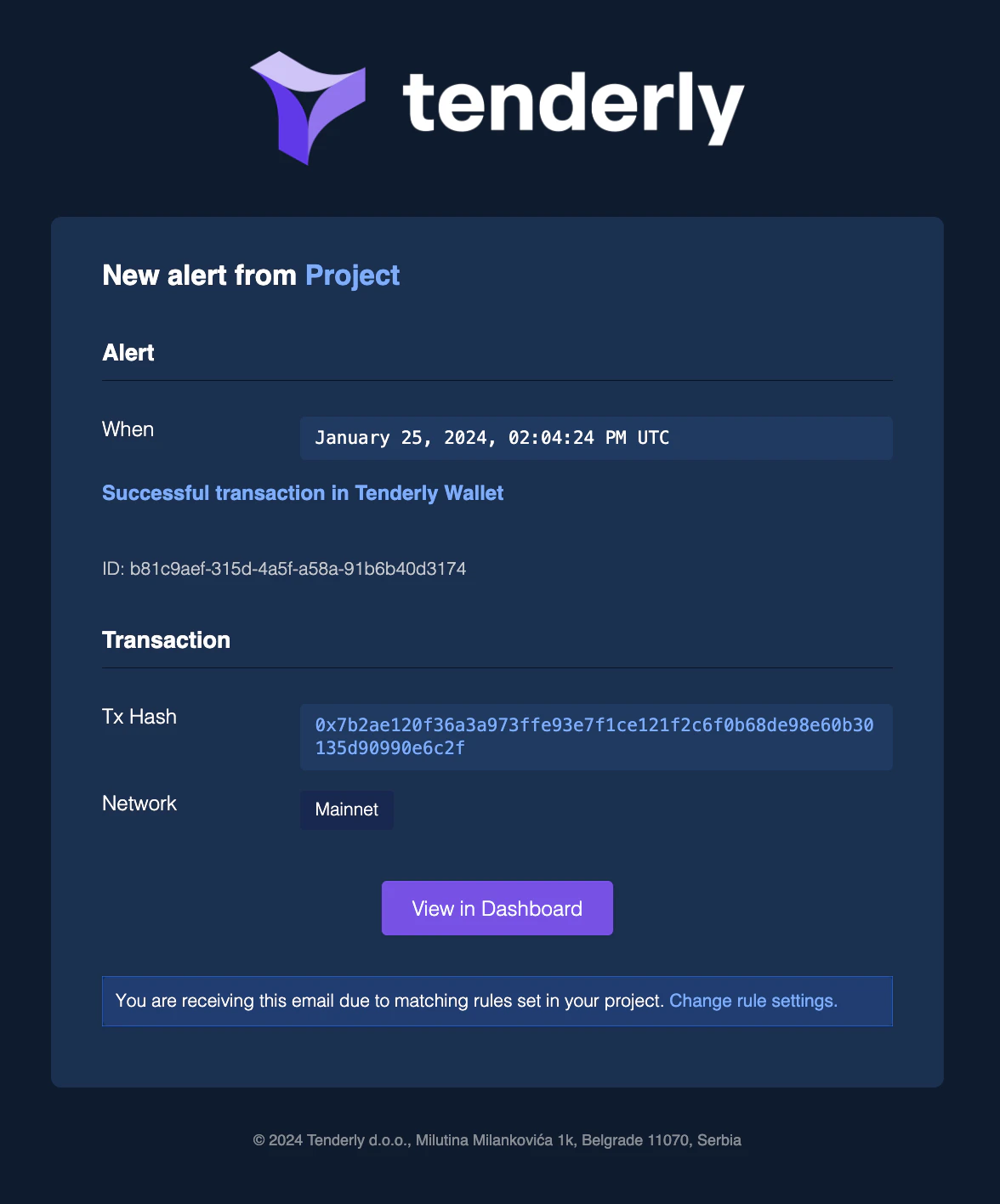
Email notification from Tenderly
Notifications from a single Alert can be sent to multiple Destinations. Likewise, you can have
multiple Alerts send notifications to a single Destination. Once you add a Destination for the
first time, it can be used by Alerts you create in the future.
Step 6: Managing Alerts and Destinations
All deployed Alerts can be managed from the Rules view. Click an Alert to open it and reveal the management options: Enable/Disable, Trigger Test Alert, Duplicate Alert, Edit, or Remove.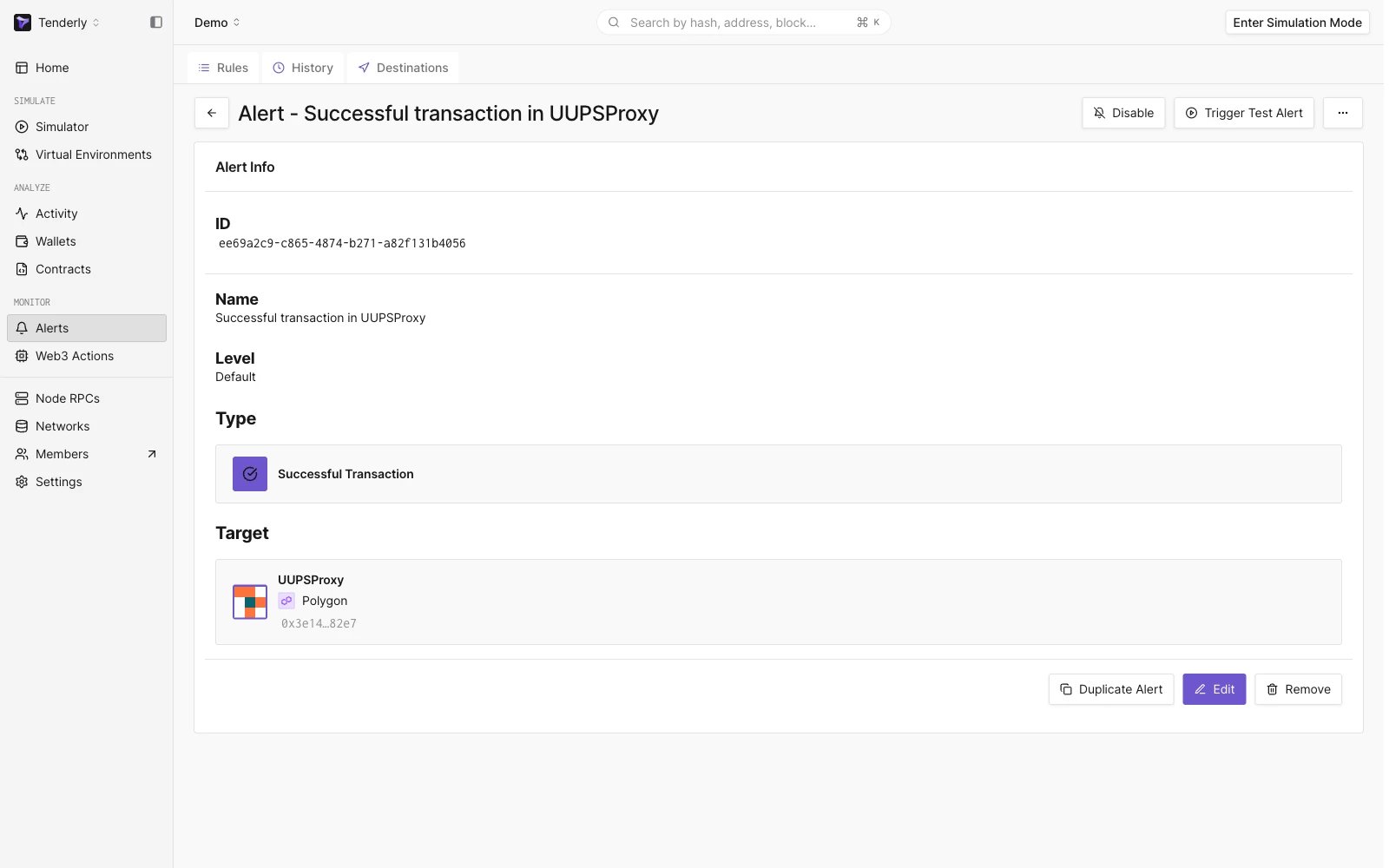
Managing an existing Alert
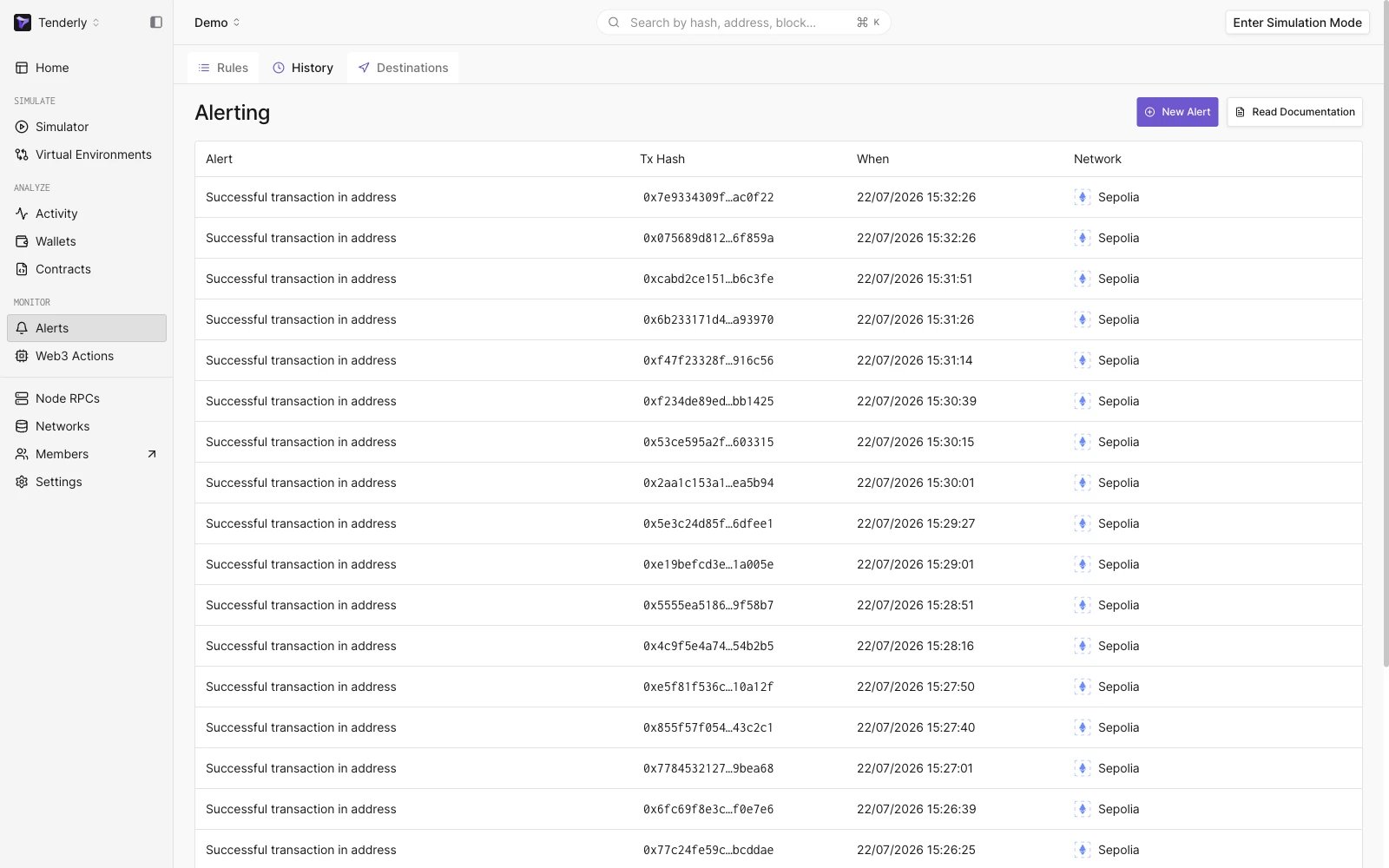
History of Alert execution
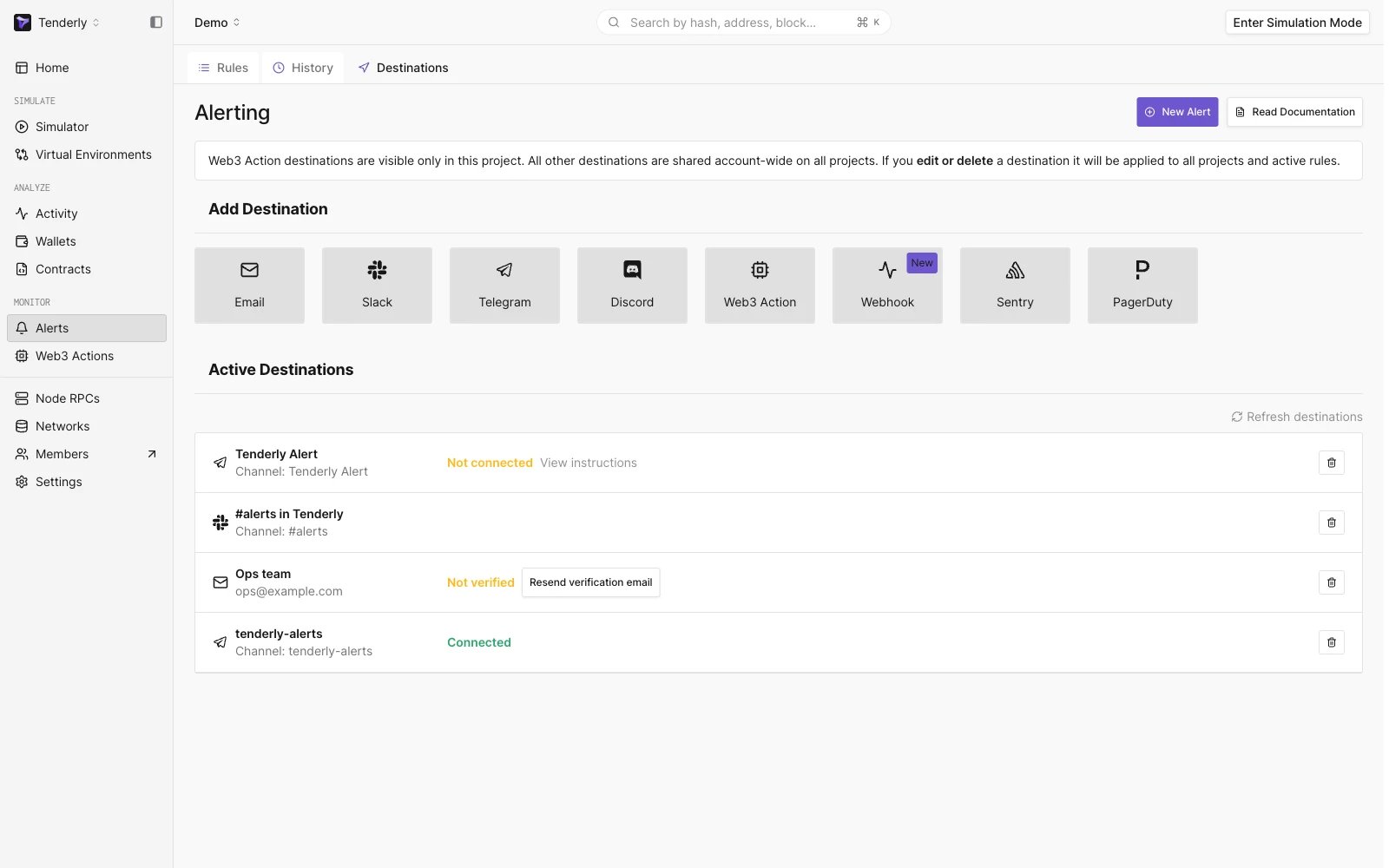
List of created Alert Destinations