

- Alert Type: On-chain event that triggers Tenderly to send you a notification. There are 12 alert triggers to choose from.
- Alert Target: Address or addresses you want to monitor. The Target options are the same across all Alert Types and include:
- Address: Monitor a single address.
- Network: Monitor all addresses deployed on a network of your choice.
- Project: Monitor all addresses that are part of a project on Tenderly.
- Tag: Monitor all contracts and wallets labeled with the specific tag.
- Alert Parameters: Additional settings specific to the selected Alert Type.
- Alert Destination: The place where you want to receive notifications. One Alert can send notifications to multiple destinations. There are 8 destinations where you can send and receive notifications.
Alerts are evaluated only for transactions involving your project’s contracts and wallets, so the address you want to monitor must be added to the project first. Adding an address also includes its transactions in the project’s Transactions view. To monitor a high-traffic address without the noise, add it and hide it from the transaction listing; hiding has no effect on Alerts.
Read the Alerting Quickstart guide to learn
the steps for setting up an example Alert and enabling it.
Successful Transaction
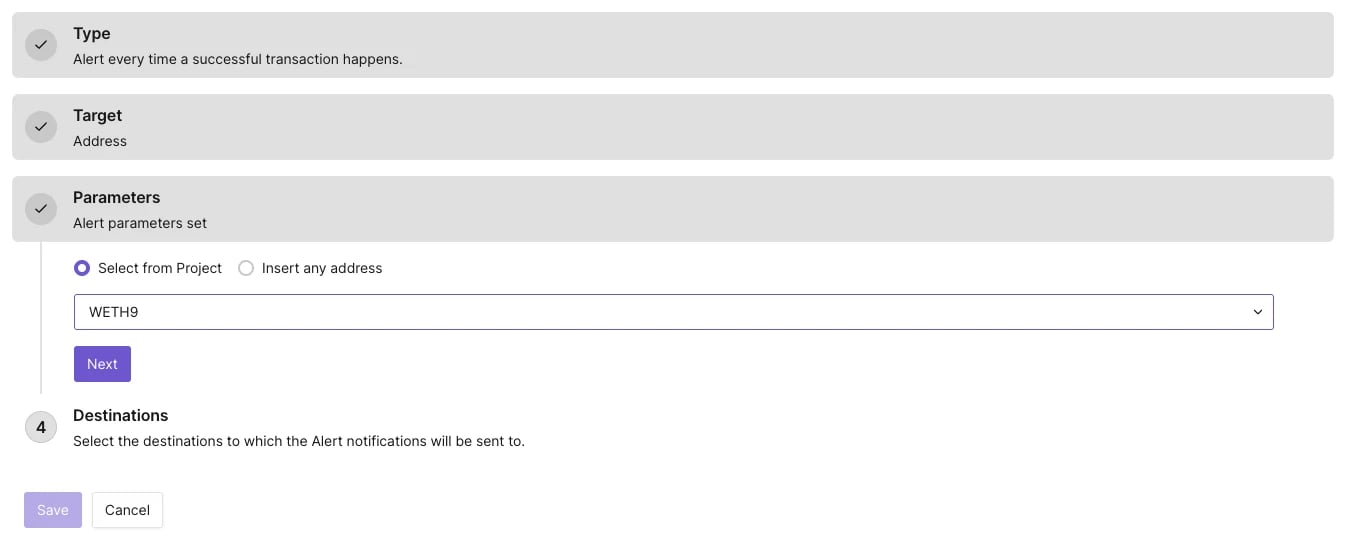
Parameters for the Successful Transaction Alert
- Select Successful Transaction from the list of Alert Types.
- From the Target section, select Address to monitor a single address.
- Choose the address of the smart contract from the dropdown.
- Set the Destination by creating a new one or select one you previously created.
- Click Save to get notified when a transaction goes through successfully.
Failed Transaction
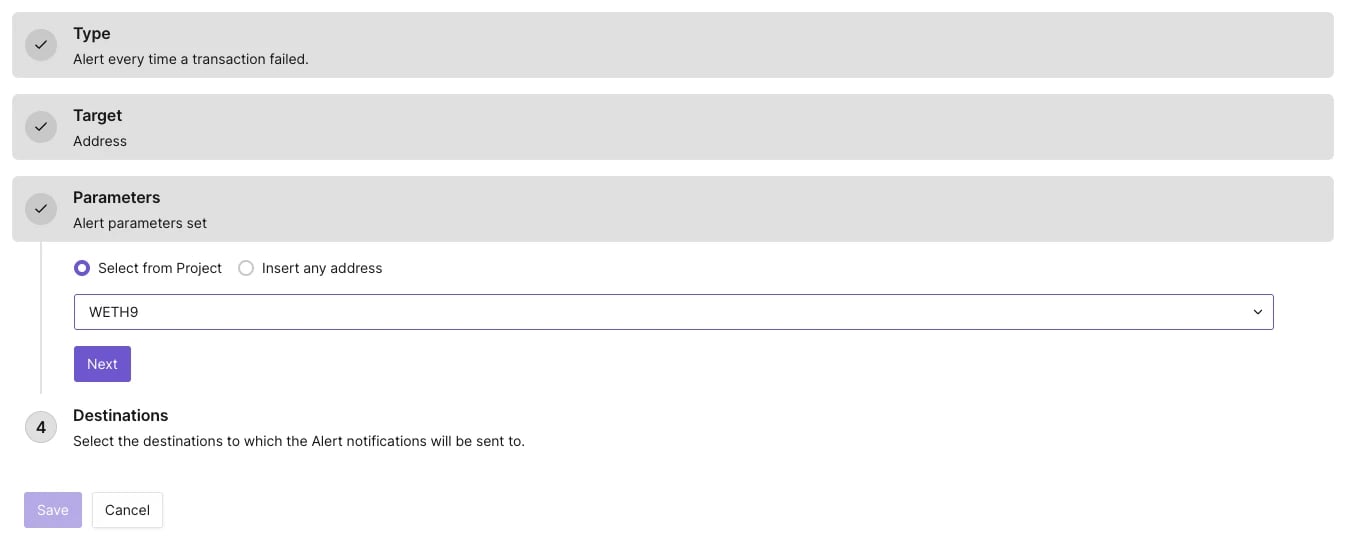
Parameters for the Failed Transaction Alert
- Select Failed Transaction from the list of Alert Types.
- From the Target section, select Address to monitor a single address.
- Choose the address of the smart contract from the dropdown.
- Set the Destination by creating a new one or select one you previously created.
- Click Save to get notified when a transaction fails.
Function Call
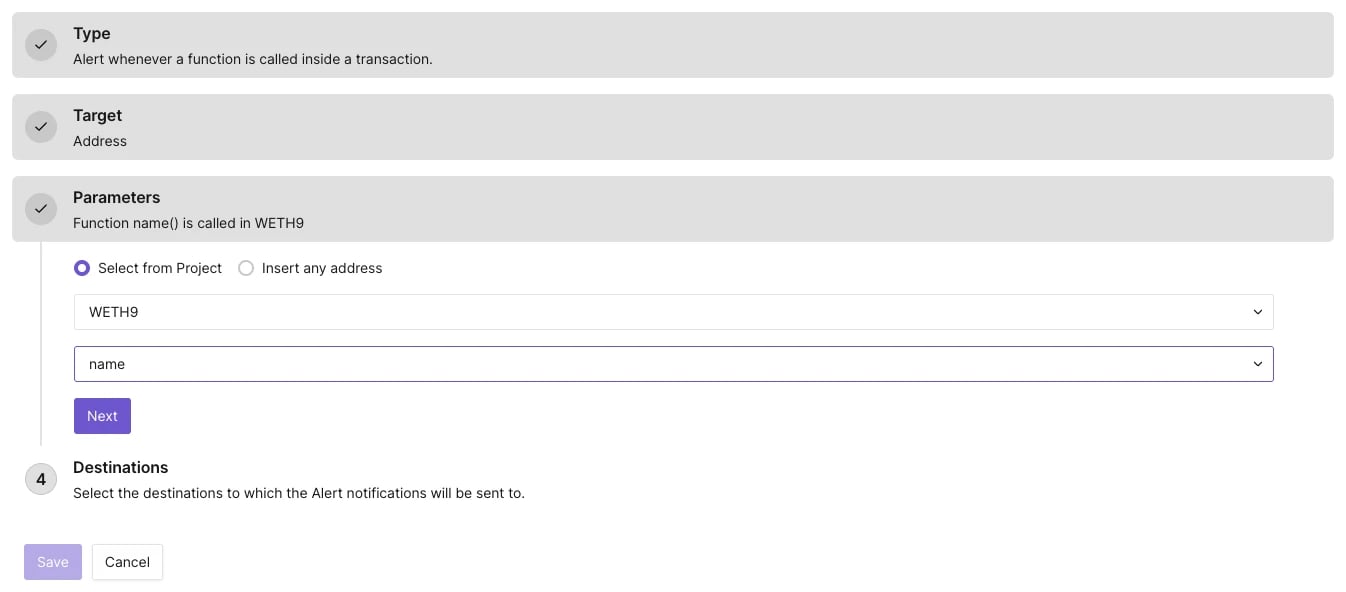
Parameters for the Function Call Alert
external or public function is called from a selected smart contract. Notifications will be sent when the function is first called in a transaction, and each time it’s called during the execution via internal calls.
To create a Function Call alert, complete the following steps:
- Select Function Call from the list of Alert Types.
- From the Target section, select Address to monitor a smart contract deployed on a specific address.
- Choose the address of the smart contract from the dropdown.
- Select the function you want to monitor. Tenderly will extract all available functions from the smart contract.
- Set the Destination by creating a new one or select one you previously created.
- Click Save to get notified when the function gets called from your smart contract.
Event Emitted
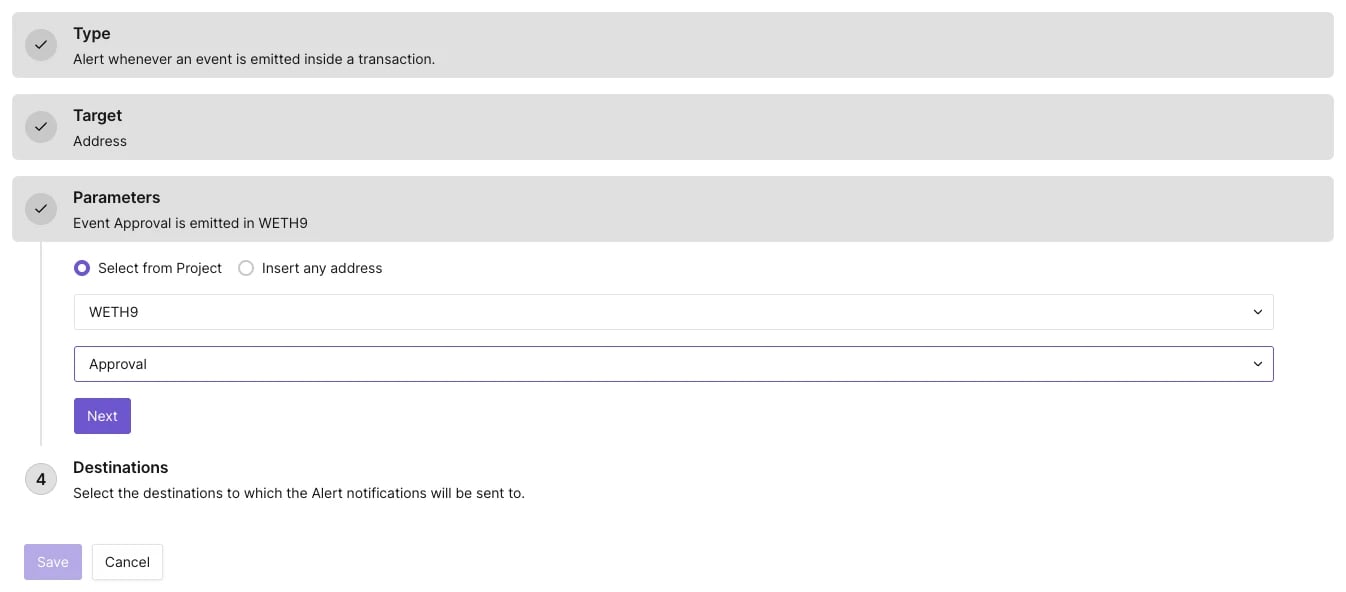
Parameters for the Event Emitted Alert
- Select Event Emitted from the list of Alert Types.
- From the Target section, select Address to monitor a smart contract deployed on a specific address.
- Choose the address of the smart contract from the dropdown.
- Select the event function you want to monitor from the list of available events.
- Set the Destination by creating a new one or select one you previously created.
- Click Save to get notified when the event function emits an event.
Event Parameter
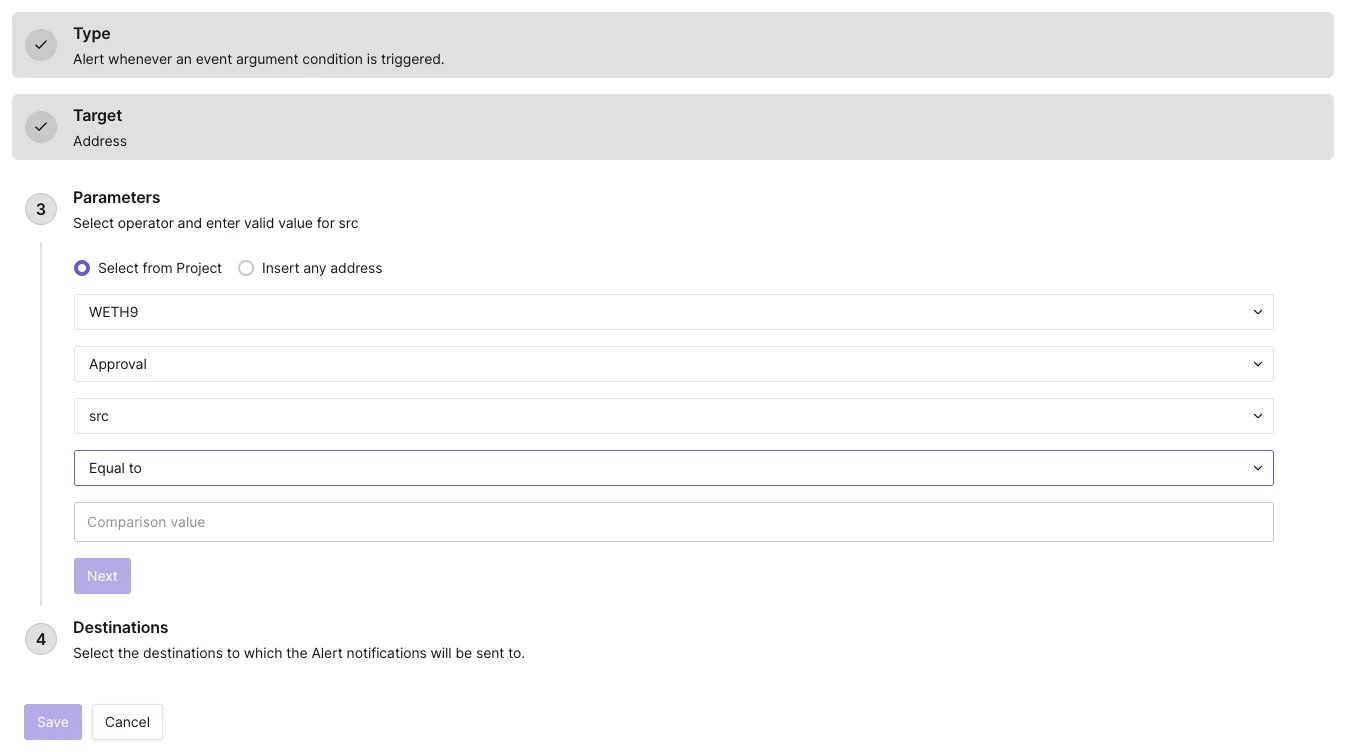
Parameters for the Event Parameter Alert
- Select Event Parameter from the list of Alert Types.
- From the Target section, select Address to monitor a smart contract deployed on a specific address.
- Choose the address of the smart contract from the dropdown.
- Select the event function you want to monitor from the list of available events.
- Choose the argument from the list of arguments that the selected event function requires. Some events can have multiple arguments. Tenderly will pull in all the required arguments automatically.
- Select the comparator operator (e.g., equal to, not equal to, etc.).
- Enter the comparison value (e.g., integer, address, etc.) you want to compare the argument value against.
- Set the Destination by creating a new one or select one you previously created.
- Click Save to get notified when the argument in the event function matches the conditions you defined.
ERC20 Token Transfer
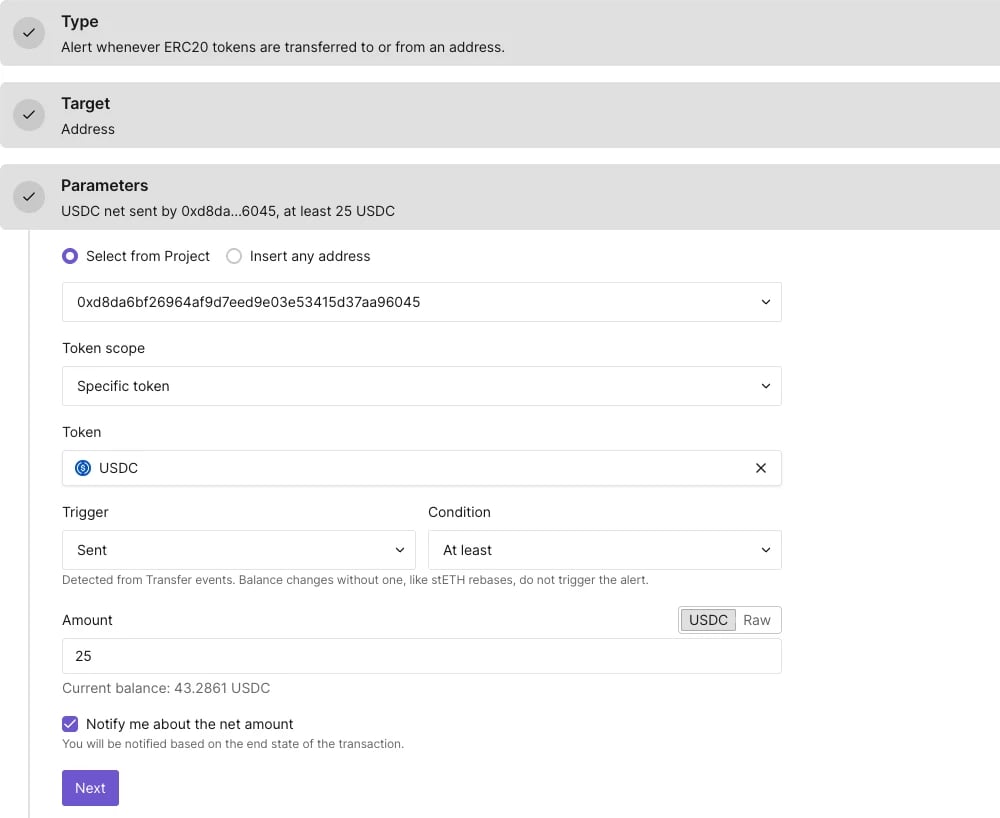
ERC20 Token Transfer alert watching one address for USDC sent, at least 25 USDC net
Transfer events, including mints and burns, and WETH-style Deposit and Withdrawal events. Detection uses the same asset-transfer decoding as the ERC-20 transfers shown when you inspect a transaction, so an alert covers the same transfers you see there.
Watched addresses
The Target determines which addresses the alert watches:- Address: One contract or wallet. Choose Select from Project to pick a project address, or Insert any address to paste one.
- Network: Every address in the project on the selected network.
- Project: Every address in the project, across all networks.
- Tag: Every project address labeled with the selected tag.
Token scope
Token scope selects which ERC-20 tokens count toward the alert:- Specific token: A single token contract. The picker searches by token symbol, name, or address and lists tokens on the network of the watched addresses. With the Address target, the picker also shows the balance the watched address holds.
- Any ERC20 token: Every ERC-20 token, including tokens that are not added to the project.
- Project tokens: Every ERC-20 contract added to the project.
- Tokens with tag: Every ERC-20 contract in the project labeled with the selected tag.
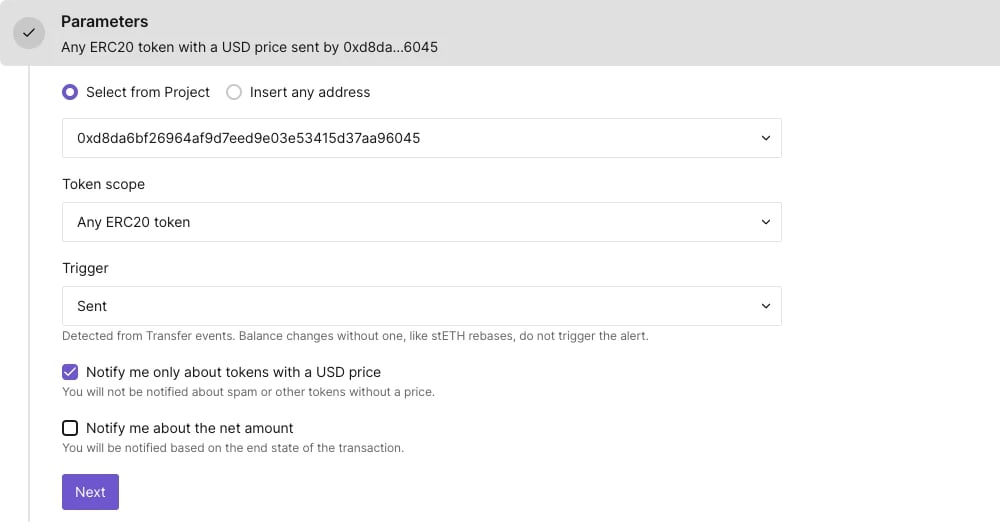
ERC20 Token Transfer alert watching one address for any priced ERC-20 token sent
Trigger and amount condition
Trigger sets the direction of the transfer relative to the watched address:- Any transfer: Tokens sent or received.
- Received: Tokens arriving at the watched address. A mint to the watched address counts as received.
- Sent: Tokens leaving the watched address. A burn from the watched address counts as sent.
Enter the amount in token units (the toggle shows the token symbol, for example USDC) or in Raw units (the integer value before decimals are applied). Switching units converts the value in place. If the token’s decimals are unknown, amounts are entered in raw units only.
Net amount mode
By default, every matching transfer fires the alert separately. With Notify me about the net amount enabled, the alert adds up all transfers of each token to and from each watched address within the transaction and evaluates the net balance change at the end of the transaction:- Transfers that cancel each other out, such as a flash loan borrowed and repaid in the same transaction, produce no notification.
- Trigger and Condition apply to the net change. A net increase counts as received and a net decrease as sent; the amount condition compares the absolute net change.
Notification content
Each notification lists the matched transfers. For every transfer, it includes the watched address, the token, the amount, and the counterparty (the sender for received tokens, the recipient for sent tokens). In net amount mode, each entry is the net change for one address and token, without a counterparty.Create an ERC20 Token Transfer alert
- Select ERC20 Token Transfer from the list of Alert Types.
- Select the Target and choose the address, network, or tag to watch.
- Select the Token scope: Specific token, Any ERC20 token, Project tokens, or Tokens with tag. For Specific token or Tokens with tag, choose the token or token tag.
- Select the Trigger: Any transfer, Received, or Sent.
- Optionally, with Specific token selected, select a Condition and enter the amount or range.
- With Any ERC20 token selected, keep Notify me only about tokens with a USD price checked to skip tokens without a price, or clear it to match every token.
- Optionally, check Notify me about the net amount to evaluate the net balance change per transaction.
- Set the Destination by creating a new one or selecting one you previously created.
- Click Save to get notified when a matching ERC-20 transfer occurs.
Balance changes the alert does not detect
The alert tracks token transfers, so balance changes that happen without a transfer event do not trigger it:- Rebasing and interest-bearing tokens (for example stETH, Aave aTokens, AMPL): balance changes from rebases or interest accrual emit no event. Regular transfers of these tokens are detected.
- Exchange-rate tokens (for example cTokens, wstETH, ERC-4626 vault shares): the alert counts tokens, so a change in the exchange rate does not trigger it.
- Fee-on-transfer tokens: the reported amount is the value in the
Transferevent, which can be higher than the amount the recipient receives. - ERC-777 tokens that emit only
MintedorBurnedwithout aTransferevent, and tokens with non-standardTransferevent layouts (mostly deployed before 2018).
balanceOf.
Allowlisted Callers
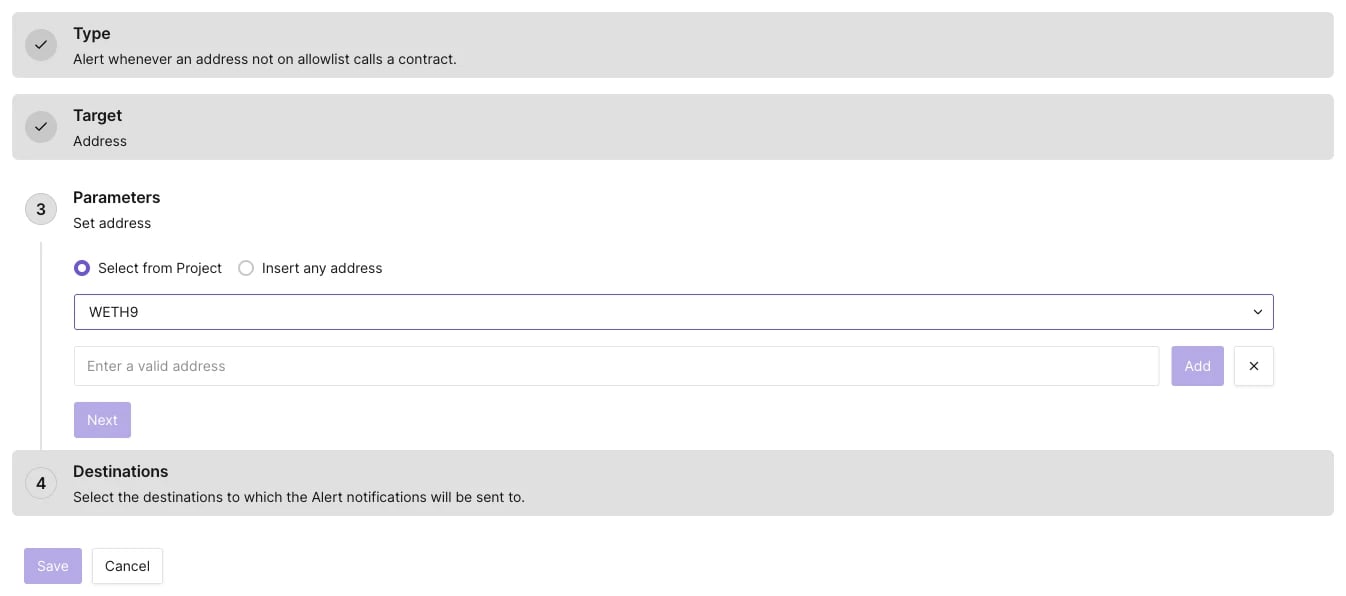
Parameters for the Allowlisted Alert
- Select Allowlisted Callers from the list of Alert Types.
- From the Target section, select Address to monitor a smart contract deployed on a specific address.
- Choose the address of the smart contract from the dropdown.
- Enter the address(es) you are familiar with and want to exclude from monitoring.
- Set the Destination by creating a new one or select one you previously created.
- Click Save to get notified when someone outside the list of addresses you created calls your smart contract.
Blocklisted Callers
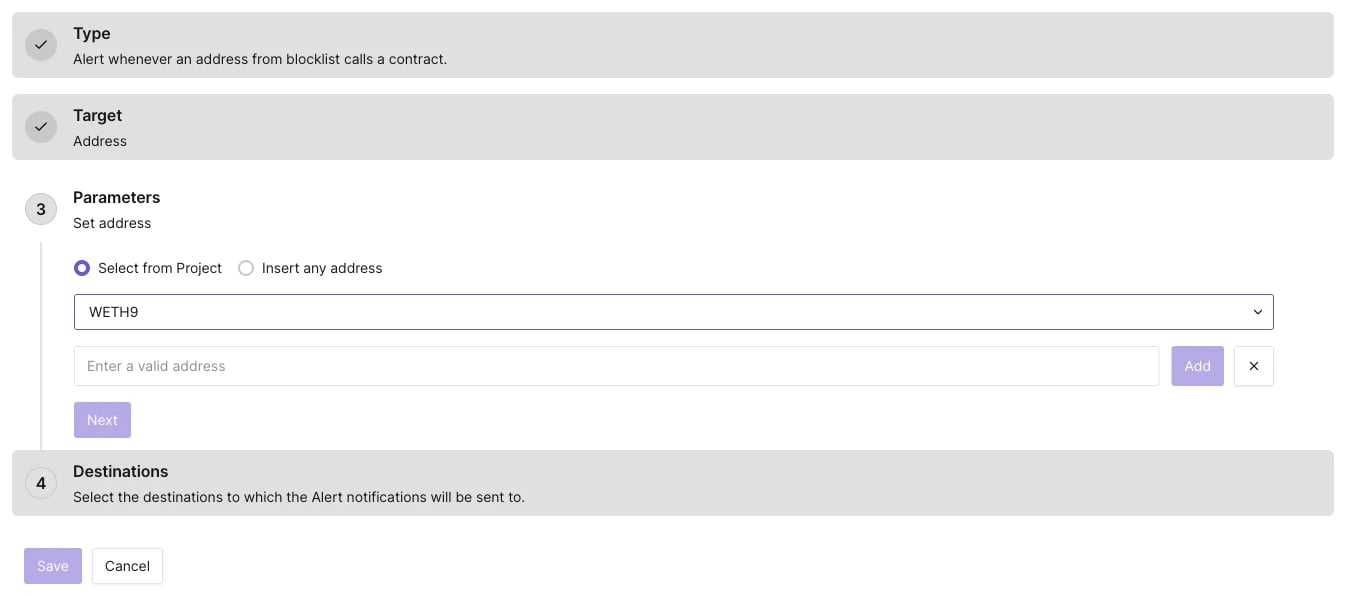
Parameters for the Blocklisted Alert
- Select Blocklisted Callers from the list of Alert Types.
- From the Target section, select Address to monitor a smart contract or wallet deployed on a specific address.
- Choose the address of the smart contract from the dropdown.
- Enter the address(es) you want to keep an eye on and get notified when they take action on your smart contract or wallet.
- Set the Destination by creating a new one or select one you previously created.
- Click Save to get notified when someone on the list of addresses you created calls your smart contract.
Balance Change
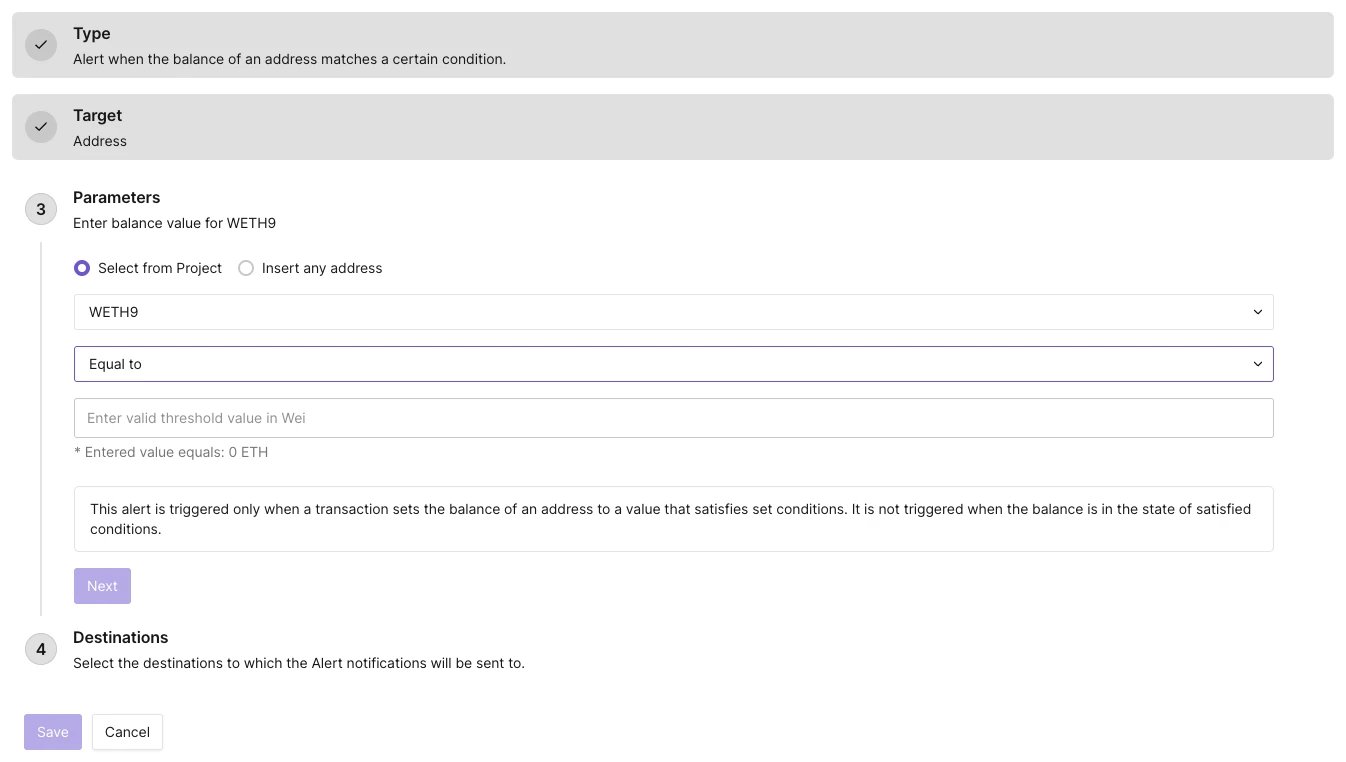
Parameters for the Balance Change Alert
- Select Balance Change from the list of Alert Types.
- From the Target section, select Address to monitor a smart contract or wallet deployed on a specific address.
- Choose the address of the smart contract or wallet from the dropdown.
- Select the comparator operator (e.g., equal to, not equal to, etc.).
- Set the balance threshold value in wei. This alert is triggered only when a transaction sets the balance of an address to a value that satisfies set conditions. It is not triggered when the balance is in the state of satisfied conditions.
- Set the Destination by creating a new one or select one you previously created.
- Click Save to get notified when the network’s native currency balance on your smart contract or wallet matches the threshold conditions you defined.
Transaction Value
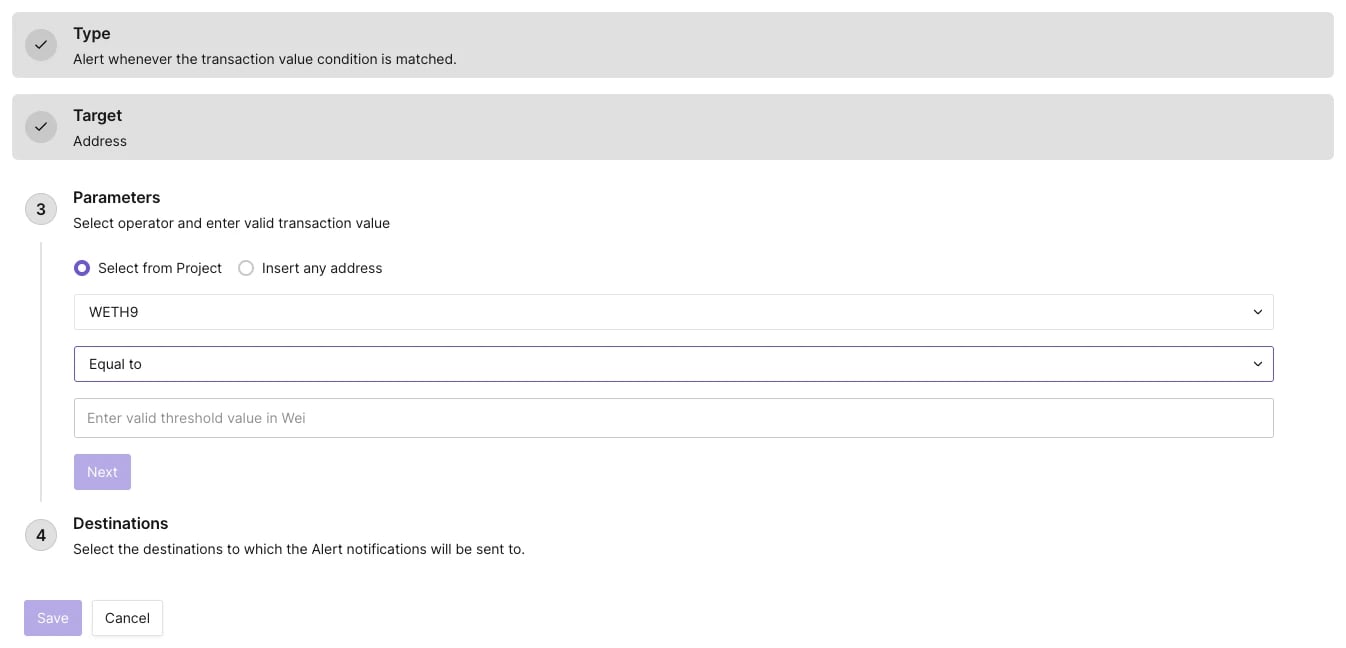
Parameters for the Transaction Value Alert
- Select Transaction Value from the list of Alert Types.
- From the Target section, select Address to monitor a smart contract or wallet deployed on a specific address.
- Select the comparator operator (e.g., equal to, greater than, etc.).
- Enter the value in wei that you want to compare against.
- Set the Destination by creating a new one or select one you previously created.
- Click Save to get notified when the value of a transaction coming from the wallet or smart contract matches the value in wei you specified.
State Change
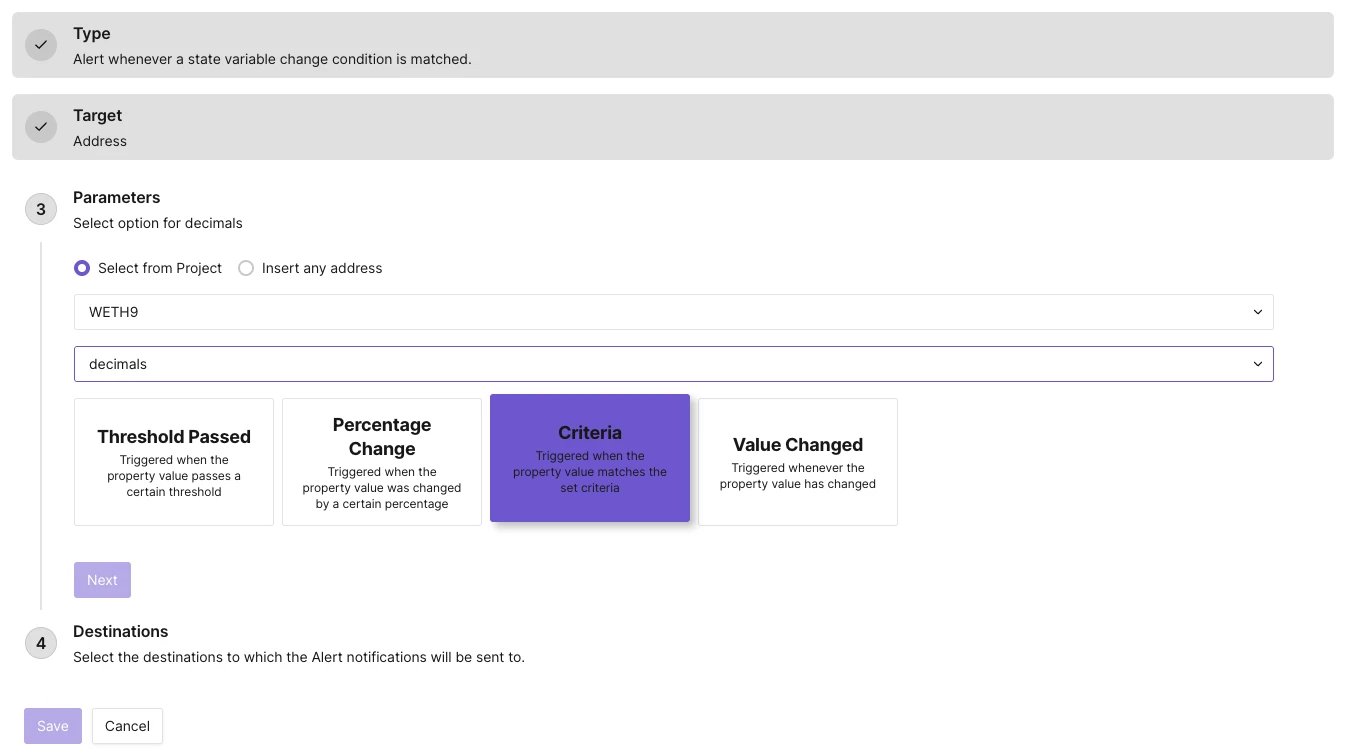
Parameters for the State Change Alert
- Select State Change from the list of Alert Types.
- From the Target section, select Address to monitor a smart contract or wallet deployed on a specific address.
- Select the state variable from the smart contract that you want to monitor.
- Configure additional parameters for the selected state variable. Depending on the data type of the state variable, you need to configure additional parameters to tell Tenderly how to compare the property value of the state variable to what you want:
- Threshold passed: Triggers when the property value passes a threshold. You’ll get only one alert each time the value passes the threshold.
- Percentage change: Triggers when the property value increases or decreases by a percentage you set.
- Criteria: Triggers when the new property value set by a transaction matches the comparison criteria.
- Value changed: Triggers the alert whenever the property value changes.
- Set the Destination by creating a new one or select one you previously created.
- Click Save to get notified when the state variable in the smart contract changes.
View Function
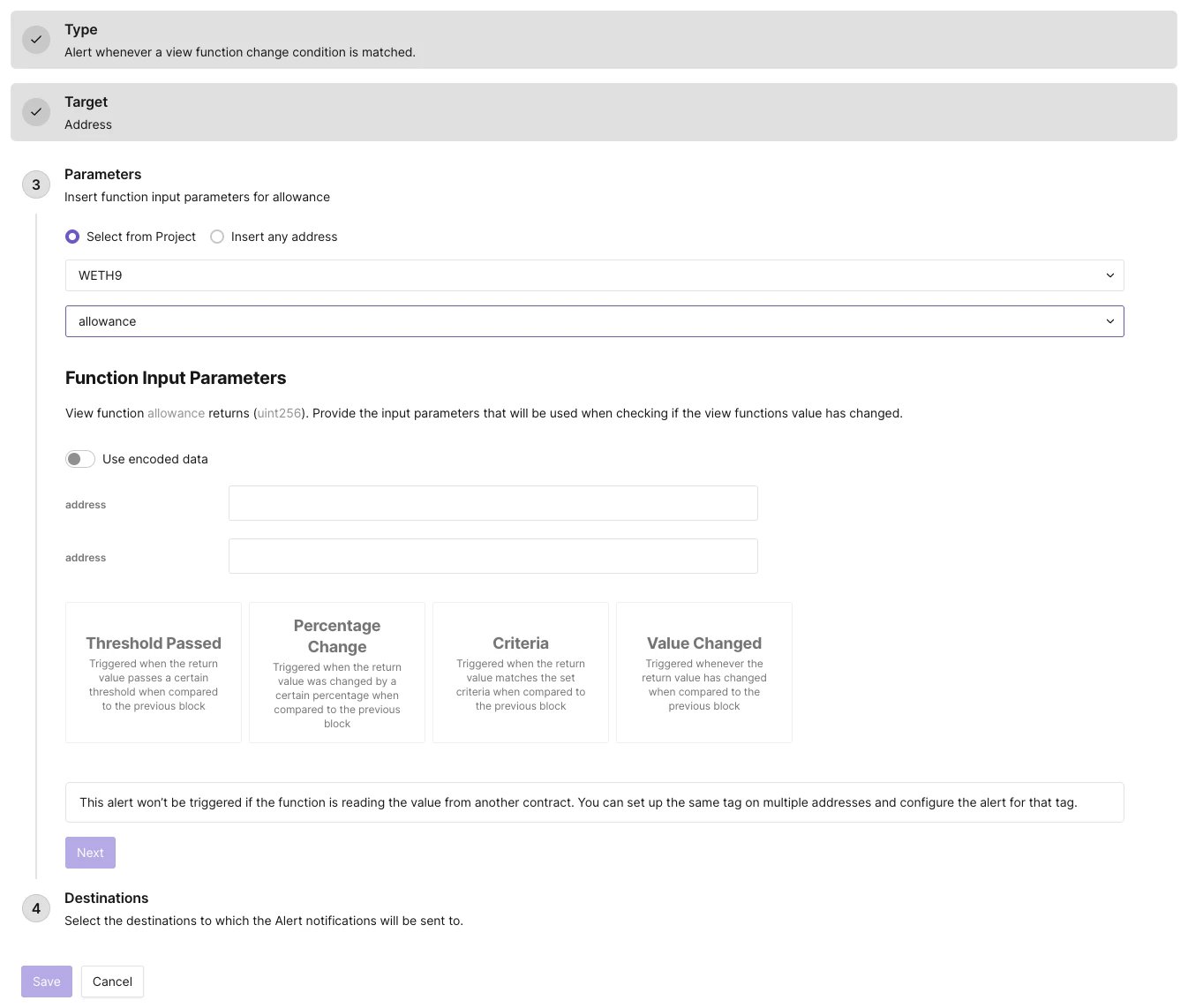
Parameters for the View Function Alert
view function in a smart contract is changed by a transaction. For example, you can track when the balance of a particular address of an ERC-20 token changes by using the balanceOf('0x...') view function.
To create a View Function alert, complete the following steps:
- Select View Function from the list of Alert Types.
- From the Target section, select Address to monitor a smart contract or wallet deployed on a specific address.
- Choose the smart contract address.
- From the list of declared view functions, select the view function that you want to monitor. You will have to specify any arguments view function may require.
- Configure additional parameters depending on the data type returned by the view function.
- Threshold passed: Define the threshold and get alerted when the return value passes the threshold value. You also need to define the comparator type (less than, equal to, etc.) and the value with which to make the comparison. You’ll get only one alert each time the value passes the threshold.
- Percentage change: Define the percentage and get alerted when the changes by a certain percentage. You also need to define the comparator type and the value with which to make the comparison.
- Criteria: Define any type of criteria that you want using the different comparator operators and get notified when the criteria are met.
- Value changed: Get notified whenever the return value changes in any way.
- Set the Destination by creating a new one or select one you previously created.
- Click Save to get notified when the return value of a view function you selected changes compared to the previous block.