

Adding a webhook as an alert destination
To continue, log into your account or create a free
account if you don’t have one.
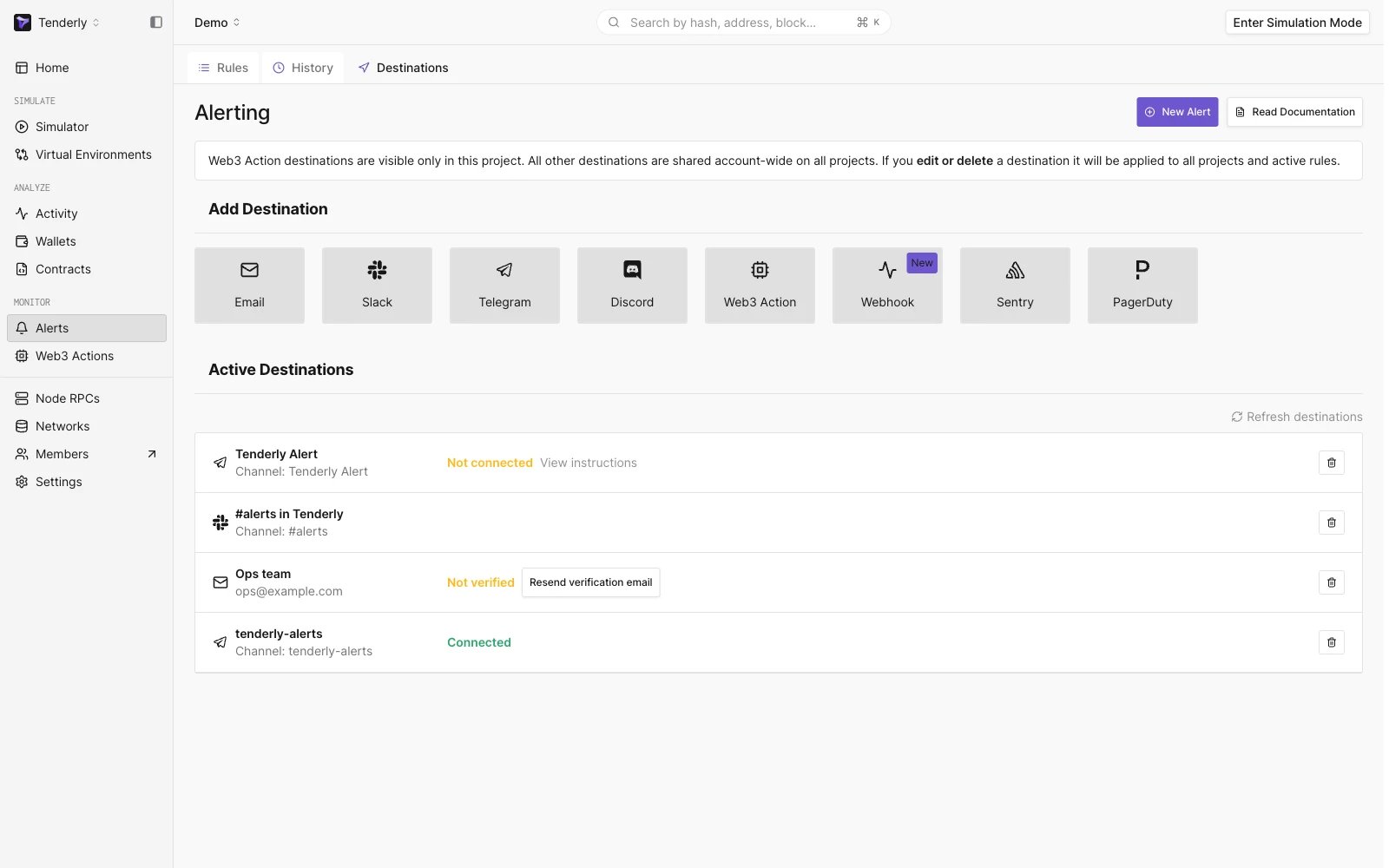
Navigating to the Destination section
- Webhook name - Must be unique and cannot be changed later
- Webhook URL - URL where you’ll receive live events from Tenderly
- Description - Optional parameter, but you can use it to provide more information about the webhook configuration
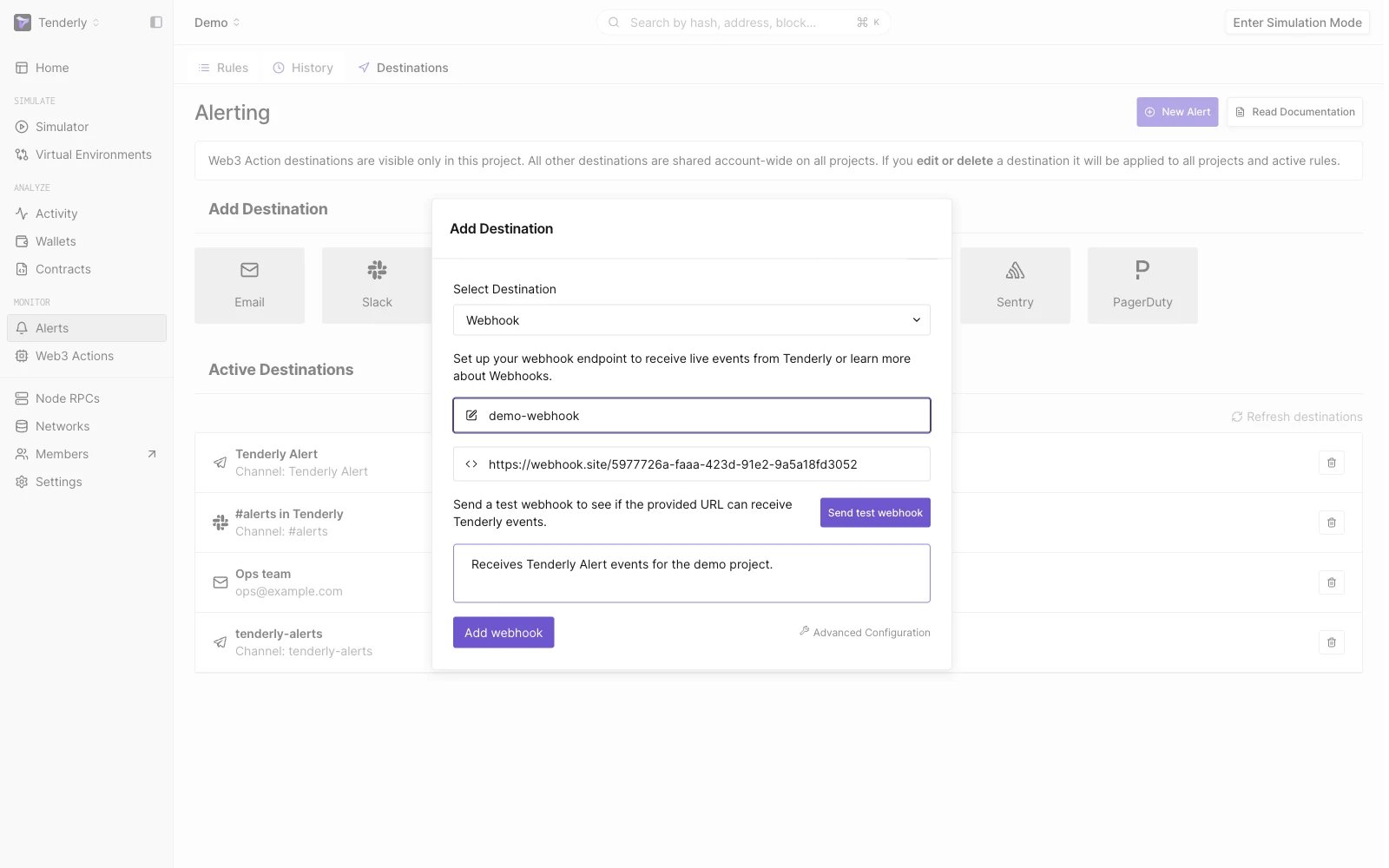
Add Webhook Modal
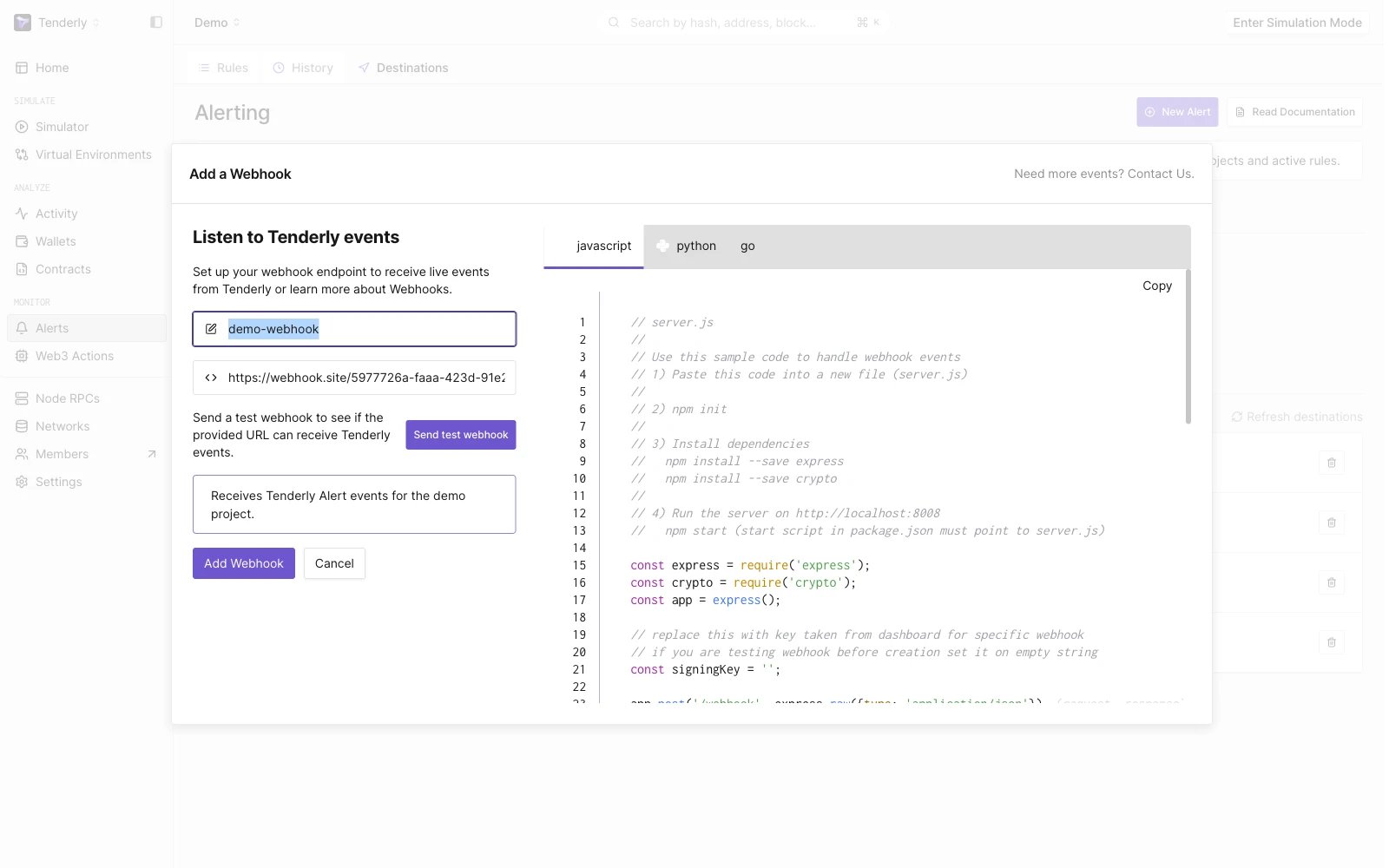
Webhook Modal Advanced Configuration Modal
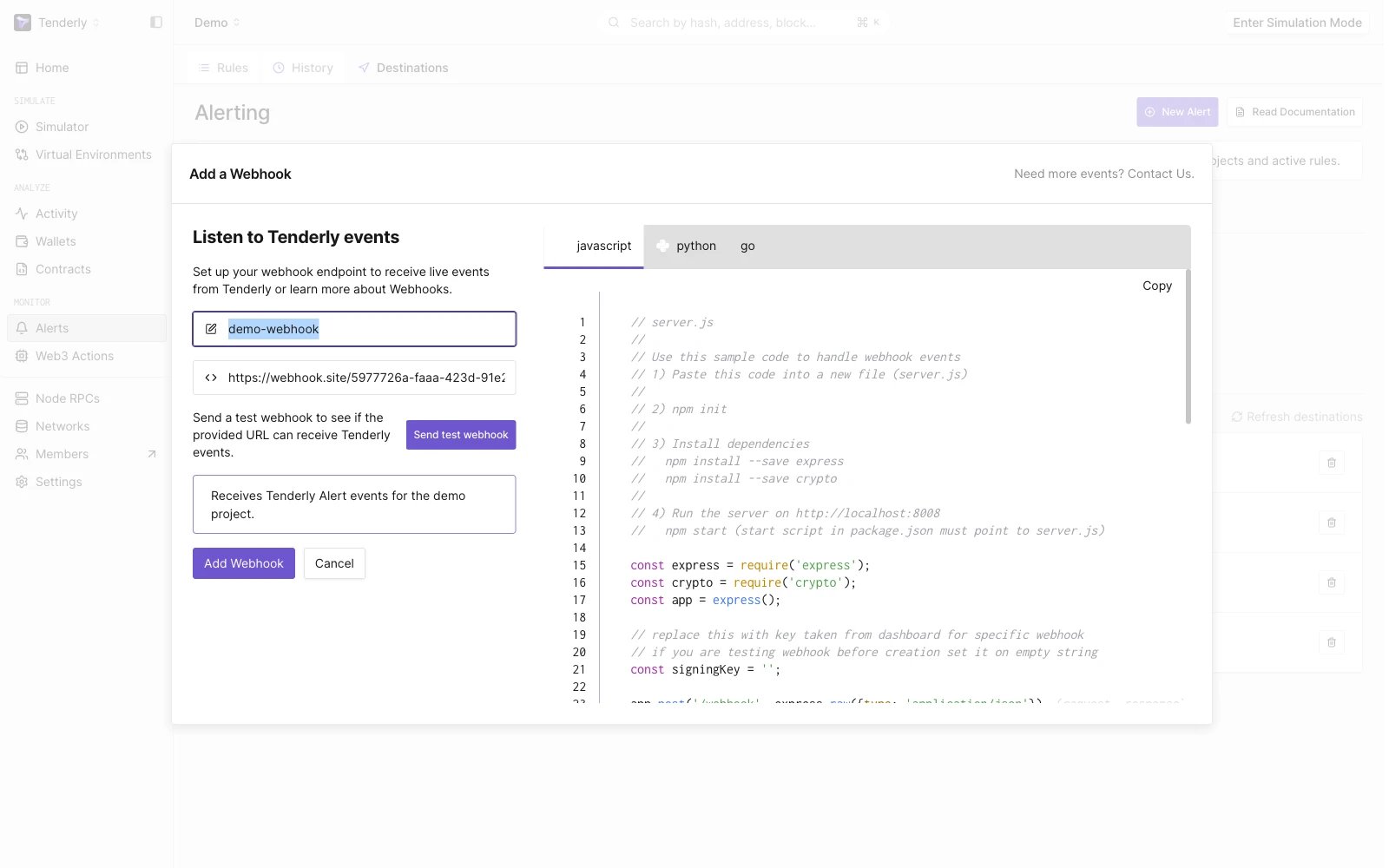
Send Test Webhook
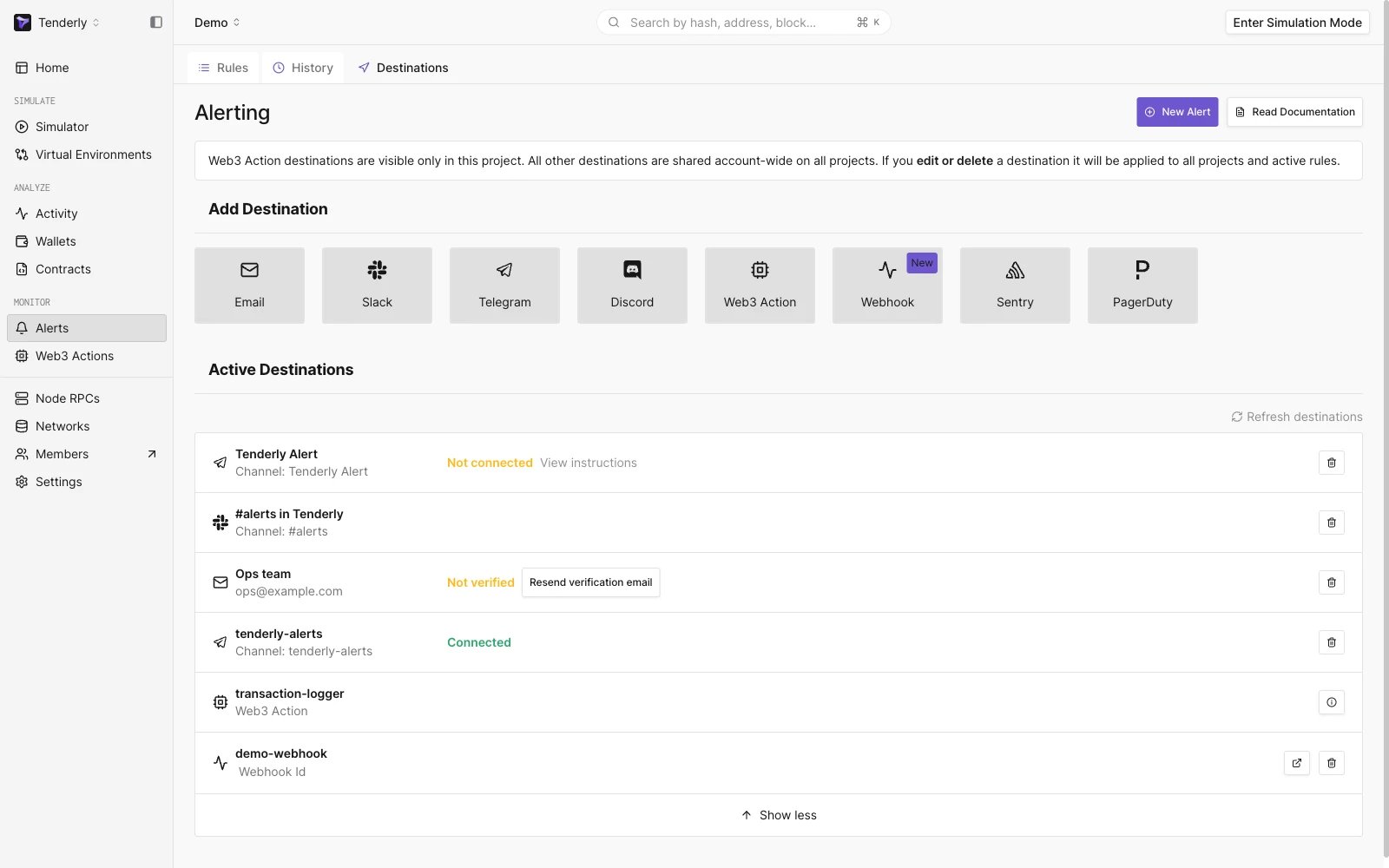
New Webhook is added to the active destinations list
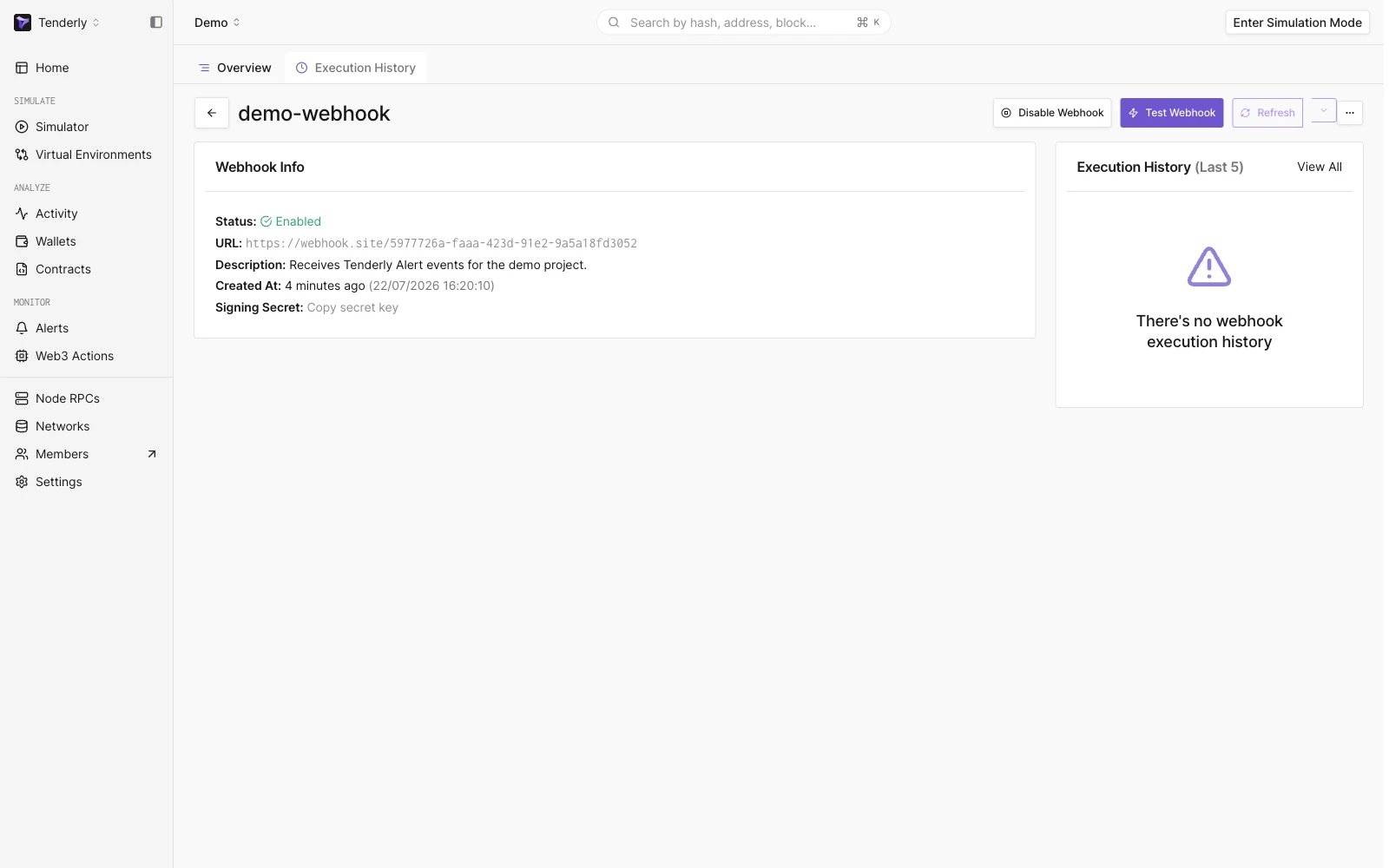
Webhook Page
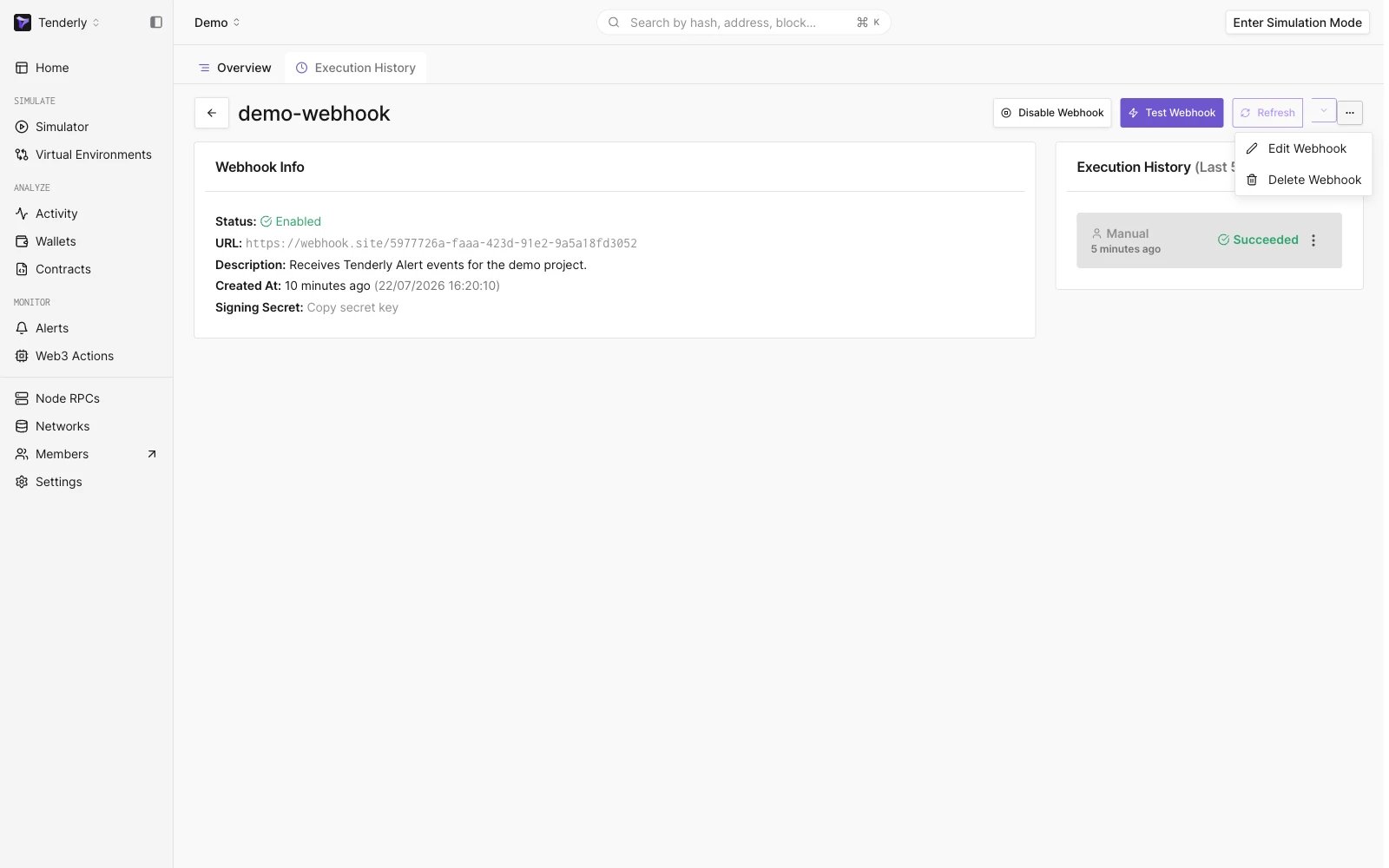
Webhook Options
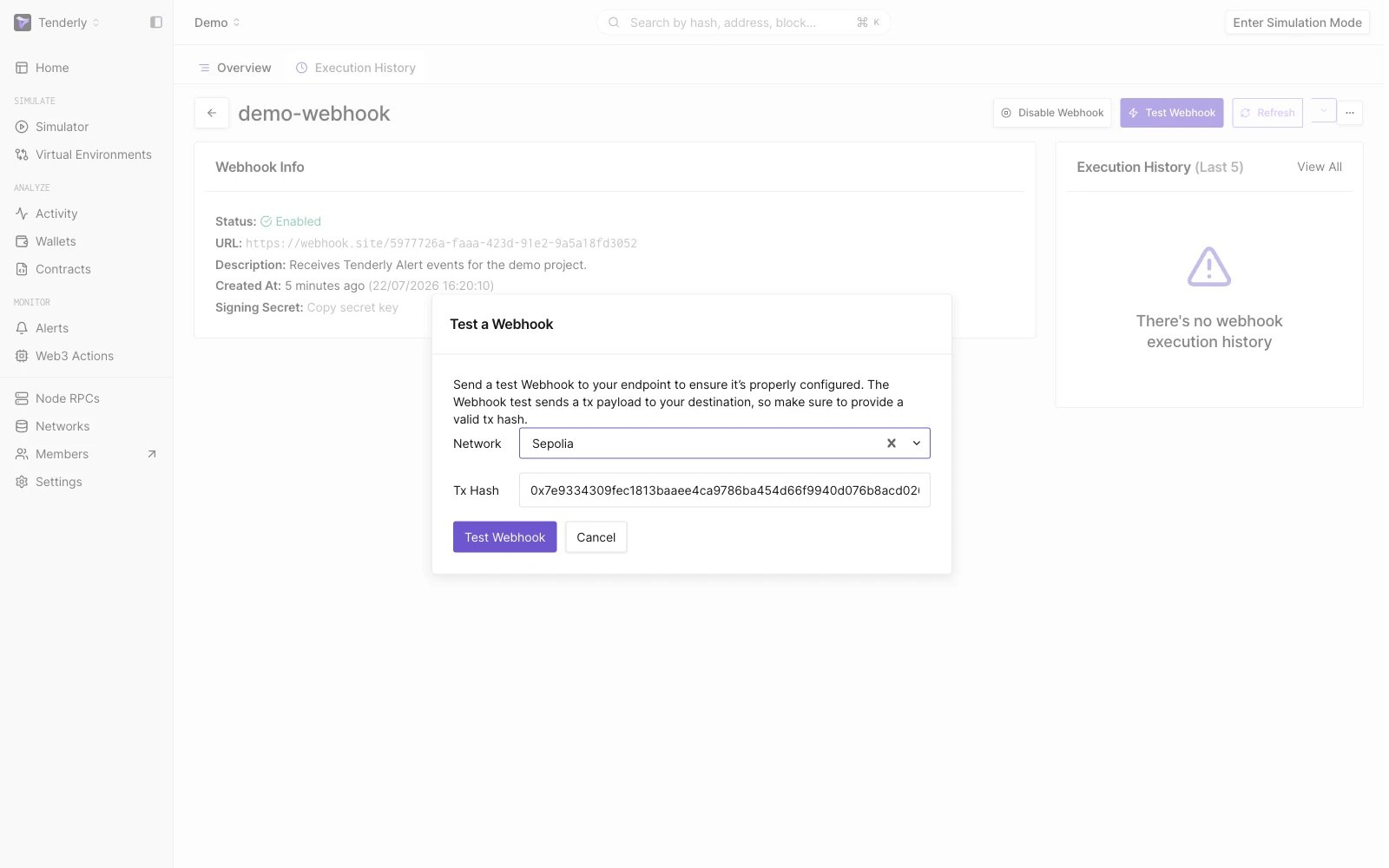
Test Webhook Modal
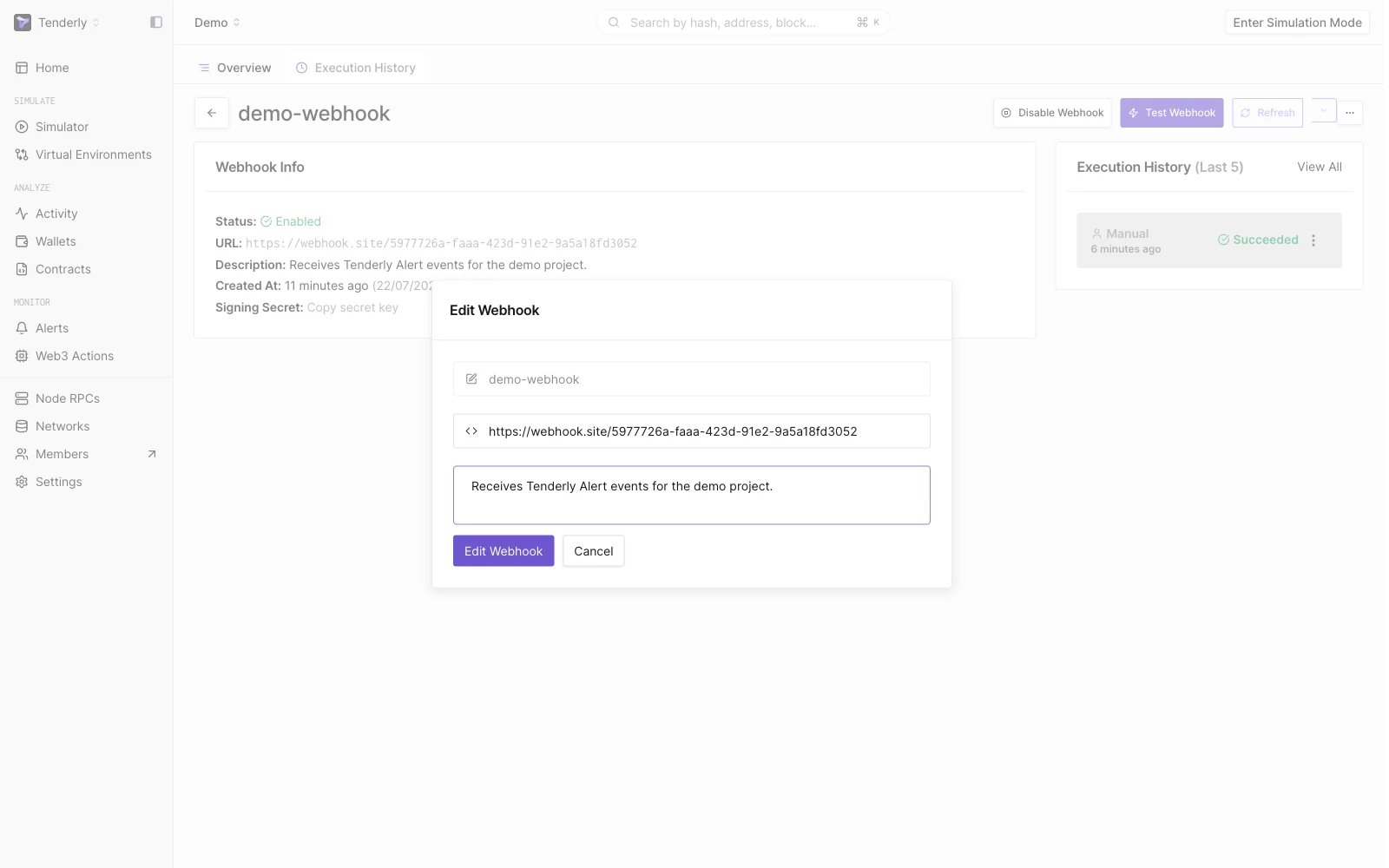
Edit Webhook Modal
Webhook execution history
From the webhook overview page, click on Execution History to see the transaction payload that has been sent to the provided webhook URL and the response from the webhook endpoint.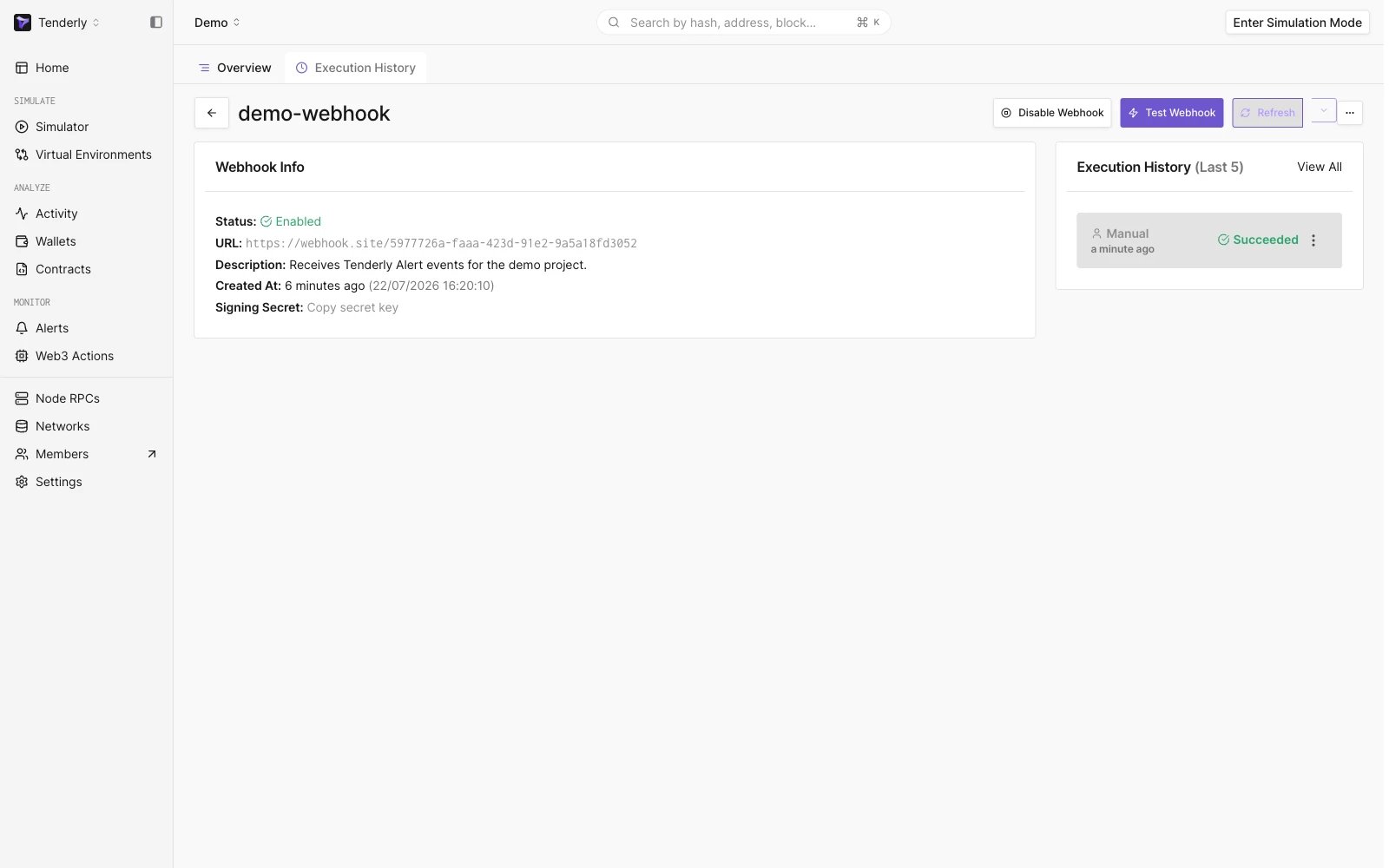
Manually Triggered Webhook After Clicking on Test Webhook Button
- Success: Webhook was successfully executed, and the event was delivered to the specified URL.
- Failed: Webhook was unable to be executed due to an error, such as a connectivity issue, a problem with the URL, or something else. Check the response content to see what caused the error, or contact our support.
- Pending: Webhook is in the process of being executed and has not yet been completed.
- Retry: Webhook execution failed and will be retried; an event is delivered in at most 5 total attempts before the status settles at Success or Failed.
- Skipped: Webhook was not executed because it was disabled.
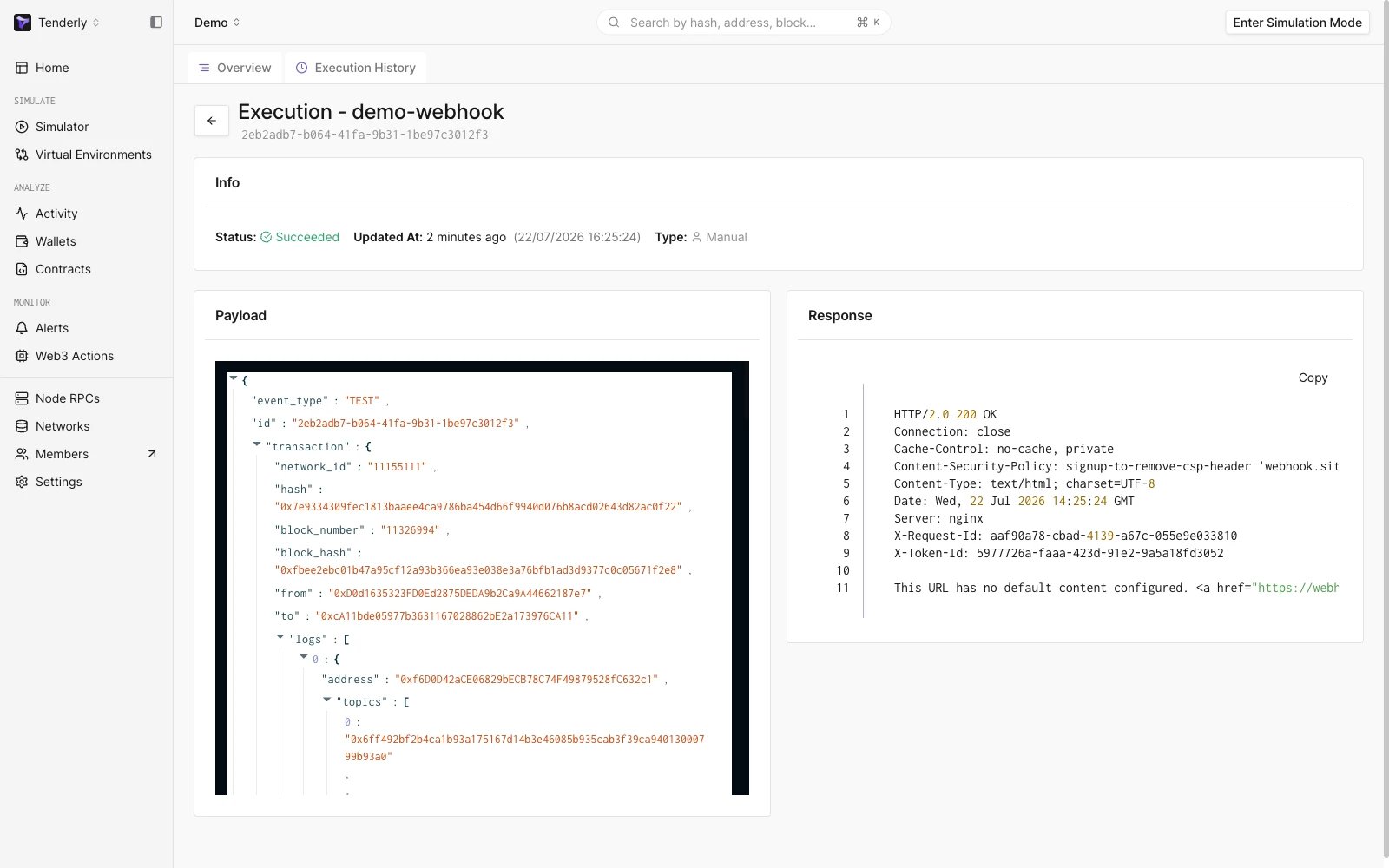
Webhook Execution Page
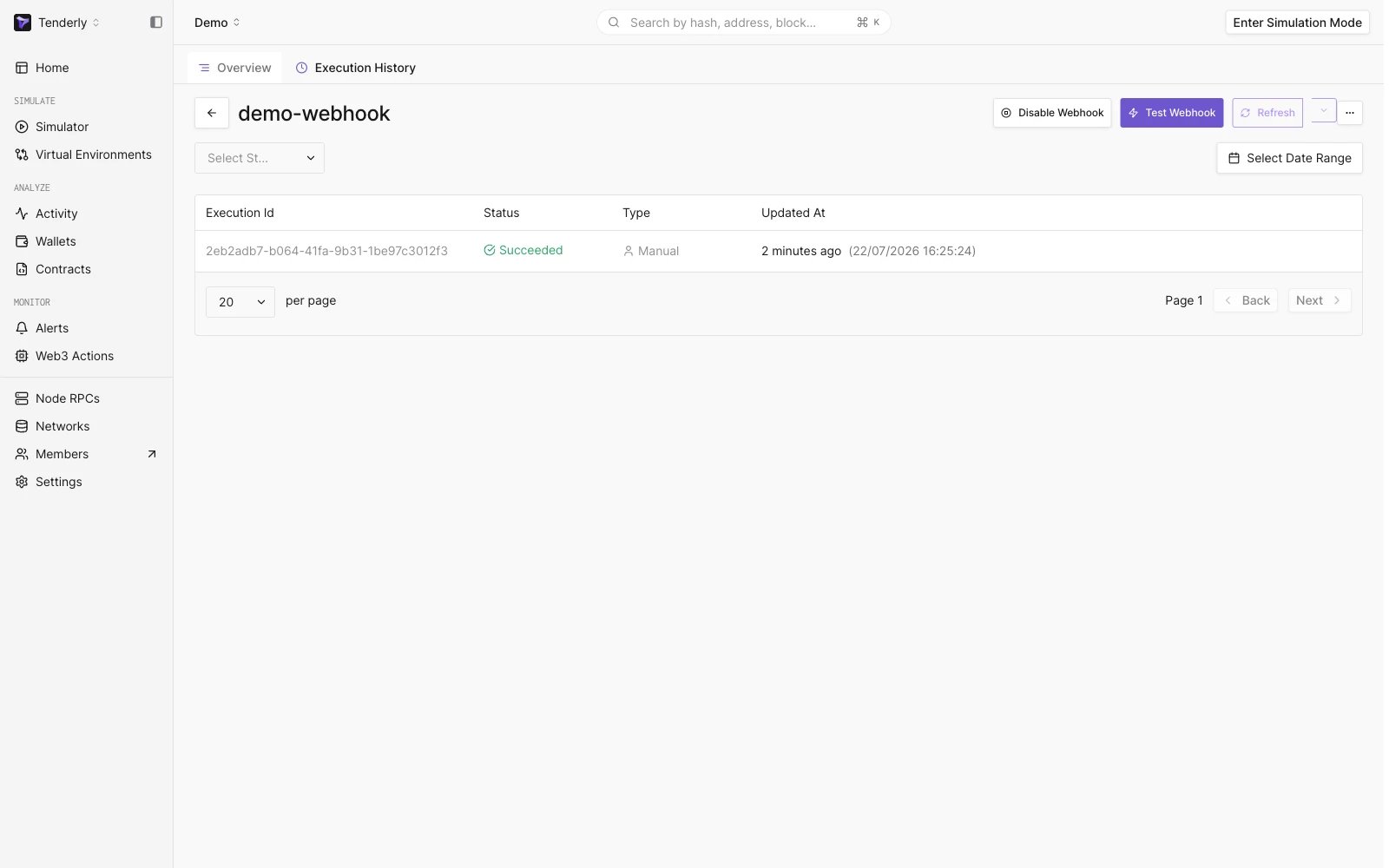
Webhook Execution History Page
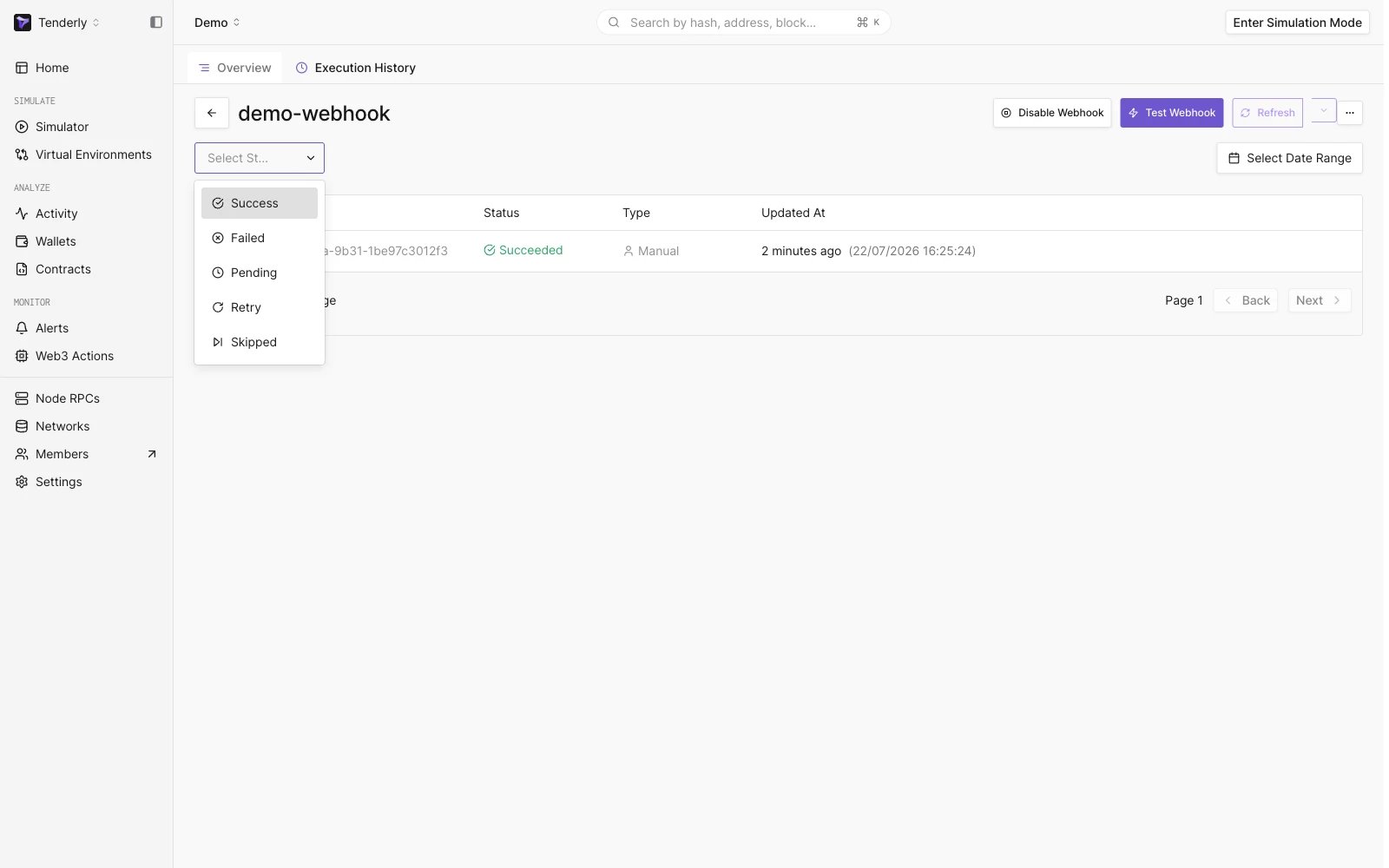
Select Webhook Status Dropdown
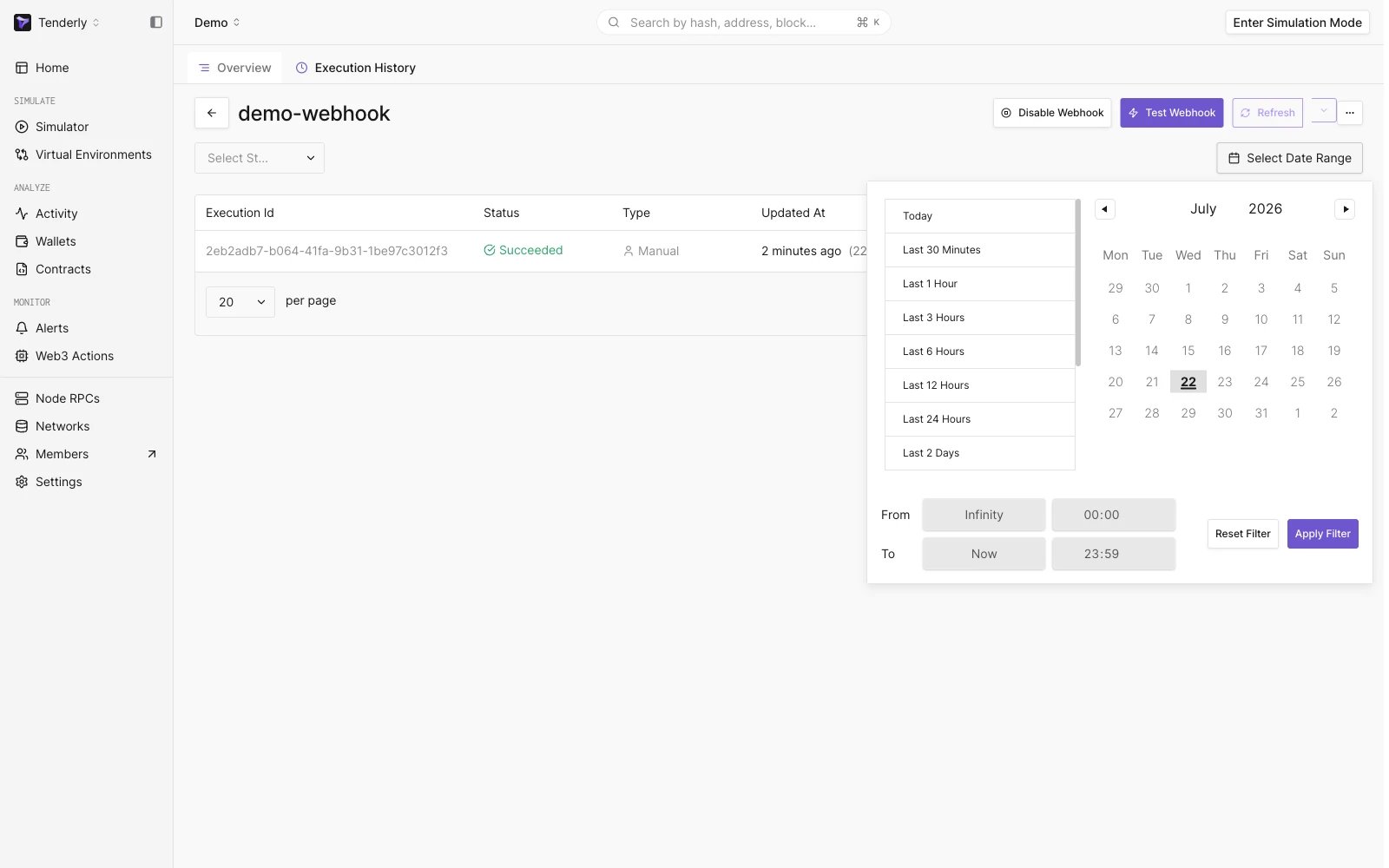
Select Date Range Dropdown
Connecting a webhook to an Alert
With your webhook endpoint configured, you can add it as a Destination to any of your Alerts.Follow this guide to learn how to set up an Alert.
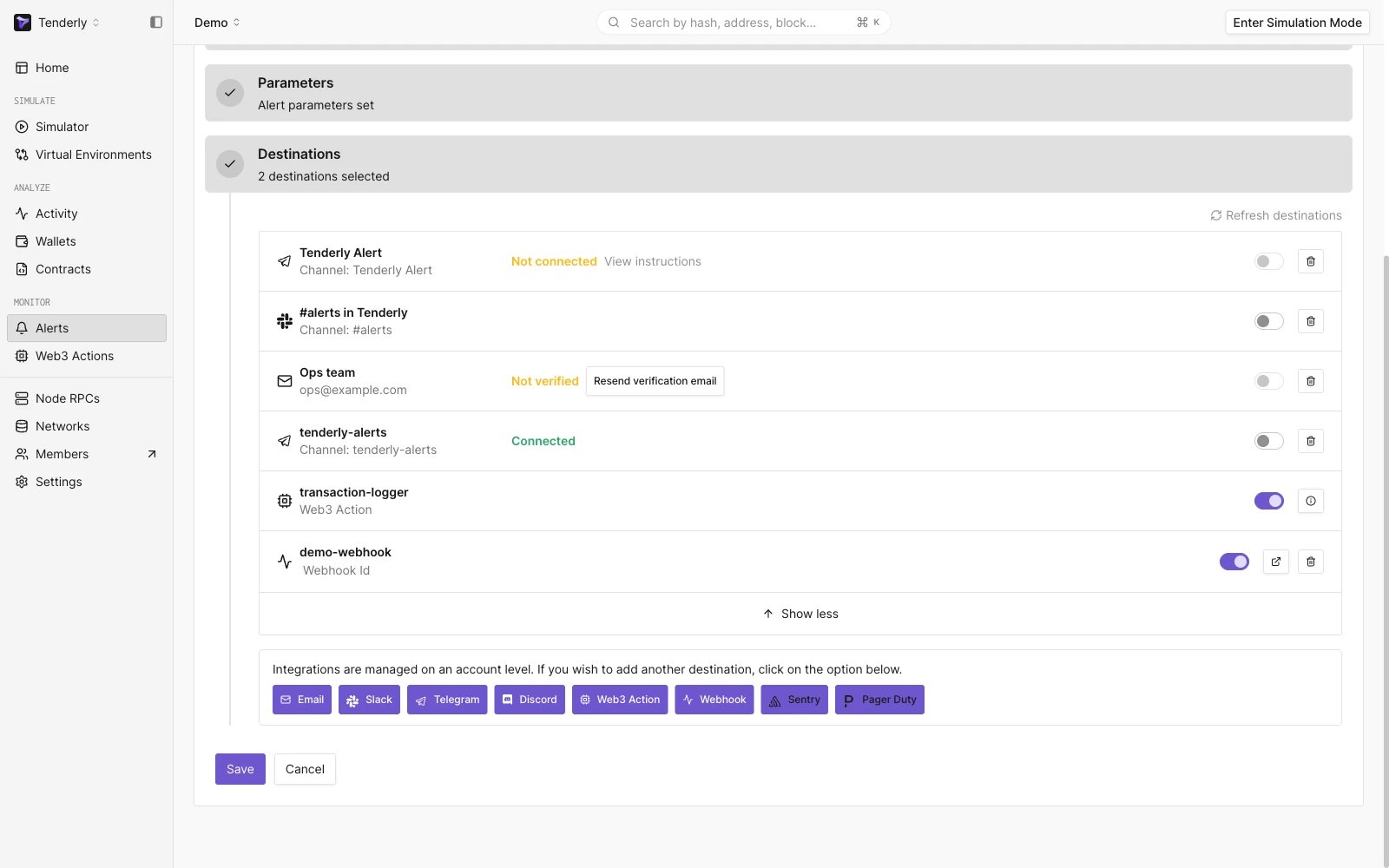
Adding a Webhook as a Destination to the Alert Rule
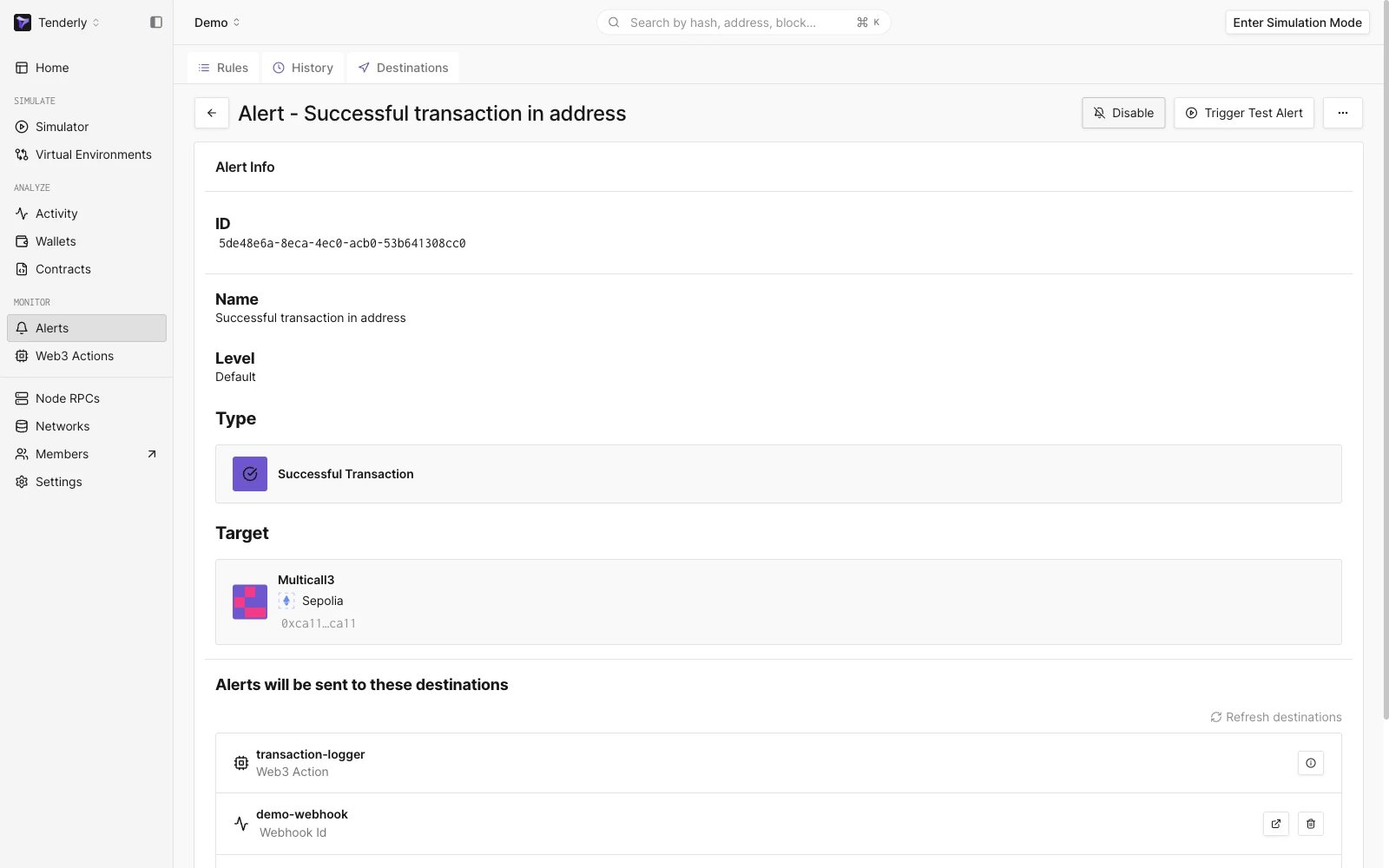
Alert Rule with a Webhook as a Destination
Webhook Execution History Page
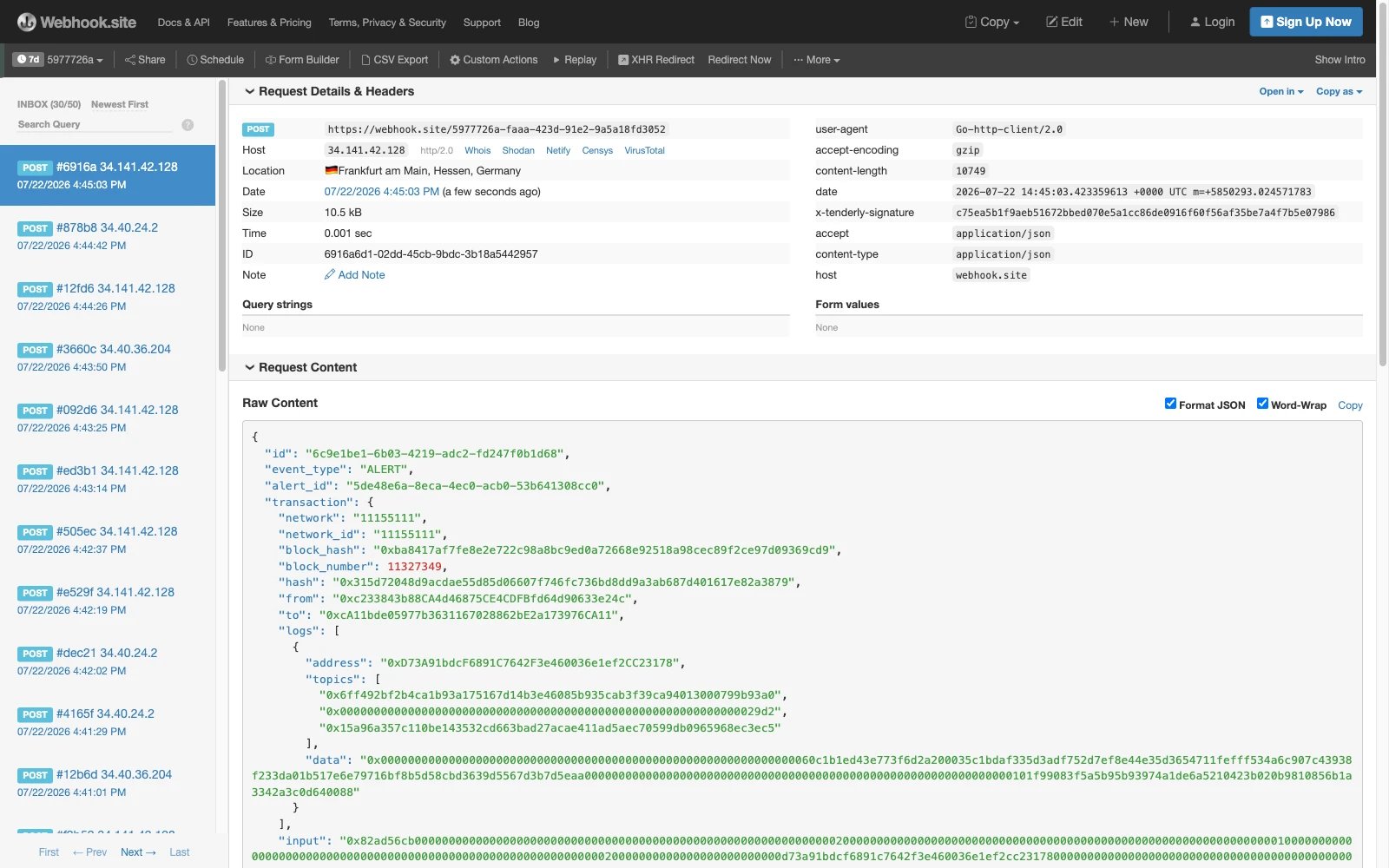
Successful Webhook Executions